
A file management system for turning digital chaos into a clean, organized archive.
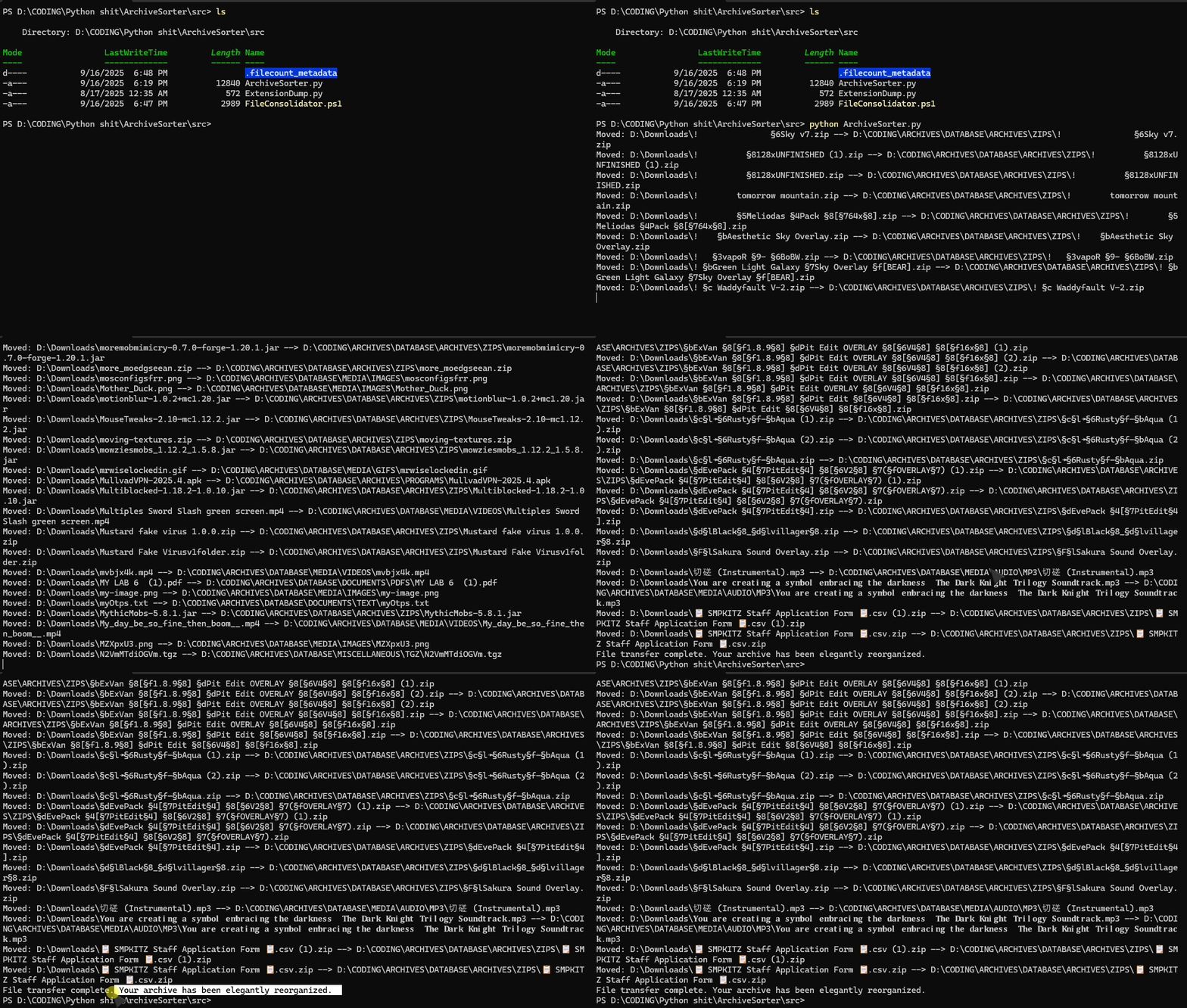
ArchiveSorter uses a powerful Python script to systematically sort files into a detailed, nested structure, making it effortless to locate what you need. For added flexibility, companion scripts are included to flatten the entire archive for bulk tasks or analyze your file types to help you refine your organization.
1. Organize with ArchiveSorter.py
Automatically sorts a messy folder into an elegant, nested structure so you can find files easily.
2. Consolidate with FileConsolidator.ps1
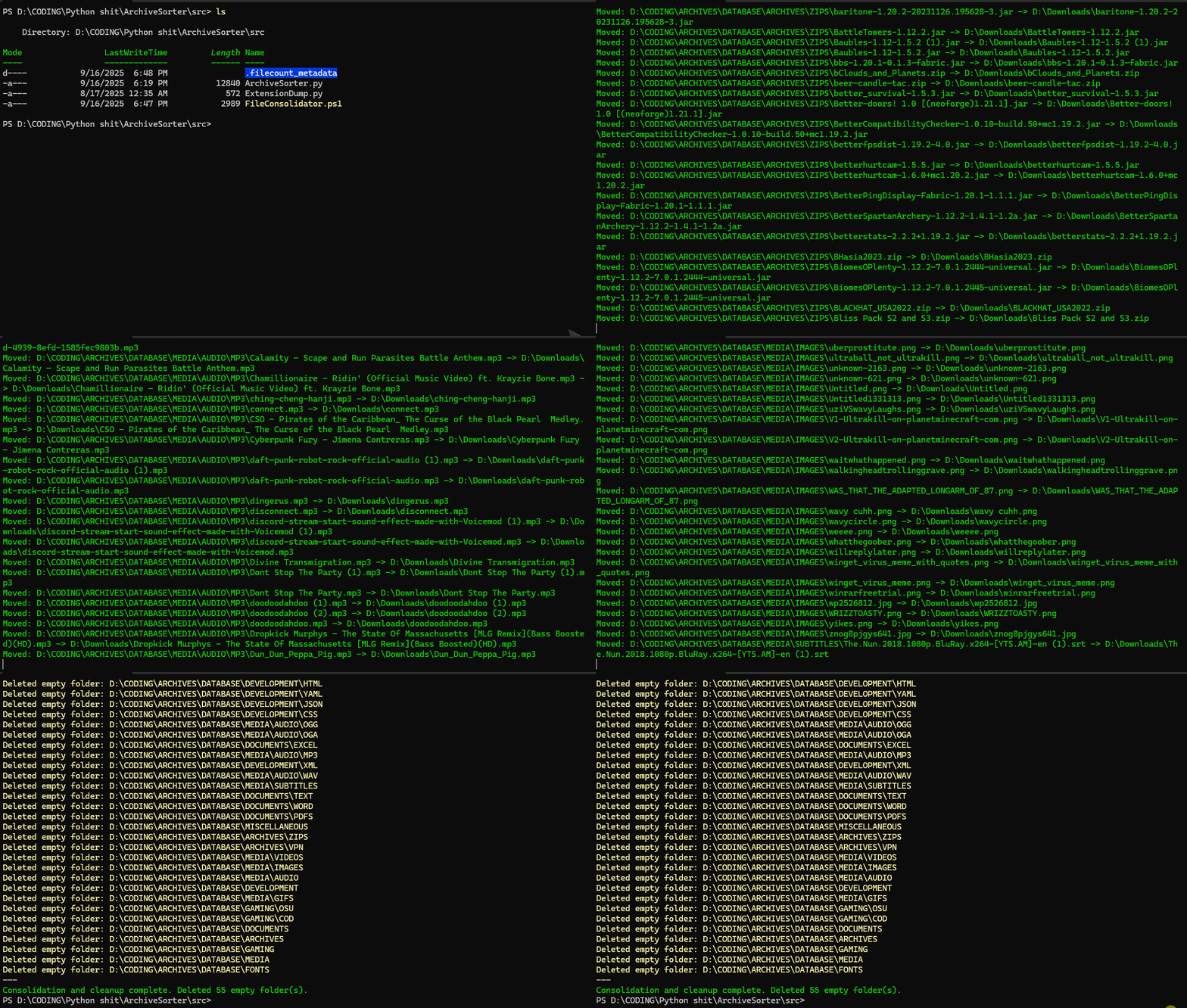
Safely reverses the process, moving all files from the nested archive back into a single, flat folder for tasks like bulk transfers.
- 🗂️ Elegant File Sorting — Organizes files by extension into a detailed, nested folder structure like
MEDIA/IMAGESorARCHIVES/ZIPS. - 🔄 Recursive Reorganization — Automatically scans the entire archive to find and move any misplaced files, ensuring long-term organization.
- ⚡ Instant Consolidation — A companion PowerShell script (
FileConsolidator.ps1) can instantly and safely flatten the entire archive back into a single folder and clean up empty directories. - 🔍 File Analysis — A utility script (
ExtensionDump.py) quickly scans a directory and reports a count of every file extension, helping you discover what needs organizing. - 🛡️ Safe & Reversible — All scripts are non-destructive. Duplicate files are renamed to prevent overwriting, and the entire process is fully reversible.
- ⚙️ Portable & Configurable — Scripts use optional command-line arguments with default paths, making them convenient for personal use and easily shareable.
This project contains three main scripts located in the src/ directory:
ArchiveSorter.py: The main Python script. It scans a source directory and moves files into the elegant nested folder structure. It also performs a "self-healing" scan to correct any misplaced files within the archive.FileConsolidator.ps1: A PowerShell script that does the reverse. It recursively scans the organized archive, moves every file back into a single destination folder, and then safely cleans up the now-empty subdirectories.ExtensionDump.py: A simple Python utility that scans a directory and prints a list of all file extensions and how many of each were found. This is useful for discovering new file types to add to theArchiveSorterconfiguration.
By default, ArchiveSorter.py will organize your files into the following elegant structure:
\<Destination\>/
├───ARCHIVES/
│   ├───BINARY/
│   ├───COMPRESSED/
│   │   ├───7Z/
│   │   ├───RAR/
│   │   ├───TAR/
│   │   └───ZIP/
│   ├───DISK_IMAGES/
│   ├───JAR/
│   ├───LIBRARIES/
│   ├───PROGRAMS/
│   ├───REGISTRY/
│   ├───SERVER_BACKUPS/
│   └───VPN/
│
├───DEVELOPMENT/
│   ├───COMPILED/
│   ├───CONFIG/
│   ├───CSHARP/
│   ├───CSS/
│   ├───HTML/
│   ├───JAVA/
│   ├───JAVASCRIPT/
│   ├───JSON/
│   ├───LOGS/
│   ├───PYTHON/
│   ├───SCRIPTS/
│   ├───SKRIPT/
│   ├───XML/
│   └───YAML/
│
├───DOCUMENTS/
│   ├───EXCEL/
│   ├───MARKDOWN/
│   ├───PDFS/
│   ├───POWERPOINT/
│   ├───TEXT/
│   └───WORD/
│
├───FONTS/
│
├───GAMING/
│   ├───COD/
│   ├───MINECRAFT/
│   │   ├───MODPACKS/
│   │   ├───RESOURCE_PACKS/
│   │   ├───SCHEMATICS/
│   │   ├───SCRIPTS/
│   │   ├───SPARKHEALTH/
│   │   └───WORLD_DATA/
│   └───OSU/
│
├───MEDIA/
│   ├───3D_MODELS/
│   ├───AUDIO/
│   │   ├───AAC/
│   │   ├───FLAC/
│   │   ├───M4A/
│   │   ├───MP3/
│   │   ├───OGA/
│   │   ├───OGG/
│   │   └───WAV/
│   ├───GIFS/
│   ├───IMAGES/
│   ├───SUBTITLES/
│   └───VIDEOS/
│
└───MISCELLANEOUS/
    └───(Folders for any unmapped extensions)
1. Download the latest version from GitHub:
2. Extract the zip file to your preferred location (e.g., D:\ArchiveSorter).
3. Create a destination folder for your organized files at the same level or wherever you prefer (e.g., D:\DATABASE).
Note: You do not have to run the file extension script, nor do you have to add your own file structure. The default configuration is sufficient for most users.
1. Run start.bat from the src/ folder.
2. Configure your paths when prompted:
- Source folder: Where your messy files are (e.g.,
D:\Downloads) - Destination folder: Where to organize them (e.g.,
D:\DATABASE)- Press Enter to keep the existing values.
3. Confirm and run You'll be asked to confirm before ArchiveSorter runs; your paths will be saved for next time.
Tip: Right-click folders and select "Copy as path" to easily paste the correct format. You can run
start.batagain anytime to change your paths.
If you want to see what file types you have before organizing, run ExtensionDump.py.
python src/ExtensionDump.pyRun the Python script directly with custom paths.
Example:
# Use default paths
python src/ArchiveSorter.py

# Specify custom paths
python src/ArchiveSorter.py --source "C:\MyMessyFolder" --destination "D:\MyNeatArchive"Run the script from a PowerShell terminal to flatten your archive.
Example:
# Use default paths
.\src\FileConsolidator.ps1

# Specify custom paths
.\src\FileConsolidator.ps1 -Source "D:\MyNeatArchive" -Destination "C:\Temp\AllFiles"Set up a global command to run ArchiveSorter from any directory.
1. Open your PowerShell profile
notepad $PROFILEIf you get an error that it doesn't exist, run these commands first:
New-Item -Path $PROFILE -ItemType File -Force
Set-ExecutionPolicy RemoteSigned -Scope CurrentUser
2. Add this function to the file
Note: Update the path to match your installation location.
function archivesorter {
    param([Parameter(Mandatory=$true)][string]$Action)

    # Update this path to where you downloaded the repository
    $RootPath = "D:\CODING\ARCHIVES\.ARCHIVE MANAGER\src"

    if ($Action -eq "run") {
        python "$RootPath\ArchiveSorter.py"
    }
    elseif ($Action -eq "setup") {
        & "$RootPath\start.bat"
    }
    else {
        Write-Host "Usage: archivesorter [run | setup]" -ForegroundColor Yellow
    }
}
3. Restart PowerShell and Run:
archivesorter setup  # To configure paths
archivesorter run    # To sort files