A powerful Go CLI tool for bulk renaming files using AI. NomNom helps you intelligently rename multiple files at once by analyzing their content and generating meaningful names using state-of-the-art AI models.

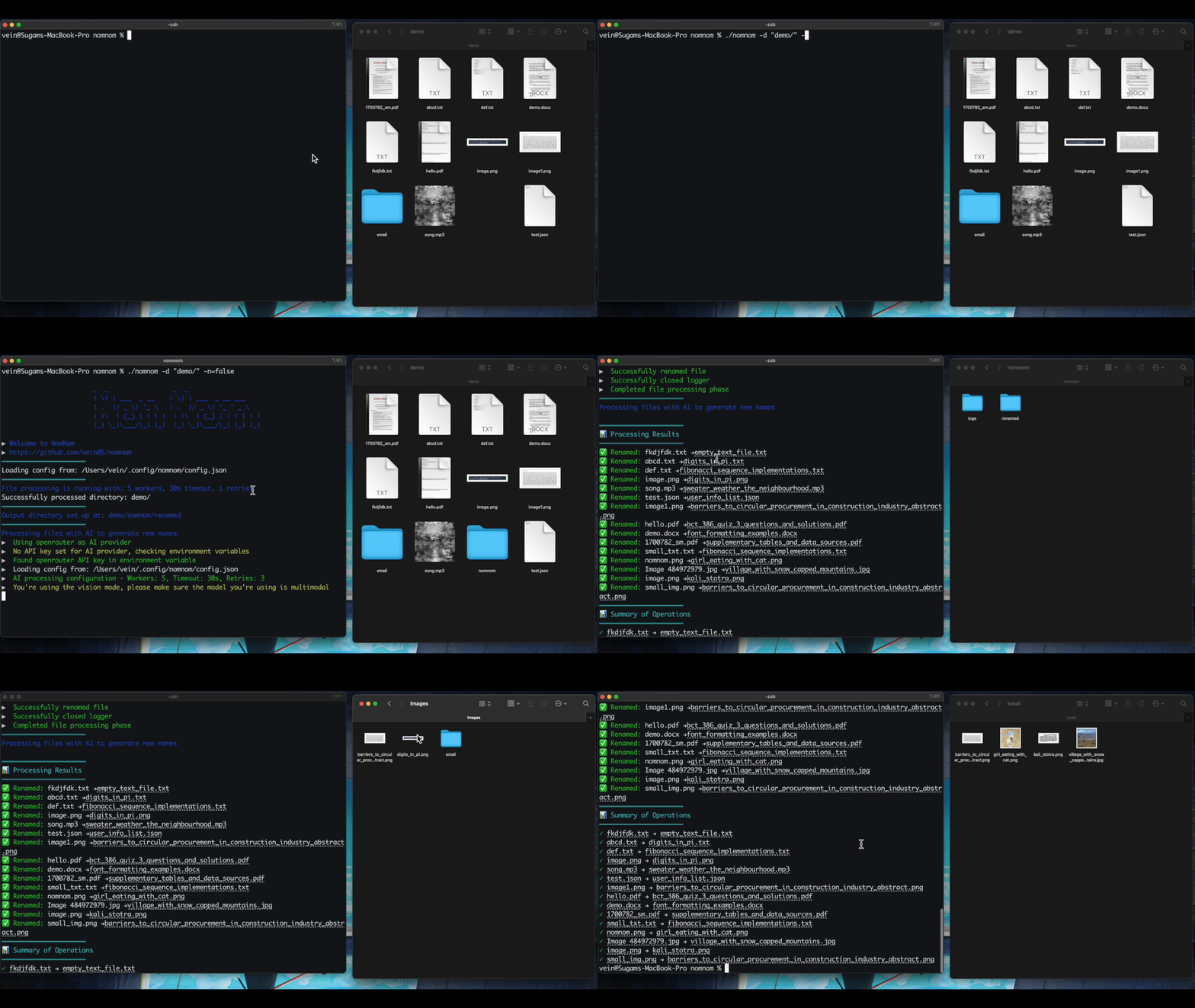
- 🗂️ Bulk Processing: Rename entire folders(and their sub folders) of files in one go
- 🔧 Configurable Prompts: Customize AI prompts to match YOUR specific naming needs and preferences
- 🚀 Parallel Processing: Process multiple files simultaneously using parallel AI inference
- 📂 Reorganize : Automaticlaly reorganize the renamed files into category folders
- 📄 Smart Content Analysis: Supports various file types including:
- Text files
- Documents (PDF, DOCX) - First 2 pages analyzed for context
- Presentations
- Images Vision (Visit 0.5.0 for tessaract support)
- Videos (metadata)
- 🤖 AI-Powered: Multiple AI provider options:
- DeepSeek V3/R1 model
- OpenRouter support (access to Claude, GPT-4, and more)
- Local execution via Ollama (No parallel processing)
- 👀 Preview Mode: Review generated names before applying changes
- 🎯 Flexible Naming: Supports different casing options (snake_case, camelCase, kebab, pascal.)
- 🔒 Safe Operations: Creates a separate directory for renamed files
- Automatic handling of duplicate file names with incremental suffixes
- Interactive approval process with "approve all" option
- 📝 Operation Logging: Detailed logs of all rename operations with:
- Full absolute paths for reliable tracking
- Original and new file locations
- Operation timestamps and status
- Support for reverting changes
- Detailed error information and processing statistics
- ↩️ Revert Support: Ability to undo rename operations using logged history
-
You necessarily don't need put your API keys in the config file. If you leave
api-key="", and export your API keys as the following, nomnom should pick it up:# For DeepSeek export DEEPSEEK_API_KEY="your-deepseek-api-key" # For OpenRouter export OPENROUTER_API_KEY="your-openrouter-api-key"
- NomNom will automatically detect and use these environment variables if no API keys are specified(but the providers are) in the config file.
If no provider is set, it will revert to deepseek and possibly use the
DEEPSEEK_API_KEYenv variable.
- NomNom will automatically detect and use these environment variables if no API keys are specified(but the providers are) in the config file.
If no provider is set, it will revert to deepseek and possibly use the
-
Please use a vision model if you are dealing with images. There are some great vision models for cheap:
- google/gemini-2.0-flash-001
- meta-llama/llama-4-scout
-
If you're using OpenRouter but leave the model empty in config, Nomnom will use
model = "meta-llama/llama-4-scout:free".
-
Download the latest release for your system from the Releases page
- Sorry for no arm64 builds for windows (compiler breaks, idk why ;)
-
Extract the ZIP file
-
Move the binary to your PATH:
MacOS/Linux:
chmod +x ./nomnom
sudo mv ./nomnom /usr/local/bin/
Windows:
- Move
nomnom.exeto a directory in your PATH - Or run:
Copy-Item -Path "nomnom.exe" -Destination "$env:USERPROFILE\AppData\Local\Microsoft\WindowsApps"
- Move
Clone and install NomNom:
# Clone the repository
git clone https://github.com/vein05/nomnom.git
cd nomnom

go build .

# Make it executable
chmod +x ./nomnom

# Move binary to your PATH
sudo mv ./nomnom /usr/local/bin/

# Create config directory and copy default config(after adding your API Keys or making changes)
mkdir -p ~/.config/nomnom
cp config.example.json ~/.config/nomnom/config.json# Clone the repository
git clone https://github.com/vein05/nomnom.git
cd nomnom
# Build the binary for Windows (requires Go installed)
go build -o nomnom.exe
# Create config directory in AppData\Roaming
New-Item -ItemType Directory -Path "$env:APPDATA\nomnom" -Force
# Copy the example config file
Copy-Item -Path "config.example.json" -Destination "$env:APPDATA\nomnom\config.json"
# Add nomnom.exe to PATH (Option 1: Use a custom tools directory)
New-Item -ItemType Directory -Path "$env:USERPROFILE\Tools" -Force
Copy-Item -Path "nomnom.exe" -Destination "$env:USERPROFILE\Tools"
[Environment]::SetEnvironmentVariable("PATH", "$env:PATH;$env:USERPROFILE\Tools", "User")
# Option 2: Use WindowsApps (requires admin rights)
# Copy-Item -Path "nomnom.exe" -Destination "$env:USERPROFILE\AppData\Local\Microsoft\WindowsApps"
-
Create/Edit the config
-
Create/Edit the config file at
~/.config/nomnom/config.json. See config.example.json for a complete example. -
Run NomNom:
nomnom --dir /path/to/filesnomnom --dir <directory> [flags]| Flag | Short | Description | Default |
|---|---|---|---|
| --dir | -d | Source directory containing files to rename | |
| --config | -c | Path to config file | ~/.config/nomnom/config.json |
| --auto-approve | -y | Automatically approve changes | false |
| --dry-run | -n | Preview changes without renaming | true |
| --log | -l | Enable operation logging | true |
| --organize | -o | Organize files into category folders | true |
| --prompt | -p | Add a prompt type from the available options | empty |
| --revert | -r | Revert changes from the log file | OFF |
NomNom uses a JSON configuration file with the following options:
- Output Settings
output: Output directory pathcase: Naming case style (snake, camel, etc.)
See the full configuration example in config.example.json.
{
  "ai": {
    "provider": "deepseek",
    "model": "deepseek-v3",
    "api_key": "your-deepseek-api-key"
  }
}{
"ai": {
"provider": "openrouter",
"model": "anthropic/claude-3-opus-20240229",
"api_key": "your-openrouter-api-key",
"temperature": 0.7,
"max_tokens": 100
}
}OpenRouter gives you access to various models including:
anthropic/claude-3-opus-20240229anthropic/claude-3-sonnet-20240229openai/gpt-4-turbo-preview- And many more! Check OpenRouter's model list for all available options. I recommend using
google/gemini-2.0-flash-001.
NomNom uses parallel processing for both AI operations and file handling:
-
Parallel AI Inference:
- Processes multiple files simultaneously through AI models
- Smart resource management for concurrent AI requests
- Configurable retry mechanisms for failed requests
- Automatic batch processing of files
-
Parallel File Processing:
- Concurrent file reading and content extraction
- Worker pool-based processing for efficient I/O operations
- Safe file operations with semaphore-based concurrency control
- Automatic file size validation and filtering
Note: The parallel processing system is designed to be efficient while preventing system overload. The number of workers and timeouts can be adjusted based on your system's capabilities and requirements.
NomNom includes comprehensive file name validation to ensure safe and compatible renaming:
- Checks for invalid characters in file names
- Validates against Windows reserved names
- Enforces path length limits
- Removes leading/trailing spaces and periods
- Handles duplicate file names with incremental suffixes
Note: All the validation is done in internal/files/validation.go.
NomNom can automatically organize files into categories based on their types:
-
Default Categories:
- Documents (pdf, docx, txt, etc.)
- Images (png, jpg, etc.)
- Audios (mp3, wav, etc.)
- Videos (mp4, mov, etc.)
- Others (uncategorized files)
-
Features:
- Automatic type detection
- Maintains original file structure within categories
- Safe file operations with duplicate handling
- Optional - can be disabled with
--organize=false
You can easily change the prompts given to the AI through the config file. The config file is located at ~/.config/nomnom/config.json. Do not set the prompt flag if you plan to use prompting from the config file.
OR
You can also use some prompts that come in default with nomnom using the prompt flag (-p). They include:
- Research papers (
-p=research) - Images (
-p=images)
These prompts are located in the data directory
NomNom includes a robust logging system that tracks all file operations:
- Logs are stored in
.nomnom/logsin your target directory - Each session generates a unique log file (
changes_{timestamp}.json) - Logs contain detailed information about each operation:
{
  "session_id": "1234567890",
  "start_time": "2024-03-21T10:00:00Z",
  "end_time": "2024-03-21T10:01:00Z",
  "entries": [
    {
      "timestamp": "2024-03-21T10:00:30Z",
      "operation": "rename",
      "original_path": "/absolute/path/to/original/file.txt",
      "new_path": "/absolute/path/to/new/file.txt",
      "base_dir": "/absolute/path/to/original",
      "relative_path": "file.txt",
      "success": true
    }
  ]
}
The revert functionality allows you to restore files to their original names in a safe manner:
- Files are restored to a new directory:
nomnom/reverted/{session_id} - Original file structure is preserved
- Detailed logs of the revert operation are maintained
To revert changes:
# Log possible changes from a specific log file
nomnom --revert path/to/changes_timestamp.json

# Example:
nomnom  --revert .nomnom/logs/changes_20240321_100000.json

# Apply the revert
nomnom --revert .nomnom/logs/changes_20240321_100000.json --dry-run=false
The revert operation will:
- Create a new directory for reverted files
- Copy files with their original names
- Maintain the original directory structure
- Log all revert operations
- Display progress and results in the terminal
Note: The revert operation is non-destructive - it creates copies of files rather than moving or deleting existing ones.
To use NomNom's vision capabilities for image renaming:
- Configure Vision Provider
  {
    "ai": {
        "api_key": "",
        "provider": "openrouter",
        "model": "google/gemini-2.0-flash-lite-001",
        "vision" : {
          "enabled": true,
          "max_image_size": "10MB"
        },
        "max_tokens": 1000,
        "temperature": 0.7
      }
}- Run NomNom with Vision Prompt
nomnom -d /path/to/images -p images- Run NomNom Normally
nomnom -d /path/to/images - Supported Image Types
- PNG, JPG/JPEG, GIF, WebP
- Max file size: 10MB per image (present in config)
- Recommended: Less than 100 images per batch for optimal performance
Note: Vision features require a compatible AI provider (like Claude 3 or GPT-4V). Local models through Ollama currently don't support vision capabilities.
Basic nomnom execution (Preview Mode)
nomnom -d "~/Documents/ResearchPapers/" Execute rename operation
nomnom -d "~/Documents/ResearchPapers/" --dry-run=falseUse custom config file
nomnom -d "~/Documents/ResearchPapers/" --config ~/.config/nomnom/custom-config.jsonAuto-approve all changes
nomnom -d "~/Documents/ResearchPapers/" --auto-approve=false --dry-run=falseDisable logging
nomnom -d "~/Documents/ResearchPapers/" --log=falseUsing short flag notation
# Same as the basic execution but with short flags
nomnom -d "~/Documents/ResearchPapers/" -y -n=false
Revert previous changes
nomnom --revert "demo/nomnom/logs/changes_1743284325.json"
# or
nomnom -r "demo/nomnom/logs/changes_1743284325.json"
Using a different prompt
nomnom "-d "~/Documents/ResearchPapers/" -p research"
# or
nomnom -r "demo/nomnom/logs/changes_1743284325.json"extract_text: Enable text extraction from filesextract_metadata: Enable metadata extractionmax_content_length: Maximum content length to process (default: 5000 characters)skip_large_files: Skip processing of files larger than the specified size limitread_context: Enable reading file context for better naming
NomNom includes comprehensive tests for all major components. To run the tests:
# Run all tests
go test ./...

# Run tests for specific package
go test ./internal/ai
go test ./internal/content
go test ./internal/files- DEEPSEEK_API_KEY environment variable for DeepSeek tests
- OPENROUTER_API_KEY environment variable for OpenRouter tests
- Ollama running locally for Ollama tests
The test suite covers:
- AI model integration (DeepSeek, OpenRouter, Ollama)
- File processing and renaming operations
- Content extraction from various file types
- Safe mode operations
- Logging and revert functionality
- Configuration handling
- Error cases and edge conditions
Contributions are welcome! Please feel free to submit a Pull Request.
This project is licensed under the MIT License - see the LICENSE file for details.