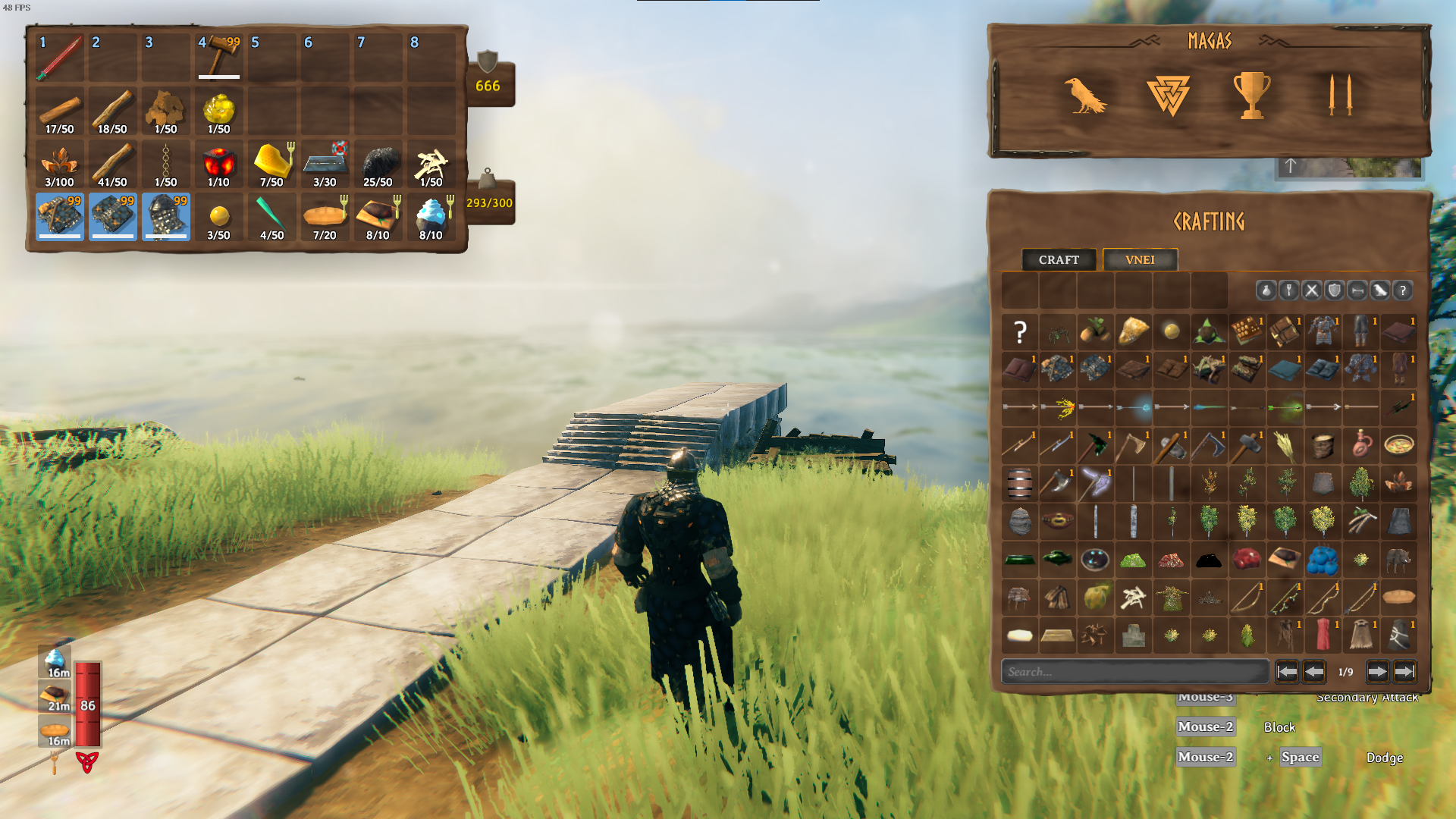
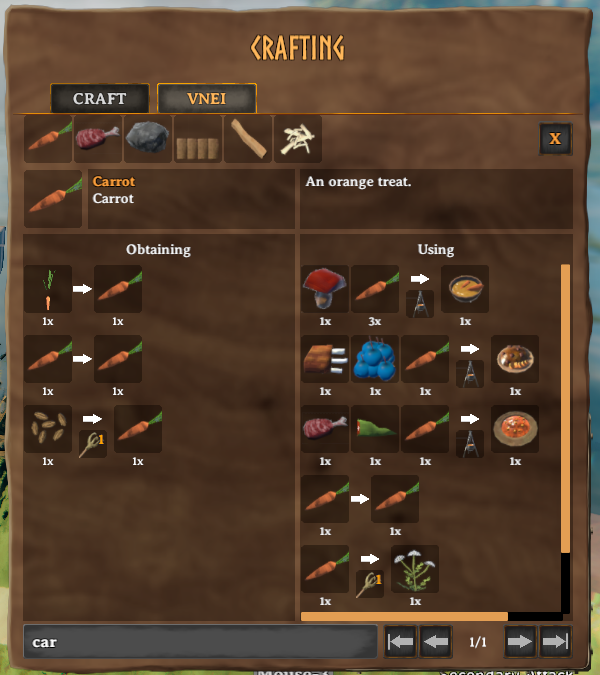
VNEI shows all items and recipes inside an ingame GUI for easy access. If items or recipes from other mods are missing, please contact me.
This mod requiers BepInEx and Jötunn.
Extract the content of VNEI into the BepInEx/plugins folder.
BepInEx must be setup at manual or with r2modman/Thunderstore Mod Manager. Jötunn must be installed. Everything else is setup to be as automatic as possible, no need to copy any files or folders.
Create a file called Environment.props inside the project root.
Copy the example and change the Valheim install path to your location.
If you use r2modman/Tunderstore Mod Manager you can set the path too, but this is optional.
<?xml version="1.0" encoding="utf-8"?>
<Project ToolsVersion="Current" xmlns="http://schemas.microsoft.com/developer/msbuild/2003">
    <PropertyGroup>
        <!-- Needs to be your path to the base Valheim folder -->
        <VALHEIM_INSTALL>E:\Programme\Steam\steamapps\common\Valheim</VALHEIM_INSTALL>
        <!-- Optional, needs to be the path to a r2modmanPlus profile folder -->
        <R2MODMAN_INSTALL>C:\Users\[user]\AppData\Roaming\r2modmanPlus-local\Valheim\profiles\Develop</R2MODMAN_INSTALL>
        <USE_R2MODMAN_AS_DEPLOY_FOLDER>false</USE_R2MODMAN_AS_DEPLOY_FOLDER>
    </PropertyGroup>
</Project>
If the paths are set correctly, all assemblies are loaded and the project can be build.
Now you can run deploy.sh, this will copy the plugin to your plugin folder as you setup in Environment.props.
If you want to rebuild the asset bundle, open Unity with the project loaded and having deploy.sh runned.
This copies the current plugin and all assemblies to Unity. Now you can run Assets/Build AssetBundles at the toolbar, this also copies the asset bundle back to the C# project.