A Tapermonkey userscript to provide environment specific highlighting for PowerApps.
- Install the Tapermonkey exstenstion
- Go to highlight.user.js with the exstenstion installed and click raw, this will open the Tapermonkey install screen, go ahead and click install
Now you have the script installed but it won't do anything yet as it needs to know about your environments. To do this create a supportedEnvironments.js file and host it Github Gist is a great place for this.
Note:
If you do use Gist ensure you use the correct URL, the URL github gives when you click raw is for that commit with two Guids:
https://gist.githubusercontent.com/JoePittsy/guidA/raw/guidB/supportedEnvironments.js

Remove the second GUID and the filename to get a raw link to the most up-to date version:
https://gist.githubusercontent.com/JoePittsy/guidA/raw
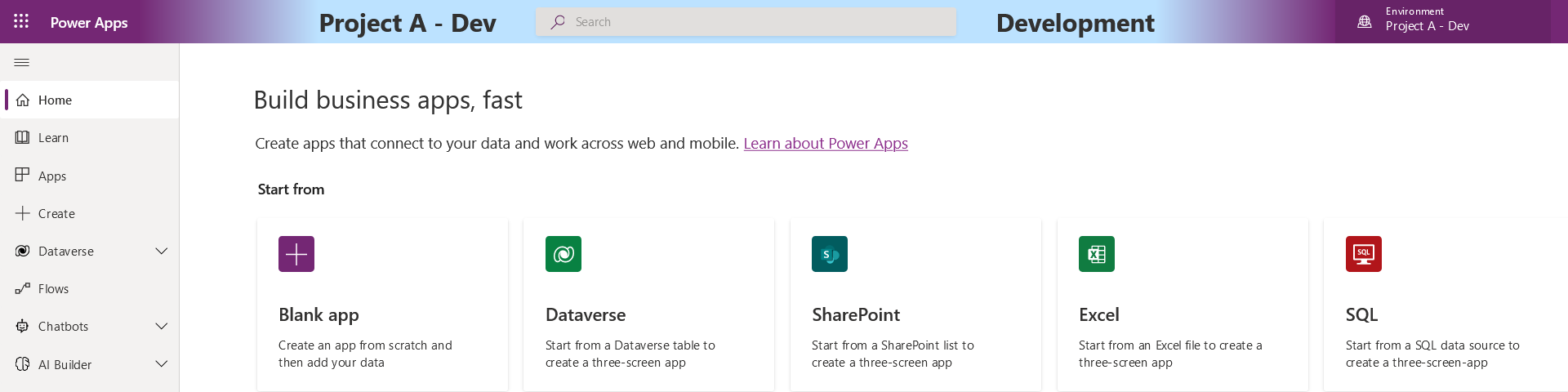
Populate this file with an object describing your environments, an example supportedEnvironments.js may look like this.
supportedEnvironments = {
    'Project A - Dev': {colour: '#BCE2FF', message: 'Development'},
    'Project B - Pre-Prod': {colour: '#74BDFF', message: 'Pre-Production'},
    'Project C - Prod': {colour: '#008FFF', message: 'PRODUCTION'}
}
Ensure the key is the exact name given to the environment in PowerApps.
Now we have populated and hosted supportedEnvironments.js file we can add it to the Tapermoney script. Click on the Tapermonkey exstention icon in the toolbar then dashboard, from there find the PowerApps Environment Highlight script and click edit icon on the right, you should see a comment directing you to insert the supportedEnvironments.js URL, do so. Afterwards it should look somethig like this.
// INSERT YOUR supportedEnvironments.js SCRIPT HERE!
//          \/ \/ \/ \/ \/ \/ \/ \/ \/ \/ \/ \/ \/ \/
// @require https://gist.githubusercontent.com/blah/supportedEnvironments.js
//          /\ /\ /\ /\ /\ /\ /\ /\ /\ /\ /\ /\ /\ /\
Hit ctrl-s or File->Save to save the script and you're done! Now when you visit a PowerApp you should have a highlight ensuring you never make changes in the wrong environment again!
Our supportedEnvironments.js URL can be found in the 1Password->Shared-> supportedEnvironments.js URL field