Jenky is a beautiful radiator for your Jenkins CI server.
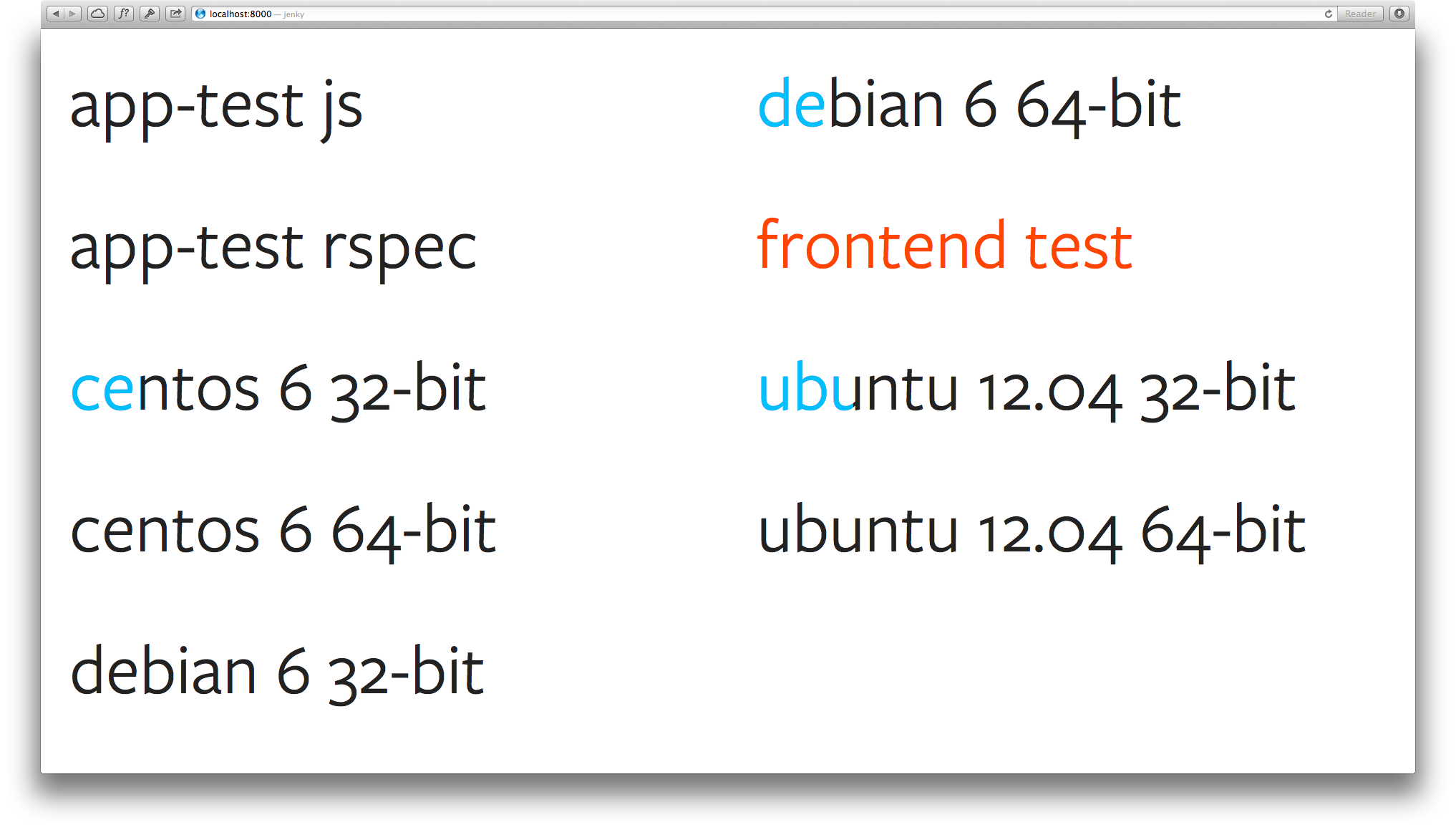
A radiator shows the status of your integration server's build and test jobs in a large format suitable for showing on a large TV or monitor screen on a wall of your office.
Jenky is a Javascript/HTML application that runs entirely in your browser. It does need to be served over HTTP. Any HTTP server will do. Jenky runs directly from source; it does not need to be compiled.
Jenky comes with an example configuration file. Copy or rename this
file to conf.js, in the same directory. Open that file and replace 'change me' with the URL of your Jenkins installation. That's it!
- Download and extract Jenky to a folder that an HTTP server is serving.
- Add your Jenkins's URL to js/conf.js.
- (Optional) Add your TypeKit kit ID to
js/conf.jsand change the default font. - Open the URL to the folder you extracted Jenky into in your browser.
Most radiators are functional but not pretty. Jenky tries to be both. This means that how Jenky presents information is just as important as the information itself.
We have made most of the choices related to aesthetics and user experience for you. This includes things like colours, use of white space, and making the information hierarchy obvious.
Among these choices is the choice of typeface. By default, Jenky uses Freight
Sans Pro, a lovely sans serif that is well suited for Jenky's large,
sparse displays of text. It is included in the TypeKit font hosting
service's portfolio plan and higher. You can tell Jenky your TypeKit kit ID
that includes Freight Sans Pro, and Jenky will automatically use your kit. Add
your kit ID to the js/conf.js file you copied from the example configuration
file. The key for the kit ID is typekitKitId.
Jenky's default configuration specifies a suitable set of fallback fonts in
case Freight Sans Pro is not available. You can also change the value of the
font key in Jenky's configuration file. This value can be any valid CSS
font-family value.
The important part in choosing a typeface for Jenky is to view the font on an actual radiator screen, where Jenky will actually be used. Fonts look very different on a 13-inch laptop screen and a 50-inch TV.
If you have a large number of Jenkins jobs and you have broken them down into views, you can choose which view you want Jenky to display. Simply add a view parameter to the query string e.g:
http://localhost/jenky/index.html?view=My View
Note: Only one view can be chosen at a time, and ideally the URL should be encoded (?view=My%20View) in case the browser doesn't to it for you.
It is also possible to choose how many columns the display has, again using the query string. If you have long Jenkins job names then:
http://localhost/jenky/index.html?columns=1
will only produce one column and allow the names to use the entire width of the screen.
This can be used in conjunction with a view filter.
If you are after a UI with a black background then simply uncomment the following line in index.html:
This theme still has the same functionality as the default, but has a similar feel to the Puppet radiator view for a more consisted experience if you are using both as part of a monitoring solution.
Jenky is currently in alpha. It is usable but not robust. Jenky is also missing tests. (How do you test a project that's mostly UI?)
If you have any ideas about how to improve Jenky, we would love to hear from you! Any GitHub issues or even pull requests you send are highly appreciated. If you just want to send a message to the authors, that's fine too.
If you do want to implement a feature or think fix something, we encourage you to take a look at the current issues. If the feature or fix you want to work on is not listed in the issues, please add it.