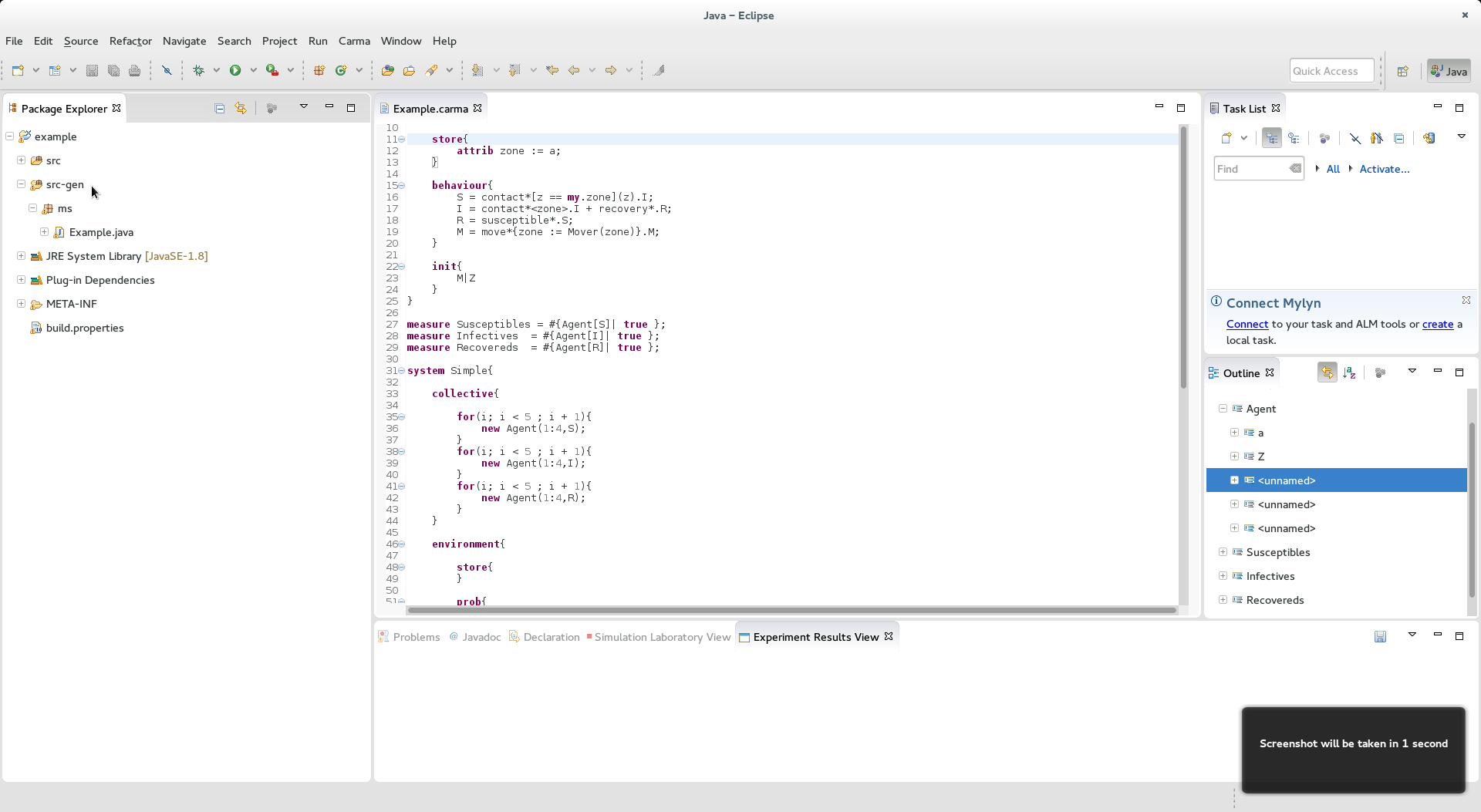
Installation guide
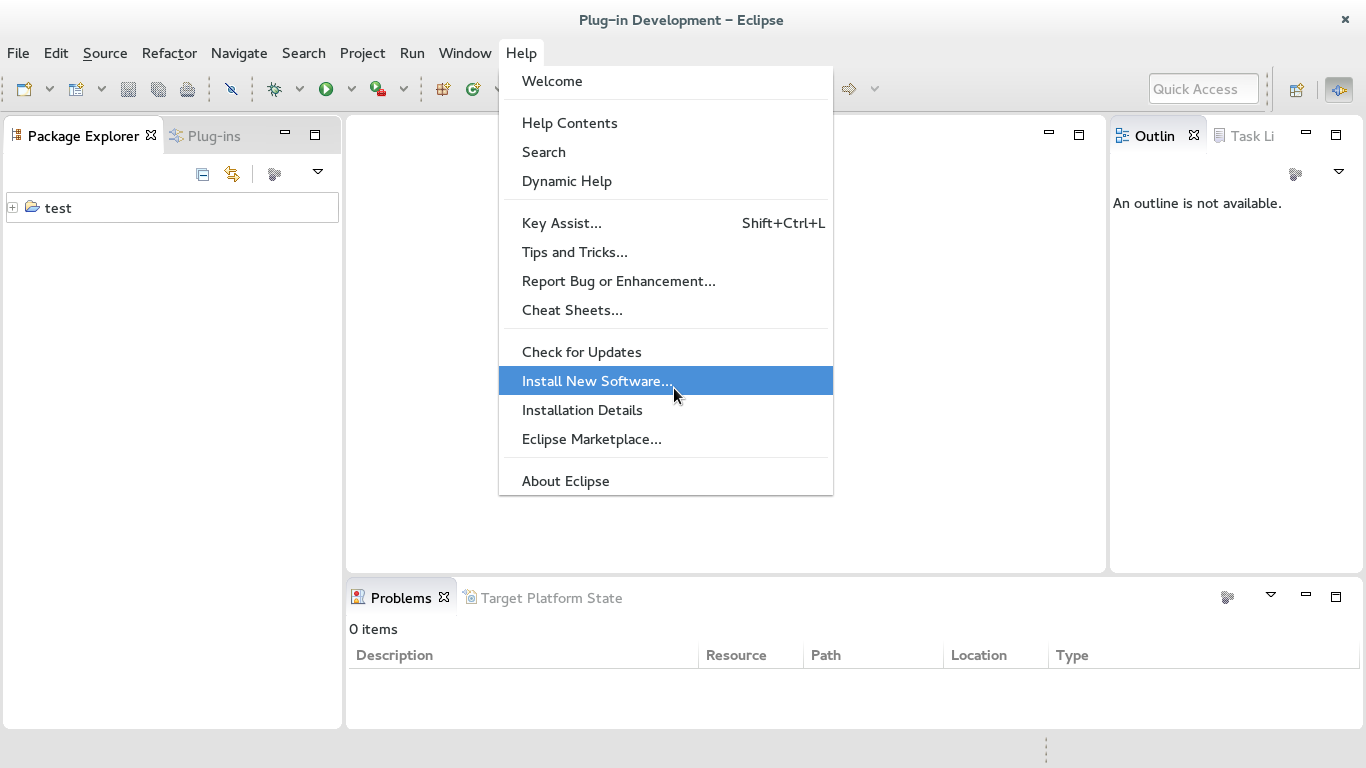
1 - Open your copy of Eclipse, and select Help >> Install New Software...
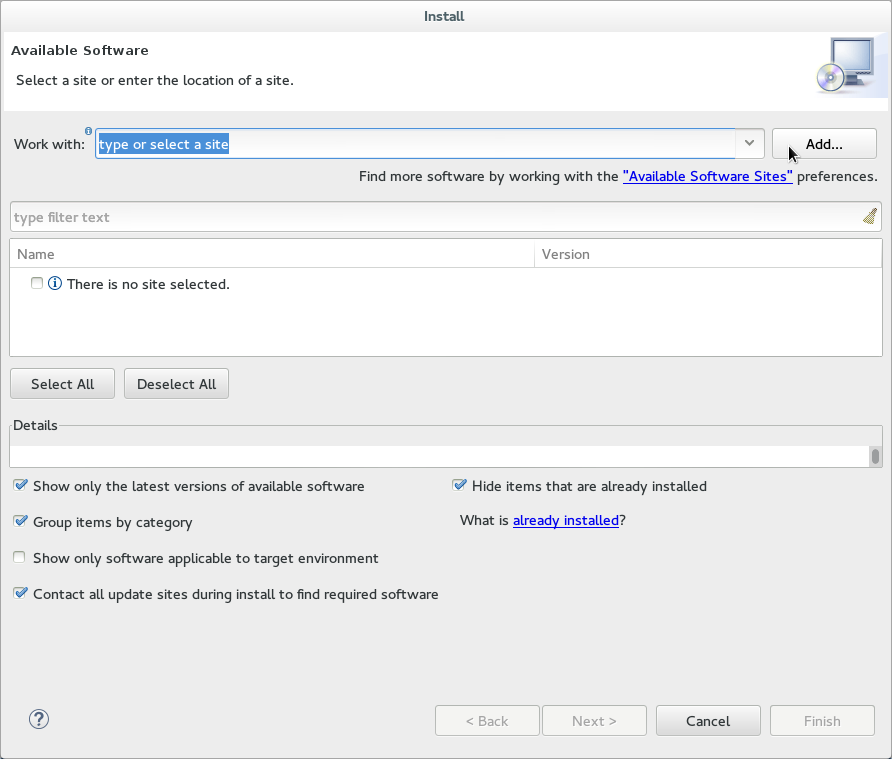
2 - Click Add to open add site dialogue
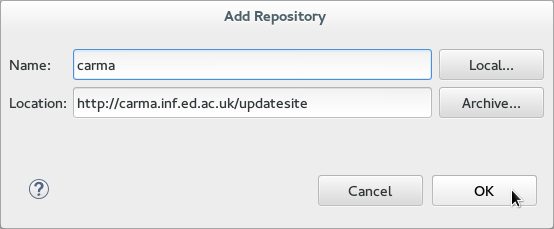
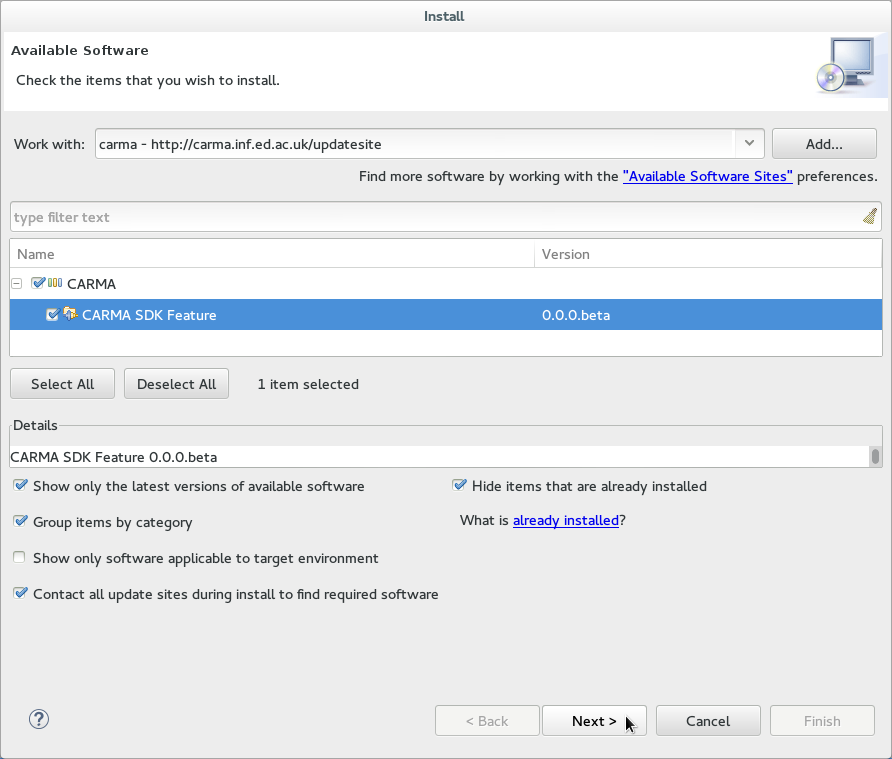
3 - Enter a name, for example carma, and set the location to http://carma.inf.ed.ac.uk/updatesite
4 - Select all and press Next
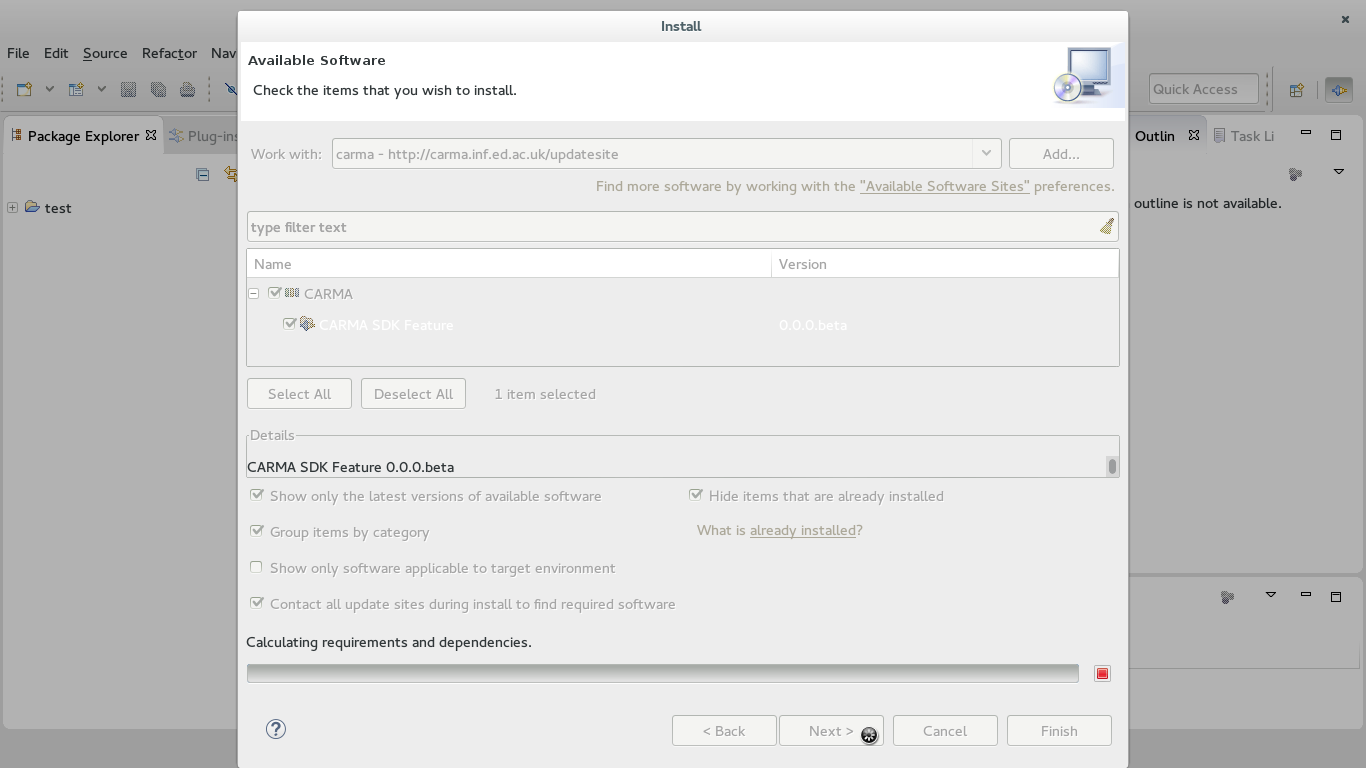
5 - The application will then find all the dependencies and get the plug-in for you (this can take some time as the application has to look up dependencies from other sites)
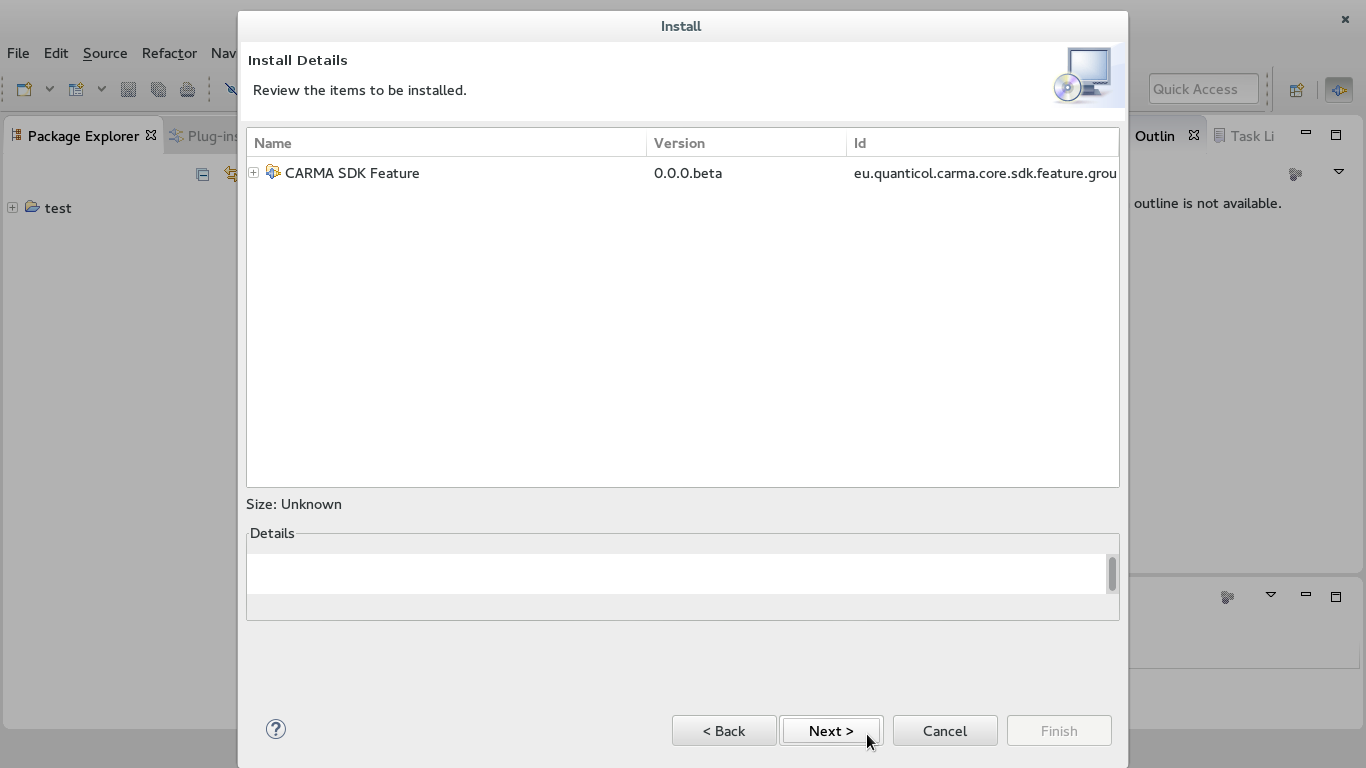
6 - You will be presented with installation details, just press next
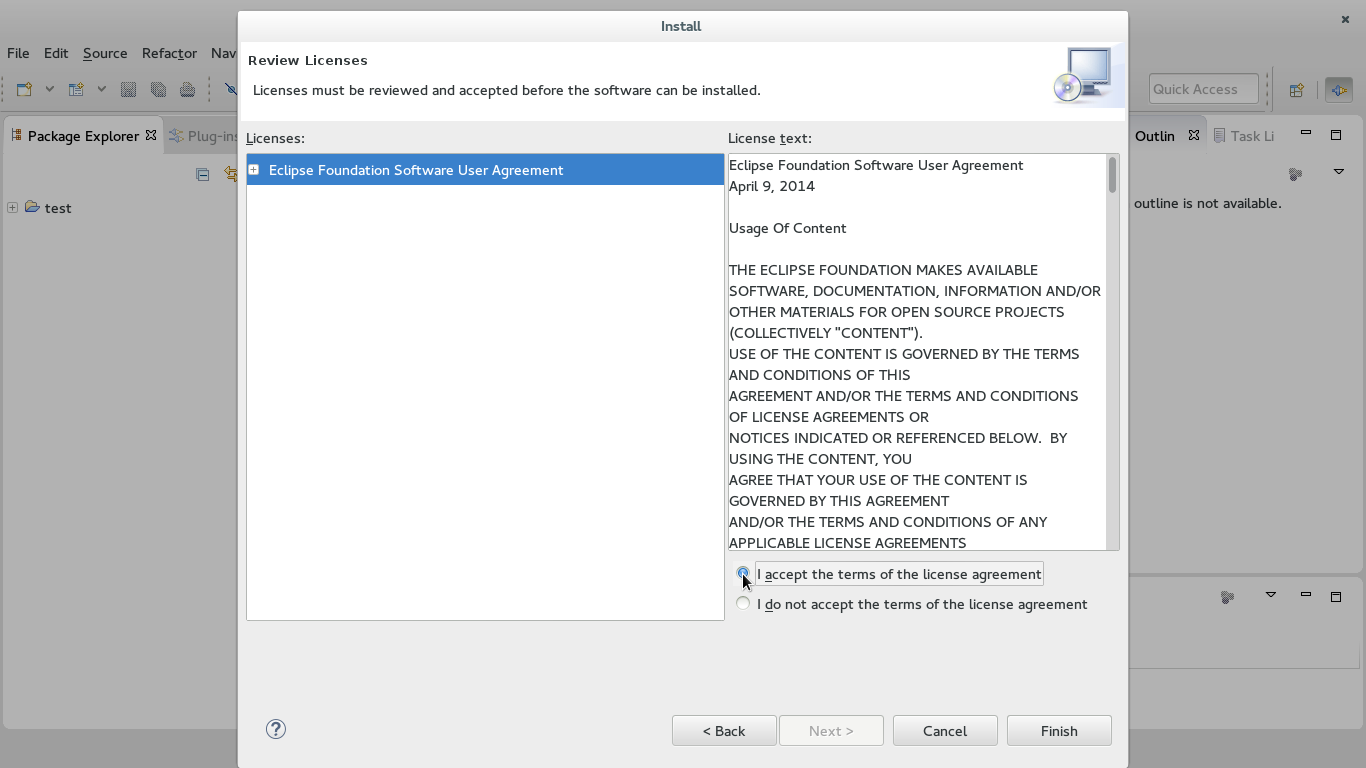
7 - Accept the license agreement
8 - The plugin will start to download and install
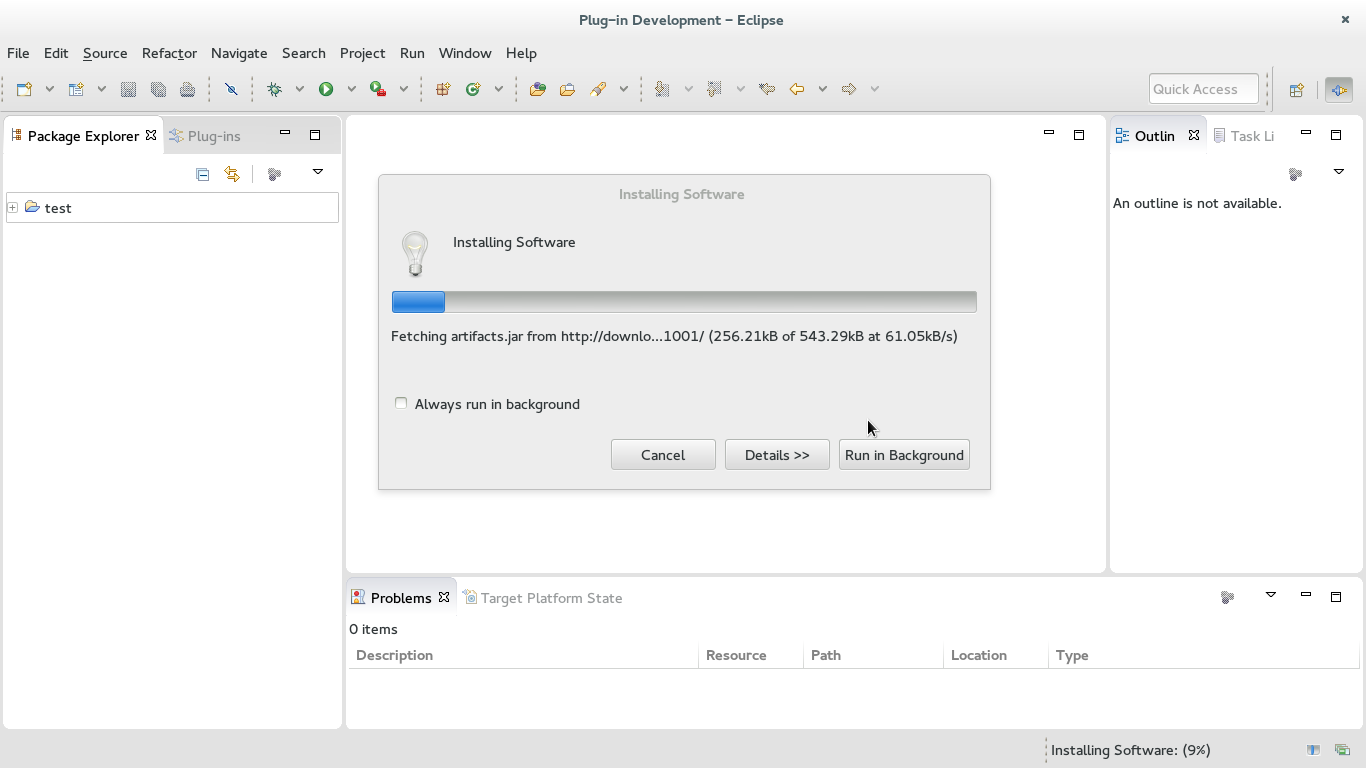
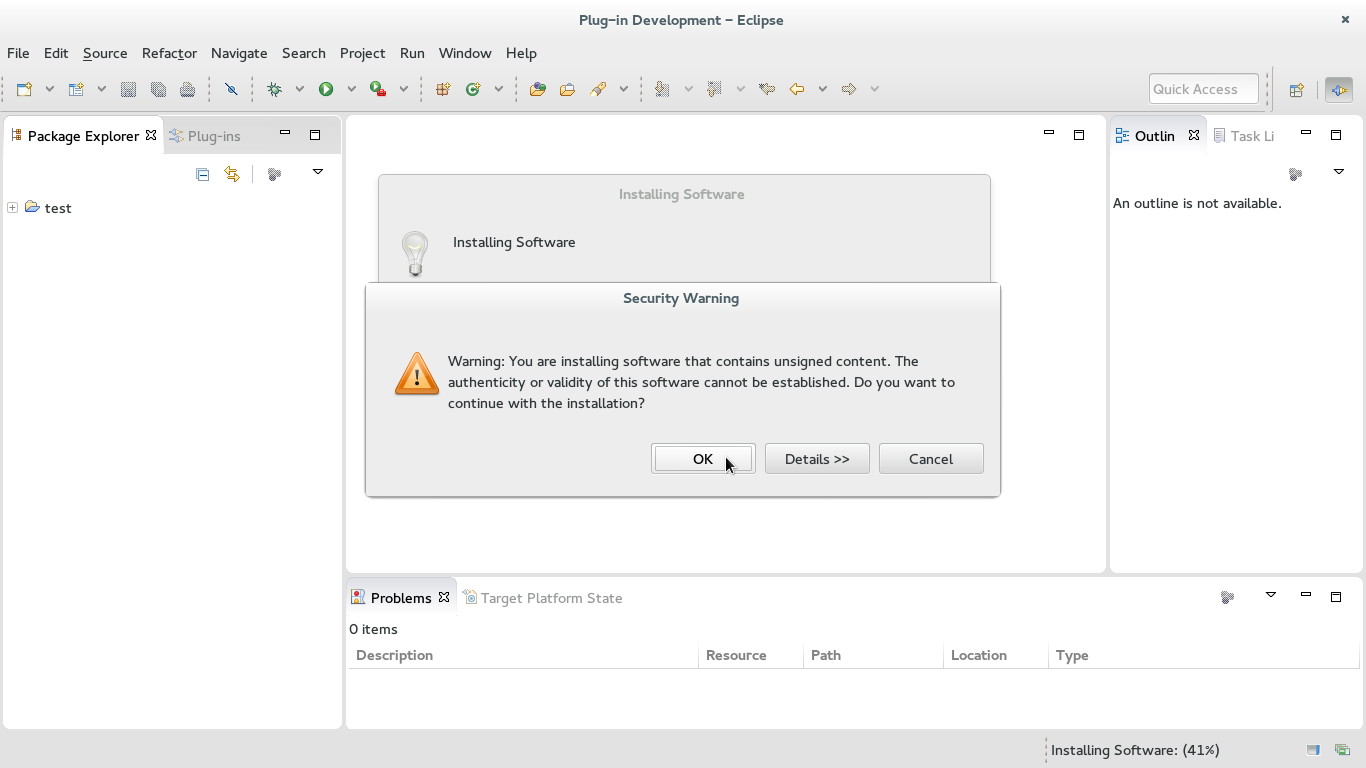
9 - Press 'OK' to continue if you see the following screen
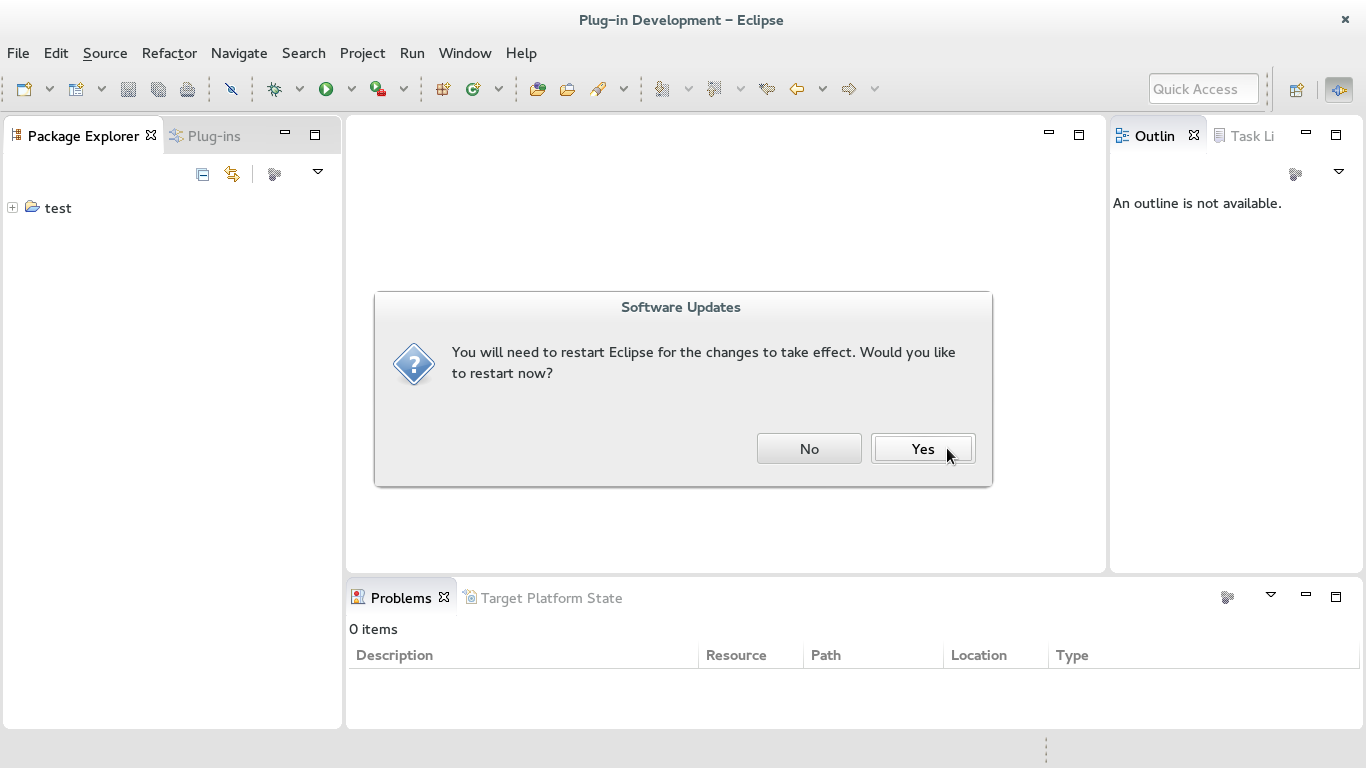
10 - Press 'Yes' to restart your Eclipse
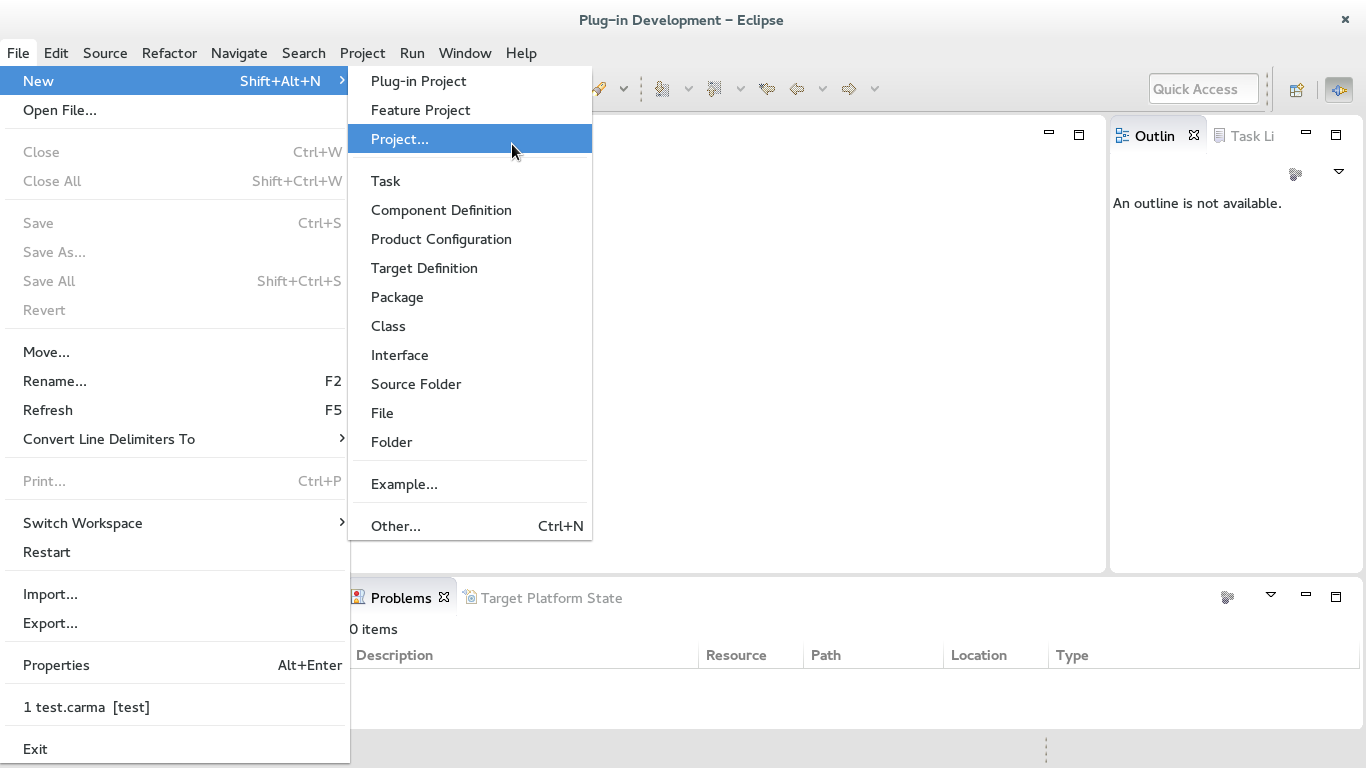
11 - To start modelling, once your Eclipse restarts, go File >> New >> Project..
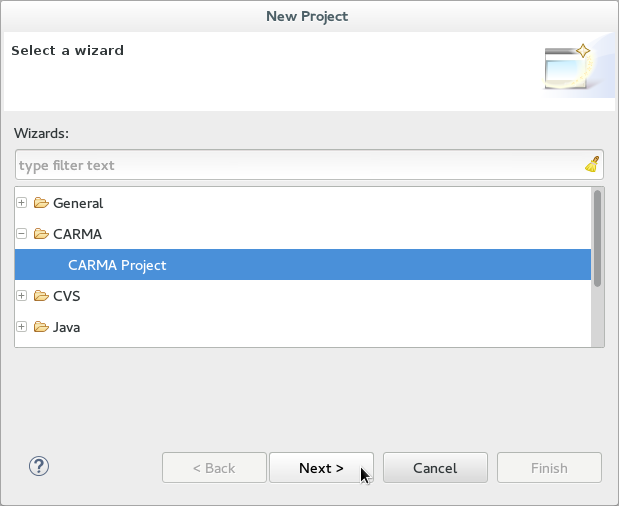
12 - Select CARMA >> CARMA Project
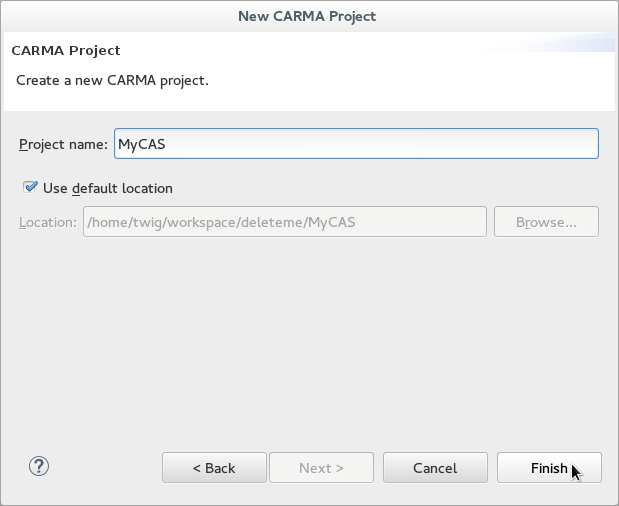
13 - Enter a Project name, and press Finish
14 - This will now open a CARMA model with a template model loaded into the CARMA editor
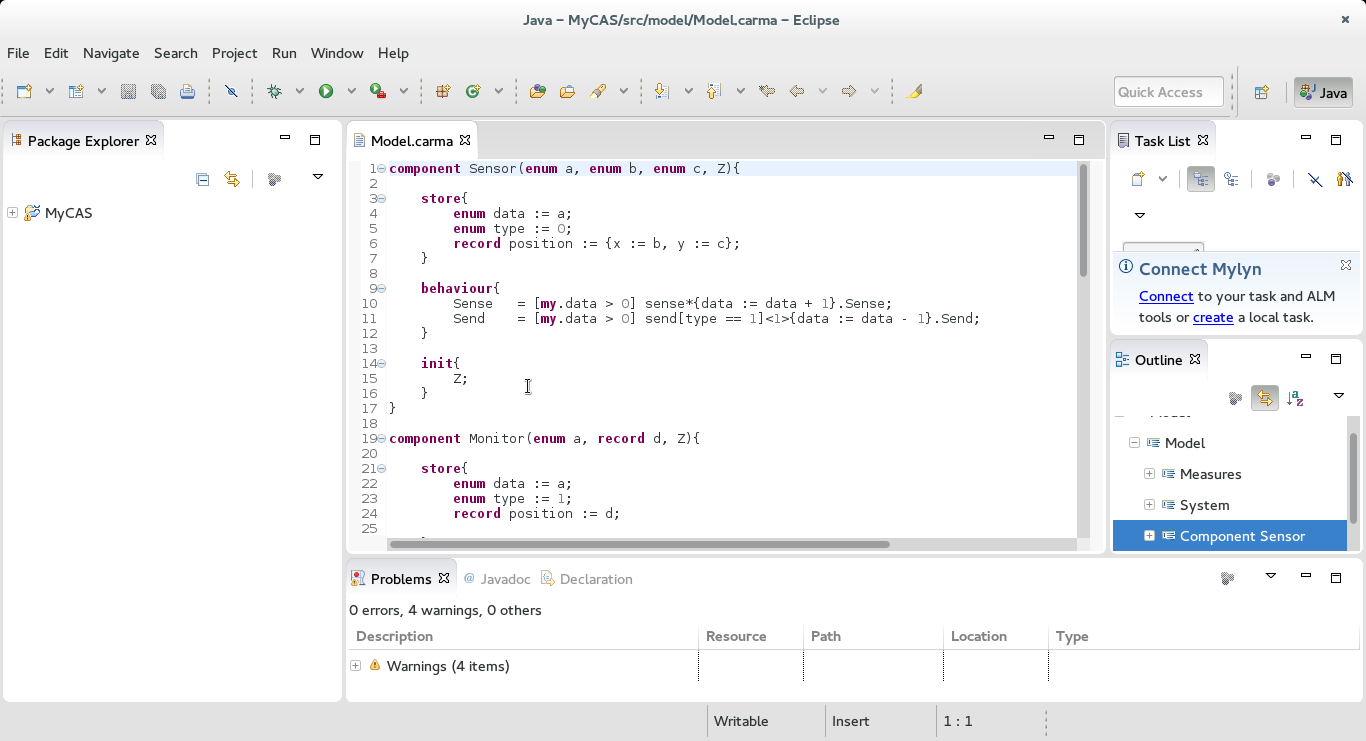
15 - All models are created and edited inside the /src/ folder of the project
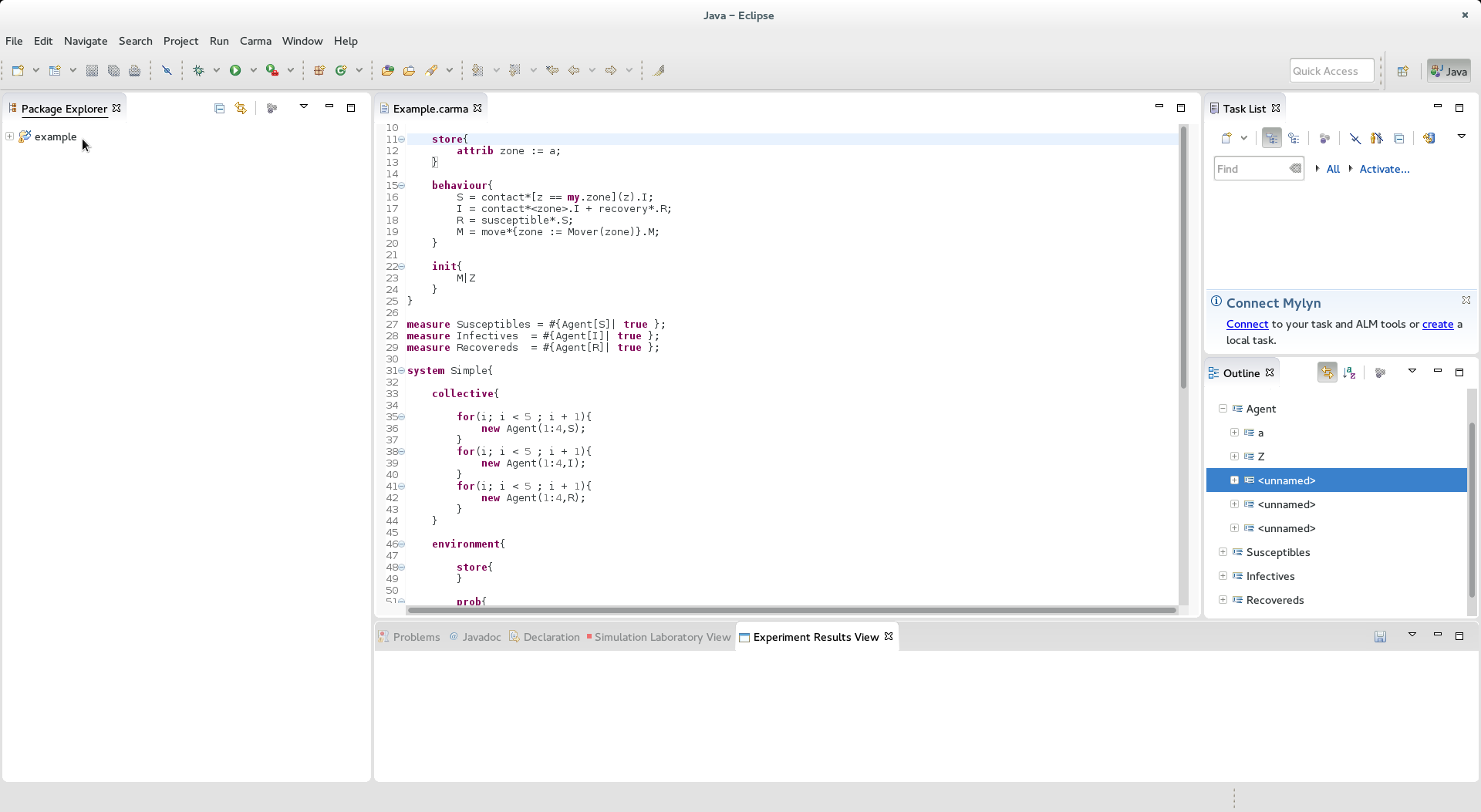
16 - The files generated for use with the simulator are found under /src-gen/
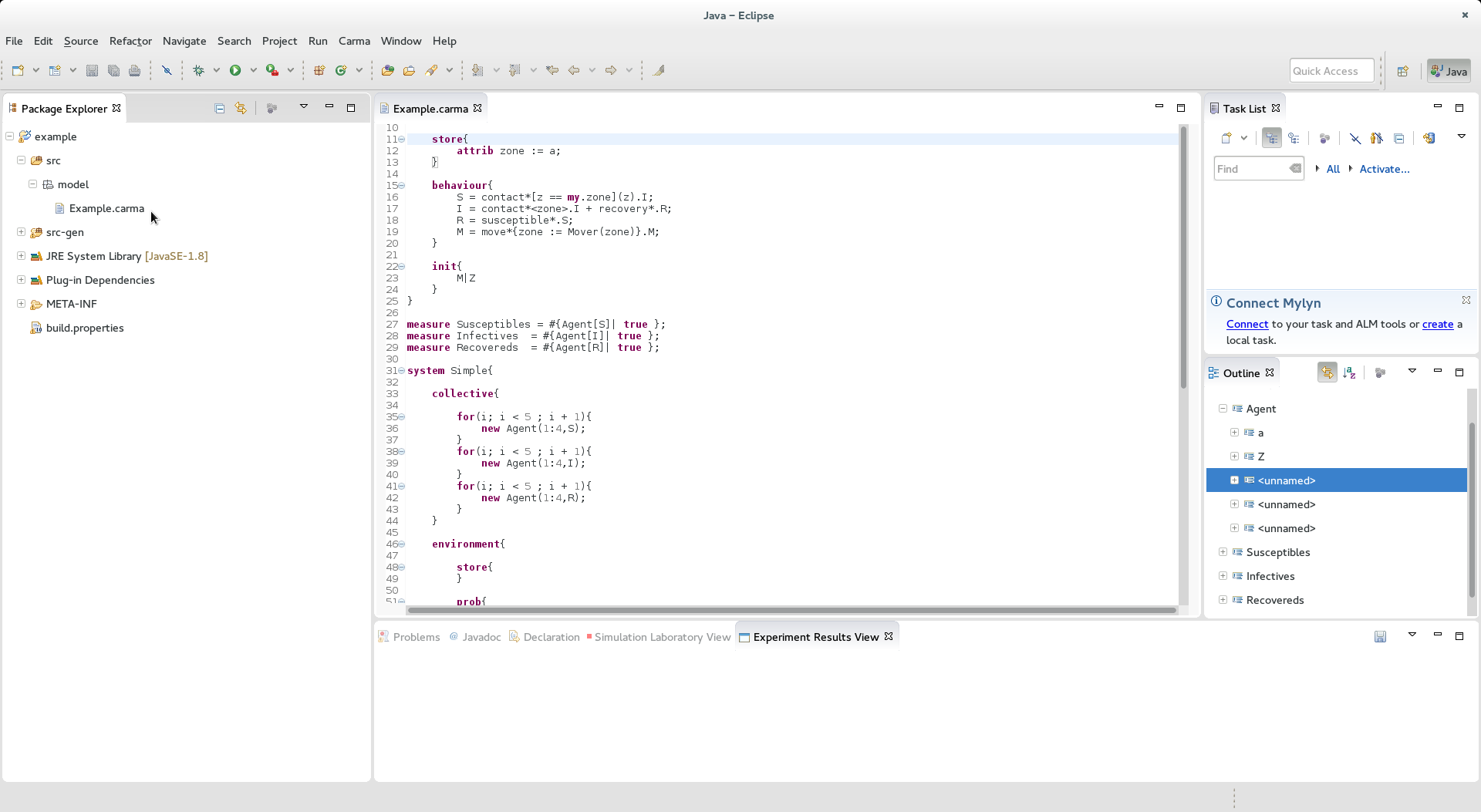
17 - Start modelling!