Home
Download the imager tool from here: https://www.raspberrypi.com/software/
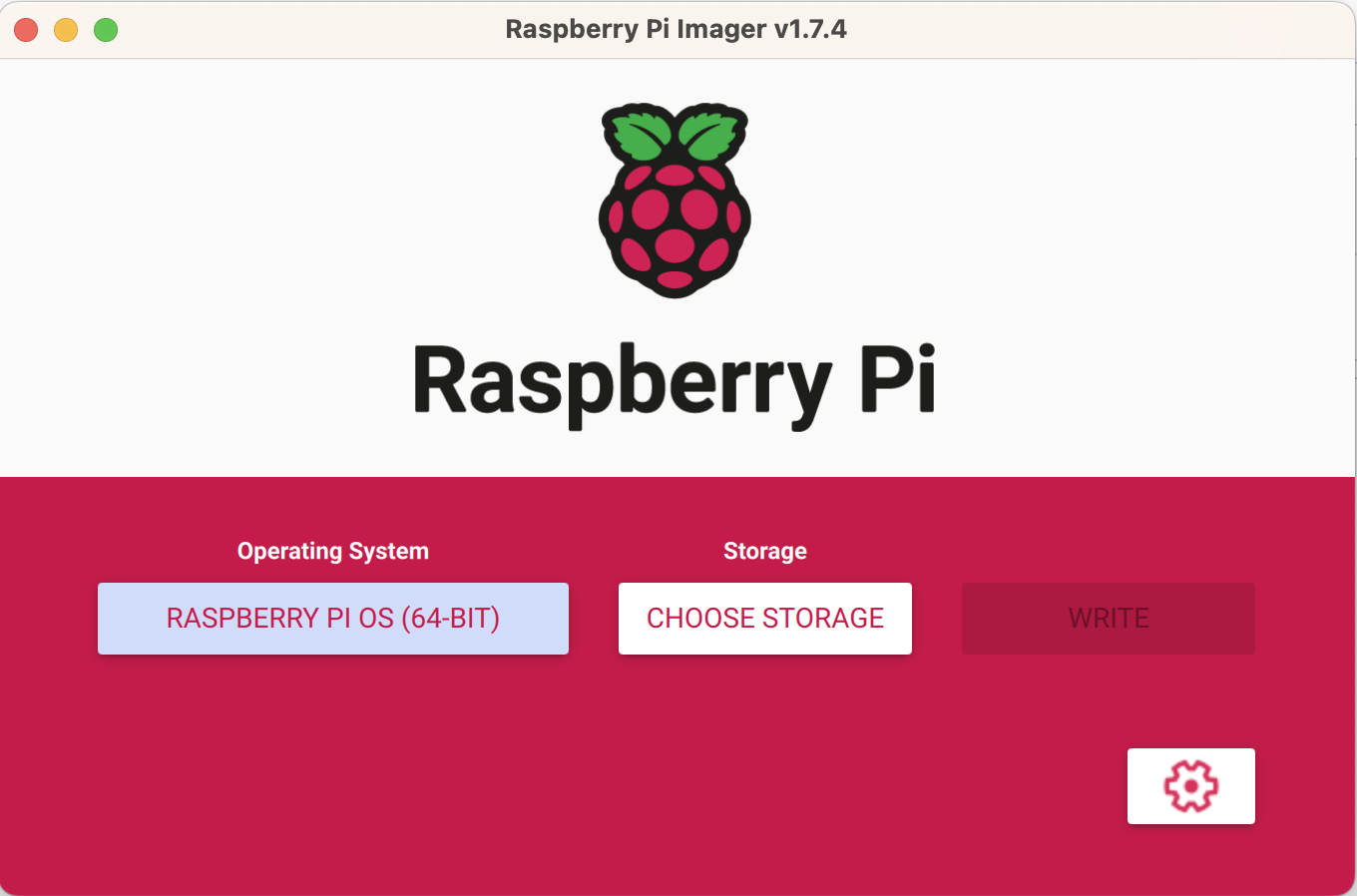
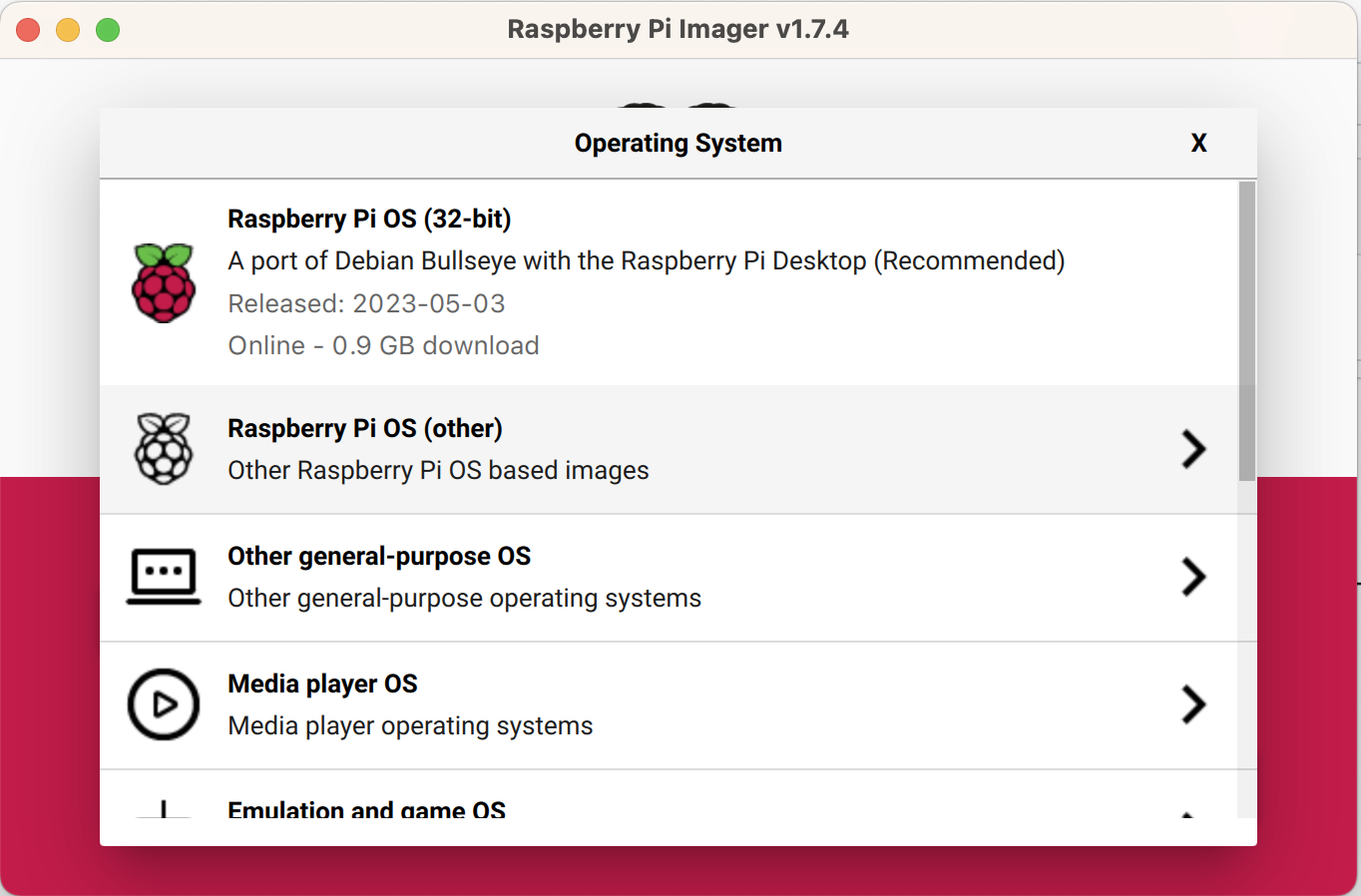
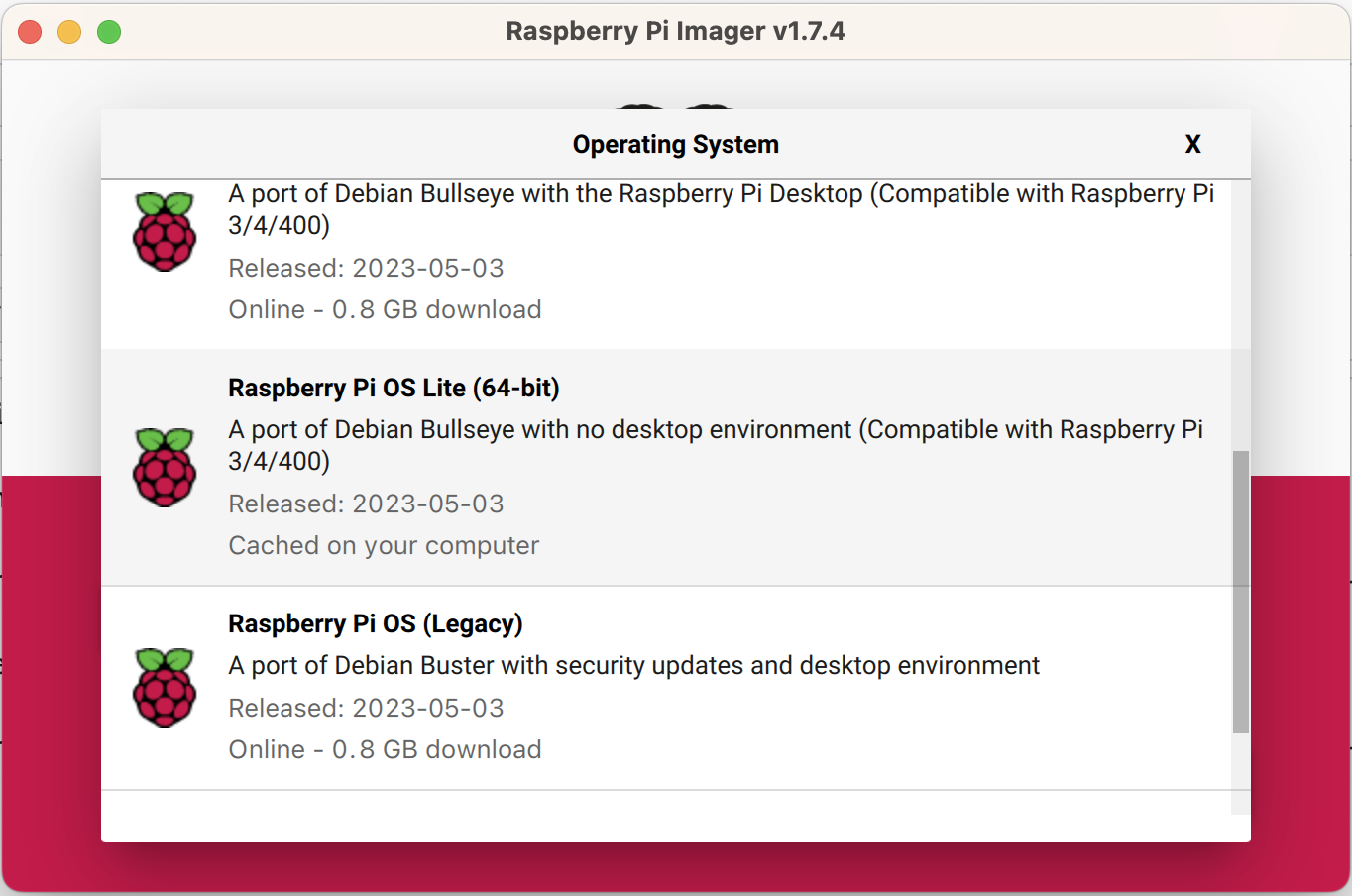
Under 'Operating System' choose 'Raspberry PI Other' and then 'Raspberry PI OS Lite (64-bit)'
Then back on the main screen - click on the settings icon and then:
- Make sure SSH is enabled
- Your wifi details are configured correctly
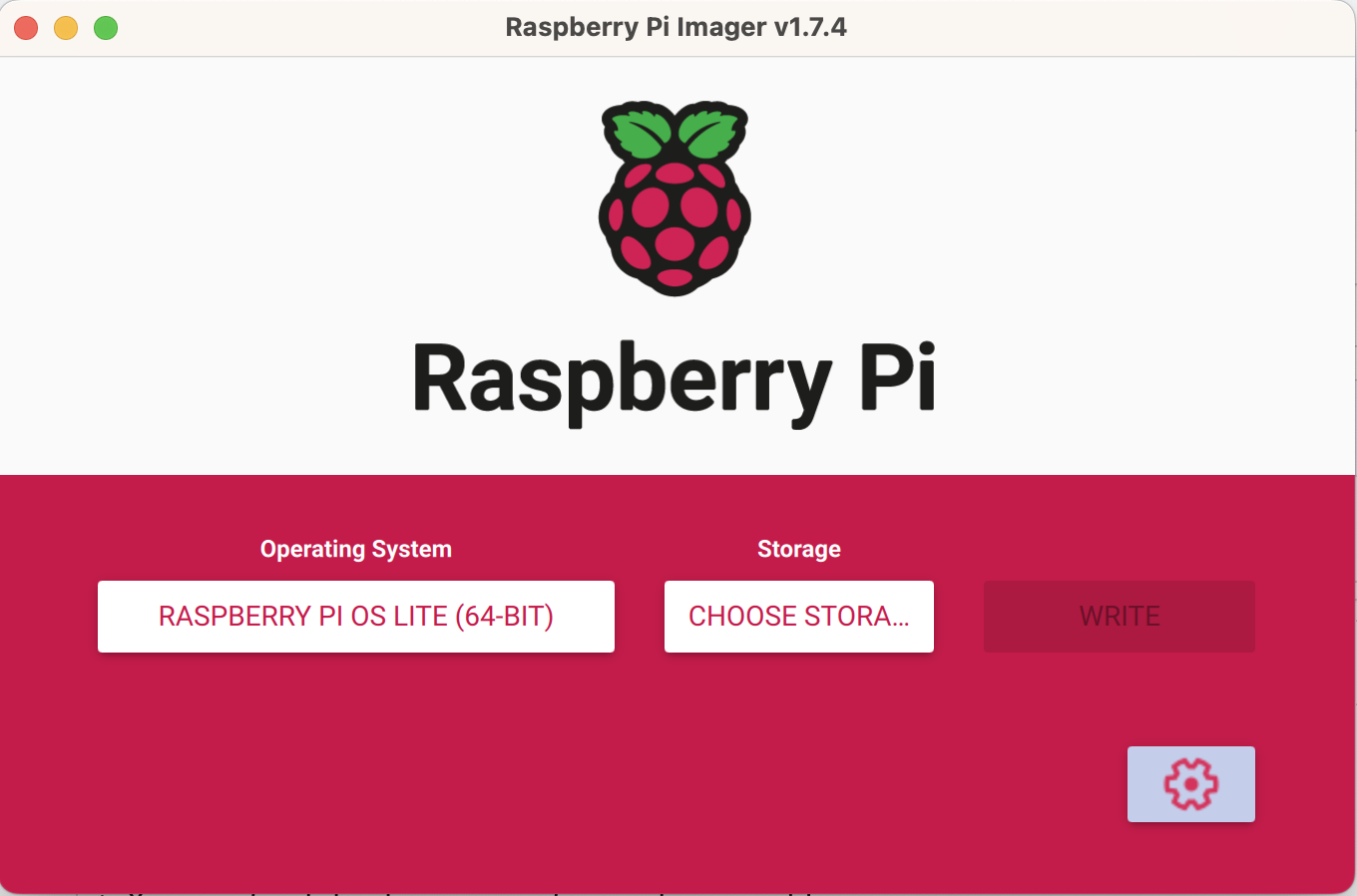
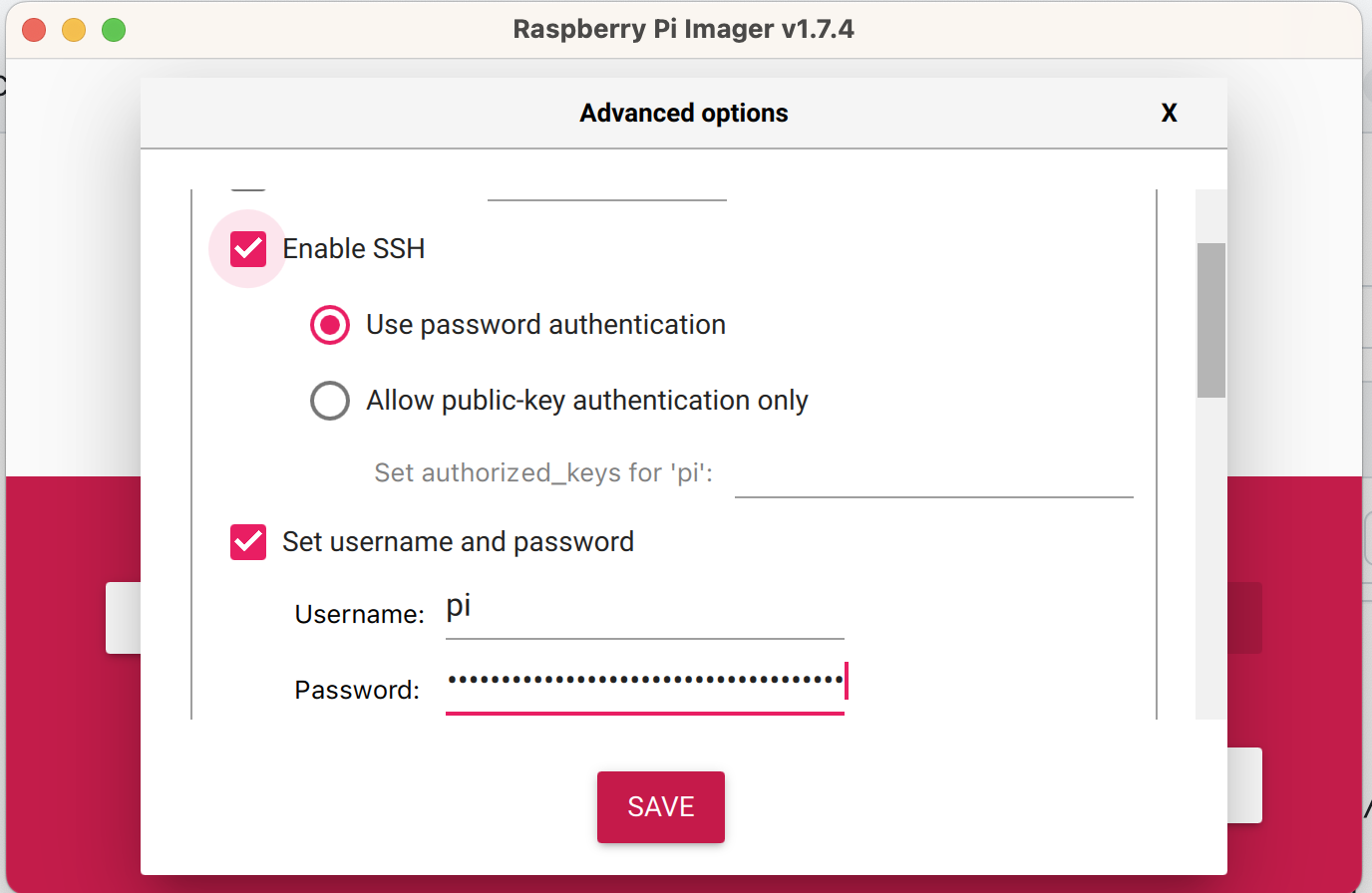
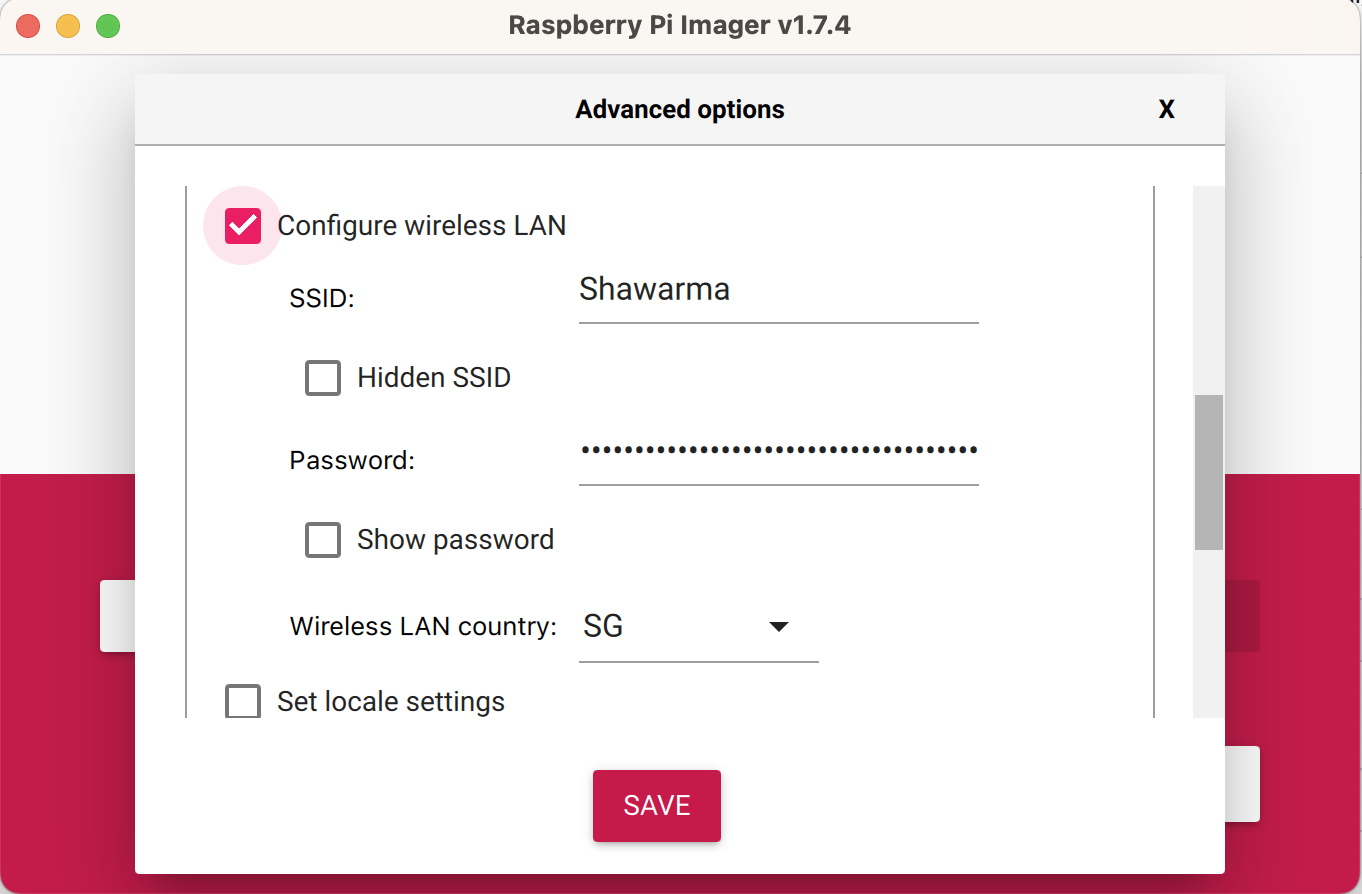
Save the settings and then choose your sd card and write to it.
When the writing is done, you can take out your SD card and put it into your raspberry pi and power it up.
If you have a screen and keyboard connected to the PI:
- you will see the initial installation going on the pi
- run the installation commands for Randy from the readme in there
If you don't have a screen and keyboard you can use SSH to log into the raspberry pi
- find your raspberry pi's IP address on the network device list (on your wifi router panel or on an app such as Fing).
- Open terminal or putty and connect to pi@[pi ip address] (for example pi@192.168.86.86) and use 'raspberry' as the password.
Most DACs will provide instructions on how to configure them, but if you don't find what you are looking for the general logic is as follows:
Search for your DAC model here and look for the parameter called: dtoverlay=xx for example: dtoverlay=allo-boss2-dac-audio
Then edit the rpi config file - /boot/config.txt
sudo nano /boot/config.txt
//at the end of the file add
dtparam=i2c_arm=on
dtoverlay=xxxx
//note - replace xxxx with your dac's param
// save the file with ctrl-x and yes
//reboot your pi
sudo reboot now
Once you are back into the pi
- Check if your DAC is set as primary by running the following command:
alsamixer

Your DAC should appear on the top left side of the screen.
If your DAC is not set as primary, you find where you card is positioned with the following command:
aplay -l
And then you can set the card to be picked up as primary by editing /etc/asound.conf
sudo nano /etc/asound.conf

// replace the number 1s with your card number from aplay -l in the below
defaults.pcm.card 1
defaults.ctl.card 1
pcm.!default {
 type plug
 slave.pcm hw
}

// save the file with ctrl-x and yes
//run alsamixer again to see if the dac is correct
alsamixer
If everything is good, reboot again and check if Randy is working well and playing through your DAC.
No sound:
-
Make sure your DAC is connected and powered properly, sometimes switching power supplies and even the power usb cable helps to resolve under-powering your PI
-
Check if your DAC is set as primary by running the following command:
alsamixer
Your DAC should appear on the top left side of the screen.
If your DAC is not set as primary, you find where you card is positioned with the following command:
aplay -l
And then you can set the card to be picked up as primary by editing /etc/asound.conf
sudo nano /etc/asound.conf
// replace the number 1s with your card number from aplay -l in the below
defaults.pcm.card 1
defaults.ctl.card 1
// save the file with ctrl-x and yes
//run alsamixer again to see if the dac is correct
alsamixer