Jarvis is a personal assistant that allows you to communicate and issue various commands.
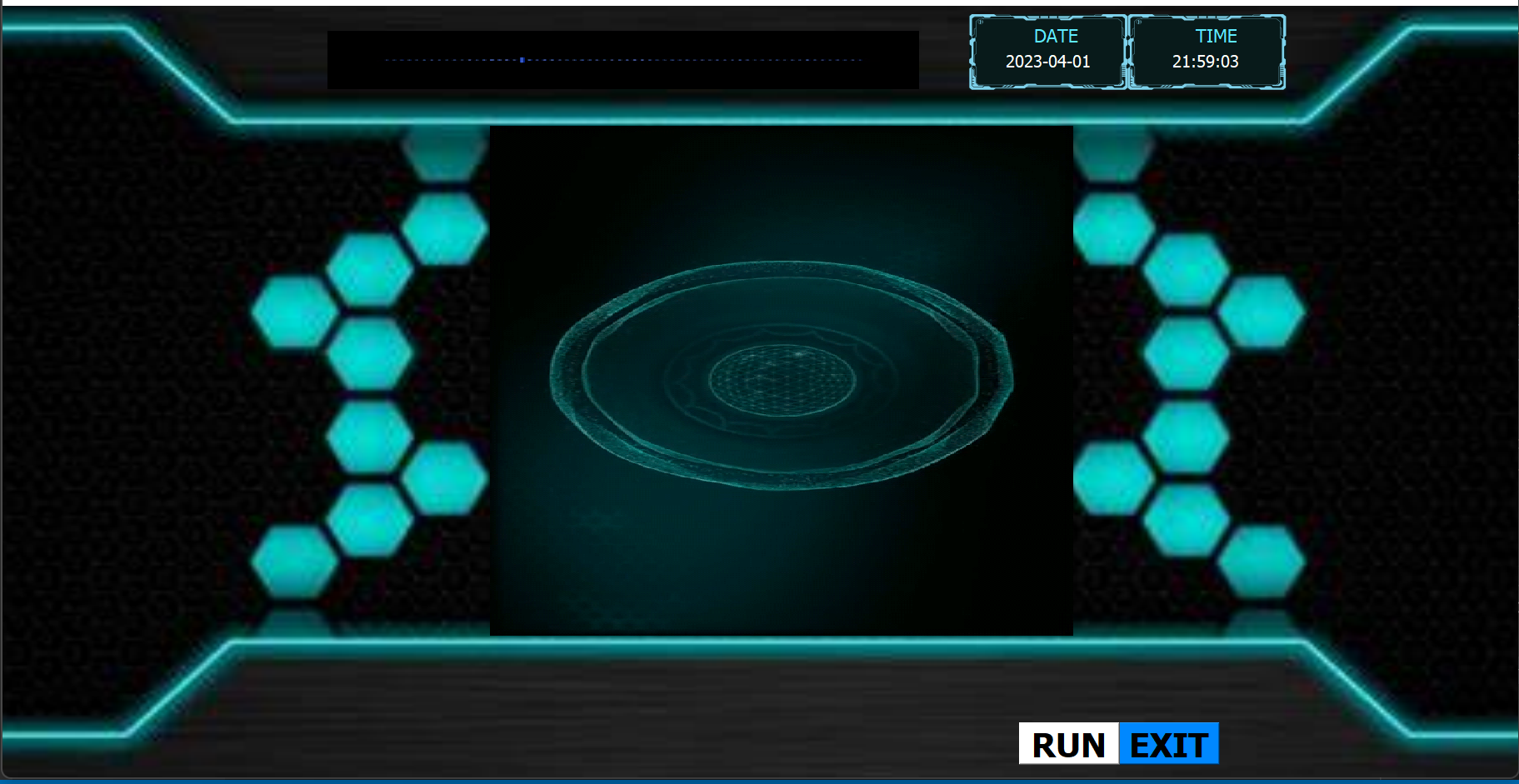
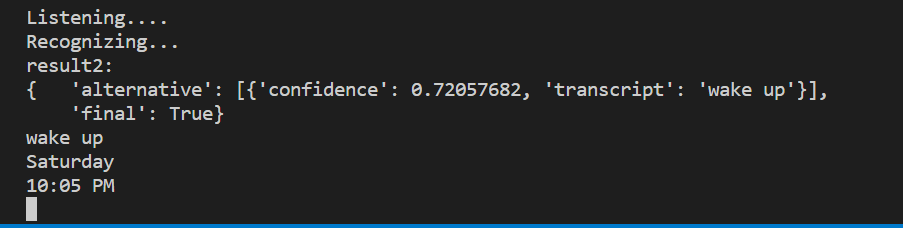
To run the code, follow these steps:
- Navigate to the
jarvis-maindirectory:
cd jarvis-main
- Run the following command to execute the code:
py JARVIS.py
OR
python JARVIS.py
Note: Consider using a virtual environment
- To create a virtual environment, use the following command:
python -m venv .venv
- To activate the virtual environment, use this command:
.\.venv\Scripts\activate
- To deactivate the virtual environment, use this command:
deactivate
To install the required dependencies, run the following command:
pip install -r requirements.txt
Note: Make sure to check the path before installing the requirements.
If you encounter an error stating that the requirement is not found, double-check the path as follows:
{Your_path}\Jarvis-jarvis\jarvis-main>
                              ^
                              |
                [Make sure it is outside the jarvis-main directory]
If it is within the jarvis-main path, run the following command to navigate outside:
cd ..
Here are some commands you can ask Jarvis:
| Command | Result |
|---|---|
| wake up | Wake Jarvis up |
| play a song | Play a song |
| what is your age | Receive a funny response from Jarvis |
| time | Get the current time |
| hi/hello/heya/salut | Receive a response from Jarvis |
| joke | Fetch a joke from a library |
| date/today | Get the current day |
| silence {your response} | Make Jarvis silent for a specific time |
| what is meant by {your response} | Search {your response} on Wikipedia |
| Open GitHub | Open this GitHub page |
| open calculator/open paint/open discord/open note | Open one of these apps |
| close calculator/close paint/close discord/close note | Close one of these apps |
| where am i | Get your location |
| Command prompt | Open the Command prompt |
| take a screenshot | Take a screenshot |
| Volume up/down | Adjust the volume |
| ip address | Get your IP address |
| Weather | Get the weather |
| News | Get the news |
| Internet speed | Check your Internet speed |
| bye bye Jarvis | Receive a response from Jarvis |
| Shut down/restart/condition/sleep | Perform one of these actions |
Note: For some of these commands to work, add your own pathway.
MIT
© TEAM KTSM
