Once the computer is turned on, you must also turn on:
- the VR headset along with the base stations
- The treadmill
Three applications must be turned on:
-
Steam VR (this should look like that)
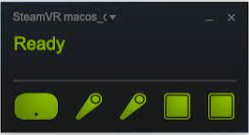
-
VIVE Wireless (this should look like that)
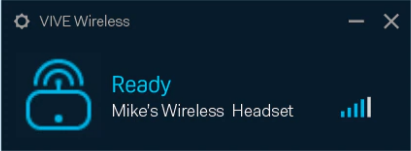
-
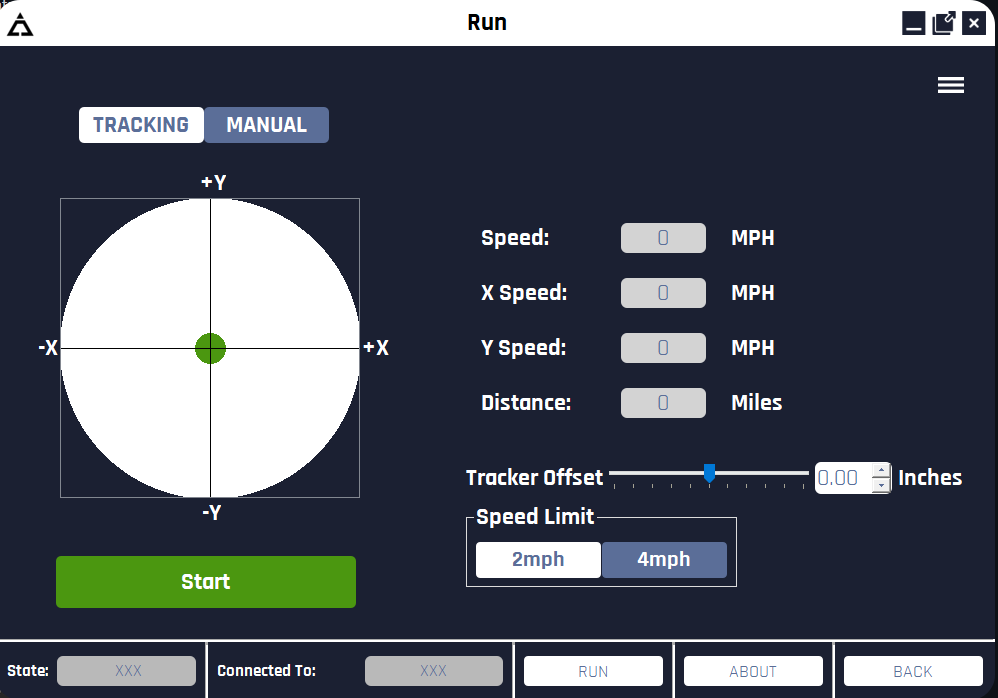
Infinadeck application:
-
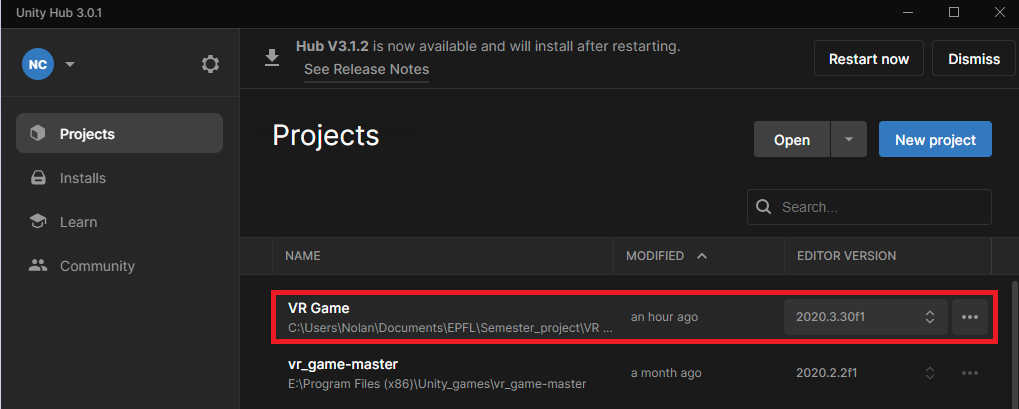
Once everything is turned on, you need to open Unity Hub and select VR GAME
Then go to Scenes and The Escape V.2 (if you want to start the last level of the game only, look at the point "To launch the OpenWorld directly"):
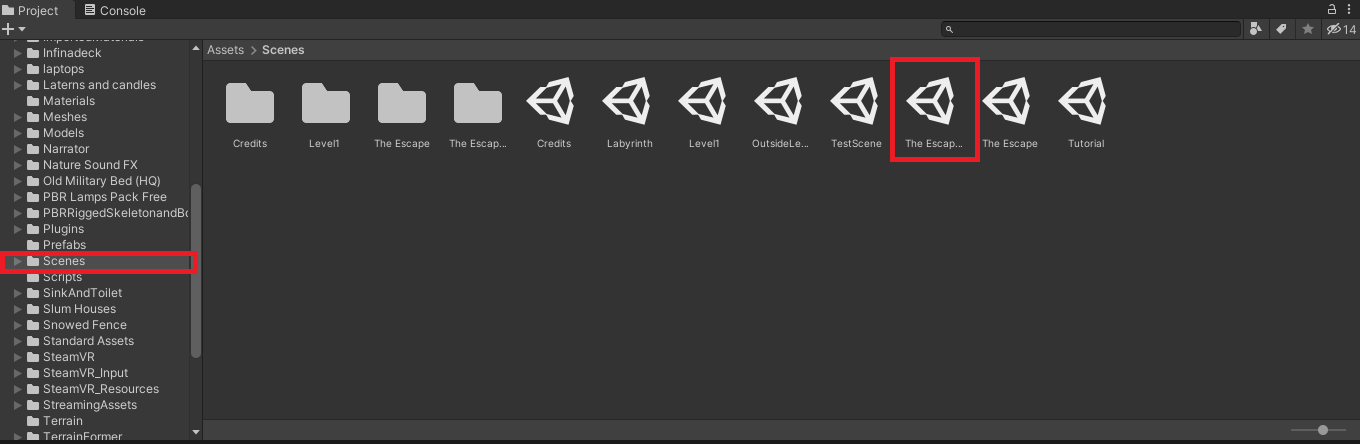
Now Uniy is set up and the only things you need to do is to have the player on the treadmill, attach him to the ceilling using the harness and turn on one of the captors in his back (the light of the captor should turn green) and make sure that it is detected in the InfinaDeck application, to do so, in the Infinadeck application, you must go to settings->select user tracker->press user tracker(an error should appear, just dismiss it), then go back to the "run" tab on the InfinaDeck application and it should look like that:
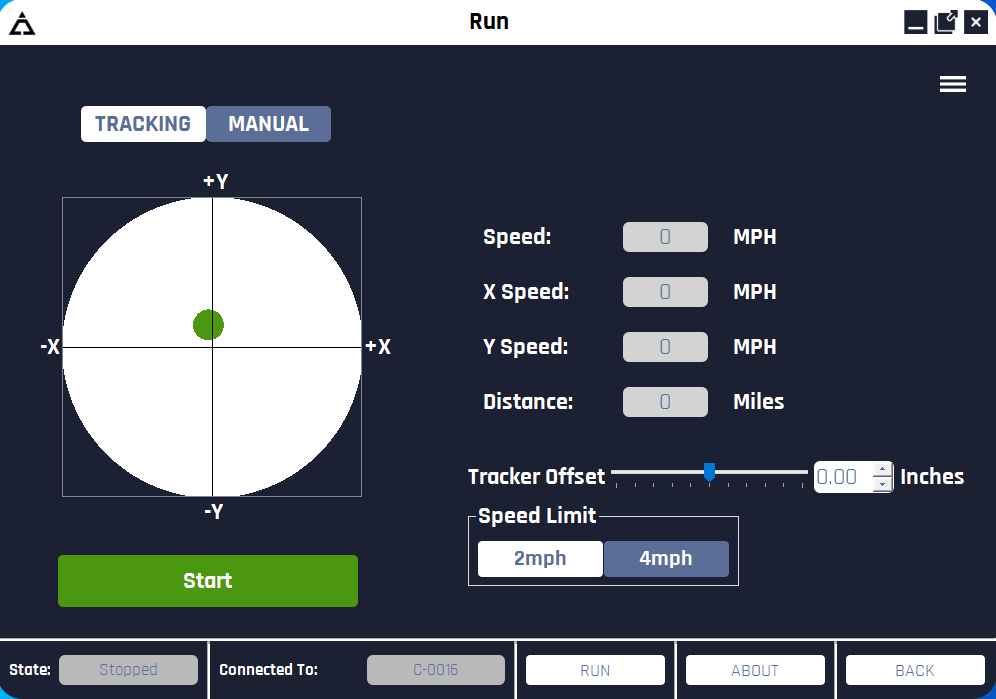
Once everything is done, you can click start on the InfinaDeck application and hit play on Unity
If the player is moving on the treadmill but his chararcter isn't moving in game, you can restart all the softwares mentionned above and retry.
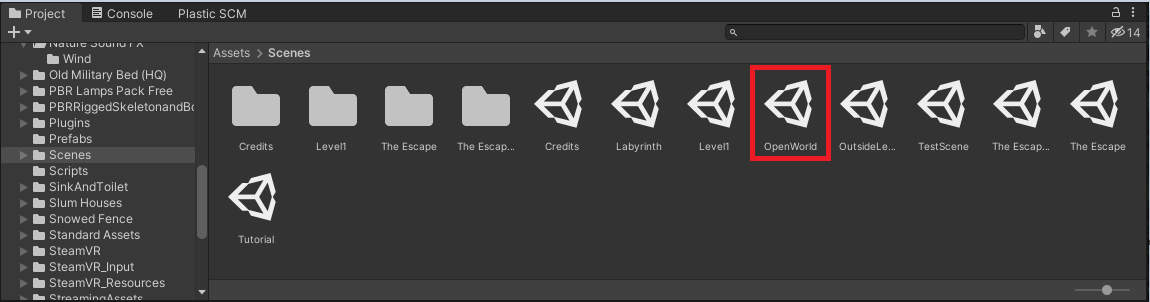
Instead of opening the scene The Escape V.2, open the scene OpenWorld:
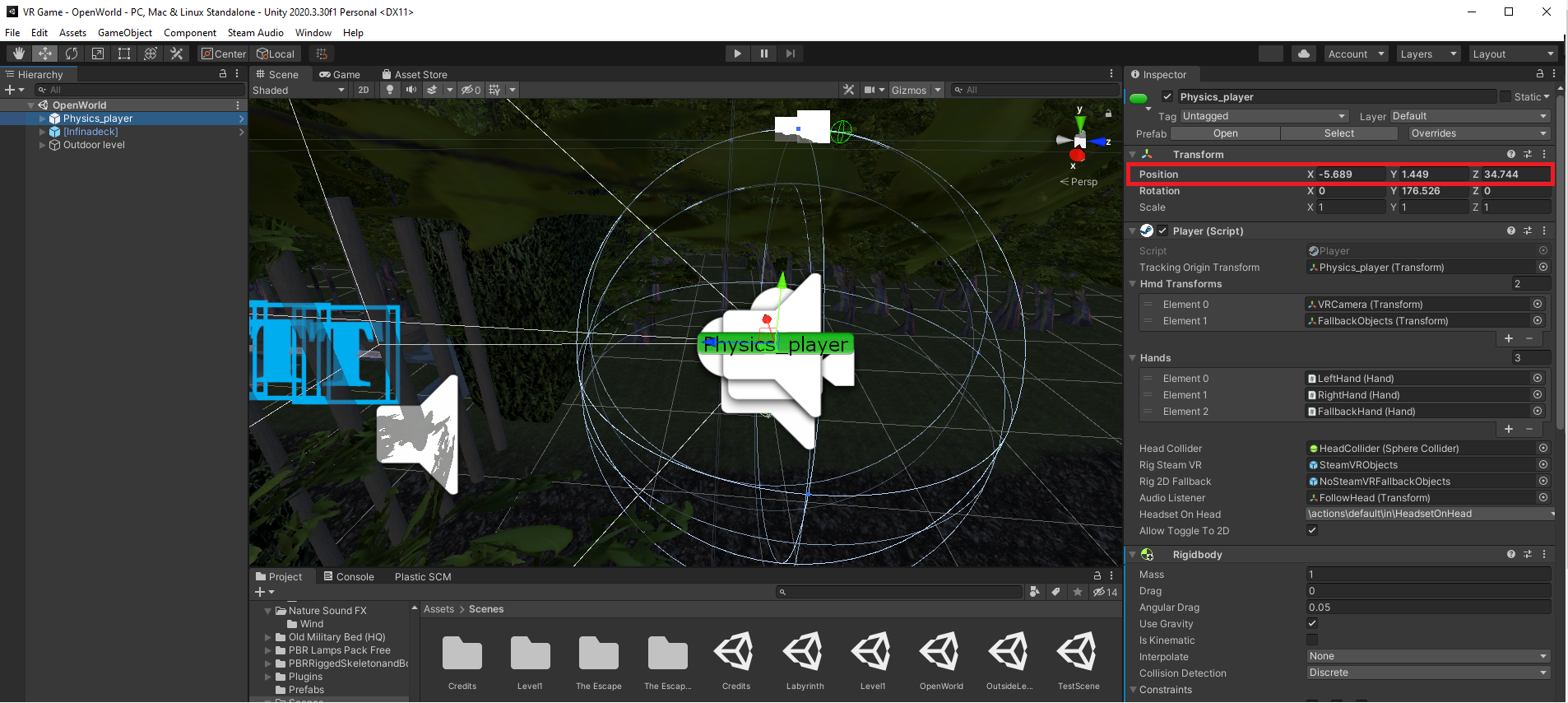
Make sur the position of the physical_player is Vector3(0.624000013,1.449,-2.03299999), to do so, just click on the physical_player component on the left and you can see his position on the right:
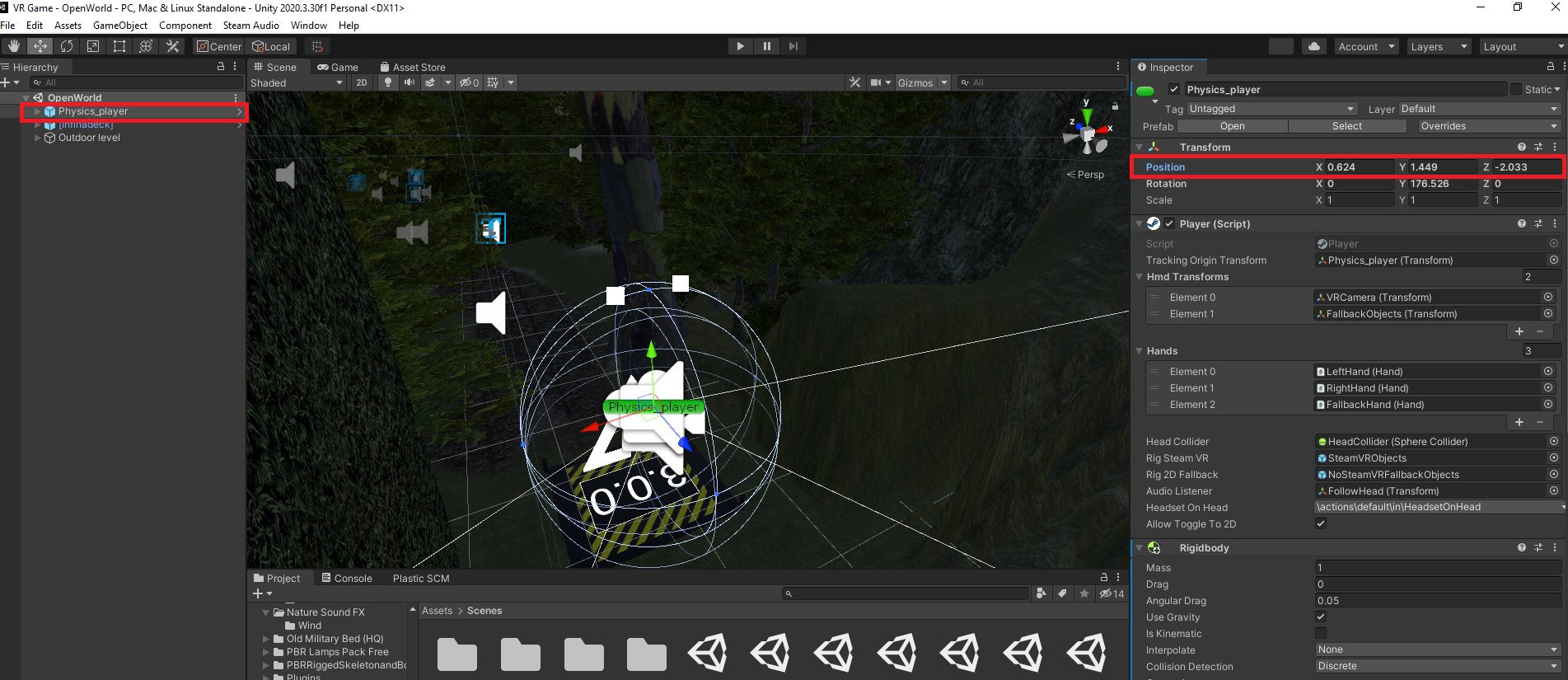
Open the scene OpenWorld like previously but set the position of the physical player to: Vector3(-5.68900013,1.449,34.7439995) (see image below)
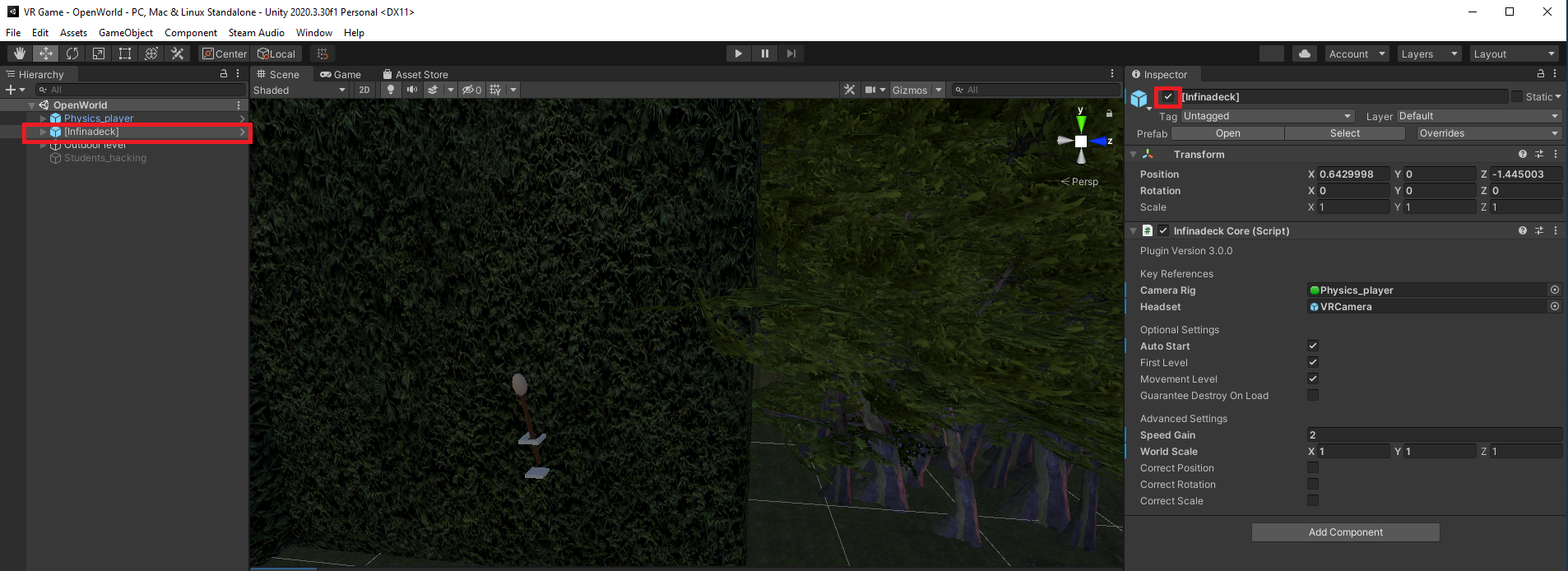
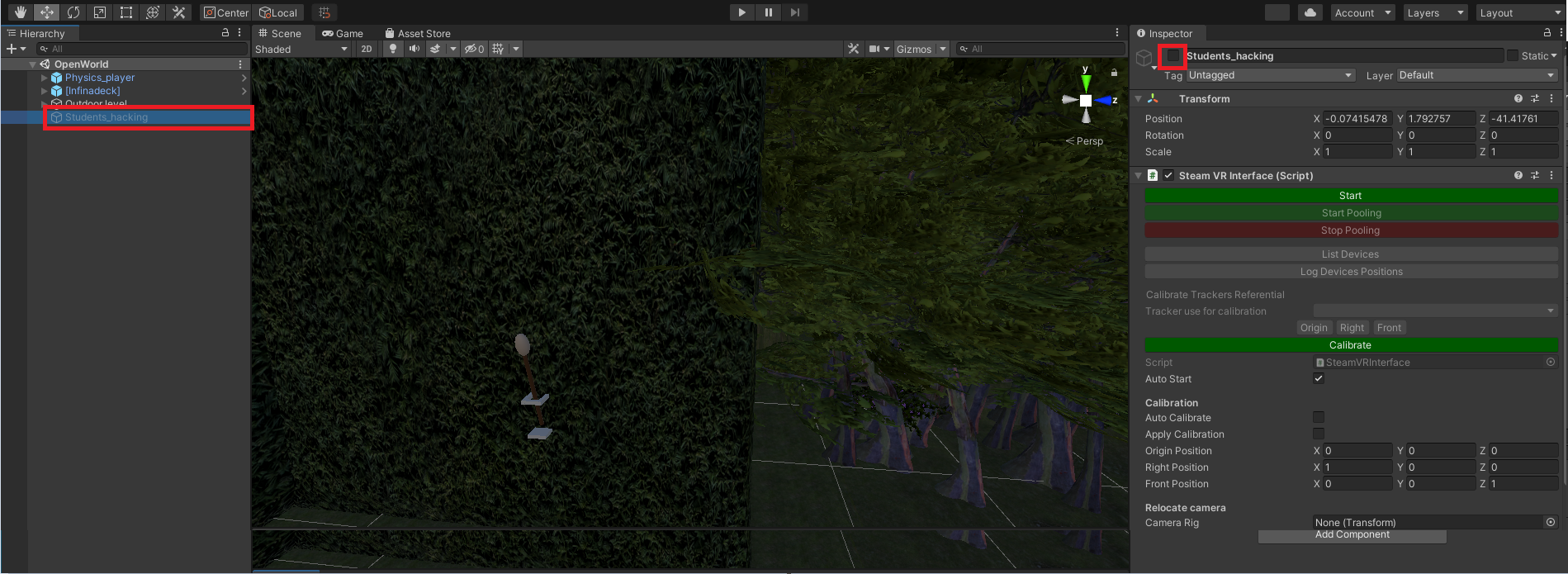
Do all the steps mentionned in "How to launch the game" and in your scene make sure to have the "Infinadeck" component activated and the "Students_hacking" deactivated
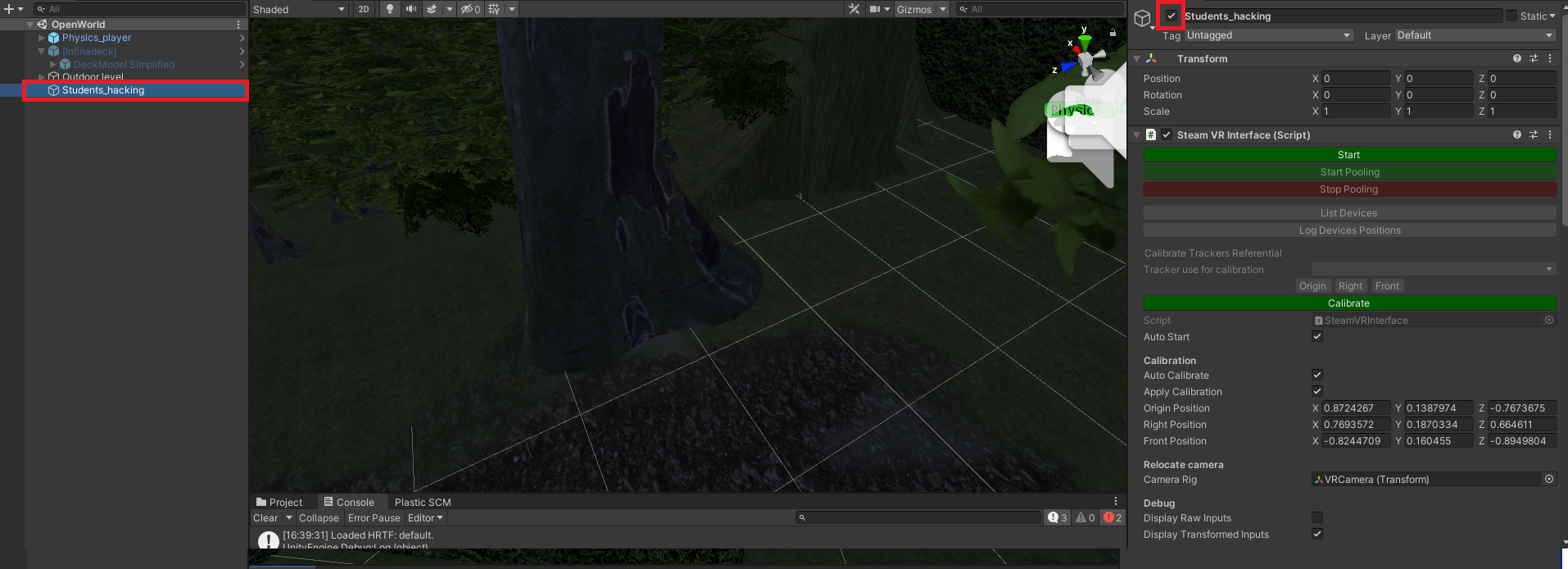
1. Do all the steps mentionned in "How to launch the game". You must also turn on both feet captors and attach them to the player feet
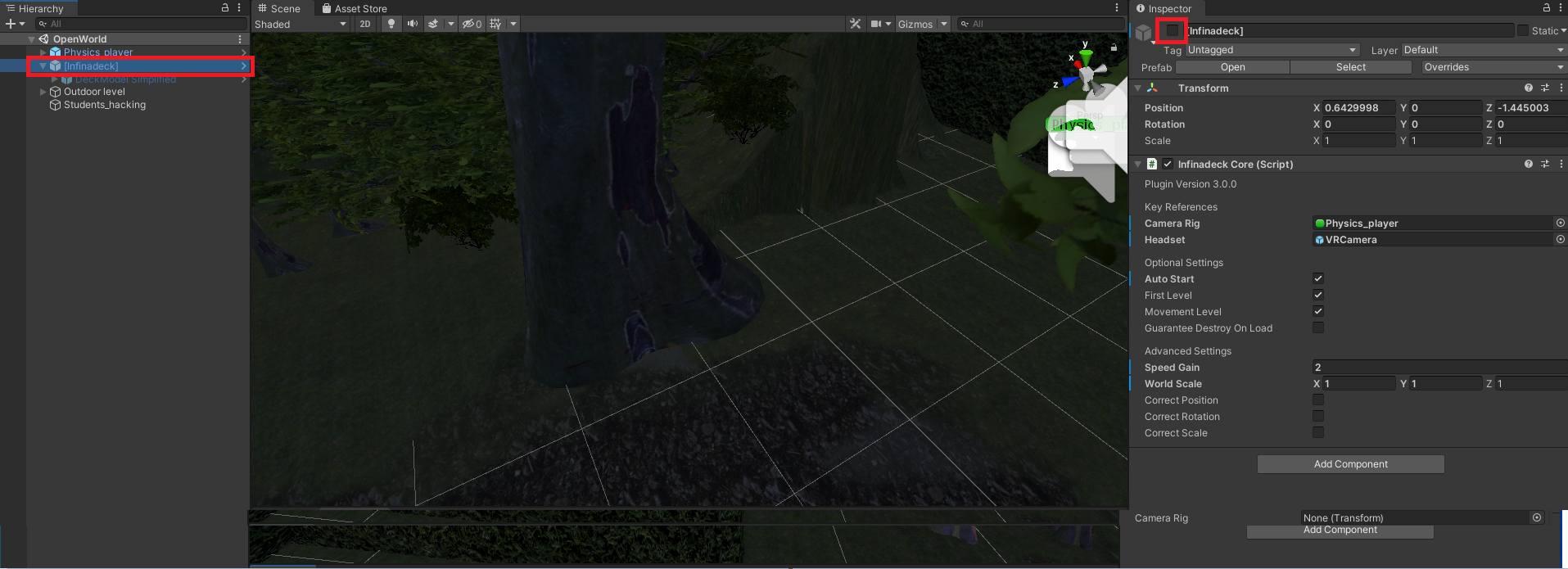
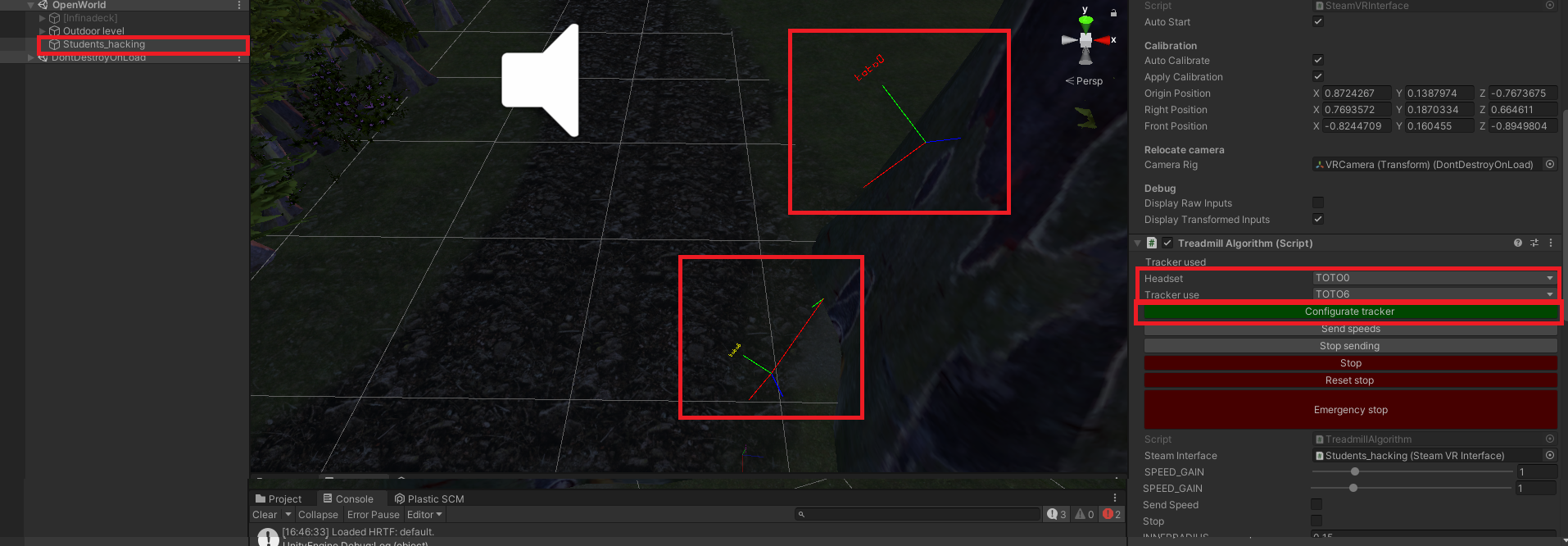
You must ask the player to move his body, and look in the scene which tracker corresponds to the head and which tracker corresponds to the one attached to his back. Here in this case, the tracked attached to his head was TOTO 0 and the one attached to his back was TOTO 6
Finally press configurate tracker
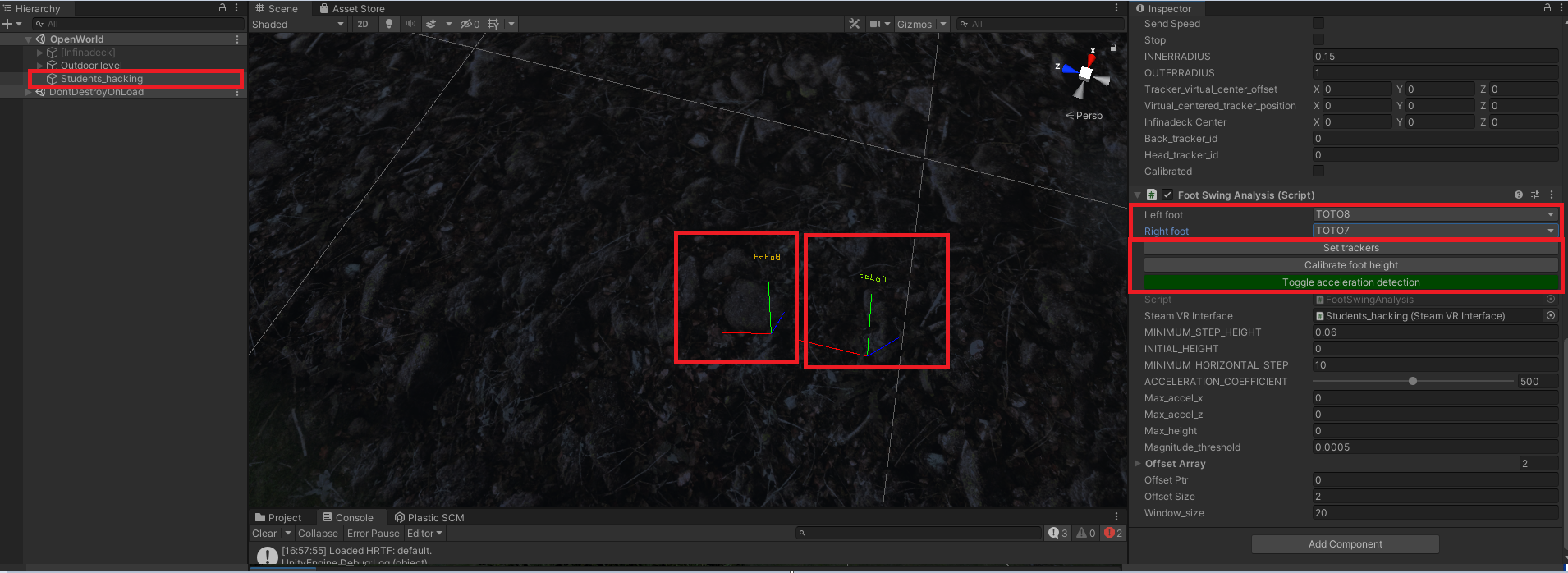
Once again you must ask the player to move his feets to figure out which one is left and the right one to set them in the script "Foot Swing Analysis" attached to "Students_hacking". Here, in the picture, TOTO7 was the right foot and TOTO8 the left one.
Then press "Set trackers", "Calibrate foot height" and "Toggle acceleration detection" in order
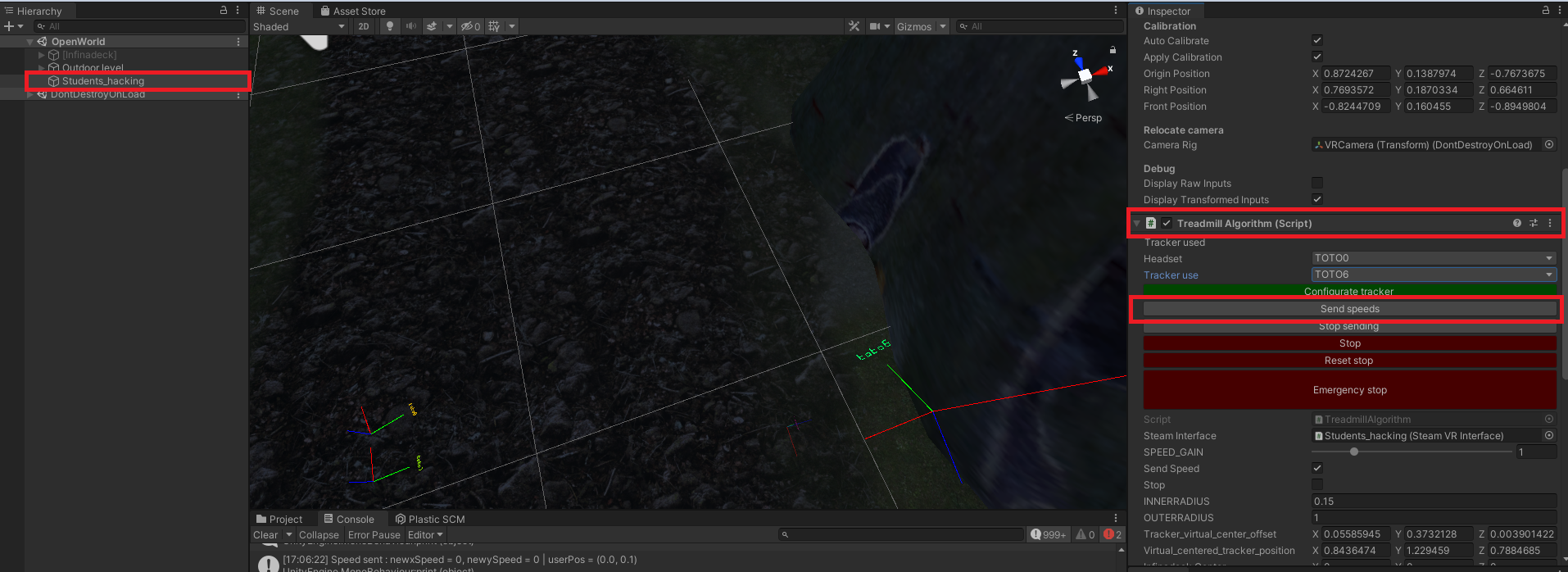
Finally, go back to the script "Treadmill Algorithm and press the button "Send speeds"