Give AI agents hands. This MCP server connects Claude Code (or any MCP client) directly to a PiKVM device, giving AI full keyboard, mouse, and screen access to a physical machine -- no browser automation, no virtual desktops, no emulators.
Point it at real hardware. Let the AI see the screen, type commands, click buttons, and navigate GUIs on a machine it could never otherwise touch.

A Raspberry Pi 5 controlled via PiKVM V4 Plus -- the AI's physical interface to the real world.
IP-KVM devices translate mouse coordinates through multiple layers — USB HID emulation, host-side input drivers, display scaling — each introducing positional error. Existing KVM products either ignore this (requiring manual correction) or offer limited auto-sync that only detects cursor acceleration in a fixed corner region.
This MCP server takes a different approach. The pikvm_auto_calibrate tool uses a vision-based algorithm that:
- Moves the cursor a known distance across multiple randomized screen positions
- Diffs screenshot pairs to isolate the cursor via connected-component analysis
- Computes correction factors from detected vs commanded movement using median aggregation
- Self-verifies by moving to target positions and confirming the cursor lands within 20px
The entire process runs in ~30-60 seconds with no human intervention. Noisy screens (tooltips, animations, dynamic content) are handled through multi-round sampling, ratio divergence filtering, and outlier-resistant statistics — the algorithm discards bad data and still converges on accurate factors.
This is the first IP-KVM tooling — commercial or open source — to implement fully automated mouse coordinate calibration via computer vision. It is what makes precise AI-driven mouse control over a network KVM practical.
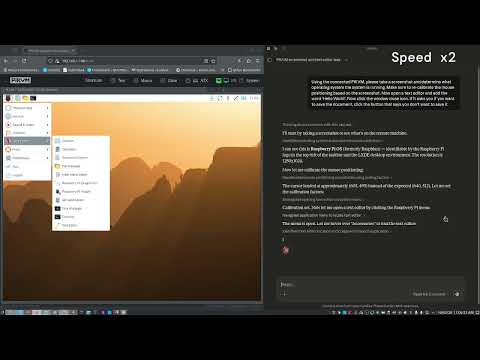
The video below shows Claude Code using this MCP server to autonomously interact with a Raspberry Pi desktop: taking a screenshot to identify the OS, opening a text editor from the menu, typing text, and closing the application -- all through the PiKVM hardware interface.
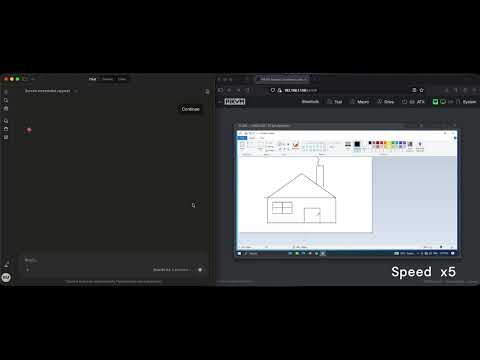
This next demonstration shows Claude, connected via the PiKVM MCP server, responding to a natural language prompt to auto-calibrate its mouse coordinate scaling before performing a series of precision mouse tasks on a remote machine. The session concludes with Claude autonomously drawing a house in MS Paint — a simple but effective showcase of accurate, AI-driven input control over an isolated system.
- Automatic mouse calibration — Vision-based cursor detection computes coordinate correction factors with no manual measurement. The first fully automated calibration for IP-KVM.
- Screenshot capture — Get current screen as JPEG image
- Text typing — Type text with proper special character handling via keymaps
- Keyboard control — Send individual keys or key combinations (e.g., Ctrl+Alt+Delete)
- Mouse control — Move, click, and scroll with calibrated coordinate correction
npm install
npm run buildCopy .env.example to .env and configure:
cp .env.example .envEdit .env:
PIKVM_HOST=https://<your-pikvm-ip>
PIKVM_USERNAME=admin
PIKVM_PASSWORD=your_password
PIKVM_VERIFY_SSL=false
PIKVM_DEFAULT_KEYMAP=en-us
Requires Node.js 18+. This server uses ES modules. If
node --versionshows an older version, replace"command": "node"with the full path to a compatible binary (e.g."/usr/local/bin/node"or your nvm path like"~/.nvm/versions/node/v22.x.x/bin/node"). This is common when nvm's default alias points to an older version.
Add to your Claude Code MCP settings (~/.config/claude-code/settings.json or via the settings UI):
{
  "mcpServers": {
    "pikvm": {
      "command": "node",
      "args": ["/path/to/pikvm_mcp_server/dist/index.js"],
      "env": {
        "PIKVM_HOST": "https://<your-pikvm-ip>",
        "PIKVM_USERNAME": "admin",
        "PIKVM_PASSWORD": "your_password"
      }
    }
  }
}
Or if using the .env file:
{
  "mcpServers": {
    "pikvm": {
      "command": "node",
      "args": ["/path/to/pikvm_mcp_server/dist/index.js"]
    }
  }
}pikvm_screenshot- Capture current screen as JPEG (optional: maxWidth, maxHeight, quality)pikvm_get_resolution- Get screen resolution and valid coordinate ranges
pikvm_type- Type text with keymap-aware special character handling (required: text; optional: keymap, slow, delay)pikvm_key- Send a key or key combo, e.g. Ctrl+Alt+Del (required: key; optional: modifiers, state)pikvm_shortcut- Send multiple keys pressed simultaneously (required: keys array)
pikvm_mouse_move- Move cursor to absolute pixel position or relative delta (required: x, y; optional: relative)pikvm_mouse_click- Click a mouse button, optionally at a position (optional: button, x, y, state)pikvm_mouse_scroll- Scroll the mouse wheel (required: deltaY; optional: deltaX)
pikvm_auto_calibrate- Automatically detect cursor and compute calibration factors (preferred)pikvm_calibrate- Start manual calibration by moving cursor to screen center for visual verificationpikvm_set_calibration- Apply correction factors calculated from calibration (required: factorX, factorY)pikvm_get_calibration- Get current calibration statepikvm_clear_calibration- Reset to uncalibrated mode
The server exposes 15 skills that provide structured guidance for agents. Each skill is available via two discovery paths:
- MCP Prompts —
prompts/list/prompts/getfor clients that support the Prompts capability. - Skill Tools —
tools/list/tools/callasskill_*read-only tools, ensuring visibility in marketplaces (e.g. LobeHub) that index tools only.
| Prompt Name | Skill Tool | Description |
|---|---|---|
take-screenshot |
skill_take_screenshot |
Capturing screenshots with pikvm_screenshot |
check-resolution |
skill_check_resolution |
Checking screen resolution with pikvm_get_resolution |
type-text |
skill_type_text |
Typing text with pikvm_type |
send-key |
skill_send_key |
Sending keys with pikvm_key |
send-shortcut |
skill_send_shortcut |
Sending keyboard shortcuts with pikvm_shortcut |
move-mouse |
skill_move_mouse |
Moving the mouse with pikvm_mouse_move |
click-element |
skill_click_element |
Clicking with pikvm_mouse_click |
scroll-page |
skill_scroll_page |
Scrolling with pikvm_mouse_scroll |
auto-calibrate |
skill_auto_calibrate |
Automatic mouse calibration with pikvm_auto_calibrate |
| Prompt Name | Skill Tool | Arguments | Description |
|---|---|---|---|
setup-session-workflow |
skill_setup_session_workflow |
— | Initialize a PiKVM session |
calibrate-mouse-workflow |
skill_calibrate_mouse_workflow |
— | Calibrate mouse coordinates |
click-ui-element-workflow |
skill_click_ui_element_workflow |
element_description (required) |
Find and click a UI element |
fill-form-workflow |
skill_fill_form_workflow |
form_description (optional) |
Fill in a form on screen |
navigate-desktop-workflow |
skill_navigate_desktop_workflow |
goal (required) |
Navigate a desktop environment |
auto-calibrate-mouse-workflow |
skill_auto_calibrate_mouse_workflow |
— | Automatic mouse calibration |
See docs/skills/ for detailed human-readable guides.
Common key codes for pikvm_key and pikvm_shortcut:
- Letters:
KeyA,KeyB, ...KeyZ - Numbers:
Digit0,Digit1, ...Digit9 - Function keys:
F1,F2, ...F12 - Modifiers:
ShiftLeft,ShiftRight,ControlLeft,ControlRight,AltLeft,AltRight,MetaLeft,MetaRight - Special:
Enter,Escape,Backspace,Tab,Space,Delete,Insert,Home,End,PageUp,PageDown - Arrows:
ArrowUp,ArrowDown,ArrowLeft,ArrowRight
GPL-3.0 - See LICENSE for details.