Setting up a virtual environment
In order to get the coding environment that we want, with packages like git, numpy and scipy, we need to use a virtual environment. This allows us to make a container for all the things we need that we can then activate, without installing them more widely in your home directory, or the network. Because this is quite a safe thing to do, even the QMUL conda environment allows it.
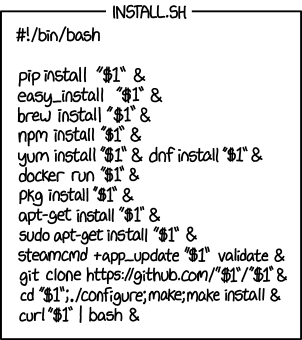
Here we will use Anaconda to conda install packages, but you can also use the python environment commands and pip install to install the packages as detailed here. There are many, many ways to install packages (see below), so knowing the conda method will be a useful introduction but just be aware that it is not a universal standard.
To set up a virtual environment we will need to use the command line, which is accessed via a terminal.
In this course you should only need the command line to setup environments, navigate the directories and open the Jupyter notebook, so you do not need to know the terminal commands in detail.
If you are now asking yourself "what is a command line?" or "where do I find this thing called a terminal?", don't worry, there are instructions below. Basically a command line is a more basic (but also more powerful) way of telling the computer what to do. A list of the main commands is here.
Note that some Windows computers automatically open a windows prompt, and not a linux one. For this reason, many of the commands you find online will not work - until you enter the virtual environment at which point Linux commands will be recognised.
For example, in linux, you use ls to list the files in the directory, whereas in windows it is dir. Google is going to be your friend here - for example, try googling "how to list directories in windows terminal". I don't recommend getting too familiar with the windows commands since in any sensible software development environment you would use a linux terminal (including on Macs).
The following are the key commands: mkdir (make a new directory) ls (or dir) (list the directories) cd (change directory, note cd .. takes you up a level) rm (or rd) (remove file - be careful with this one! Add -r to remove a folder and all its contents), mv (to move a file). If all else fails the nuclear option is to hold Control and press c to kill the process running in a terminal.
Because I don't know what operating system you are using, you need to look at the instructions here. Usually you can just search for "terminal" in the applications menu and click on it.
Anaconda provides an installation including Python 3 and Jupyter Notebooks (and many other things) that runs on Windows, Linux, and MacOS. If you find it convenient to work on your own laptop you are welcome to try to install Anaconda on it. Please make sure you use the latest Python 3 version available.
If you have a Windows machine I strongly suggest that you first install Linux on Windows with WSL, so that you can use the linux terminal as Nature intended.
Note that the School of Mathematical Sciences does not provide support for your own installation, but it is relatively straightforward (at least on Macs!), so I do suggest you give it a try and if it fails revert to the Colab option.
In the terminal, type the following to set up the environment with all the dependencies we need:
conda config --add channels conda-forge
then
conda config --set channel_priority flexible
then
conda create -n myenv scipy numpy matplotlib jupyter git vim
There may be a lot of output and it may take a while to complete, and complain about conflicts that it needs to check - just leave it and be patient. If it asks if you want to install some packages, type y for yes. If you get an angry pop up window asking if you want to execute python, you can just click no.
You can check it worked by doing
conda info --envs
and seeing that myenv is now listed.
Activating environments is essential to making the software in the environments work. Activation entails two primary functions: adding entries to your PATH (where the computer looks for libraries and code) for the environment and running any activation scripts that the environment may contain.
To activate your environment simply type:
conda activate myenv
The terminal prompt will now look something like (myenv) G:/>. You will need to activate the environment every time you log in and start work.
To deactivate just type
conda deactivate
You should now be able to use all of the packages that were installed, in particular git, which was not in the standard anaconda installation.
To check this type:
git -v
You should see something like git version 2.42.0.windows.1 that indicates it now recognises the command.
You can also try opening the Jupyter notebook interface by typing jupyter notebook.
If all goes horribly wrong and you want to start again, or when this course ends and you want to tidy up the workspace, you can simply remove the environment completely by typing:
conda remove --name myenv --all
and check it worked by doing
conda info --envs
which should not return the myenv any more.