


PassGuard-CLI is a professional, modular, terminal-based password manager designed for developers who value speed and local security. It allows you to store and manage Account credentials, API keys, SSH entries, and Personal notes in a secure, SQLite-backed vault. It offers a UNIX-style CLI and a TUI, along with features like rate-limited logins and audit logs.
- Zero-Knowledge local storage: All data is stored in a local
.dbfile. Your Master Access Key is never stored in plain text; it is protected using SHA-256 hashing. - Session-Based Security: Once you login, a secure session is created that expires automatically after 300 seconds (5 minutes) to prevent unauthorized access if your terminal is left open.
- Dual-Mode Interface:
- CLI Mode: Fast, one-liner commands for automation and scripting.
- TUI Mode: A rich, menu-driven terminal interface for exploratory management.
- Password Monitoring: The system automatically flags weak passwords based on real-time Entropy Calculations ().
PassGuard-CLI is built with a modern, modular Python stack to ensure performance and portability:
- Language: Python 3.10+
- Database: SQLite3 (Local, serverless relational storage)
- CLI/TUI Framework: Custom modular engine with
Coloramafor terminal styling. - Cryptography:
hashlib(SHA-256) andsecrets(Cryptographically secure random numbers). - DevOps: Pytest (Automated testing) and GitHub Actions (CI/CD Build Pipeline).
Tip
Architecture Info: For detailed logic flows, DB schemas, and ML explanation, please refer to our Documentation Section.
PassGuard-CLI is distributed as a single standalone executable. You do not need to install Python or any dependencies to run it.
git clone https://github.com/Irshad-11/PassGuard-CLI.git
cd PassGuard-CLI
pip install -r requirements.txt
python -m passguard.app
- Download the latest Releases containing the
pass.exefile. - Navigate to the folder where it is downloaded.
Important
Vault Security: For better security, move pass.exe to a personal or separate folder. This folder is your sensitive vault, so avoid keeping it in Downloads.
- Copy the folder path where
pass.exeis located. - Open Windows Search → type Edit Environmental Variables → open it.
- Click New under the Path section and paste your folder path → Save.
Tip
Quick Access: Once added to PATH, you can run pass from any CMD window without navigating to its folder.
- Open CMD and type
pass. - It will open the terminal-based TUI and ask for your DB Path:
- Paste the folder path where
pass.exeis located (completely safe).
- Paste the folder path where
- It will then ask for an Access Key:
- Enter a 4-digit number for a quick and easy memorable key.
Caution
Access Key Advice: Use a number that is easy to remember but not obvious, to balance convenience and security.
🎉 Ollah! You are ready to go.
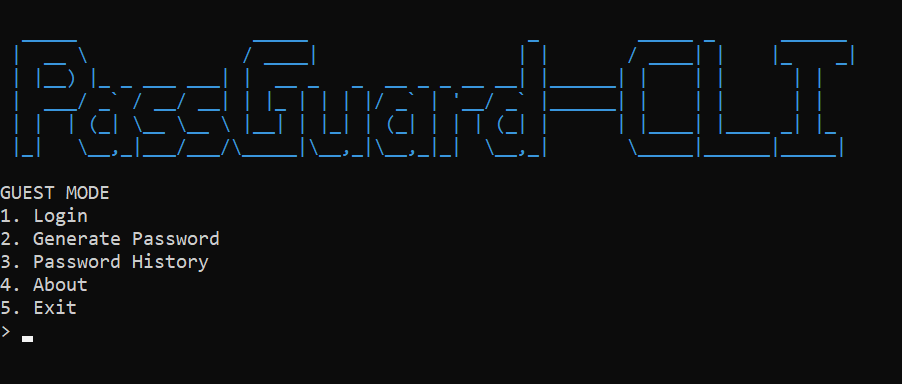
You will see the PassGuard homepage:
Note
CMD Usage: You can access PassGuard anytime from CMD by typing pass or pass <argument>.
Example commands: pass add, pass login <key>.
On your first run, the system will guide you through setting up your Master Access Key.
# Login to start a session
pass login MySecretKey123
Generates a password based on your password.txt style and copies it to the clipboard.
pass gen -copy
Add and retrieve secrets without entering the TUI.
# Add a new account
pass add acc Google myname@gmail.com MyPassword123!

# Get secret to clipboard
pass get acc Google myname@gmail.com
pass get acc Google myname@gmail.com -copy
acc -> Account
api -> API
ssh -> SSH
note -> Personal Note
Simply run the application without arguments to enter the full Interactive Mode:
pass
- Lead Developer: Irshad Hossain, Software Engineering Student at UFTB.
- Project Purpose: Developed a professional-grade security tool for the 1st-year Software Engineering Academic Project.
- Contact: GitHub/Irshad-11
Made with ❤️ for the Terminal Community