Tired of constantly logging in to your college proxy and switching it on/off every so often?
PowerProx is here. It's a lightweight Windows system tray utility built with PowerShell that lets you easily toggle proxy settings, auto-login to proxy servers, and manage proxy credentials. It’s especially useful for environments where proxies require periodic authentication or LDAP-based login.
Download and Get It Running in Sec's Using The Installer: https://github.com/HGRgamer/PowerProx/releases/latest
- 🌐 Proxy Toggle: Enable/disable Windows proxy with a single click.
- 🔐 Secure Auto-Login: Periodically authenticates to proxies using securely stored credentials.
- 🕓 Custom Retry Interval: Configure how frequently login attempts are retried.
- 📁 Configurable Settings GUI: Change credentials, toggle auto-login, and set retry intervals via a simple GUI.
- 🔑 Credential Management: Secure storage using Windows Credential Manager.
- 🖥️ Single Instance Protection: Prevents multiple app instances from running.
- 🔄 Startup Option: Can be configured to start with Windows.
- 📦 Installer: Bundled with an Inno Setup installer for easy distribution.
- Windows 10/11
- PowerShell 5.1+
- .NET Framework (typically preinstalled)
- Download and run the latest
PowerProxInstaller.exefrom the Releases section. - Configure whether to:
- Auto-start PowerProx with Windows
- Create a Desktop Shortcut
- Create Start Menu Shortcut
- Launch the app after installation.
PowerProx will appear in the system tray with status icons. (You can drag it onto your taskbar if needed)
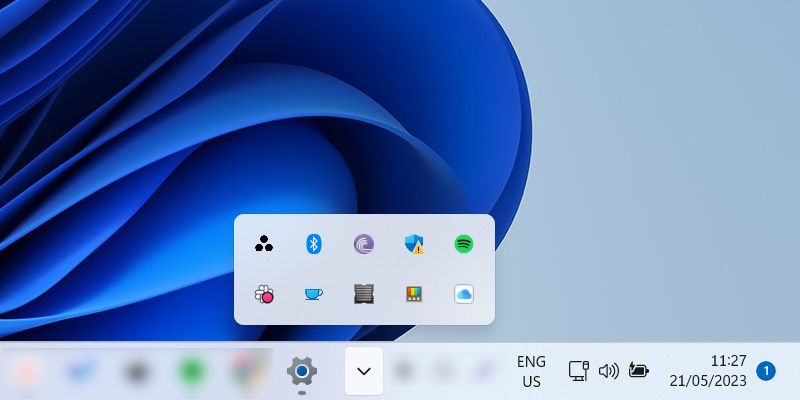
- Right-click the tray icon and go to Settings.
- Enter:
- Your proxy credentials (username and password)
- Enable/disable auto-login
- Set retry interval (in seconds)
- Save and close. You're ready to go!
Imp: Keep retry interval at least 10secs to avoid overloading server or excessive usage.
- Go to Control Panel > Programs > Uninstall a program, find PowerProx, and click Uninstall.
- The uninstaller will automatically stop the app (if running) and remove all installed files.
PowerProx stores settings in config.json located in AppData:
{
  "retryInterval": 30,
  "autoLogin": true
}
You can edit this file manually or through the settings UI.
Icon:
Settings:

Menu:

Proxy icon created by Uniconlabs - Flaticon
On icon created by Pixel perfect - Flaticon
Off icon created by Pixel perfect - Flaticon