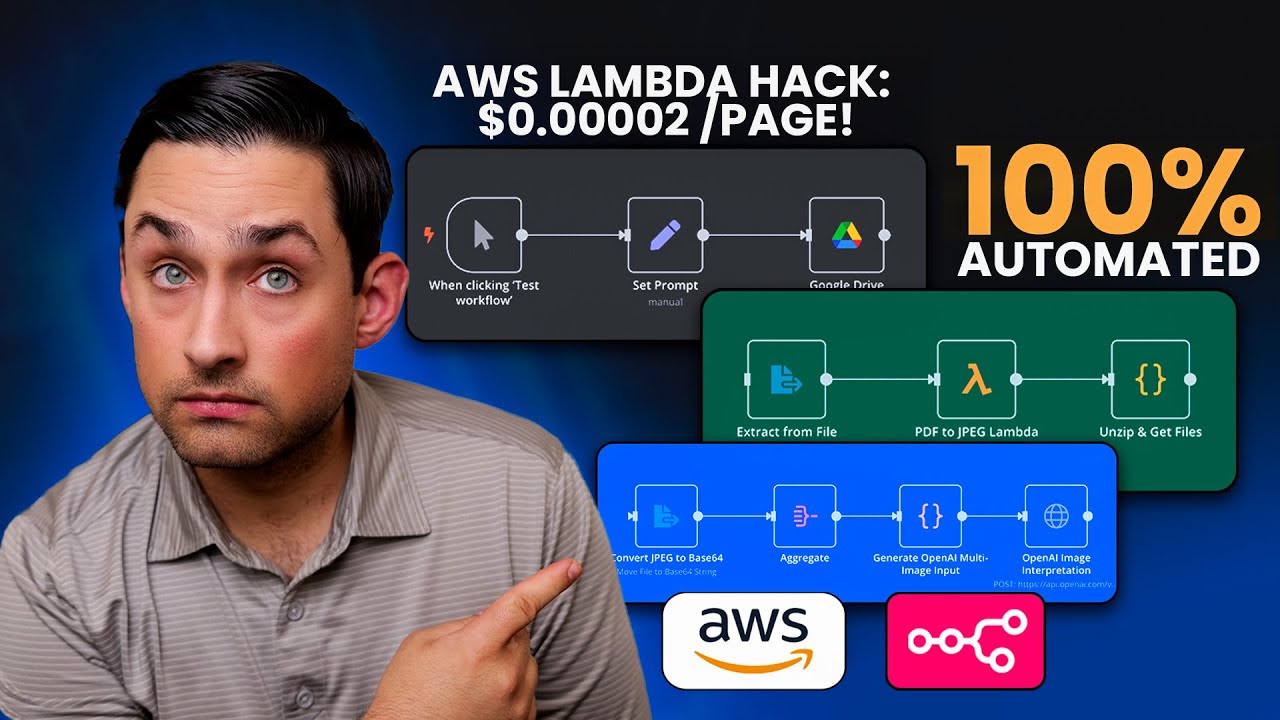
Transform PDF files into high-quality JPEG images with this AWS Lambda function. Designed for seamless integration with automation tools like n8n, this solution delivers converted images as a convenient ZIP archive at a fraction of the cost of commercial API services.
We've created a production-ready n8n workflow that demonstrates how to integrate this Lambda function with other services to create powerful automation pipelines.
This workflow shows the complete integration path from PDF source to AI image analysis:
- Extract PDFs from Google Drive
- Convert to JPEGs using the Lambda function
- Unzip the resulting files
- Send the images to OpenAI for interpretation
Perfect for document processing, content extraction, or automated image analysis pipelines!
graph TD
    A[Google Drive] -->|Download PDF| B[Extract Content]
    B -->|PDF Binary| C[PDF to JPEG Lambda]
    C -->|ZIP File| D[Unzip & Extract Files]
    D -->|Multiple JPEGs| E[Base64 Encode Images]
    E -->|Aggregated Images| F[Build OpenAI Request]
    F -->|Multiple Images| G[OpenAI Vision API]

    style A fill:#ff52b9,stroke:#333,stroke-width:2px
    style C fill:#3985ff,stroke:#333,stroke-width:2px
    style G fill:#137f13,stroke:#333,stroke-width:2px
- PDF Source: Reads PDF files directly from Google Drive
- Lambda Integration: Seamlessly calls the AWS Lambda function
- ZIP Processing: Extracts individual JPEGs from the ZIP archive
- OpenAI Integration: Prepares and sends images to OpenAI's Vision API
- Multi-Image Support: Handles multi-page PDFs automatically
We've done the hard work for you! The provided workflow is ready to import and use immediately:
- Download the Workflow: Get the JSON file from the link above
- Import into n8n:
- Open your n8n instance
- Go to "Workflows" → "Import from File" or "Import from URL"
- Select the downloaded JSON file or paste the URL
- Click "Import"
That's it! The workflow is now in your n8n instance with all nodes already configured and connected.
If you need to connect to your own services:
- For Google Drive: Update the credentials in the Google Drive node
- For AWS Lambda: Update the credentials and function ARN in the AWS Lambda node
- For OpenAI: Add your API key to the OpenAI credentials
All nodes include detailed descriptions and instructions in their configurations to help you understand and customize as needed.
- Converts PDF files to JPEG images with adjustable quality
- Accepts either direct PDF uploads or URLs to PDF files
- Returns all images as a single ZIP file
- Handles multi-page PDFs efficiently
- Proper error handling and logging
- Docker-based deployment for simplicity and consistency
- Ultra Cost-Effective: ~$0.42/month for 10,000 conversions vs $100-1,000 with SaaS APIs
- Complete Control: Customize conversion parameters exactly to your needs
- Serverless Architecture: No servers to manage, maintain, or monitor
- Seamless Integration: Works with n8n, websites, apps, or any system that can make HTTP requests
- Scale Automatically: Handles thousands of simultaneous conversions without configuration
- Privacy Focused: Your documents never leave your AWS account
- Deployment Flexibility: Choose between Docker-based approach or Lambda Layers
- Maximum Reusability: Unlike embedded n8n-only solutions, this modular approach can be used with any system that can make HTTP requests
-
AWS Lambda Costs:
- Free Tier: 1 million free requests + 400,000 GB-seconds/month
- Beyond Free Tier: $0.20 per million requests + $0.0000166667 per GB-second
-
Real-World Example (10,000 PDFs/month with 512MB Lambda):
- Request cost: 10,000 × $0.20/million = $0.002
- Compute cost: 10,000 × 5 seconds × 0.5GB × $0.0000166667/GB-second = $0.42
- Total: $0.42 per month
-
Compared to Commercial Services:
- SaaS PDF conversion APIs: $10-100/month for similar volume
- Pay-per-conversion APIs: $0.01-0.10 per conversion ($100-1,000 for 10,000 files)
- Many services impose rate limits or queue processing at lower tiers
It's clear that AWS Lambda stands out as the most cost-effective option for PDF-to-JPEG conversions. The table below compares our Lambda solution with popular commercial alternatives:
| Service | Lowest Plan / Cost | Monthly Allotment (Approx) | Approx Cost for 1,000 Pages | Derived Cost per Page |
|---|---|---|---|---|
| AWS Lambda | Pay-per-use after free tier | N/A (pay for compute + requests) | ~$0.0213 for 1,000 pages¹ | ~$0.000021/page |
| Zamzar | $9/mo (Developer) | ~3,000 conversions/month | $9 for up to 3,000 pages² | $0.003/page |
| CloudConvert | $9/mo (1,000 conversion mins) | ~1,000 pages (if ~1 min per page) | $9 | $0.009/page |
| DocConversionAPI | $9.99/mo (Basic) | 1,000 conversions/month | $9.99 | $0.00999/page |
| ConvertAPI | $9/mo (Basic: 1,500 sec) | ~1,500 pages (if ~1 sec per page) | $9 | $0.006/page |
| PDF.co | $39/mo | ~2,000 credits | $39 (covers ~1,000 pages) | ~$0.02/page |
| Aspose Cloud | $29/mo (Basic) | ~3,000 API calls/month | $29 | $0.029/page |
| Adobe PDF Tools | Pay-as-you-go (~$0.05/transaction) | N/A | ~$50 for 1,000 pages | $0.05/page |
| PDFTron | Custom/Contact Sales | N/A | Varies, enterprise-focused | N/A |
¹ Based on 1 GB memory, ~1.266 seconds billed duration per invocation. Excludes the Lambda free tier, which can significantly reduce or eliminate costs for moderate usage.
² 100 conversions/day = ~3,000 conversions/month.
Real-world costs may vary (e.g., file sizes, concurrency, how each service measures usage). Nonetheless, if you're willing to package PDF conversion tools (poppler, ImageMagick, etc.) into a Lambda function, AWS is strikingly affordable compared to most specialized SaaS solutions.
graph TD
    A[PDF Source] -->|Upload or URL| B[AWS Lambda Function]
    B -->|Process| C[Convert PDF to JPEGs]
    C -->|Package| D[Create ZIP Archive]
    D -->|Return| E[Base64-encoded ZIP]

    subgraph n8n["n8n Integration"]
        F[Read Binary File] -->|PDF| G[Encode to Base64]
        H[URL to PDF] -->|Specify URL| I[Create Request]
        G -->|Invoke| B
        I -->|Invoke| B
        E -->|Decode| J[Process Response]
        J -->|Save| K[ZIP File with Images]
    end

    style A fill:#ff52b9,stroke:#333,stroke-width:2px
    style B fill:#3985ff,stroke:#333,stroke-width:2px
    style E fill:#137f13,stroke:#333,stroke-width:2px
    style n8n fill:#2A2A2A,stroke:#666,color:#fff
    linkStyle default stroke:#666,stroke-width:2px
-
AWS Lambda:
- Runs containerized PDF conversion function
- Scales automatically with demand
- Pay-per-use pricing model
-
Amazon ECR:
- Stores Docker container image
- Manages container versions
- Integrates with Lambda service
-
IAM:
- Secure execution role for Lambda
- Least-privilege permission model
- Integration with external services
If you've used automation tools like n8n but aren't familiar with AWS Lambda, here's what you need to know:
AWS Lambda is a "serverless" computing service that lets you run code without managing servers. Think of it like a specialized function in n8n, but instead of running within the n8n workflow, it runs in the cloud (AWS).
In simple terms:
- You upload your code (like our PDF converter function)
- AWS runs that code when it's triggered (by an API call, a file upload, etc.)
- You only pay for the computing time you actually use
Compared to SaaS API services:
- With commercial PDF conversion APIs, you pay for a subscription or per-conversion fee
- With Lambda + n8n, you run your own conversion service in AWS at a fraction of the cost
- You maintain control over the process while still keeping it serverless and scalable
- You can customize the conversion parameters exactly to your needs
This project uses a Docker-based approach for AWS Lambda, which offers several advantages:
What is a Docker-based Lambda?
- Instead of uploading code files directly, we package our function in a Docker container
- This container includes all necessary dependencies, including poppler for PDF conversion
- AWS runs this container when the Lambda function is invoked
Advantages of the Docker approach:
- Simplified Dependencies: No need to create separate Lambda Layers - everything is in one container
- Consistent Environment: The exact same environment runs locally and in AWS
- Easier Debugging: You can test the container locally before deploying
- No Library Path Issues: Avoids common problems with shared libraries often encountered with Lambda Layers
- Larger Size Limit: Docker images can be up to 10GB, compared to 250MB for regular Lambda deployments
How it works:
- We create a Dockerfile that includes Python, poppler utilities, and our code
- The build script builds this Docker image and pushes it to Amazon ECR (container registry)
- Our Lambda function runs this container image when invoked
- AWS Account
- AWS CLI configured
- Docker installed and running
- Python 3.12+ installed
- Basic knowledge of AWS Lambda
- n8n workflow automation tool (optional)
For a fully automated deployment to AWS Lambda, use the provided deployment script:
# Make the deployment script executable
chmod +x build_and_deploy.sh

# Run the deployment script
./build_and_deploy.sh
This script will:
- Check if a Lambda execution role exists and create one if needed
- Create an ECR repository for the Docker image if it doesn't exist
- Build and tag the Docker image with all dependencies included
- Push the Docker image to Amazon ECR
- Create or update the Lambda function to use this Docker image
- Configure proper memory, timeout, and other settings
By default, it creates a Lambda function named pdf-to-jpg-converter in the us-east-1 region. You can edit the script variables to customize these settings.
You can test the Docker container locally before deploying:
# Build the Docker image
docker build -t pdf-converter .

# Run the container with a test PDF
docker run -p 9000:8080 pdf-converter
In another terminal:
# Invoke the local function with a test event
curl -XPOST "http://localhost:9000/2015-03-31/functions/function/invocations" -d '{"pdf_url":"https://example.com/document.pdf"}'A Note on External Dependencies: This approach does create an external dependency on AWS, which some users might prefer to avoid by handling everything within n8n for simplicity. It's entirely possible to perform PDF conversion directly in n8n by adding custom packages to JavaScript Code nodes. However, we believe the Lambda-based approach offers greater flexibility and long-term benefits. Your conversion function becomes a standalone service that can be called from n8n, other automation tools, web applications, or any system that can make HTTP requests - not just locked inside your n8n workflows. Both approaches have merit depending on your specific needs and preferences.
For security best practices, create an IAM user with only the minimum permissions needed:
-
Create a new IAM Policy:
- Go to AWS IAM Console → Policies → Create Policy
- Choose JSON and paste the following:
{ "Version": "2012-10-17", "Statement": [ { "Effect": "Allow", "Action": "lambda:InvokeFunction", "Resource": "arn:aws:lambda:*:*:function:pdf-to-jpg-converter" } ] }- Replace
pdf-to-jpg-converterwith your function name - Name the policy something like
n8n-pdf-converter-policy
-
Create a new IAM User:
- Go to AWS IAM Console → Users → Add User
- Enter a name like
n8n-pdf-converter - Select "Access key - Programmatic access"
- Click "Next: Permissions"
- Choose "Attach existing policies directly"
- Search for and select your
n8n-pdf-converter-policy - Complete user creation and save the access key ID and secret
-
Use these credentials in n8n:
- When setting up your AWS credentials in n8n, use these limited access keys
- This restricts n8n to only invoke this specific Lambda function
- No other AWS resources or actions will be available to n8n
- In your n8n workflow, add an AWS Lambda node
- Configure AWS credentials in n8n:
- Access Key ID (from limited IAM user)
- Secret Access Key (from limited IAM user)
- Region (must match your Lambda function's region)
- In the Lambda node configuration:
- Function Name:
pdf-to-jpg-converter(or your chosen name) - Invocation Type:
RequestResponse
- Function Name:
While this project uses a Docker-based approach, another common method is to use Lambda Layers. Here's a brief overview:
Lambda Layers are a way to package code and dependencies that can be shared across multiple Lambda functions.
In simple terms:
- Layers are packages of libraries or runtime components
- They get "attached" to your Lambda function when it runs
- They save you from having to include common dependencies in every function
Layer Structure for Python:
layer.zip
│
└── python/
    └── lib/
        └── python3.12/
            └── site-packages/
                └── [your packages and modules]
For binary dependencies (like poppler):
layer.zip
│
└── bin/               # Executable files
└── lib/               # Shared libraries
└── include/           # Header files
You can learn more about this approach in AWS documentation if needed.
Want to go deeper with automation and get direct support? Join our exclusive automation community!
- In-depth Automation Workflows: Learn how to integrate AI into your automation processes
- Battle-Tested Templates: Access exclusive, production-ready automation templates
- Expert Guidance: Get direct support from automation professionals
- Early Access to Content: Be the first to access exclusive content
- Private Support Channels: Receive personalized support through direct chat and office hours
- Community of Serious Builders: Connect with like-minded professionals
The community is capped at 250 members to ensure quality support and interaction.
Join the Getting Automated Community
- Website: Getting Automated
- YouTube Channel: Getting Automated YouTube
- Free Workflow Automation Tools: Automation Tools
If you need this solution built for you or want personalized guidance, you can schedule a consultation:
MIT