Bridge to the Internet creates a platform for localized network infrastructure to minimize resources required for networked communication to better serve their local communities during times of intermittent connection.
Bridge to the Internet is a router image that hosts network bandwidth saving services and robust local area communication applications that activate local area networks to strengthen connection within a local community. With the internet under heavy strain due to the COVID-19 pandemic, it becomes clear that we must maximize our network resources and look for alternatives to internet-based communication.
It implements, in a single device, a wireless access point, a web-cache server, a DNS sinkhole server, and an intranet web server that hosts resilient communication applications that allow peers to communicate over Wi-Fi if direct communication is not possible and when the internet is inaccessible. The Bridge image is designed to be quickly and easily set up with a one-line configuration script for non-technical network administrators. It is distributed as open-source software with detailed installation instructions for multiple build systems.
Ultimately, Bridge to the Internet seeks to educate about network infrastructure and begin a conversation about the internet's role in local communities to reimagine the sharing of network resources.
Internal Web Links:
- Community Website:
http://bridgeorhttp://10.0.0.1 - Pi-Hole Dashboard:
http://pi.hole:8080/adminorhttp://10.0.0.1:8080/admin
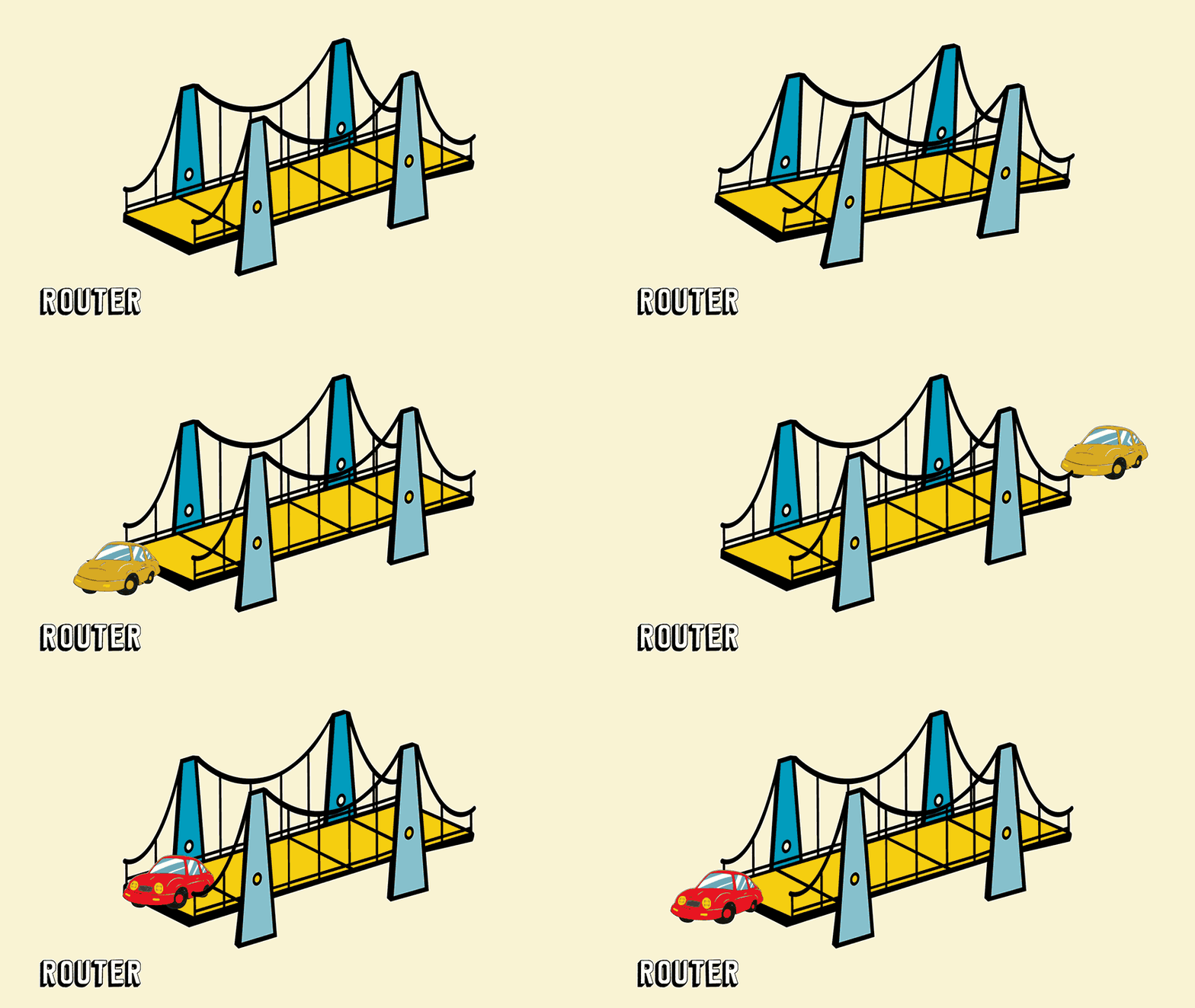
Bridge to the Internet uses hostapd to create a wireless hotspot that forwards network traffic to the internet using the onboard Wi-Fi module. A wireless access point is automatically set up with the installation of the image and uses dnsmasq as a DHCP server. Internet access forwards traffic to the Ethernet port with iptables.

To increase internet speeds on a network with limited bandwidth, the Bridge implements network infrastructure typically reserved for businesses and institutions. A web cache server is implemented with Squid, a Forward HTTP proxy. The web cache distributes resources at the network level so that all connected devices can experience a faster internet while minimizing the need for external web requests.
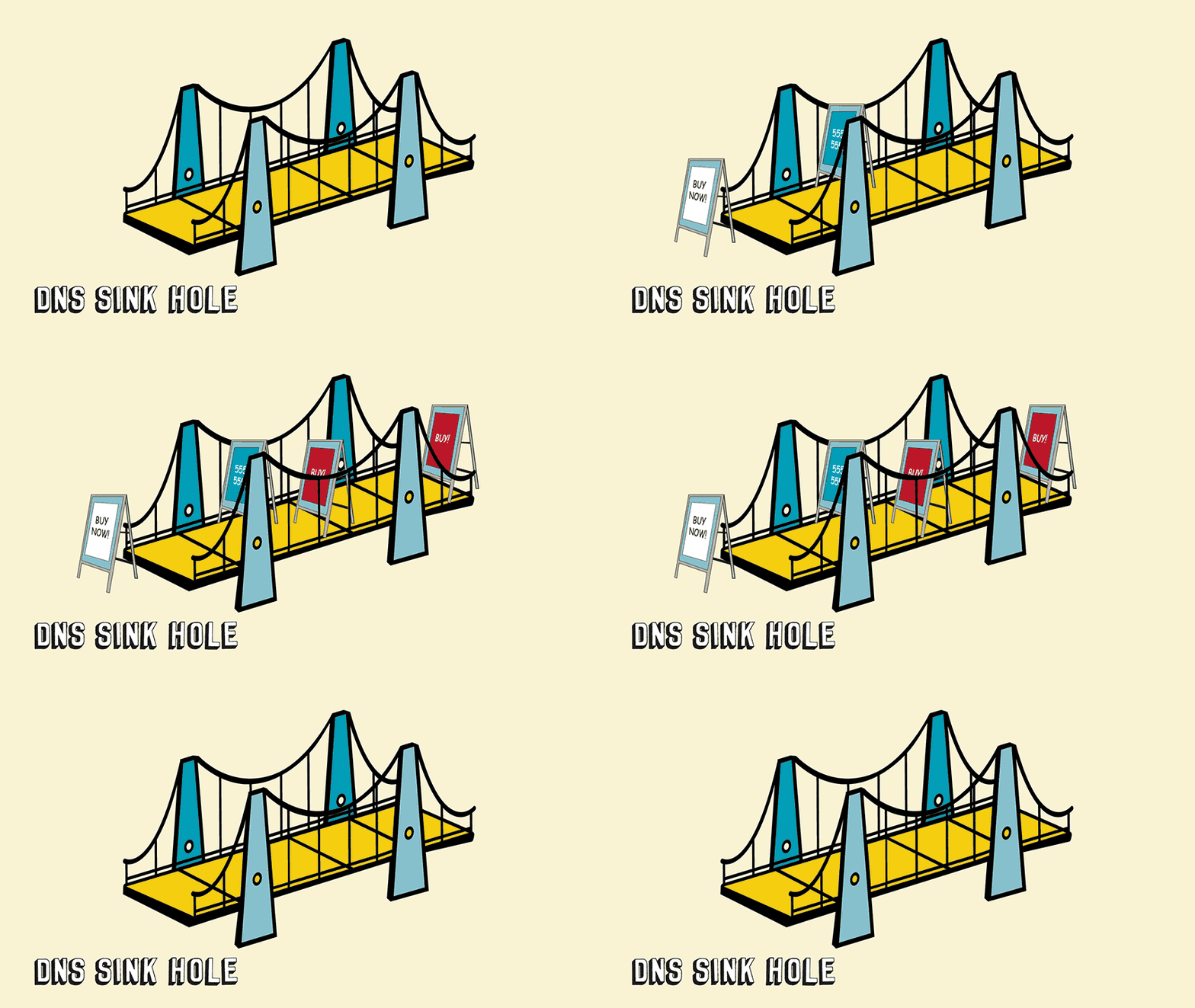
Bridge comes configured with Pi-Hole, a DNS sinkhole, that acts as a network ad-blocker where all connected clients benefit from the ad blocker. Network resources are further maximized as requests for advertisements are dropped.
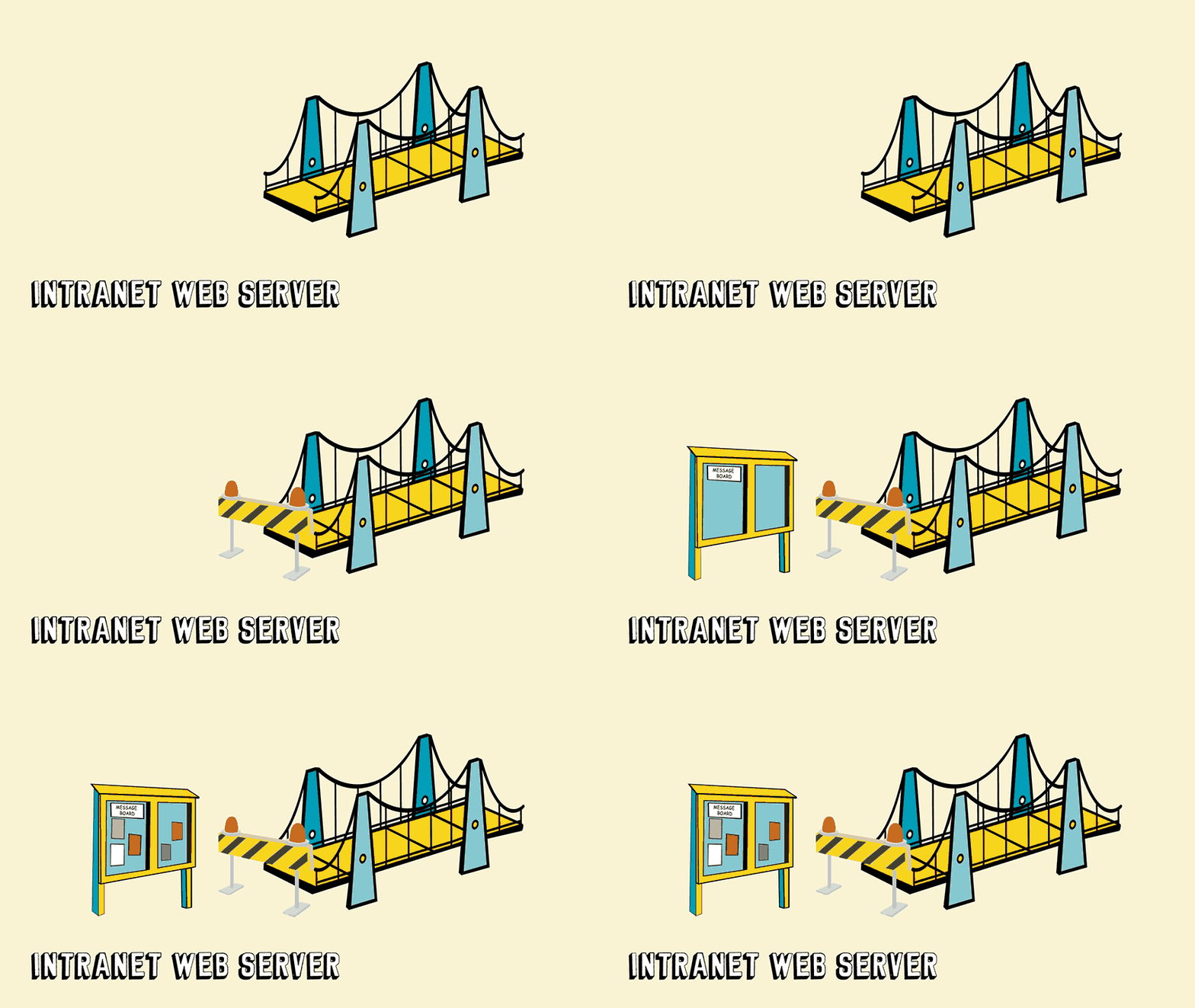
Bridge hosts a local webserver with running a community task list for asynchronous communication and a real-time chat for synchronous communication. It provides alternative communication channels that do not depend on internet connectivity. The message boards allow for community organization and a way for network peers to be more connected.

Bridge wants to educate about network infrastructure and bring attention to the communities that are formed from the local area network infrastructure, and explore ways to share network resources to benefit all.
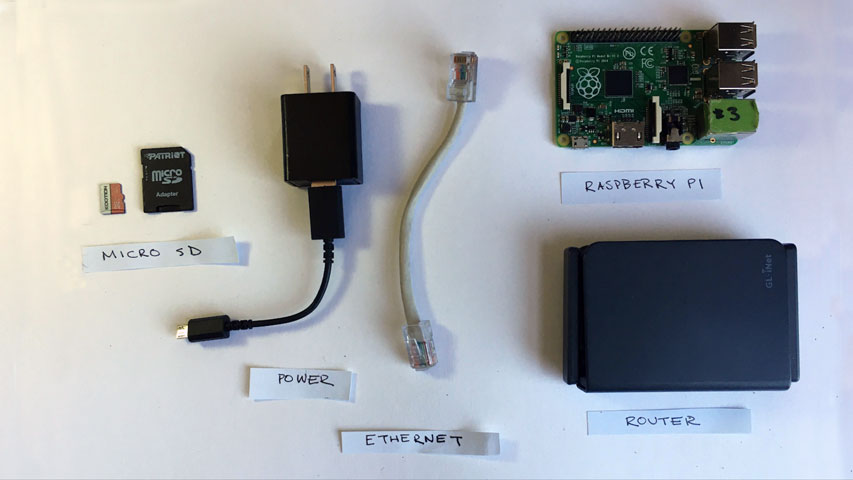
Bridge is distributed as a disk image for a Raspberry Pi, version 3B+/4B. Its software is provided as open-source with detailed installation instructions for Windows, Mac OS, and Linux build machines. It requires minimal hardware to operate, using the onboard wifi to create a wireless access point. To provide internet sharing, the network needs an ethernet cable and internet modem or router.
Instructions for:
- Raspberry Pi 3B+/ 4B (with on-board WiFi)
- 8GB+ Micro SD card (C10 Preferred)
- Ethernet Cable
- Bridge image
- Internet connectivity
- Micro SD card reader
- Balena Etcher
- SSH Client (PuTTY for Windows Build Machines, Linux and Mac OS will have a built-in SSH client)
- Internet Modem/ Router
- Download and install Balena Etcher
- Download Bridge image
- Insert Micro SD card into build machine
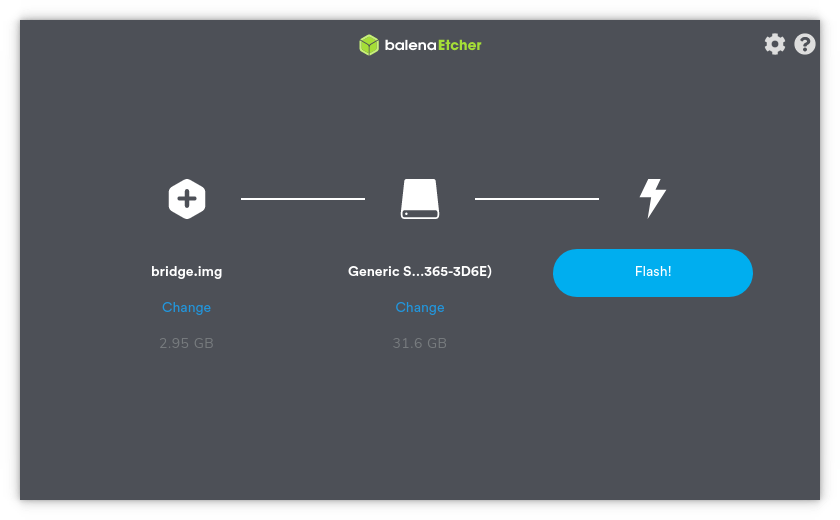
- Open Balena Etcher and select bridge.img.gz as your image and your SD card as target drive
- Confirm your target drive and Flash
- When flash is complete eject SD card and insert into Raspberry Pi
- Connect Raspberry Pi to internet modem with Ethernet cable and power on the Raspberry Pi
- The first boot will take extra time to expand the SD card and initialize software, wait at least 10 minutes
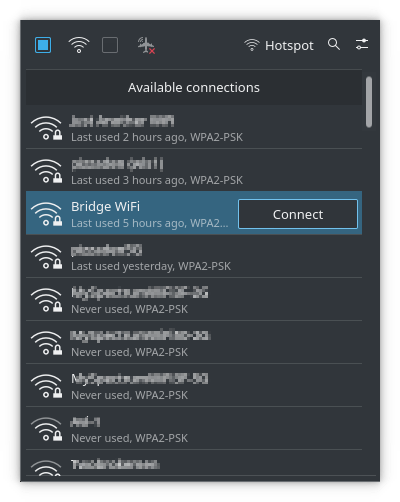
- When it is completed a wireless network should be visible named
Bridge WiFi(If it does not appear please power cycle the Raspberry Pi) - Connect to
Bridge WiFiwith the passwordcommunity - Use PuTTY to SSH into the Raspberry Pi
- Host:
oper@10.0.0.1 - Port:
22 - Password:
bridge
- Change WiFi SSID and Password by running
sudo bash configurewifi.shin the Raspberry Pi shell - You should now be broadcasting your own WiFi network with Pi Hole DNS sinkhole, Squid Cache, and Node Express Web Server
- The local web server can be accessed in the browser at either
http://bridgeorhttp://10.0.0.1 - The Pi-Hole Dashboard can be accessed in the browser at
http://pi.hole:8080/admin
- Follow post-installation instructions to configure your clients to make use of Squid HTTP proxy.
- Download and install Balena Etcher
- Download Bridge image
- Insert Micro SD card into build machine
- Open Balena Etcher and select bridge.img.gz as your image and your SD card as target drive
- Confirm your target drive and Flash
- When flash is complete eject SD card and insert into Raspberry Pi
- Connect Raspberry Pi to internet modem with Ethernet cable and power on the Raspberry Pi
- The first boot will take extra time to expand the SD card and initialize software, wait at least 10 minutes
- When it is completed a wireless network should be visible named
Bridge WiFi(If it doesn't appear please power cycle the Raspberry Pi) - Connect to
Bridge WiFiwith the passwordcommunity - Use your preferred terminal to SSH into the Raspberry Pi with
ssh oper@bridgeand password:bridge - Change WiFi SSID and Password by running
sudo bash configurewifi.shin the Raspberry Pi shell - You should now be broadcasting your own WiFi network with Pi Hole DNS sinkhole, Squid Cache, and Node Express Web Server

- The local web server can be accessed in the browser at either
http://bridgeorhttp://10.0.0.1 - The Pi-Hole Dashboard can be accessed in the browser at
http://pi.hole:8080/admin
- Follow post-installation instructions to configure your clients to make use of Squid HTTP proxy.
- Download and install Balena Etcher
- Download Bridge image
- Insert Micro SD card into build machine
- Open Balena Etcher and select bridge.img.gz as your image and your SD card as target drive
- Confirm your target drive and Flash
- When flash is complete eject SD card and insert into Raspberry Pi
- Connect Raspberry Pi to internet modem with Ethernet cable and power on the Raspberry Pi
- The first boot will take extra time to expand the SD card and initialize software, wait at least 10 minutes
- When it is completed a wireless network should be visible named
Bridge WiFi - Connect to
Bridge WiFiwith the passwordcommunity - Use your preferred terminal to SSH into the Raspberry Pi with
ssh oper@bridgeand password:bridge - Change WiFi SSID and Password by running
sudo bash configurewifi.shin the Raspberry Pi shell - You should now be broadcasting your own WiFi network with Pi Hole DNS sinkhole, Squid Cache, and Node Express Web Server
- The local web server can be accessed in the browser at either
http://bridgeorhttp://10.0.0.1 - The Pi-Hole Dashboard can be accessed in the browser at
http://pi.hole:8080/admin
- Follow post-installation instructions to configure your clients to make use of Squid HTTP proxy.
To make use of Squid HTTP Web Cache you must configure your client devices to use the router as the HTTP Proxy. This enables Squid Cache to act as a proxy server allowing all connected to use the network cache server which will allow faster web requests for connected clients. It is optimal to configure the proxy in your system settings so that all applications running your device. The specific instructions will vary between operating systems, but you can use Chrome Browser to navigate to your system proxy settings.
Chromium uses your system proxy settings. When changed it will affect all applications on your machine.
- Open Chrome and open Preferences panel
- Navigate to Advanced > Systems page
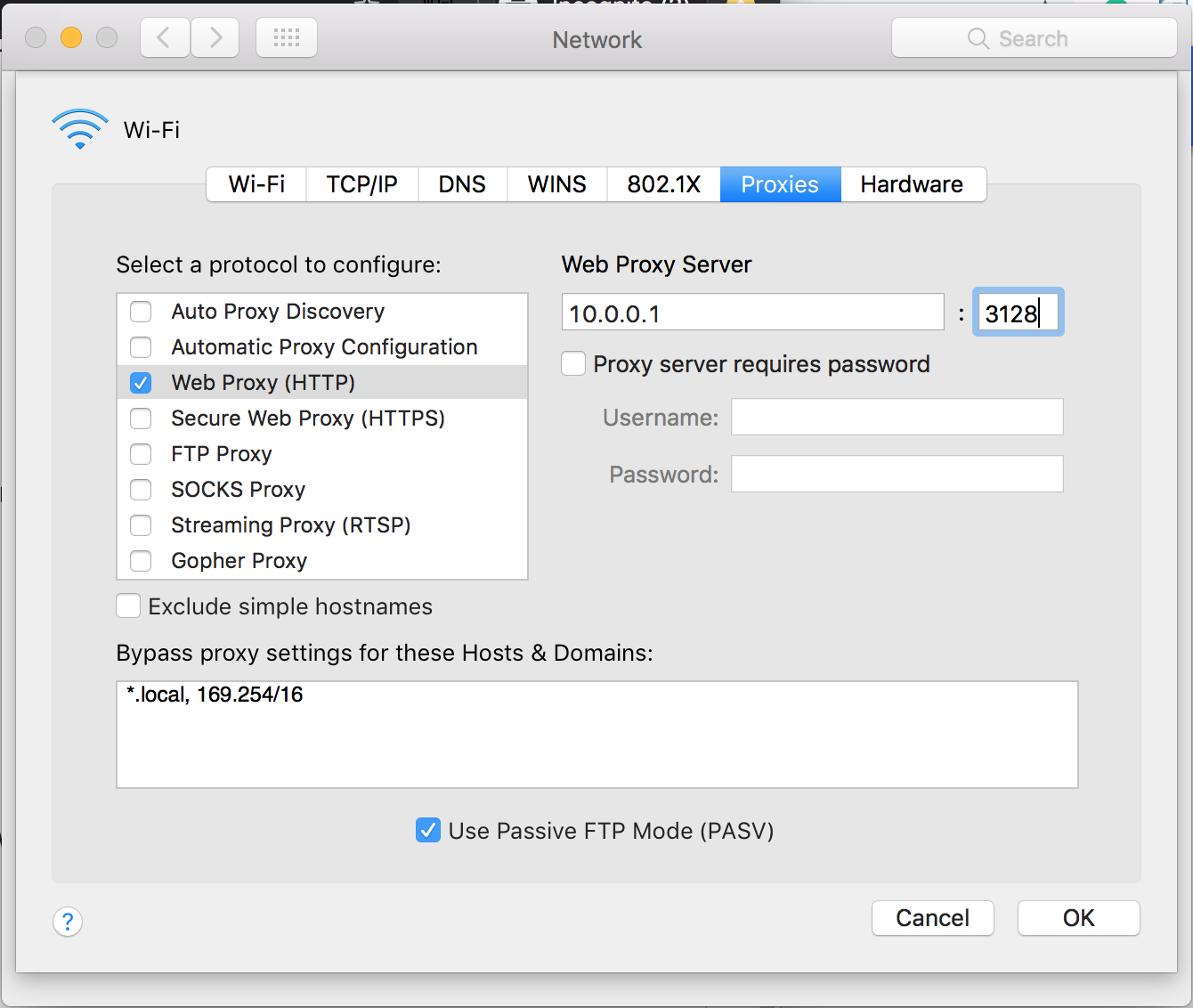
- Manually configure proxy with the router IP address as your proxy server
- HTTP Proxy:
10.0.0.1 - Port:
3128
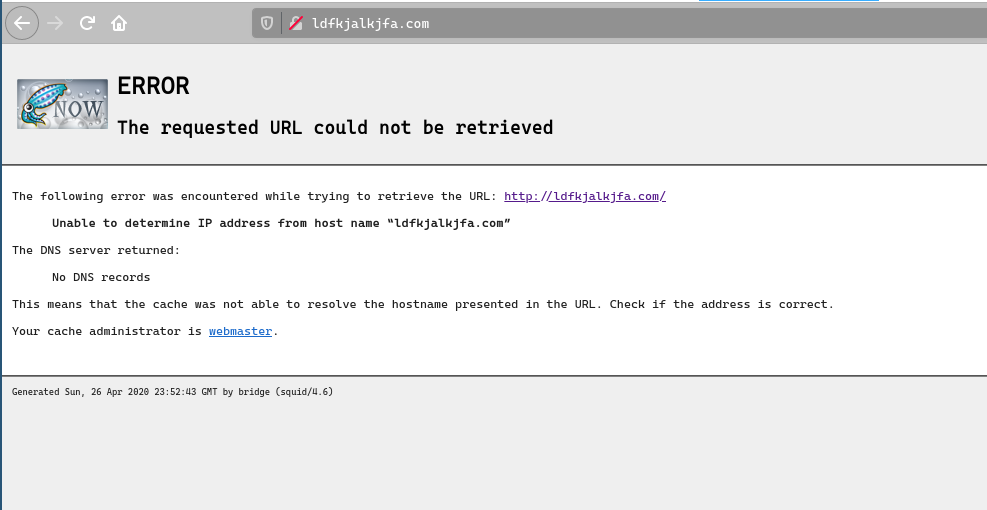
- You can test if it is operating properly by visiting a bogus URL (ldfkjalgkjalj.com). If you receive an error from Squid it means your device is sending requests through the proxy server. Alternatively you can run a packet capture to see HTTP requests are going through port 3128.
- You should be now be sending requests to the Squid Proxy Server! This will speed up your internet as devices on the network will cache http here.
You can manually set the router as the proxy server on Firefox Browser. You will do this in the browser's preferences page.
- Open Firefox Browser and go to Preferences panel
- Navigate to Network Settings and select settings
- Select Manual Proxy Configuration and set:
- HTTP Proxy:
10.0.0.1 - Port:
3128
- You can test if it is operating properly by visiting a bogus URL (ldfkjalgkjalj.com). If you receive an error from Squid it means your device is sending requests through the proxy server. Alternatively you can run a packet capture to see HTTP requests are going through port 3128.
- You should be now be sending requests to the Squid Proxy Server! This will speed up your internet as devices on the network will cache http here.
- Navigate WiFi Settings
- Select to Bridge WiFi options
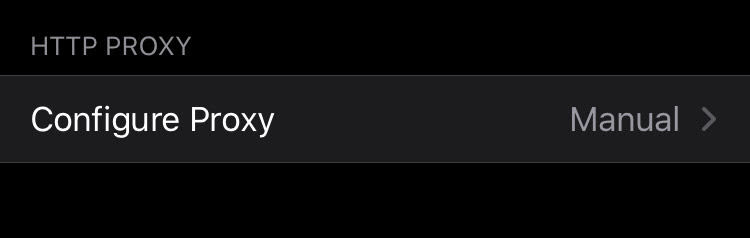
- Select Configure Proxy
- Enable Manual Proxy
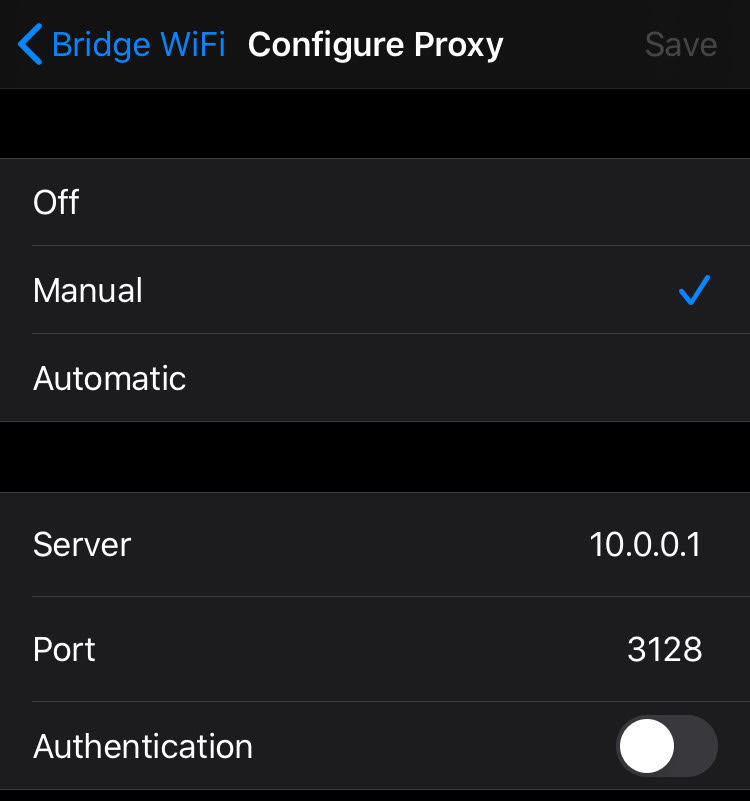
- Server:
10.0.0.1 - Port:
3128
- You can test if it is operating properly by visiting a bogus URL (ldfkjalgkjalj.com). If you receive an error from Squid it means your device is sending requests through the proxy server. Alternatively you can run a packet capture to see HTTP requests are going through port 3128.
- You should be now be sending requests to the Squid Proxy Server! This will speed up your internet as devices on the network will cache http here.
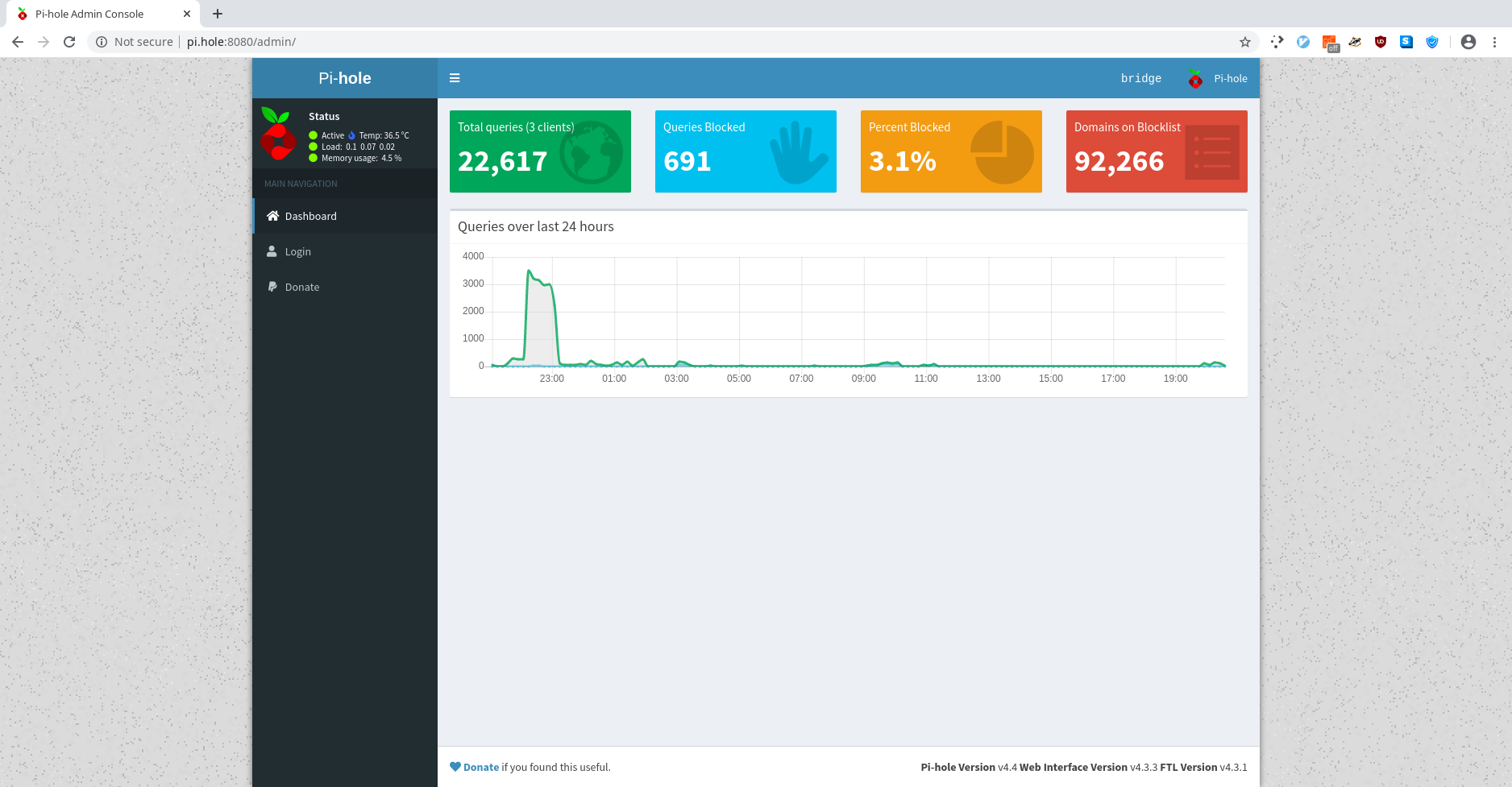
Bridge WiFi has Pi-Hole pre-configured. Pi-Hole is a DNS Sinkhole which acts as a network level ad-blocker. It greatly improves network speeds by re-directing malicious and advertisement dns requests. Please view the Pi Hole Website for instructions for advanced configurations.
The Pi-Hole web dashboard can be viewed at:
http://pi.hole:8080/adminorhttp://10.0.0.1:8080/admin
Squid is a caching proxy for the Web supporting HTTP, HTTPS, FTP, and more. It reduces bandwidth and improves response times by caching and reusing frequently-requested web pages
- Mimi Onuoha, Thesis Advisor
- Alden Jones, Thesis Resident
- Ellen Nickles, Thesis Resident
- Tom Igoe, Advisor
- Anthony Bui
- Luming Hao
- Tushar Goyal