


Readline is A Pure Go Implementation of a libreadline-style Library.
The goal is to be a powerful alternater for GNU-Readline.
WHY: Readline will support most of features which GNU Readline is supported, and provide a pure go environment and a MIT license.
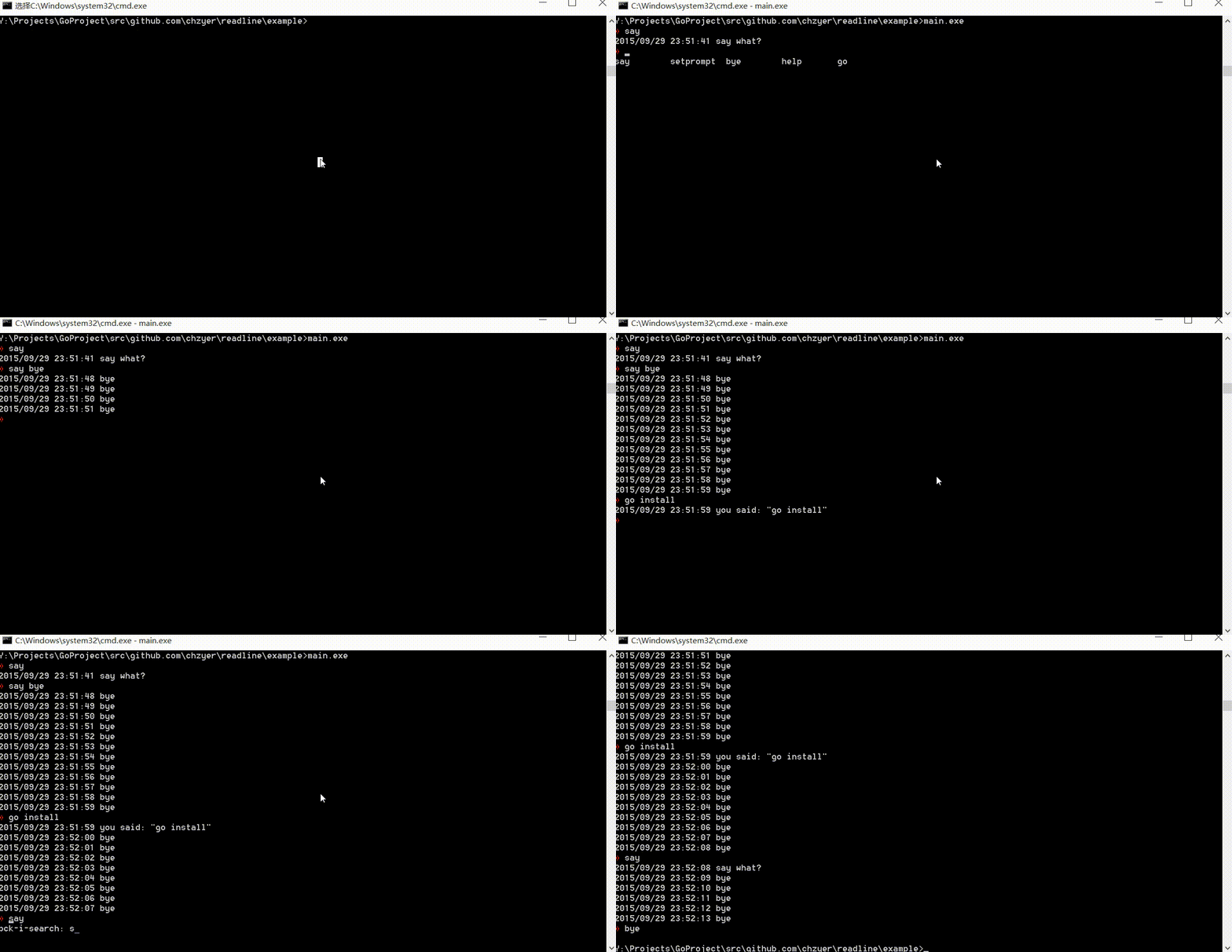
Also works fine in windows
-
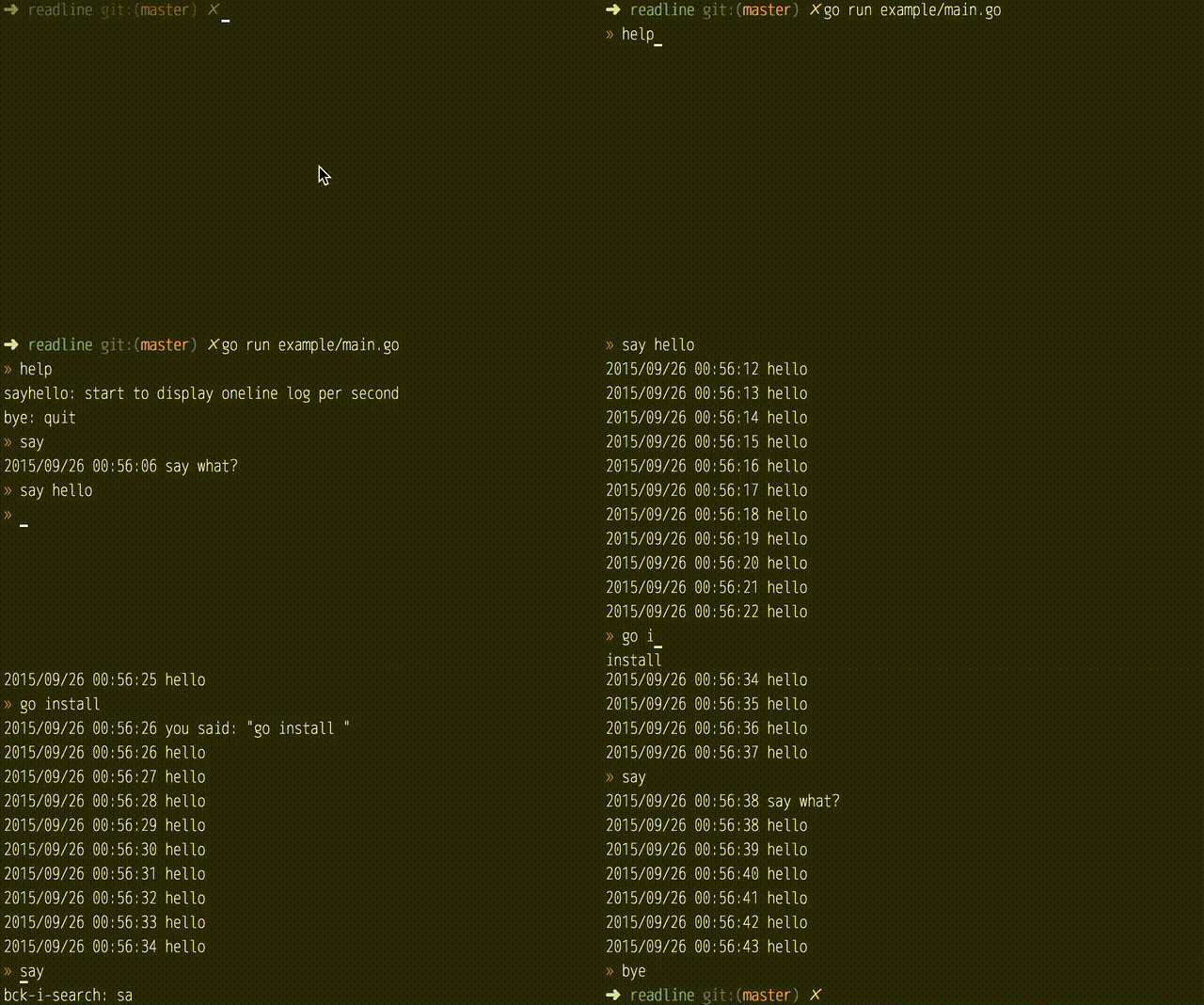
example/readline-demo The source code about the demo above
-
example/readline-pass-strength A example about checking password strength, written by @sahib
- Vi Mode is not completely finish
- More funny examples
- Support dumb/eterm-color terminal in emacs
- Support emacs/vi mode, almost all basic features that GNU-Readline is supported
- zsh-style backward/forward history search
- zsh-style completion
- Readline auto refresh when others write to Stdout while editing (it needs specify the Stdout/Stderr provided by *readline.Instance to others).
- Support colourful prompt in all platforms.
- Import package
go get gopkg.in/readline.v1
or
go get github.com/chzyer/readline
- Simplest example
import "gopkg.in/readline.v1"

rl, err := readline.New("> ")
if err != nil {
	panic(err)
}
defer rl.Close()

for {
	line, err := rl.Readline()
	if err != nil { // io.EOF
		break
	}
	println(line)
}- Example with durable history
rl, err := readline.NewEx(&readline.Config{
	Prompt: "> ",
	HistoryFile: "/tmp/readline.tmp",
})
if err != nil {
	panic(err)
}
defer rl.Close()

for {
	line, err := rl.Readline()
	if err != nil { // io.EOF
		break
	}
	println(line)
}- Example with auto refresh
import (
	"log"
	"gopkg.in/readline.v1"
)

rl, err := readline.New("> ")
if err != nil {
	panic(err)
}
defer rl.Close()
log.SetOutput(l.Stderr()) // let "log" write to l.Stderr instead of os.Stderr

go func() {
	for _ = range time.Tick(time.Second) {
		log.Println("hello")
	}
}()

for {
	line, err := rl.Readline()
	if err != nil { // io.EOF
		break
	}
	println(line)
}- Example with auto completion
import (
	"gopkg.in/readline.v1"
)

var completer = readline.NewPrefixCompleter(
	readline.PcItem("say",
		readline.PcItem("hello"),
		readline.PcItem("bye"),
	),
	readline.PcItem("help"),
)

rl, err := readline.NewEx(&readline.Config{
	Prompt:       "> ",
	AutoComplete: completer,
})
if err != nil {
	panic(err)
}
defer rl.Close()

for {
	line, err := rl.Readline()
	if err != nil { // io.EOF
		break
	}
	println(line)
}Meta+B means press Esc and n separately.
Users can change that in terminal simulator(i.e. iTerm2) to Alt+B
Notice: Meta+B is equals with Alt+B in windows.
- Shortcut in normal mode
| Shortcut | Comment |
|---|---|
Ctrl+A |
Beginning of line |
Ctrl+B / ← |
Backward one character |
Meta+B |
Backward one word |
Ctrl+C |
Send io.EOF |
Ctrl+D |
Delete one character |
Meta+D |
Delete one word |
Ctrl+E |
End of line |
Ctrl+F / → |
Forward one character |
Meta+F |
Forward one word |
Ctrl+G |
Cancel |
Ctrl+H |
Delete previous character |
Ctrl+I / Tab |
Command line completion |
Ctrl+J |
Line feed |
Ctrl+K |
Cut text to the end of line |
Ctrl+L |
Clean screen (TODO) |
Ctrl+M |
Same as Enter key |
Ctrl+N / ↓ |
Next line (in history) |
Ctrl+P / ↑ |
Prev line (in history) |
Ctrl+R |
Search backwards in history |
Ctrl+S |
Search forwards in history |
Ctrl+T |
Transpose characters |
Meta+T |
Transpose words (TODO) |
Ctrl+U |
Cut text to the beginning of line |
Ctrl+W |
Cut previous word |
Backspace |
Delete previous character |
Meta+Backspace |
Cut previous word |
Enter |
Line feed |
- Shortcut in Search Mode (
Ctrl+SorCtrl+rto enter this mode)
| Shortcut | Comment |
|---|---|
Ctrl+S |
Search forwards in history |
Ctrl+R |
Search backwards in history |
Ctrl+C / Ctrl+G |
Exit Search Mode and revert the history |
Backspace |
Delete previous character |
| Other | Exit Search Mode |
- Shortcut in Complete Select Mode (double
Tabto enter this mode)
| Shortcut | Comment |
|---|---|
Ctrl+F |
Move Forward |
Ctrl+B |
Move Backward |
Ctrl+N |
Move to next line |
Ctrl+P |
Move to previous line |
Ctrl+A |
Move to the first candicate in current line |
Ctrl+E |
Move to the last candicate in current line |
Tab / Enter |
Use the word on cursor to complete |
Ctrl+C / Ctrl+G |
Exit Complete Select Mode |
| Other | Exit Complete Select Mode |
| Environment | $TERM |
|---|---|
| Mac OS X iTerm2 | xterm |
| Mac OS X default Terminal.app | xterm |
| Mac OS X iTerm2 Screen | screen |
| Mac OS X iTerm2 Tmux | screen |
| Ubuntu Server 14.04 LTS | linux |
| Centos 7 | linux |
| Windows 10 | - |
Ctrl+Ais not working inscreenbecause it used as a control command by default
If you test it otherwhere, whether it works fine or not, please let me know!
If you have any questions, please submit a github issue and any pull requests is welcomed :)