Version: 11.0.0-alpha
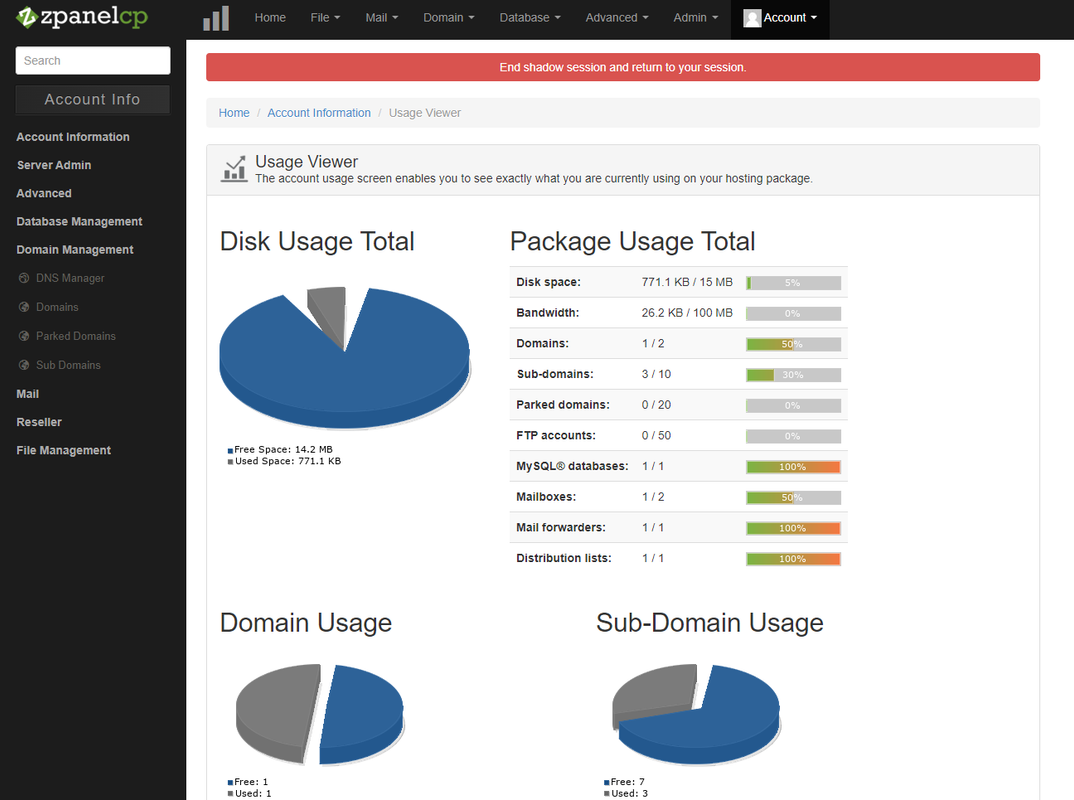
ZPanel is an open-source web hosting control panel written in PHP and is compatible with Microsoft Windows and POSIX (Linux, UNIX, MacOSX and the BSD's).
ZPanel is licensed under the GNU GENERAL PUBLIC LICENSE (GPL v3) you can view a copy of this license by opening the LICENSE file in the root of this folder.
This version wasn't fully tested and may contain security flaws. Therefore it is not recommended for productions servers. Feel free to use it on local enviroment.
Below you can find installation example for diffrent path than default one (C:/zpanel)
!!! Using spaces in direcotries names may produce errors in panel usage !!!
Packages versions used during testing:
- Apache 2.4.54 Win64 here
- PHP 8.0.20 - VS16 x64 Thread Safe here
- MySql Server 8.0.26 here
- DNS Server 9.16.29 x64 here
- FTP Server 0.9.42 here
- hMail Server 5.6.8 - Build 2574 here
PHP part
-
Download and unpack PHP (In my case under
Z:/php8.0path) -
Add PHP
binfolder to system enviroment path here's how -
In php foler copy
php.ini-developmentfile asphp.ini -
Set configuration in PHP
php.inifile
Set correct extension_dir path and uncomment it
(in my case)
extension_dir = "Z:/php8.0/ext"
Uncomment (delete ; sign) following lines in php.ini file
extension=curlextension=fileinfoextension=gdextension=intlextension=ldapextension=mbstringextension=exifextension=mysqliextension=opensslextension=pdo_mysql
Apache part
-
Download and unpack Apache server (I will be presentig configuration when Apache is uder
Z:/Apache24path) -
Go to
bindirectory and install Apache service with CMD (Administartor mode)
httpd.exe -k install
- Set configuration in Apache
conf/httpd.conffile
Find and change server root path
Here is changed line for my case
Define SRVROOT "Z:/Apache24"
Find and change server name
ServerName localhost:80
Find and add index.php to DirectoryIndex as below
<IfModule dir_module>
    DirectoryIndex index.php index.html
</IfModule>
Uncomment (delete # sign) following lines
LoadModule rewrite_module modules/mod_rewrite.soInclude conf/extra/httpd-vhosts.conf
Add zpanel domain in the end of document
<VirtualHost *:80>
    DocumentRoot "${SRVROOT}/htdocs/zpanel"
    ServerName zpanel.localhost
    ErrorLog "logs/zpanel-error.log"
    CustomLog "logs/zpanel-access.log" common
    <Directory "${SRVROOT}/htdocs/zpanel">
        AllowOverride All
        Require all granted
    </Directory>
</VirtualHost>
Add PHP 8.0 support for php extension by adding at the end
PHPIniDir "Z:/php8.0"
AddHandler application/x-httpd-php .php
LoadModule php_module "Z:/php8.0/php8apache2_4.dll"
- Copy
zpanelfiles to Apachehtdocs/zpaneldirectory
MySQL part
- Download and install MySQL server
Settings you need to remeber for next steps
- server port
(default: 3306) - admin login
(default: root) - admin password
- Import
zpaneldatabase frometc/build/config_packs/ms_windows/zpanel_core.sqlto database If you used linked eariler installer you shoud have option to launchMySQL Workbenchapp and after logging in there is an option for import database
DNS part
- Download and install DNS server
In my case DNS server will be installed in Z:/Apache24/htdocs/zpanel/bin/bind direcotry
- Create and paste (with your own paths) to
named.conffile
(In my case it is located in Z:/Apache24/htdocs/zpanel/bin/bind/etc/named.conf)
// This is the primary configuration file for the BIND DNS server named.
include "Z:/Apache24/htdocs/zpanel/bin/bind/etc/named.conf.options";
include "Z:/Apache24/htdocs/zpanel/bin/bind/etc/named.conf.logging";
- Create and paste (with your own paths) to
named.conf.optionsfile
(In my case it is located in Z:/Apache24/htdocs/zpanel/bin/bind/etc/named.conf.options)
options {
        directory "Z:/Apache24/htdocs/zpanel/bin/bind/zones";  # Sets the location of all zone files (including the root hints file)
        recursion no;							        # Don't allow recursion (in other words, don't allow this sever to be used as a caching server)
        allow-recursion { none; };					    # This would allow recursion from specific clients only, so it's a useful way to ensure that recursion definitely CANNOT occur)
        listen-on { any; };						        # Listen on all IPv4 interfaces
        listen-on-v6 { any; };						    # Listen on all IPv6 interfaces (not needed if IPv6 not enabled)
        allow-transfer { 10.0.0.2; };					# Allows the zone(s) on this server to be transferred to specific secondary servers only - so enter your secondary and tertiary autooritative nameservers here
									                    # On secondary and tertiary servers it should be: allow-transfer { none; };
        version none;                                   # Prevents rogue hosts trying to determine the BIND version of this nameserver
        rate-limit { responses-per-second 10; };		# Attempts to prevent DoS/DDoS by limiting the responses per second (to a single IP address) to ten per second.

	blackhole {                 					    # Drop queries that result in IPs for these ranges
            10/8;               					    #  - remove this line if you are running on a 10.x.y.z network
            172.16/12;          					    #  - remove this line if you are running on a 172.16.x.y network
            192.168/16;							        #  - remove this line if you are running on a 192.168.x.y network
	};
	dnssec-validation auto;     					    # sets the DNS root zone as the trust anchor for DNSSEC
};
- Create and paste (with your own paths) to
named.conf.loggingfile
(In my case it is located in Z:/Apache24/htdocs/zpanel/bin/bind/etc/named.conf.logging)
logging {
     channel default_log {
          file "Z:/Apache24/htdocs/zpanel/bin/bind/etc/logs/default.log";
          print-time yes;
          print-category yes;
          print-severity yes;
          severity info;
     };
     channel auth_servers_log {
          file "Z:/Apache24/htdocs/zpanel/bin/bind/etc/logs/auth_servers.log";
          print-time yes;
          print-category yes;
          print-severity yes;
          severity info;
     };
     channel dnssec_log {
          file "Z:/Apache24/htdocs/zpanel/bin/bind/etc/logs/dnssec.log";
          print-time yes;
          print-category yes;
          print-severity yes;
          severity info;
     };
     channel zone_transfers_log {
          file "Z:/Apache24/htdocs/zpanel/bin/bind/etc/logs/zone_transfers.log";
          print-time yes;
          print-category yes;
          print-severity yes;
          severity info;
     };
     channel ddns_log {
          file "Z:/Apache24/htdocs/zpanel/bin/bind/etc/logs/ddns.log";
          print-time yes;
          print-category yes;
          print-severity yes;
          severity info;
     };
     channel client_security_log {
          file "Z:/Apache24/htdocs/zpanel/bin/bind/etc/logs/client_security.log";
          print-time yes;
          print-category yes;
          print-severity yes;
          severity info;
     };
     channel rate_limiting_log {
          file "Z:/Apache24/htdocs/zpanel/bin/bind/etc/logs/rate_limiting.log";
          print-time yes;
          print-category yes;
          print-severity yes;
          severity info;
     };
     channel rpz_log {
          file "Z:/Apache24/htdocs/zpanel/bin/bind/etc/logs/rpz.log";
          print-time yes;
          print-category yes;
          print-severity yes;
          severity info;
     };
     channel dnstap_log {
          file "Z:/Apache24/htdocs/zpanel/bin/bind/etc/logs/dnstap.log";
          print-time yes;
          print-category yes;
          print-severity yes;
          severity info;
     };
     channel queries_log {
          file "Z:/Apache24/htdocs/zpanel/bin/bind/etc/logs/queries.log";
		  print-time yes;
          print-category yes;
          print-severity yes;
          severity info;
     };
     channel query-errors_log {
          file "Z:/Apache24/htdocs/zpanel/bin/bind/etc/logs/query-errors.log";
          print-time yes;
          print-category yes;
          print-severity yes;
          severity dynamic;
     };
     channel default_syslog {
          print-time yes;
          print-category yes;
          print-severity yes;
          syslog daemon;
          severity info;
     };
     channel default_debug {
          print-time yes;
          print-category yes;
          print-severity yes;
          file "named.run";
          severity dynamic;
     };
     category default { default_syslog; default_debug; default_log; };
     category config { default_syslog; default_debug; default_log; };
     category dispatch { default_syslog; default_debug; default_log; };
     category network { default_syslog; default_debug; default_log; };
     category general { default_syslog; default_debug; default_log; };
     category zoneload { default_syslog; default_debug; default_log; };
     category resolver { auth_servers_log; default_debug; };
     category cname { auth_servers_log; default_debug; };
     category delegation-only { auth_servers_log; default_debug; };
     category lame-servers { auth_servers_log; default_debug; };
     category edns-disabled { auth_servers_log; default_debug; };
     category dnssec { dnssec_log; default_debug; };
     category notify { zone_transfers_log; default_debug; };
     category xfer-in { zone_transfers_log; default_debug; };
     category xfer-out { zone_transfers_log; default_debug; };
     category update{ ddns_log; default_debug; };
     category update-security { ddns_log; default_debug; };
     category client{ client_security_log; default_debug; };
     category security { client_security_log; default_debug; };
     category rate-limit { rate_limiting_log; default_debug; };
     category spill { rate_limiting_log; default_debug; };
     category database { rate_limiting_log; default_debug; };
     category rpz { rpz_log; default_debug; };
     category dnstap { dnstap_log; default_debug; };
     category trust-anchor-telemetry { default_syslog; default_debug; default_log; };
     category queries { queries_log; };
     category query-errors {query-errors_log; };
};
- Create following folders (change directories to match your enviroment)
Z:/Apache24/htdocs/zpanel/bin/bind/ets/logsZ:/Apache24/htdocs/zpanel/bin/bind/zones
FTP part
Currently, the latest servers are not supported. Please use similar versions to listed at the beginning of installation
- Download and install FTP server
In my case FTP server will be installed in Z:/Apache24/htdocs/zpanel/bin/filezilla direcotry
hMail server part
- Download and install hMail server
It is recommended to create new MySQL database with database name zpanel_hmail during first configuration
In my case FTP server will be installed in Z:/hMail direcotry
-
Set correct database credentials in
cnf/db.phpfile -
Set up password in CMD for "zadmin" user via
php setzadmin --set <password>command inbinfolder -
Set correct domain for password reset with following command in zpanel database
UPDATE `x_settings` SET `so_value_tx` = "yourdomain.com" WHERE `x_settings`.`so_name_vc` = "zpanel_domain";
-
Set correct paths if zpanel isn't installed in default direcotry like in this example
(In my case it look like this)
UPDATE `x_settings` SET `so_value_tx` = REPLACE(`so_value_tx`, "C:/zpanel/panel", "Z:/Apache24/htdocs/zpanel");
-
Create following folders (change directions to match your enviroment)
Z:/Apache24/htdocs/zpanel/logsZ:/Apache24/htdocs/zpanel/logs/bind
-
Go to
Admin/Module Adminand configure right paths to Apache, DNS, FTP and Mail modules -
Go to
zpanel.localhost/etc/apps/webmail/installer/and install WebMail module -
Add file located in zpanel
bin/daemon.phpto run every few minutes (It is responsible for applying changes). Runingbin/daemon.bat(as Administrator) is alternative way
- support for new Filezilla Server
- single page application UI
- simple installation page