This repository is for various VBA macros.
The MathML macro converts all equations into regular mathml text. It should be run on a word document before pasting into Dreamweaver.
To run the macro for the first time, you will have to add the MSForms library. You can do this with the following steps:
- If you do not already have the Developer tab in the Word toolbar, go to File -> Options -> Customize Ribbon and check "Developer" under Main Tabs.
- In the Developer tab, click "Visual Basic". This is where you run your macros.
- In the Visual Basic window, go to Tools -> References -> Browse, go to the System32 folder (type System32 into the address), and select the "FM20.DLL" file.
- Back in the References window, check Microsoft Forms 2.0 Object Library, which should be at the bottom of the list.
- Restart Word.
To run macros in general:
- When you open a Word file, immediately select "Enable Content".
- Open Visual Basic from the Developer tab.
- Go to Insert -> Module and paste the macro code in.
- Click the green "Run" button and select the macro you want to run.
- If this doesn't work and you get an error message that says "DataObject:GetFromClipboard OpenClipboard Failed", then in the Visual Basic editor, click to the left of every line in the macro (a red dot should appear) and hold f5 to run through each line of the macro step-by-step in debug mode.
If these steps don't work, you may have to restart Word and retry.
After pasting into Dreamweaver, the angle brackets <> will be converted into html entities, so you will have to replace them manually using the following regex statements to convert them back into tags. Converting them into tags can also be done with the general dreamweaver formatting tool.
- Replace <(/*math.*?)> with <$1>
- Replace <(/*m[ion].*?)> with <$1>
The textbox macro (sourced from here) moves text out of textboxes and into the main document (in their original location), and then deletes the now-empty textboxes. This does not preserve any formatting in those textboxes, so it should only be used for Beyond Comparing.
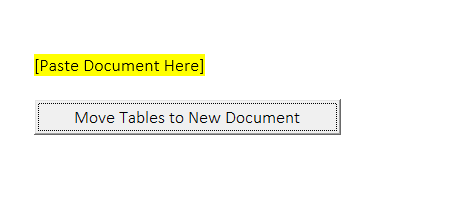
- Paste the document for which you want to have the tables removed
-
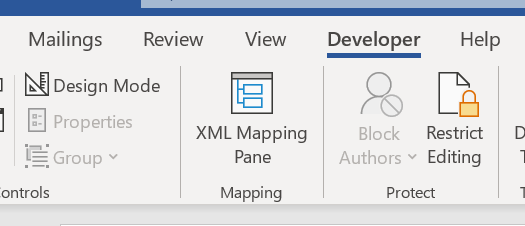
Ensure that Developer mode is enabled with design mode off. For further instructions please refer to this link (https://support.microsoft.com/en-us/office/show-the-developer-tab-in-word)
-
Click the "Move Tables to New Document" Button
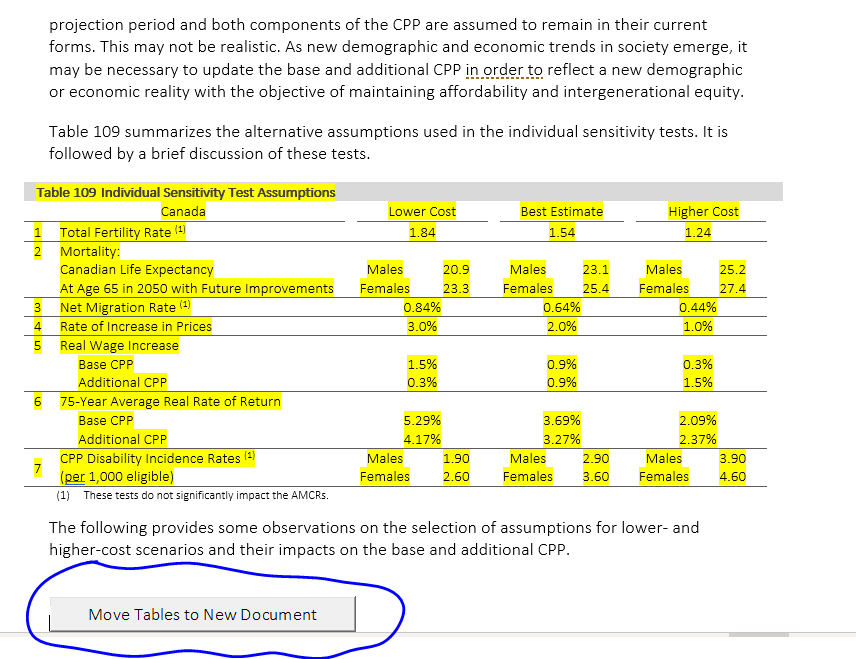
- New document should be created with only the tables from the document. Feel free to rename the new document to your liking!