Contains a Unity 2018 project demonstrating Children's Research Institute's Mixed Reality Starter Kit being used in conjunction with Microsoft's Mixed Reality Toolkit. The Mixed Reality Starter Kit is a reusable set of C# scripts and UI elements for quickly publishing apps that display interactive 3D holograms to Microsoft's HoloLens with little to no programming or scripting knowledge. The kit includes visual buttons, hand gestures, and voice commands for model rotation, resizing, hiding portions of a model, and undoing these actions.
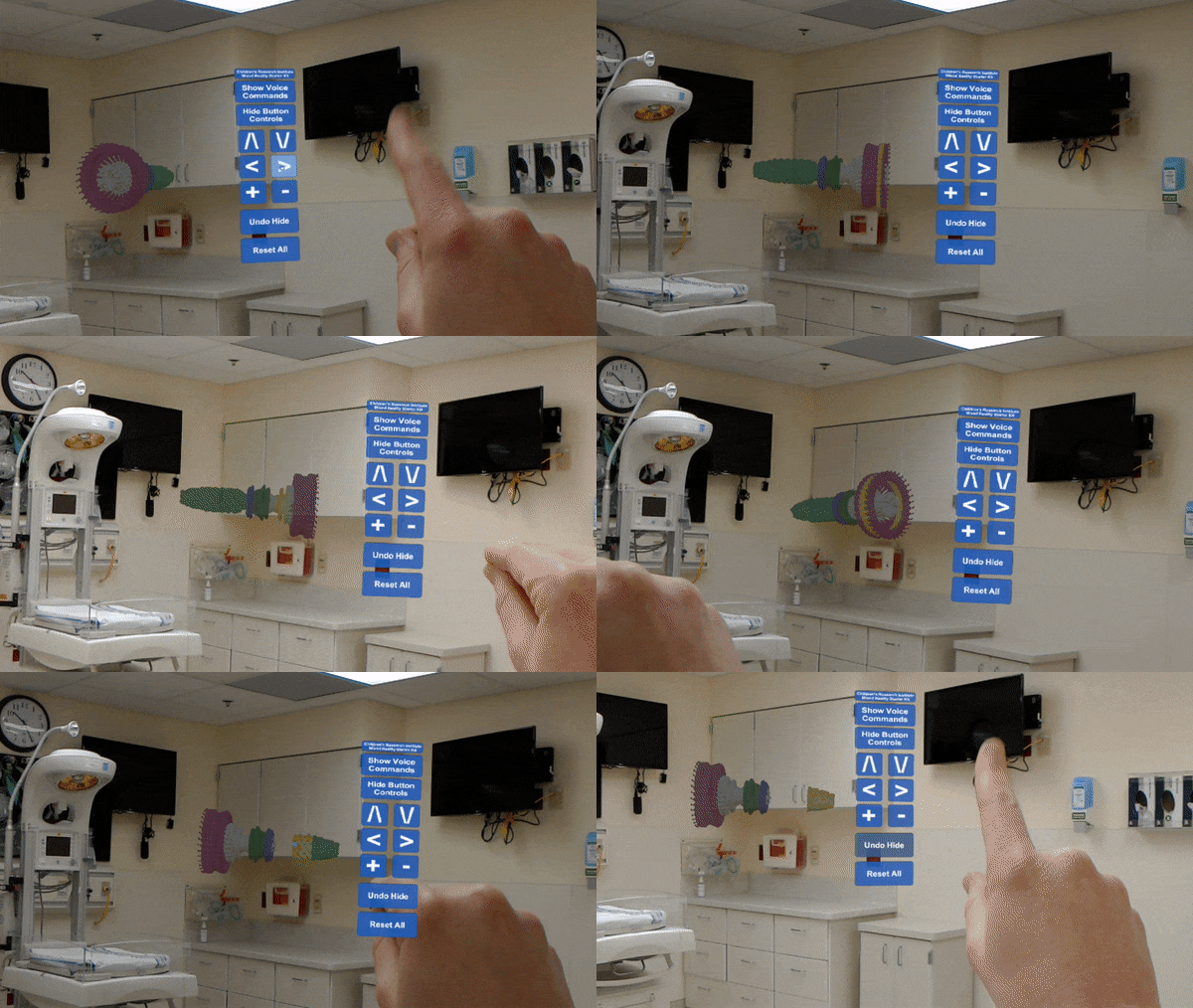
- https://www.youtube.com/watch?v=O6x1AsDEqno
- https://www.youtube.com/watch?v=CEtRWAKekWA
- https://www.youtube.com/watch?v=0jjTI3yN78w
-
Microsoft Windows 10 with Fall Creator's Update installed.
-
HoloLens Developer Mode enabled. Read how to enable Developer Mode here: https://docs.microsoft.com/en-us/windows/mixed-reality/using-visual-studio
-
Unity 2018.2.16f1, available here: https://unity3d.com/get-unity/download/archive
-
Developing for HoloLens usually requires a specific version of Unity. We've found Unity 2018.2.16f1, available at the link above, to work best with this project.
- Unity is offered in a variety of paid and free (also referred to as Unity Personal) licensing scenarios.
- It's best to check with your IT administrators in regards to whether you need a paid license before downloading at your organization.
- You are allowed download and run past versions of Unity from the Unity Download Archive with either a paid or a free license.
- Additional Unity licensing information is available here: https://store.unity.com/
- To get started with a free Unity Personal license:
- Visit this link https://store.unity.com/download?ref=personal
- Accept the Terms of Service.
- Scroll down and click the "Older Versions of Unity" link near the bottom of the page.
- In the Unity Download Archive, scroll down to Unity 2018.2.16 (15 Nov, 2018), click the Downloads (Win) dropdown, and select Unity Installer.
-
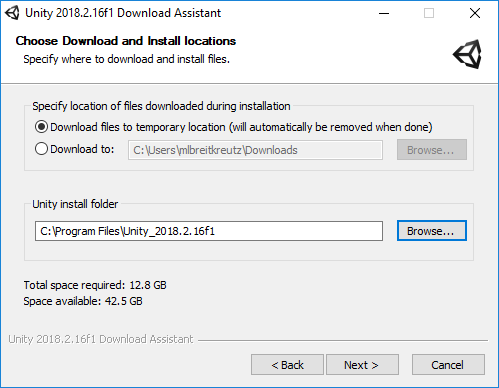
If needed, you or your IT administrator can install multiple versions of Unity on your PC by customizing the installation path during the initial install by adjusting the "Unity install folder." We tend to have 2 or 3 versions of Unity installed at any given time while we test out newer versions of Unity with our existing source code, so our standard is to name the install folder after the specific Unity version it will contain.
-
This screenshot shows a custom install path for Unity 2018.2.16f1:
-
-
Visual Studio 2017 or higher, available here: https://www.visualstudio.com/downloads/
- Select the option to install Universal Windows Platform development tools when prompted by Visual Studio installer.
-
Microsoft Mixed Reality Toolkit for Unity version 2017.4.2.0, available here: https://github.com/Microsoft/MixedRealityToolkit-Unity/archive/2017.4.2.0.zip
-
Children's Research Institute's Mixed Reality Starter Kit, available here: https://github.com/ChildrensResearchInstitute/MixedRealityStarterKit
- Installation process
-
Clone or download this repository from GitHub.
-
Download Microsoft's Mixed Reality Toolkit for Unity version 2017.4.2.0 from https://github.com/Microsoft/MixedRealityToolkit-Unity/archive/2017.4.2.0.zip
-
Clone or download Children's Research Institute's Mixed Reality Starter Kit from https://github.com/ChildrensResearchInstitute/MixedRealityStarterKit
-
Use Windows Explorer to copy and paste the HoloToolkit and MixedRealityStarterKit folders into the Assets folder of the MixedRealityStarterKitDemo project:
- Copy the HoloToolkit folder, which you'll find inside the Assets folder included in the Microsoft MixedRealityToolkit's folder hierarchy.
- Paste the HoloToolKit folder into the Assets folder located in the MixedRealityStarterKitDemo's folder hierarchy.
- Copy the MixedRealityStarterKit folder from the Children's Research Institute MixedRealityStarterKit folder.
- Paste the MixedRealityStarterKit folder into the Assets folder located in the MixedRealityStarterKitDemo's folder hierarchy.
- The MixedRealityStarterKitDemo folder hierarchy should now look like this:
MixedRealityStarterKitDemo\ ├─── Assets\ ├─── Branding\ ├─── HoloToolKit\ ├─── Materials\ ├─── MixedRealityStarterKit\ ├─── Models\ ├─── Scenes\ ├─── Library\ ├─── Packages\ ├─── ProjectSettings\ ├─── Temp\ Assembly-CSharp.csproj Assembly-CSharp-Editor.csproj MixedRealityRStarterKitDemo.csproj MixedRealityStarterKitDemo.Editor.csproj MixedRealityStarterKitDemo.Player.csproj MixedRealityStarterKitDemo.sln -
The MixedRealityStarterKitDemo project is now ready to build and test.
-
-
Connect the HoloLens to your PC via USB.
-
Open the MixedRealityStarterKitDemo project in Unity 2018:
- Launch Unity 2018.
- Click the Open button near the top right corner of the window that appears.
- Navigate to the MixedRealityStarterKitDemo folder.
- Click Select Folder to open the MixedRealityStarterKitDemo project.
-
In Unity, click the File menu and select "Build Settings..."
-
In the Build Settings window that appears, click the Build button near the bottom right corner of the window.
-
In the window that appears, click once on the folder named "App"
-
Click the Select Folder button near the bottom corner of the window.
-
A progress bar will appear as Unity builds this project into a Visual Studio Solution, which will be used to publish the app to the HoloLens in the next steps.
-
A new Windows Explorer window will pop open when Unity is done building.
-
Open the App folder in the window that appears.
-
Double-click the "MRSK Demo.sln" file inside the App folder to open it in Visual Studio.
-
Once Visual Studio is open, switch to Release mode, change the platform to x86, and change the build target to Device:
- Click the black downward pointing triangle next to the word Debug in the dropdown menu near the top of the screen and select Release.
- Click the black downward pointing triangle next to the word ARM in the dropdown menu near the top of the screen and select x86.
- Click the black downward pointing triangle next to the word Local Machine in the dropdown menu near the top of the screen and select Device.
-
Change the Package.appxmanifest file's Display name from "MRStarterKitDemo" to something else:
-
Double-click the Package.appxmanifest file located in Visual Studio's Solution Explorer panel:
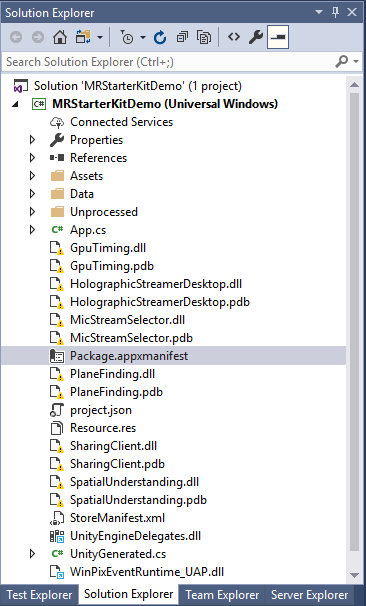
Visual Studio Solution Explorer panel
-
Change the Display name in the screen that appears. This instructs Visual Studio to create a unique identifier for your app and helps prevent deployment errors:
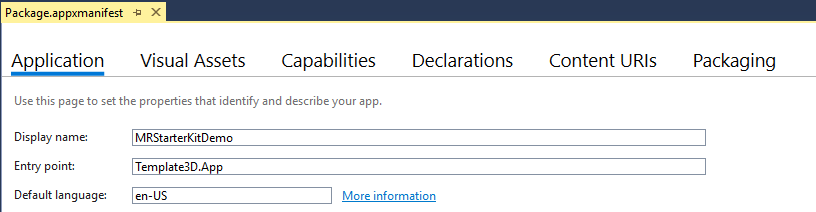 The Display name field comes pre-populated with "MRStarterKitDemo" - change this to a name of your choosing.
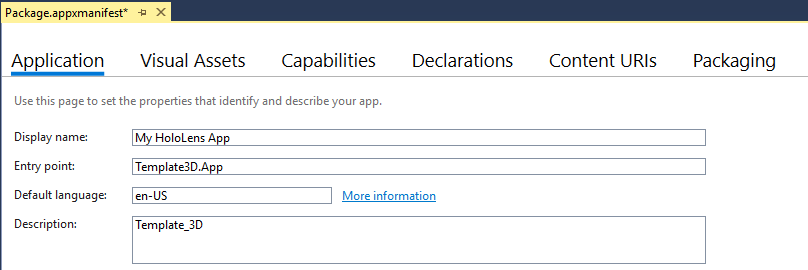 Name change completed, ready to build and deploy app to HoloLens.
-
Click the green triangle to the left of the word Device in the dropdown menu near the top of the screen to build and deploy the app to your HoloLens. The Output panel near the bottom of the Visual Studio screen will display build and deployment progress.

Visual Studio menu with Device button highlighted.
- Without disconnecting the USB cable, power on on your HoloLens and wear it on your head while you wait for build and deployment to complete. The app should launch on the HoloLens automatically. See the troubleshooting section below for common error messages and guidance.
-
- Build and Deploy issues:
- Visual Studio Error: Access is denied
- Typically, this error indicates that the app did build and deploy successfully, but Visual Studio was unable to launch the app on the HoloLens automatically for some reason. In our experience, as long as Visual Studio's build output window shows build and deploy were successful, you should be able to put on the HoloLens and launch the app.
- Potential Resolution 1: Uninstall the app from the HoloLens, then use Visual Studio to build and deploy the app again.
- Potential Resolution 2: Delete the App folder that contains the Visual Studio solution, create a new, empty App folder in its place, and redo all Build and Deploy steps above.
- Visual Studio Error: Could not deploy while a user-defined section is open
- We tend to see this error when we are repeatedly building and deploying to HoloLens after making small adjustments to our Unity scene or scripting. If you see this error, your Visual Studio project did not build and deploy to the HoloLens properly.
- Potential Resolution 1: Clean the Visual Studio solution and try running the app without debugging again.
- Potential Resolution 2: Delete the App folder that contains the Visual Studio solution, create a new, empty App folder in its place, and redo all Build and Deploy steps above.
- Visual Studio Error: DEP2500 "Registration of app succeded but package information can not be found"
- You likely need to change the "Display name" of your app to a new, unique value in the Package.appxmanifest file mentioned in the deployment instructions above. Visual Studio is having trouble deploying your app due to a GUID (globally unique identifier) conflict on its internal storage. Changing the Display name generates a new GUID for your app, which should allow Visual Studio to deploy the app properly.
- If you receive this error when re-deploying an app you've previously loaded to your HoloLens, try uninstalling the app on the HoloLens and starting over in the "Building and deploying your project to HoloLens" section of this documentation.
- Visual Studio Error: Access is denied