A Visual Studio 2015 solution showing how to start up a project involving following technologies:
- ASP.NET Core (formerly ASP.NET 5) to serve web pages,
- Angular 2 framework for client-side Single Page Application,
- Ahead Of Time (AOT) compilation for a quicker application startup
- TypeScript 2 as an alternative to JavaScript to write client code,
- @types to include type definitions of external code
- WebPack 2 module bundler to process and build client source files,
- WebPack Hot Module Replacement to re-compile and reload web page when client source code changes,
- Development, test and production builds
- Karma test runner and Jasmine BDD testing library to unit test client source code.
For its client side, this project is based on our own Angular 2 starter project, YANGTSE, which in turn draws from the experience and hints given by other, earlier Angular 2 starter projects. You might want to have a look at those, in case they might better suits your needs. Among the others, there are:
Here are the tools that should be present in your development environment in order to work with this project:
- Visual Studio 2015 Community Edition
- Microsoft ASP.NET and Web Tools. It should already be installed with VS2015, but make sure to update it to latest version
Server side application relies on .NET:
- .NET Core 1.0.1 SDK and .NET Core VS 2015 Tooling Preview 2
Please note that, at current time of writing, .NET Core tooling is still in preview. Things like version, install procedure, naming might still change in the next future.
Client side application relies on JavaScript and TypeScript, but it needs node.js to be built and processed.
- nvm-windows 1.1.0 or later, a node.js version management utility for Windows by Corey Butler
- node.js 4.3.2 or later
- npm 3.8.0 or later
You can run node.js commands from console the classic way or from within VS through Npm Task Runner Explorer, an optional Visual Studio extension.
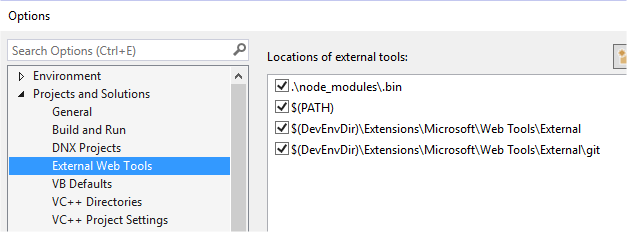
In order to let VS use current node.js version set by nvm (instead of its own version), go to Tools\Options, then
to Project and Solutions\External Web Tools, and make sure to sort locations so that $(PATH) is above the two
$(DevEnvDir)\... locations.
Clone or download this repository:
git clone --depth 1 https://github.com/BrainCrumbz/AWATTS.git
cd AWATTS
Install dependencies:
First time project is opened, you should install found client-side dependencies.
You can fire off install task from Npm Task Runner Explorer, or run npm install in console the old way, from web project root directory:
cd src\WebPackAngular2TypeScript
npm install
Enable client live reload and module replacement in development:
npm startRun server in development:
Just start debugging web project in VS with F5. Browser will open on web app served without live reload.
Browse to http://localhost:3000/ for web app served through live reload.
For its client side part, this project has a number of npm-based commands in order to build and process client
source code. You can run them from console the classic way or from Npm Task Runner Explorer.
Install all dependencies:
npm installUninstall all dependencies:
npm uninstallBuild for development:
npm run build # or npm run build-devBuild for production:
npm run build-prodClean build output:
npm run cleanClean build output and all dependencies:
npm run clean-deepBefore building, output will be automatically cleaned. No need to manually clean.
Serve front end in development, with hot module replacement and live reload (it still needs ASP.NET server to be running):
npm start # or npm run serve, or npm run serve-devServe front end in production: no npm command needed, apart from building for production.
Only ASP.NET server must be running.
npm run build-prodTest:
npm test # or npm run testTest with debugging enabled (e.g. breakpoints in browser console):
npm run test-debugTest in watch mode (keep running tests again when code changes):
npm run test-watch