Transforming depth maps into visually informative images for accessibility and understanding.
The A-Eye Generator extends the functionality of the public A-Eye web tool. This repository is the core engine for turning depth maps into images that aid in visual perception and interpretation.
- Image Generation: Effortlessly convert depth maps into visually-stimulating images. Provides a programmatic interface to interact with ComfyUI, making it automatable.
- Object Bounding Box Drawer: Highlight objects of interest within the generated images with outlined bounding boxes. Positioning data sourced from web tool at depth map render-time via the
Export JSONbutton.
- Python 3.10.6: Any later version should work, but is not expressly supported.
- ComfyUI: Whatever the latest version is will do the trick!
- Firstly, clone this repository to your machine with:
git clone https://github.com/A-Eye-Project-for-CSC1028/a-eye-generator.git
- Once these items are completed, you should create a Python
venvin the root of the newly-cloned repository:
python -m venv venv
- You'll need a customised version of PyTorch installed to your device, depending on its capabilities. To get the correct one, head over to their
Get Startedsection and configure your install.
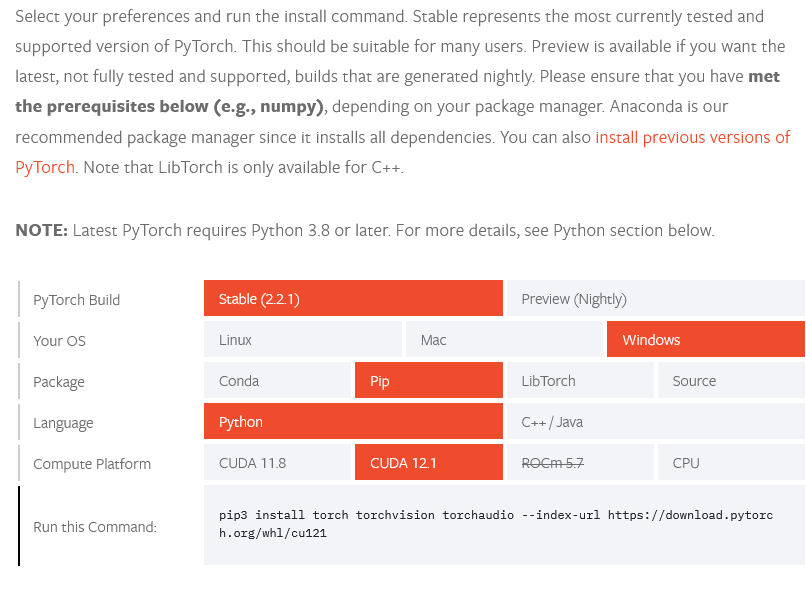
- Then, install all required dependencies from
requirements.txt:
pip install -r requirements.txt
To actually generate the images, you'll need: ComfyUI, a pre-trained Stable Diffusion model, and a "Depth Control LoRA" model. Let's obtain these three things now...
-
Download the latest release of ComfyUI from their official GitHub repository here.
-
Then, download any image-to-image
safetensorsmodel you desire - I've been usingsd_xl_base_1.0.safetensorsfrom StabilityAI on Hugging Face. It's available here. -
Once that download completes, move the
safetensorsfile into theComfyUI/models/checkpointsfolder. -
Next, clone the following repository into the
ComfyUI/models/controlnetfolder:
git clone https://huggingface.co/stabilityai/control-lora
There's only one more thing to do in the name of setup - we need to tell a-eye-generator where ComfyUI is located...
If you look at this repository's file structure, you should see a .config file - it contains the location where ComfyUI is installed to on your device. The default is COMFY_DIRECTORY="D:\Comfy for Stable Diffusion\User Interface\ComfyUI", as this is where I have my installation stored. For this repository to work, you need to update this with your ComfyUI folder.
To do this, navigate to the ComfyUI folder - please note, it's not the root folder with the .bat files; it's the ComfyUI folder within that directory that we need. See the below image highlighting this:
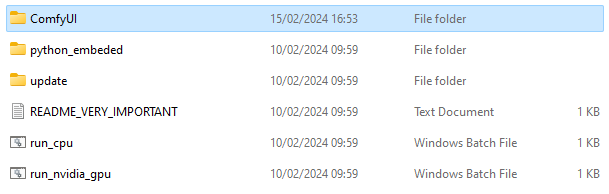
Copy the file path of that folder, and paste it into the .config file.
Once that's completed, you should be set to work with A-Eye! See usage for more details.
When using an image-to-image model, we need a source image to base all of our generated output on. We need to 'upload' this/these image(s) to ComfyUI.
To do this, navigate to ComfyUI/input and drop your image(s) there. You can call it/them whatever you like - just make sure to update the file name(s) in the generation script, too.
Now you're ready to start generating your very own 3D-model-based AI art!
Contributing
Contributions are most welcome! Please see below for more details:
- Open issues for bug reports or feature requests.
- Submit pull requests with code enhancements or new features.
License
This project is licensed under the MIT license - please see the linked document for more information.