- JPEG
- PNG
- GIF
-
Use JPEG format for all images that contain a natural scene or photograph where variation in colour and intensity is smooth
-
Use PNG format for any image that needs transparency or for images with text & objects with sharp contrast edges like logos
-
Use GIF format for images that contain animations.
Almost all forms of data that we see on the internet — text, image, video etc. — are compressed to reduce the size of data and ensure faster transmission
Compression can be of two types
- lossless it is possible to reconstruct the original image from the compressed image because there is no information loss during compression.
- lossy it is not possible to reconstruct the original image from the compressed image because there is no information loss during compression.
JPEG is a lossy compression specification that takes advantage of human perception
PNG is a lossless image format using DEFLATE compression
No data is lost during compression and no compression artefacts are introduced in the image.
There is a significant difference in the number of colours that can be supported by these 3 formats.
-
JPEG images can support around 16 million colours. This is what makes them suitable for storing images of natural scenes
-
JPEG images can support around 16 million colours. This is what makes them suitable for storing images of natural scenes.
-
PNG images mainly have two modes — PNG8 and PNG24. PNG8 can support upto 256 colours whereas PNG24 can handle upto 16 million colours like a JPEG image
Animation, in this case, refers to any change or movement in the image. It doesn’t necessarily have to have frame rates like an animated video, but essentially a part or the entire image changes with time.
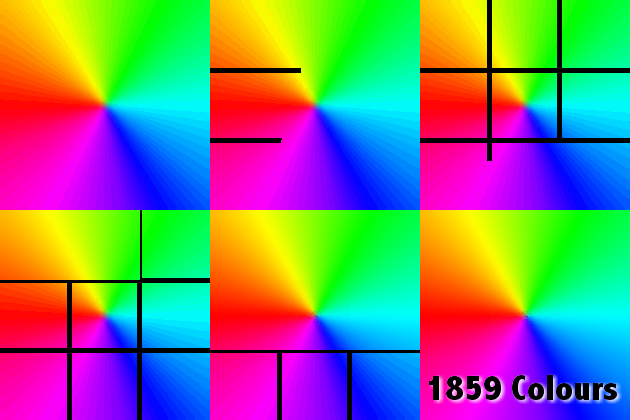
Images can be used to set the tone for a site in less time than it takes to read a description
Adding Images
< img> To add an image into the page you need to use an < img> element.
-
src This tells the browser where it can find the image file. This will usually be a relative URL pointing to an image on your own site
-
alt This provides a text description of the image which describes the image if you cannot see it.
-
title You can also use the titleattribute with the < img> element to provide additional information about the imag
two other attributes that specify its size:
- height This specifies the height of the image in pixels
- width This specifies the width of the image in pixels
-
before a paragraph The paragraph starts on a new line after the image.
-
inside the start of a paragraphThe first row of text aligns with the bottom of the image.
-
in the middle of a paragraphThe image is placed between the words of the paragraph that it appears in
align The align attribute was commonly used to indicate how the other parts of a page should flow around an image
- left This aligns the image to the left (allowing text to flow around its right-hand side).
- right This aligns the image to the right(allowing text to flow around its left-hand side).
You must always specify a src attribute to indicate the source of an image and an alt attribute to describe the content of an image
Photographs are best saved as JPEGs; illustrations or logos that use flat colors are better saved as GIFs.
rgb values These express colors in terms of how much red, green and blue are used to make it up. For example: rgb(100,100,90)
hex codes These are six-digit codes that represent the amount of red, green and blue in a color, preceded by a pound or hash # sign. For example: #ee3e80
color names There are 147 predefined color names that are recognized by browsers. For example: DarkCyan
- CSS3 introduces an entirely new and intuitive way to specify colors using:
- hue Hue is the colloquial idea of color
- saturation Saturation is the amount of gray in a color
- lightness Lightness is the amount of white (lightness) or black (darkness) in a color
CSS3 also allows you to specify colors as HSL values, with an optional opacity value. It is known as HSLA. CSS3 has introduced an extra value for RGB colors to indicate opacity. It is known as RGBA.
- Typeface Terminology
-
Serif Serif fonts have extra details on the ends of the main strokes of the letters. These details are known as serifs.
-
Sans-Serif Sans-serif fonts have straight ends to letters, and therefore have a much cleaner design
-
Monospace Every letter in a monospace (or fixed-width) font is the same width. (Non-monospace fonts have different widths.)
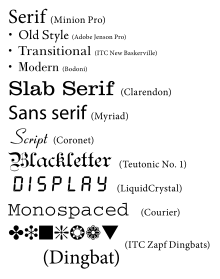
font-family The font-family property allows you to specify the typeface that should be used for any text inside the element(s) to which a CSS rule applies
-
There are properties to control the choice of font, size, weight, style, and spacing.
-
There is a limited choice of fonts that you can assume most people will have installed.
-
If you want to use a wider range of typefaces there are several options, but you need to have the right license to use them.
-
You can control the space between lines of text, individual letters, and words. Text can also be aligned to the left, right, center, or justified. It can also be indented.
-
You can use pseudo-classes to change the style of an element when a user hovers over or clicks on text, or when they have visited a link