| title | Stable Diffusion |
|---|---|
| createdAt | Tue Jan 14 2025 01:12:16 GMT+0000 (Coordinated Universal Time) |
| updatedAt | Mon Aug 04 2025 17:10:48 GMT+0000 (Coordinated Universal Time) |
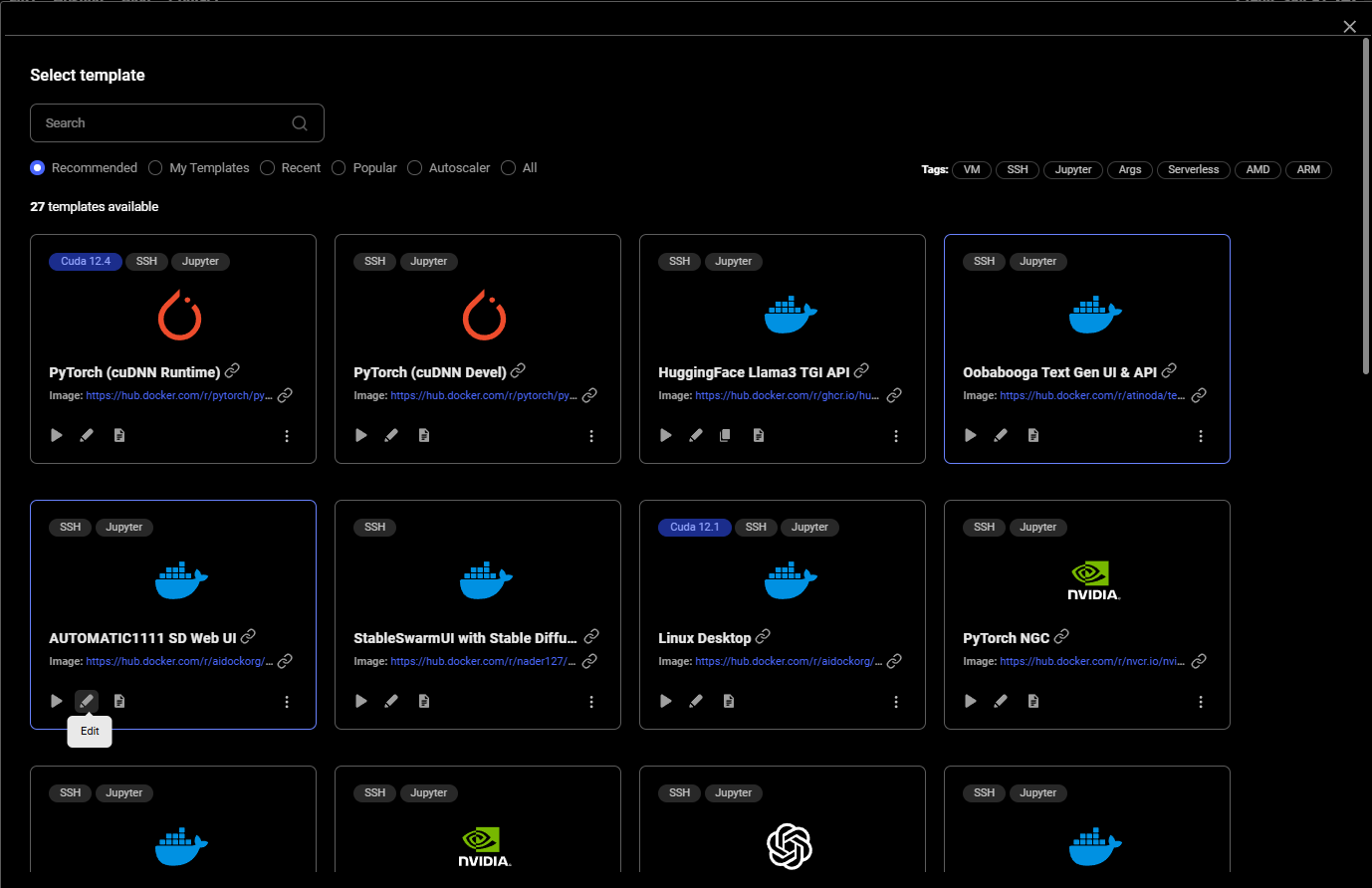


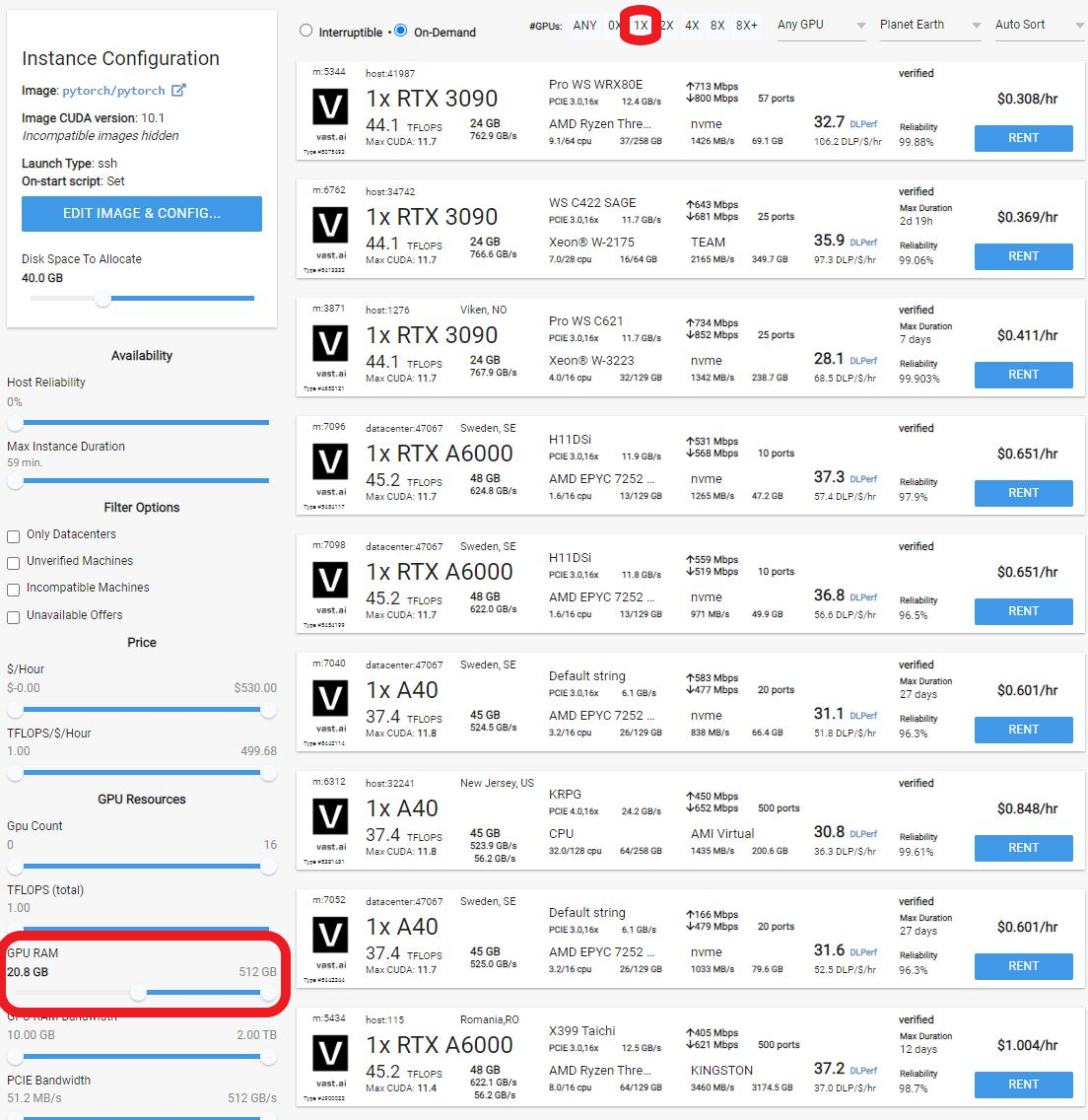
The web gui can take an additional 1-2 minutes to load. If you click on the connect button and get a blank page or error, simply wait 1-2 minutes and reload the page. And there you go! Please read the [Automatic111 documentation](https://github.com/AUTOMATIC1111/stable-diffusion-webui) for how the web GUI works. There are buttons to save and download the artwork, and also to zip it up. 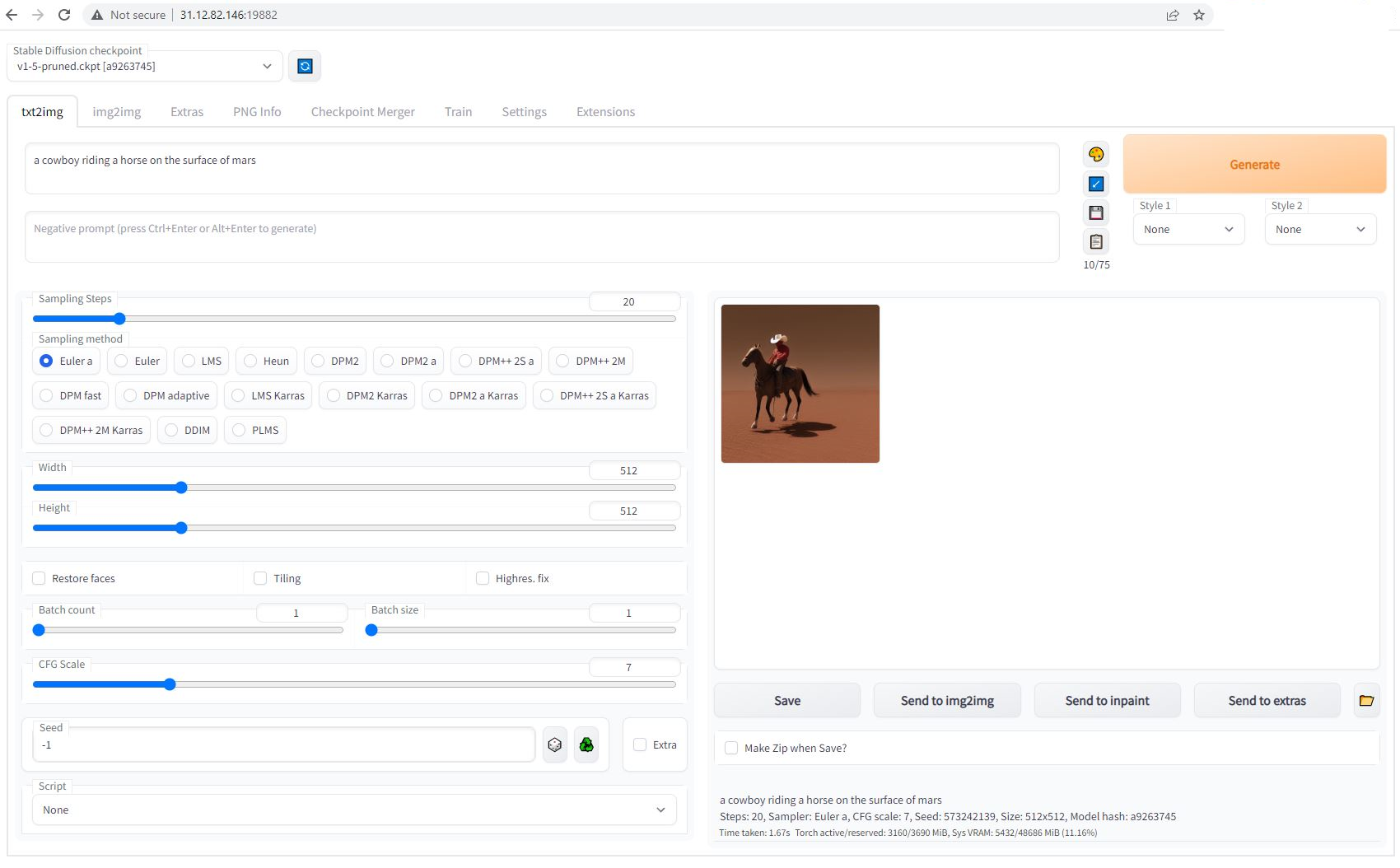 ## 6) Upload other model checkpoints The recommended template has both SSH and Jupyter HTTPS launch modes enabled. To upload a model checkpoint, the simplest way is to click on the Jupyter button on the instances card to open Jupyter and then to upload the .ckpt file to the /workspace/stable-diffusion-webui/models/Stable-diffusion directory. The Jupyter HTTPS launch mode will require you to install a certificate on your local machine. On macOS, this is not optional. Windows and Linux will show an error if the cert is not installed but there is a way to click through the error. To install the Jupyter certificate for Vast, follow the instructions [here](/documentation/instances/jupyter). To use SSH, you will need to create an SSH key and upload the public portion to Vast. Learn more [here](/documentation/instances/sshscp). For Linux/macOS users, SCP will also work. ## 7) Done? Destroy the instance After you generate your artwork and are done with the instance, you have a few options. If you STOP the instance using the stop button, you will no longer pay the hourly GPU charges. **However you will still incur storage charges** because the data is still stored on the host machine. When you hit the START button to restart the instance, you are also not guaranteed that you can rent the GPU as someone else might have rented it while it was stopped. We don't recommend that you stop an instance once done. To incur no other charges you have to DESTROY the instance using the trash can icon. **We recommend you destroy instances** so as not to incur storage charges while you are not using the system. Have fun!
