| title | Blender Batch Rendering |
|---|---|
| createdAt | Tue Jan 14 2025 01:12:46 GMT+0000 (Coordinated Universal Time) |
| updatedAt | Mon Aug 04 2025 17:10:57 GMT+0000 (Coordinated Universal Time) |
Blender is a free, open source 3D creation suite. It can be used to create animated films, visual effects, art, 3D-printed models, motion graphics, interactive 3D applications, virtual reality, and video games. It supports the entirety of the 3D pipeline—modeling, rigging, animation, simulation, rendering, compositing and motion tracking, even video editing and game creation. You can find more information about Blender at blender.org.
Animators, game developers, 3D modelers, visual effects artists, architects, and product designers are some people who use Blender.
GPUs can speed up rendering in Blender.
You can save time by automating away the rendering of animations for batch of blend files.
Click on this link Blender Batch Renderer Template to select the vast/blender-batch-renderer template.
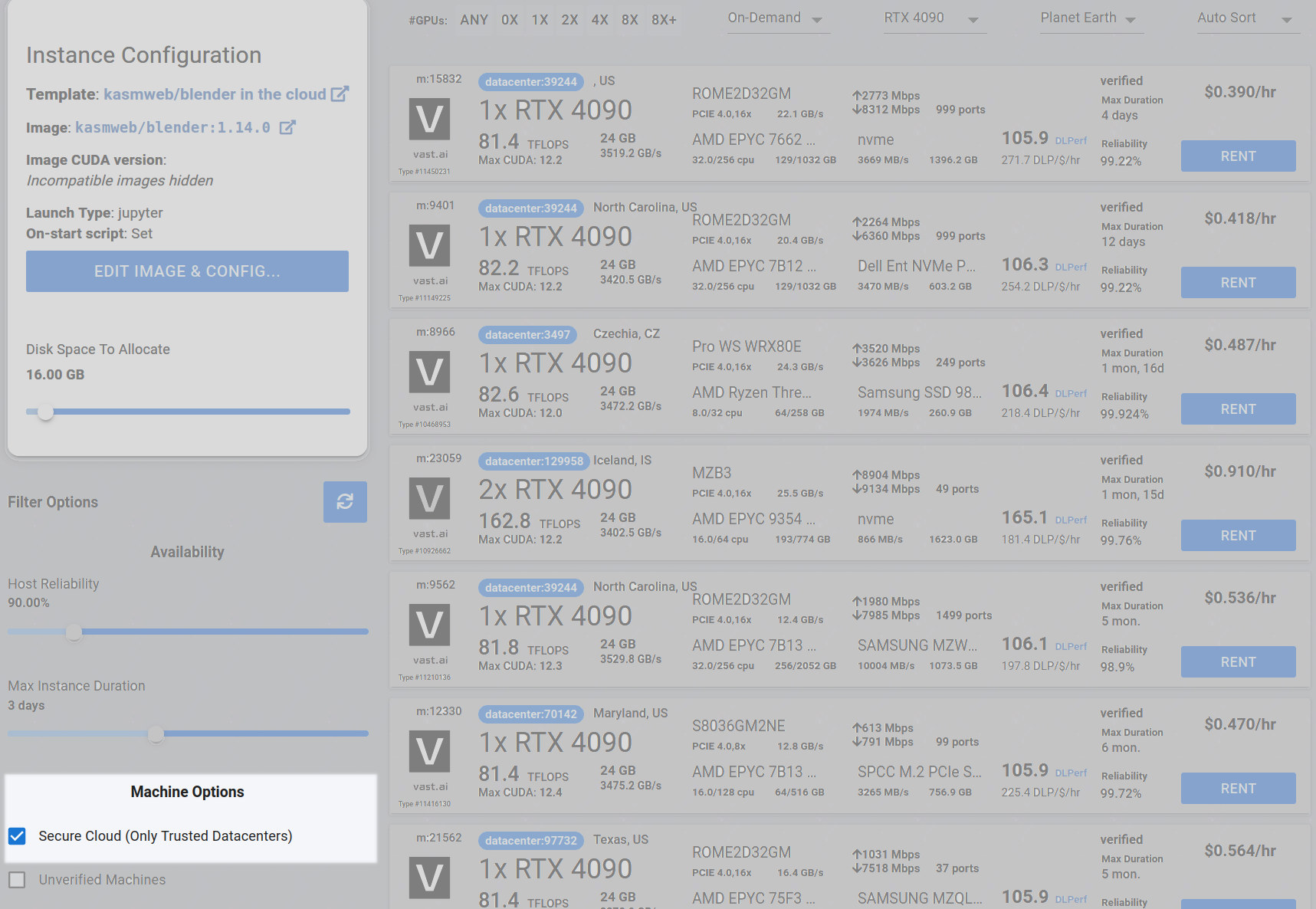
Step 2 - Check the Secure Cloud box if you want a secure machine from trusted datacenters (Optional)
You can narrow your search results to only data center machines if you want insured security standards from our trusted datacenters.
If you have questions about which GPU to choose, there is some data around NVIDIA Geforce RTX 4090 giving the best render speed with Blender. You can find other GPUs that work well with Blender here Blender GPU Benchmarks. You can also find other options by searching on Google or asking ChatGPT.
The version of Blender running within Vast while using the template linked above at the time of this writing is 3.6.2.
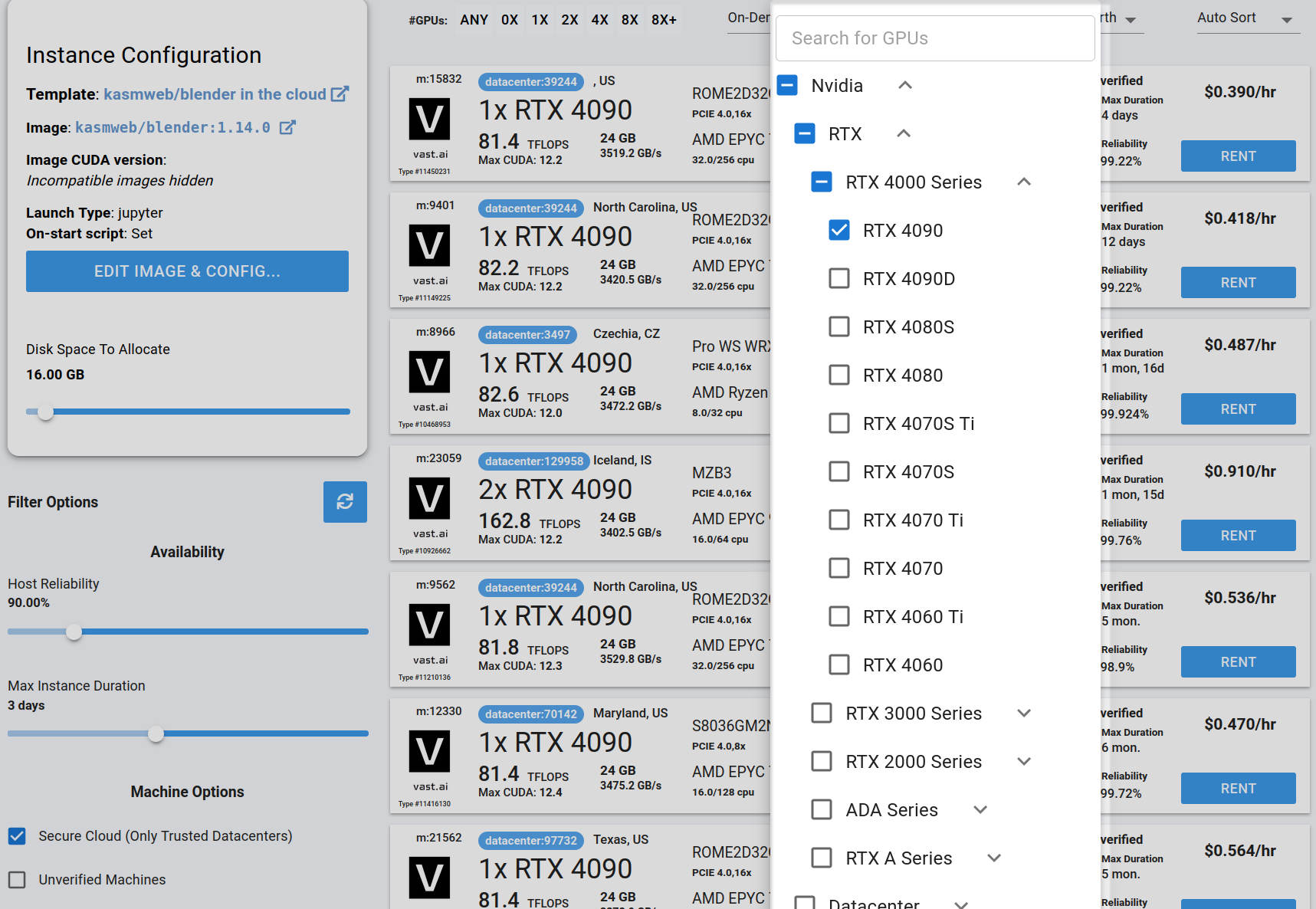
Go to the GPUs filter and check the box for RTX 4090 or another GPU instance.
For example,
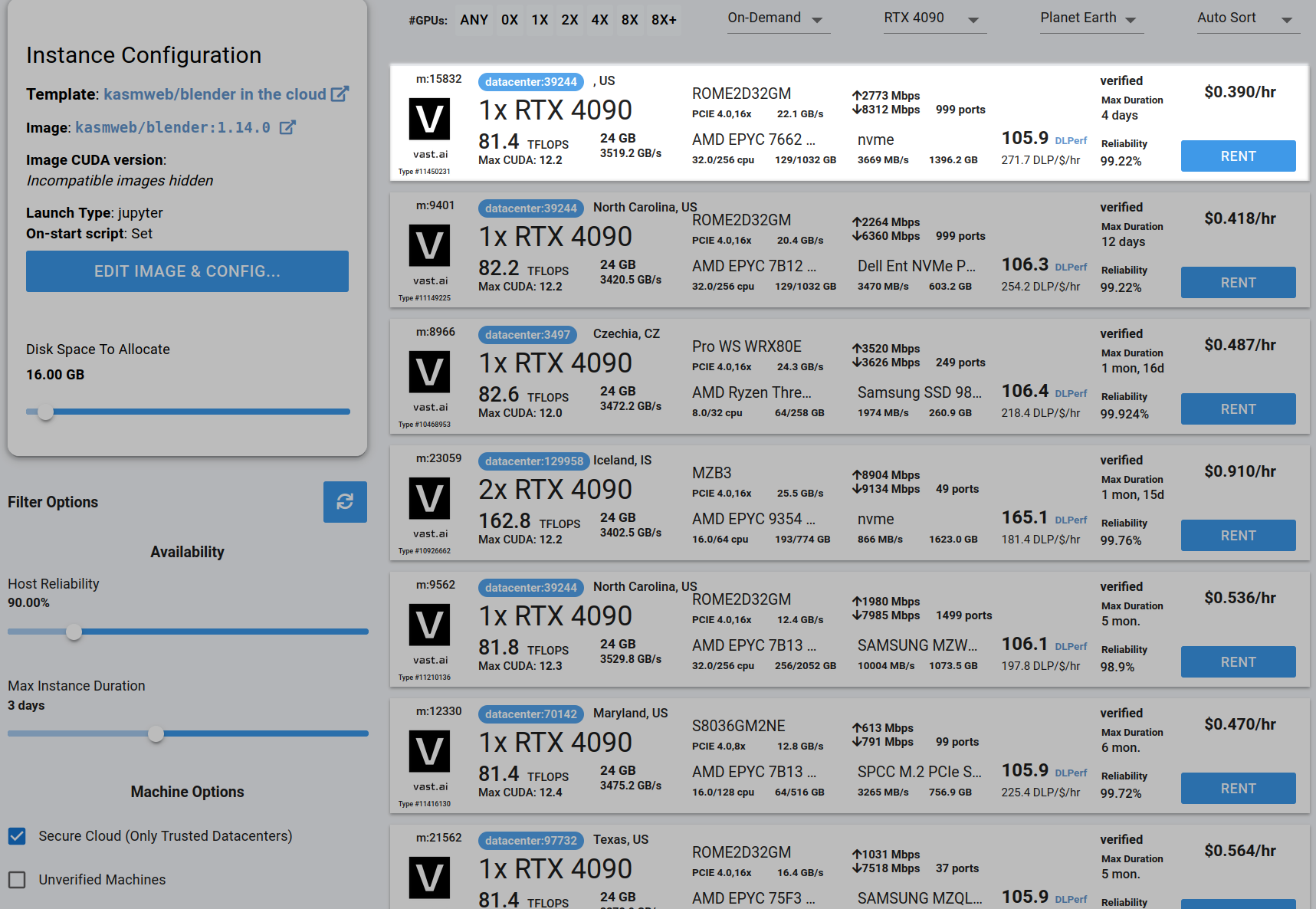
Choose a GPU that meets your budget, desired reliability %, and other constraints by clicking "RENT". GPUs are sorted by a complex proprietary algorithm that aims to give users the best machines for their value by default. You can filter GPUs further per your requirements if desired.
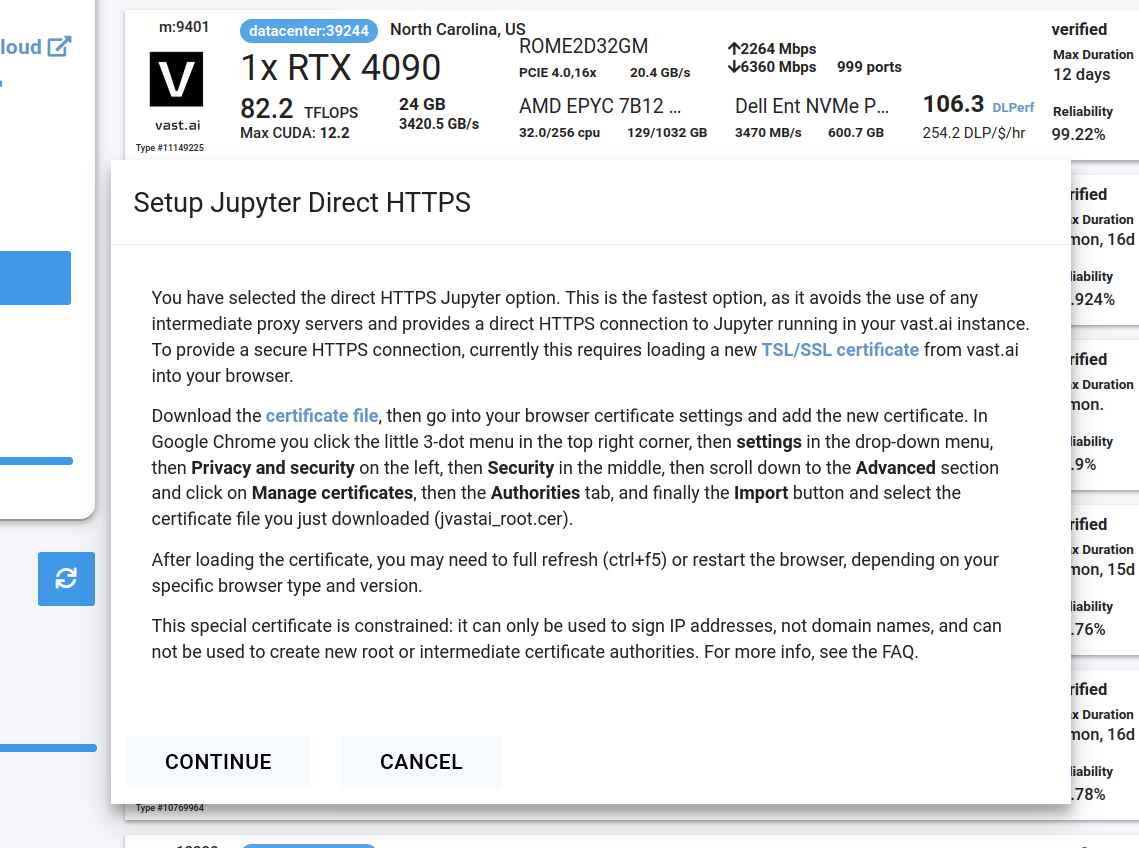
Follow the instructions related to adding a certificate to your browser if you need to when it asks you to "Setup Jupyter Direct HTTPS" and click "CONTINUE". Here's more information on the Jupyter direct HTTPS Launch Mode and Installing the TLS certificate: Jupyter.
 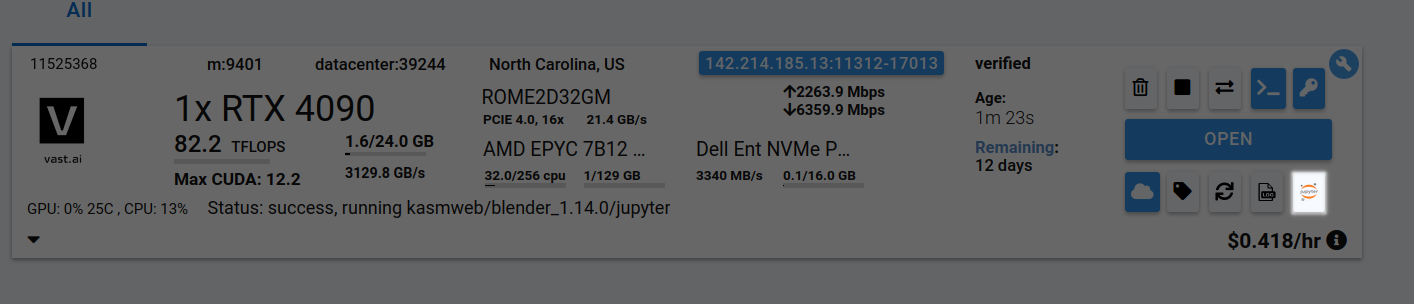

If you want to render a respective animation for each blend file in a batch of blend files, follow the following steps.
Go to /Desktop/render_animation_for_each_blend_file_in_batch_of_blend_files/ folder in Jupyter Notebook
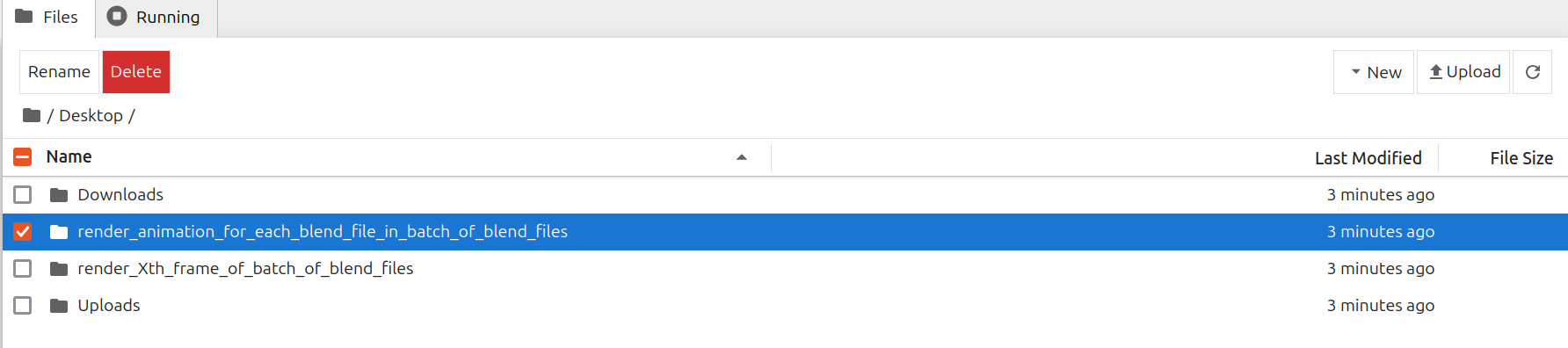
Upload .blend files to /Desktop/render_animation_for_each_blend_file_in_batch_of_blend_files/ folder
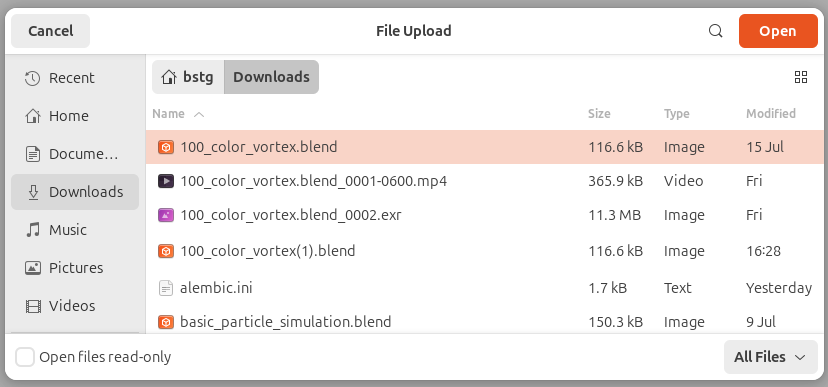
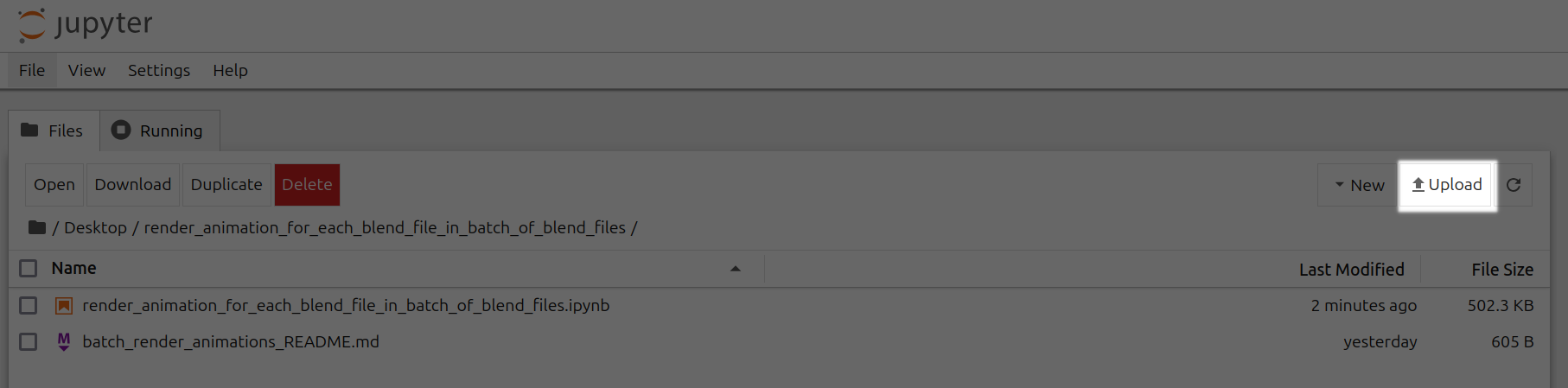

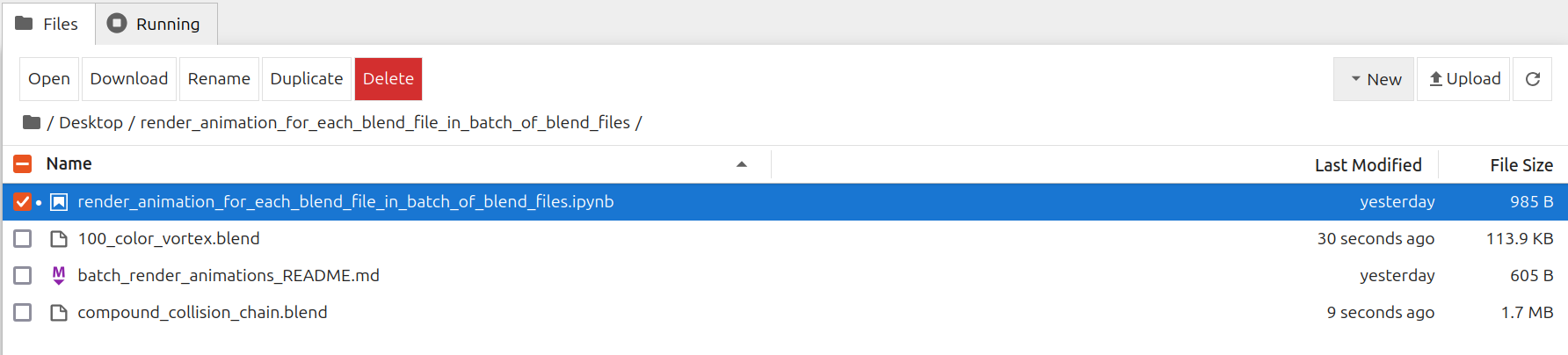
Open render_animation_for_each_blend_file_in_batch_of_blend_files.ipynb
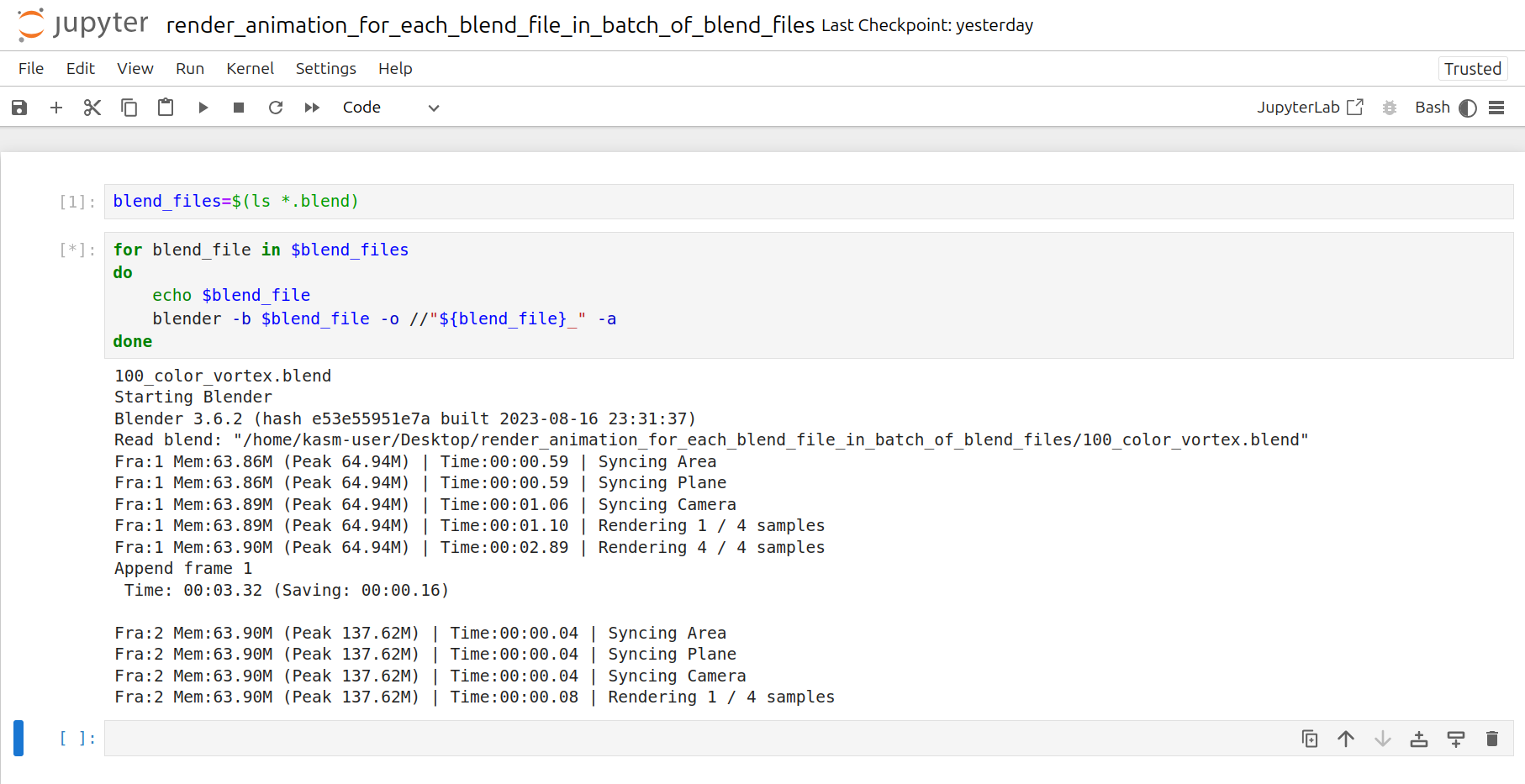
Click the Run tab and click Run All Cells
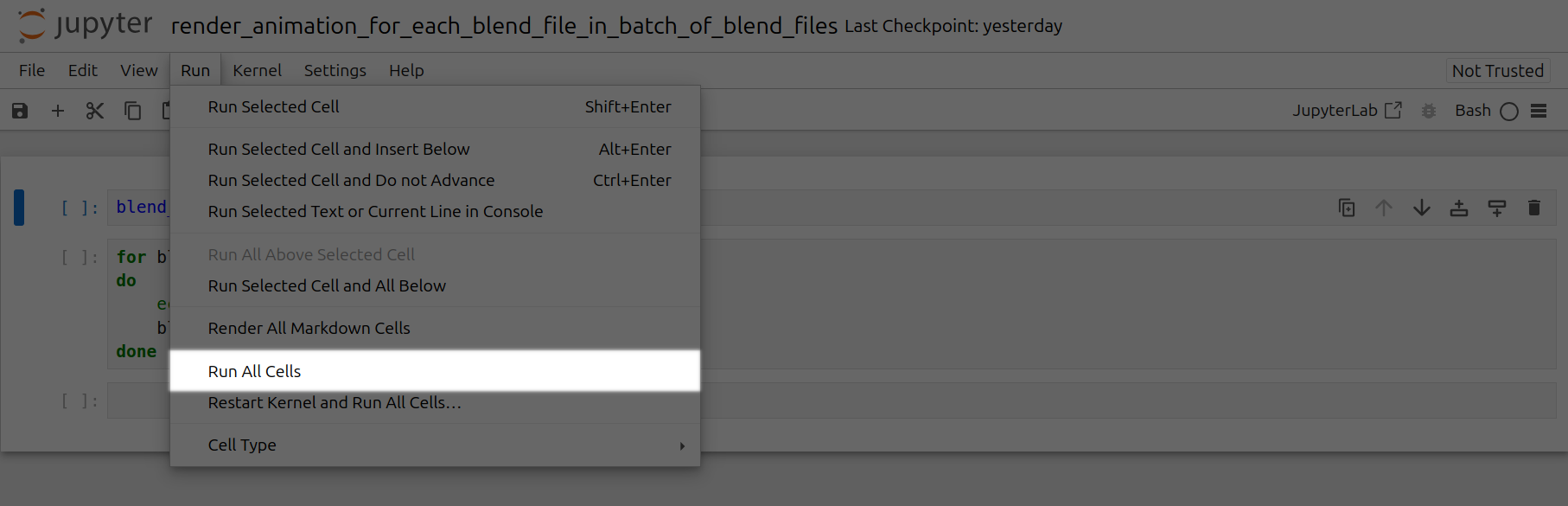

Now a corresponding animation will be rendered for each .blend file you have uploaded to this folder. You can also close out your jupyter notebook tab in your browser and this notebook will keep running as long as your instance in Vast is running.
If you want to render a respective animation for the Xth frame of each blend file in a batch of blend files, follow the following steps.
Go to /Desktop/render_Xth_frame_of_batch_of_blend_files/ folder in Jupyter Notebook
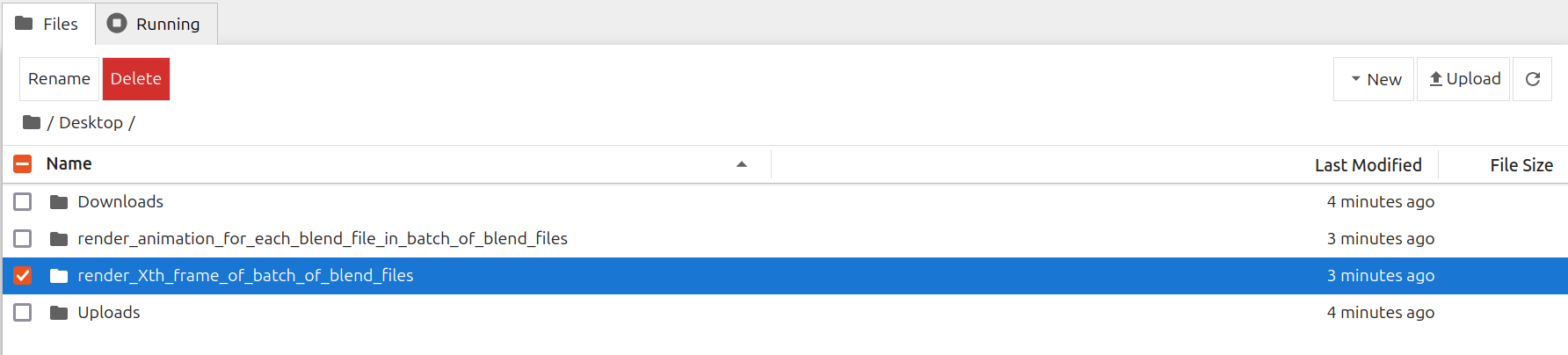
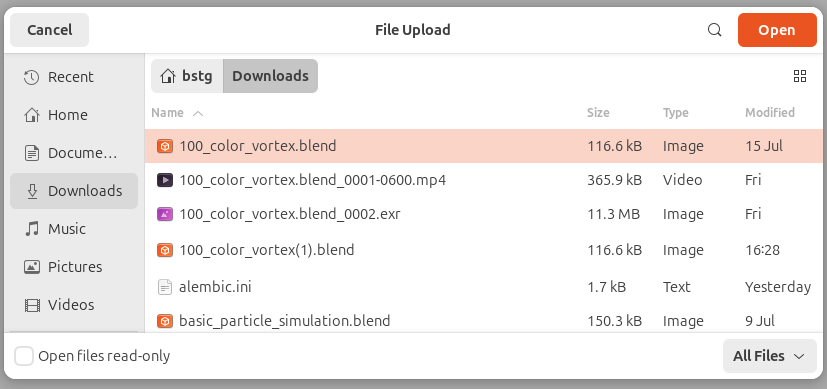
Upload .blend files to /Desktop/render_Xth_frame_of_batch_of_blend_files/ folder
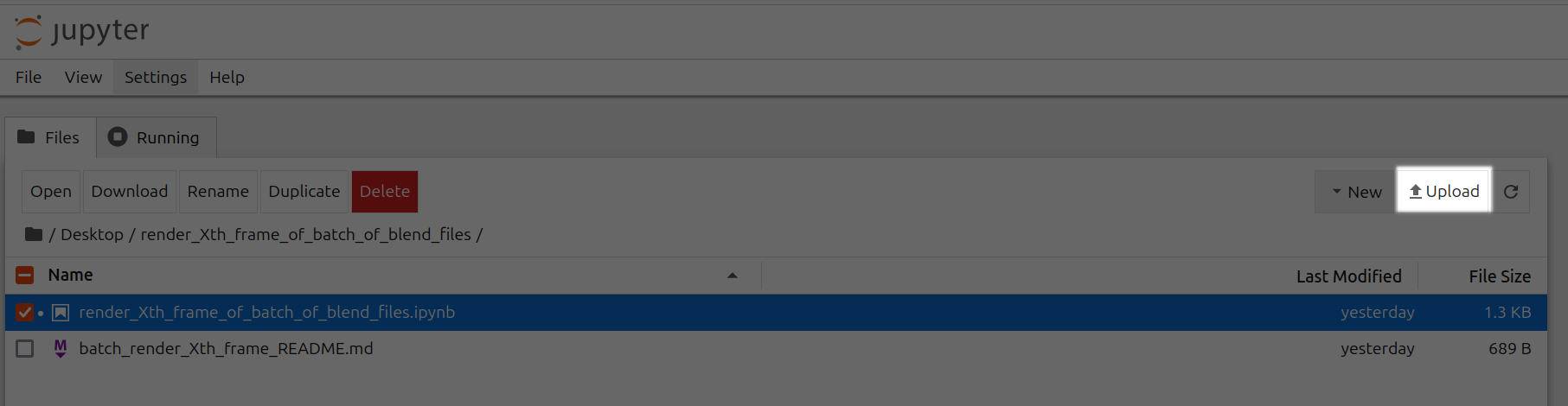

Open render_Xth_frame_of_batch_of_blend_files.ipynb

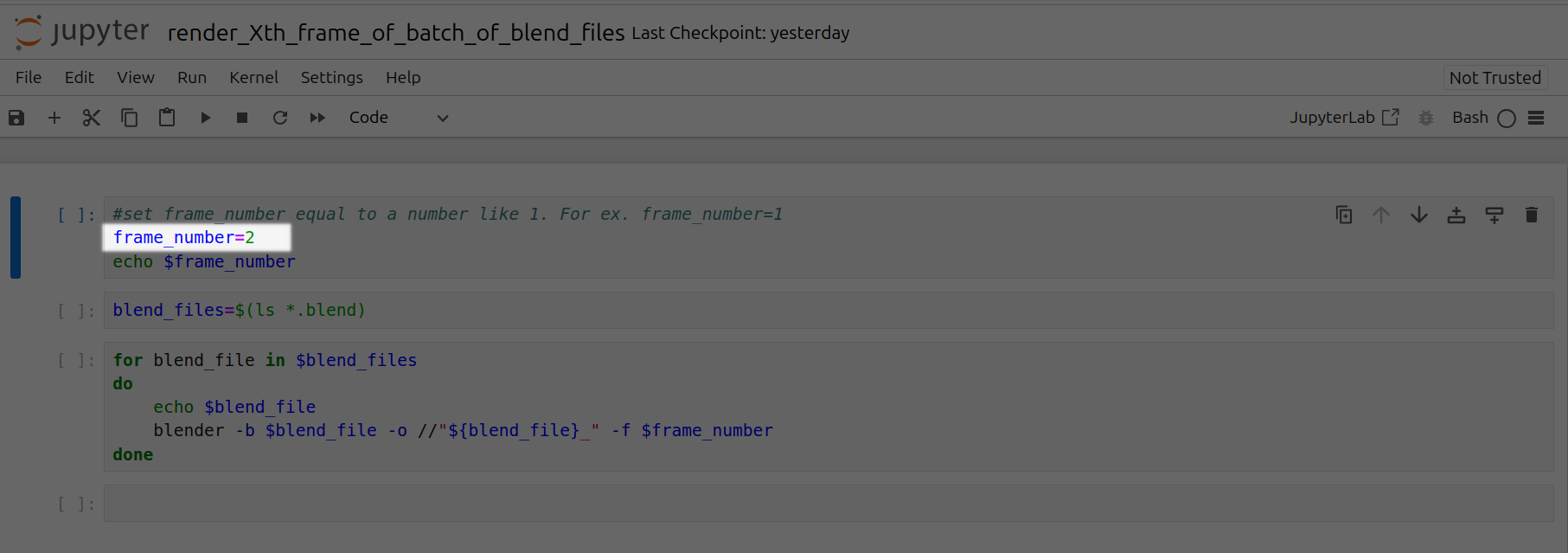
Set frame_number equal to a particular frame number. For ex. frame_number=2
Click the Run tab and click Run All Cells
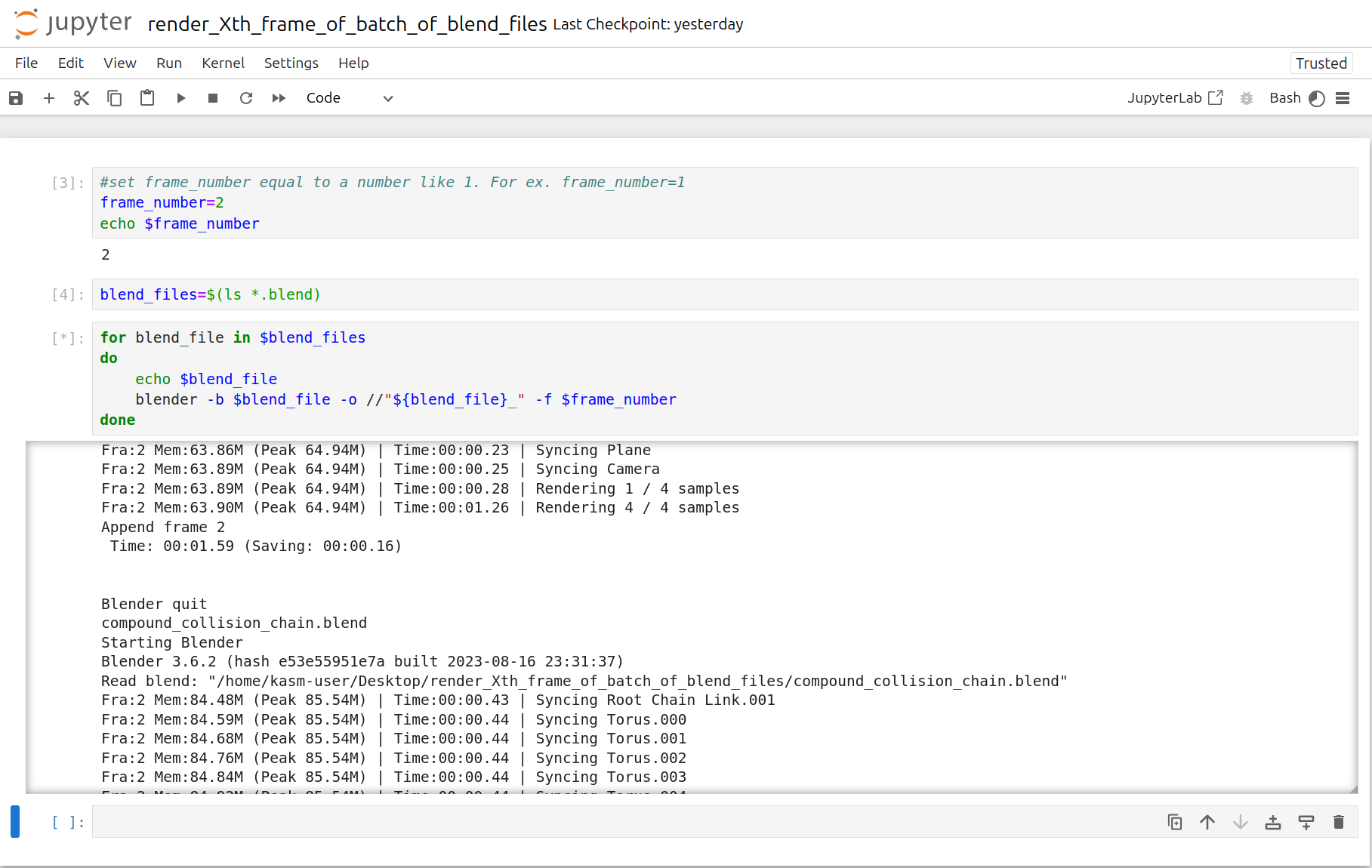
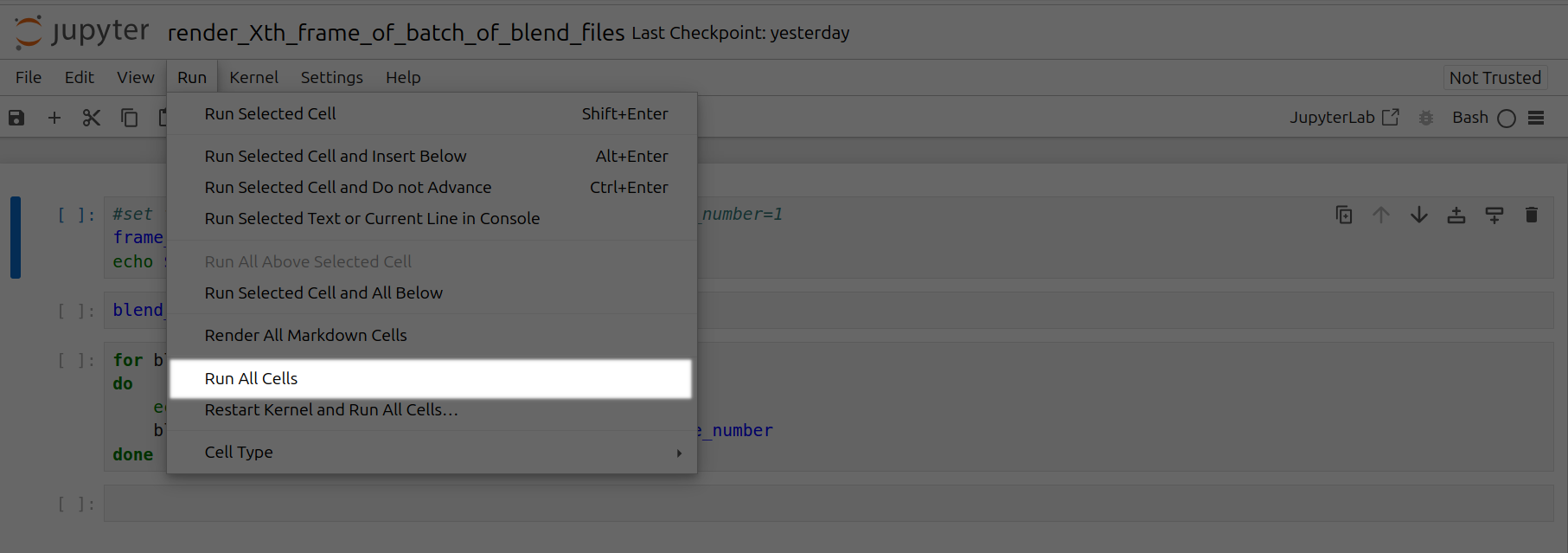

Now a corresponding animation will be rendered for each Xth frame of each .blend file you have uploaded to this folder. You can also close out your jupyter notebook tab in your browser and this notebook will keep running as long as your instance in Vast is running.