This repository contains the implementation of the reverse-search pipeline for image deepfake detection.
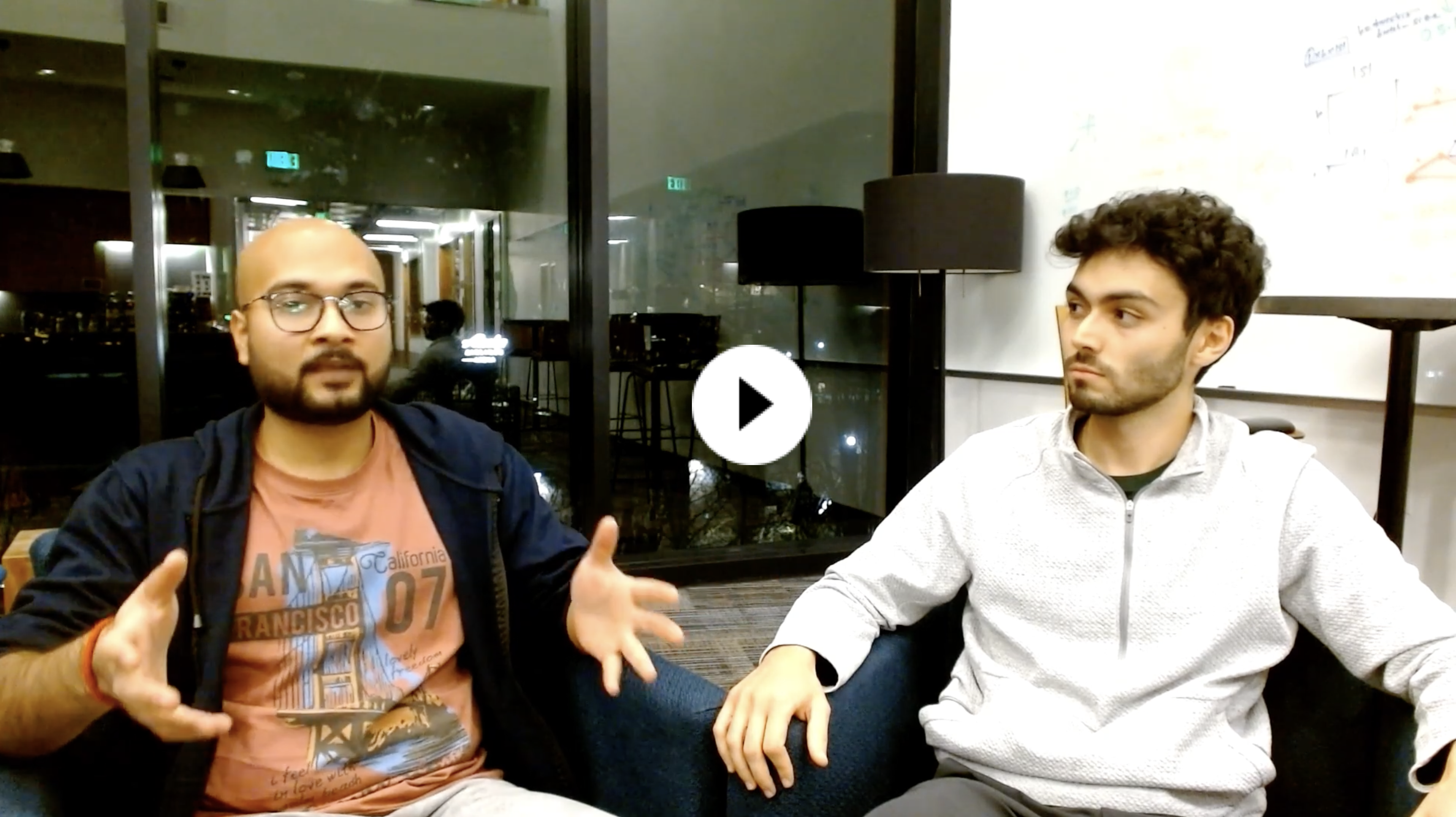
Watch an overview of the Machine Learning team discussing this reverse search detector:
Dockerfile: Defines the Docker image for the application.classify.py: Script for image classification.docker_run.sh: Shell script to run the Docker container.requirements.txt: Python dependencies.server.py: Main sonic server application.
- Docker: Ensure Docker is installed and running on your system.
- API Keys: Obtain the necessary API keys. You will need 3 API keys: PPLX_API_KEY (for perplexity), OPENAI_API_KEY (for GPT-4), and GOOGLE_APPLICATION_CREDENTIALS (for running reverse image search)
- Build the Docker image using the
Dockerfile:docker build -t reverse_search_image:<tag> -f Dockerfile .
-
Run the docker container with the following command:
docker run  -d \
         -e PPLX_API_KEY=<your_pplx_api_key> \
         -e OPENAI_API_KEY=<your_openai_api_key> \
         -p 8000:8000 \
         -e SERVER_PORT=8000 \
         -e GOOGLE_APPLICATION_CREDENTIALS="{<your_goole_application_credentials>}" \
         --name "reverse-search" "$DOCKER_REGISTRY/reverse-search:<tag>"
Replace
<your_pplx_api_key>,<your_openai_api_key>, and<your_goole_application_credentials>with the required API keys.The google application credentials should look like the following:
'{"type":"service_account","project_id":"...<id>...","private_key_id":"...<id>...","private_key":"...<key>...","client_email":"...<email>...","client_id":"...<id>...","auth_uri":"https://accounts.google.com/o/oauth2/auth","token_uri":"https://oauth2.googleapis.com/token","auth_provider_x509_cert_url":"https://www.googleapis.com/oauth2/v1/certs","client_x509_cert_url":"...<url>...","universe_domain":"googleapis.com"}' -
Verify the container is running:
docker ps
- In a separate terminal, run the following command one or more times
curl -X GET http://localhost:8000/healthcheckuntil you see {"healthy":true}.
- Then, test that inference can be run as expected:
curl -X POST http://localhost:8000/predict \
     -H "Content-Type: application/json" \
--data '{"file_path":"https://uploads.civai.org/files/jhxTVhsg/b751515306e7.jpg"}'- Finally, if successful, push the docker image to docker hub:
docker login

docker push "$DOCKER_REGISTRY/reverse_search_image:<tag>"- Login to your instance. in this case, it is
<PLACEHOLDER_IP> - Pull the Docker Container
docker pull "$DOCKER_REGISTRY/reverse_search_image:<tag>"For our use case,
docker pull kevintm1/reverse-search:v1.0-
Run the docker container, as described in Step 3: Run the Docker Container.
-
Test the model in a separate terminal using:
curl -X GET http://<PLACEHOLDER_IP>:80/healthcheckand
curl  -X POST http://<PLACEHOLDER_IP>:80/predict \
      -H "Content-Type: application/json"
      --data '{"file_path":"https://uploads.civai.org/files/jhxTVhsg/b751515306e7.jpg"}'
The expected output should be in the format
{"score":0,"rationale":"The image appears ......","sourceUrl":"..."}