# 40: Python Execution Mechanism - How RevitDevTool Works
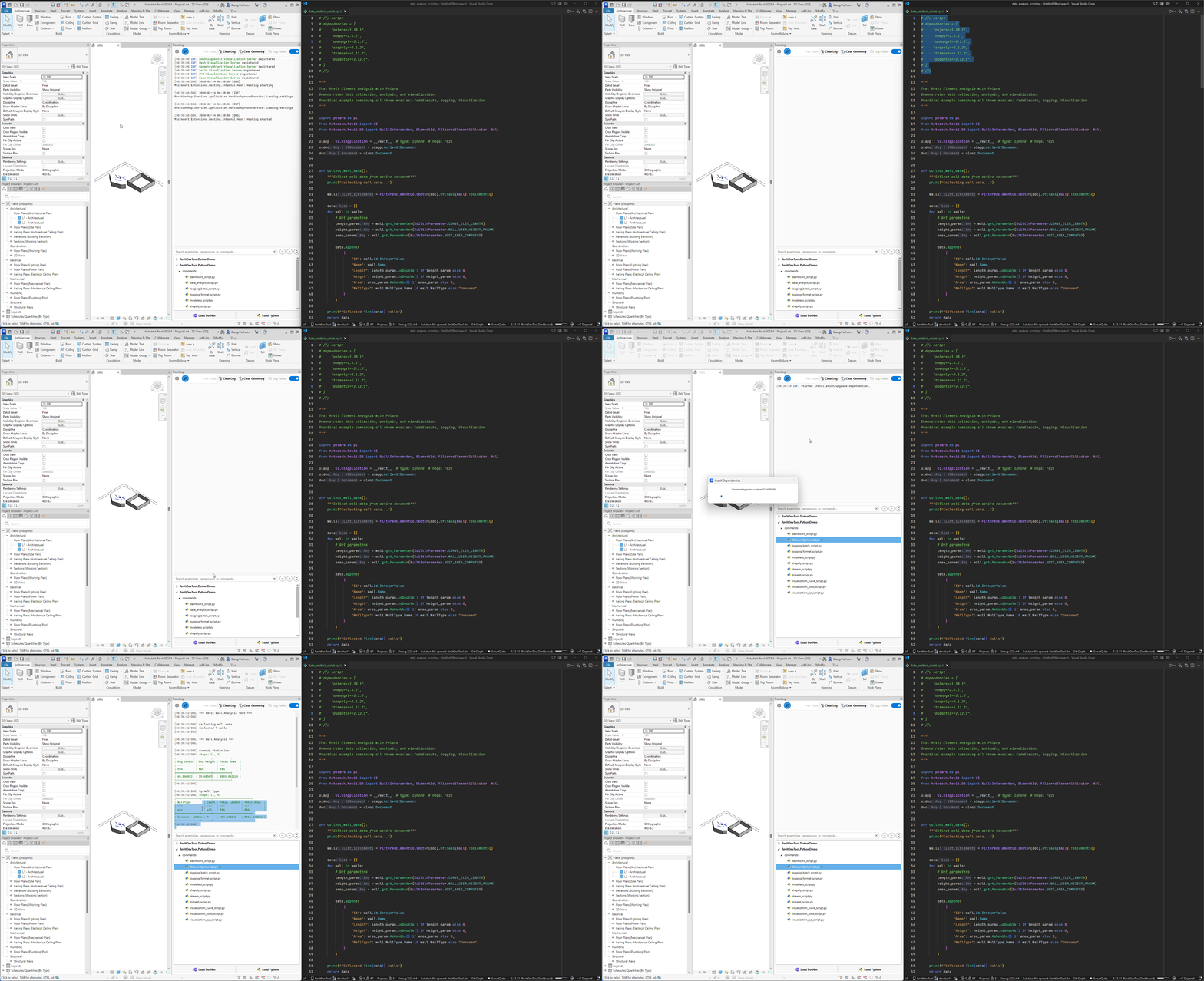
Complete guide to how RevitDevTool executes Python scripts with automatic dependency management.
---
## Overview: The Complete Flow
```mermaid
flowchart TD
A[Write script + Declare dependencies] --> B[Click Execute]
B --> C[1. Parse PEP 723 block]
C --> D[2. Check with UV
what needs installing?]
D --> E{Dependencies
needed?}
E -->|Yes| F[3. Install with progress dialog]
E -->|No| G[4. Create Python scope]
F --> G
G --> H[5. Inject __revit__, __file__, __root__]
H --> I[6. Setup environment
Revit API, output redirection]
I --> J[7. Execute script]
J --> K[8. Cleanup
clear module cache]
```
**Key advantage:** User just declares dependencies in script. System handles everything else automatically.
---
## Part 1: Declaring Dependencies (PEP 723)
### Format
Declare dependencies directly in your Python script:
```python
# /// script
# dependencies = [
# "pandas==1.5.3",
# "numpy>=1.24",
# ]
# ///
import pandas as pd
import numpy as np
# Your code here
```
### Rules
- Block must be in **first 50 lines** of file
- Start with `# /// script`
- End with `# ///`
- Inside: `dependencies = [...]` with quoted package names
- Empty array if no packages: `dependencies = []`
### Version Specifiers
| Pattern | Example | Meaning |
|---------|---------|---------|
| `==` | `pandas==1.5.3` | Exact version |
| `>=` | `numpy>=1.24` | Version 1.24 or later |
| `>` | `matplotlib>3.0` | Greater than 3.0 |
| `<` | `torch<2.0` | Less than 2.0 |
| `~=` | `scipy~=1.9.0` | 1.9.x series |
| `!=` | `scikit-learn!=0.24` | Any except 0.24 |
Combine constraints: `"pandas>=1.5,<2.0"`
### Examples
**No dependencies (Revit API only):**
```python
# /// script
# dependencies = []
# ///
from Autodesk.Revit import DB
doc = __revit__.ActiveUIDocument.Document
walls = DB.FilteredElementCollector(doc).OfClass(DB.Wall).ToElements()
print(f"Found {len(walls)} walls")
```
**With packages:**
```python
# /// script
# dependencies = [
# "pandas==1.5.3",
# "numpy>=1.24",
# "scikit-learn~=1.3.0",
# ]
# ///
import pandas as pd
from Autodesk.Revit import DB
doc = __revit__.ActiveUIDocument.Document
walls = DB.FilteredElementCollector(doc).OfClass(DB.Wall).ToElements()
data = [{"Name": w.Name, "Level": w.LevelName} for w in walls]
df = pd.DataFrame(data)
print(df.groupby("Level").size())
```
---
## Part 2: Dependency Resolution (UV Resolver)
### Why UV Instead of pip?
RevitDevTool uses **UV** as the dependency resolver backend.
**Speed:**
- UV is **10-15x faster** than pip
- Uses CDCL SAT solver (intelligent resolution)
- pip uses greedy algorithm (can fail)
**Safety:**
- Detects version conflicts before installation
- Guarantees all packages are compatible
- pip can silently install incompatible versions
### How UV Resolves Dependencies
```mermaid
flowchart TD
A["User declares:
pandas==1.5.3, numpy>=1.24"] --> B[UV reads package
metadata from PyPI]
B --> C[SAT solver checks
all combinations]
C --> D[pandas 1.5.3 requires:
numpy, python-dateutil, pytz]
D --> E{All packages
compatible?}
E -->|Yes| F[Install exact versions:
• pandas 1.5.3
• numpy 1.24.0
• python-dateutil 2.8.2
• pytz 2023.3
• six 1.16.0]
E -->|No| G[❌ Error:
Version conflict]
```
### UV vs pip Example
**Scenario:** Installing packages with conflicting dependencies
**With pip (greedy):**
```
pip install package-a==1.0
→ Installs conflicting-lib 2.5 ✓
pip install package-b==1.0
→ Needs conflicting-lib <2.0
→ ❌ CONFLICT (silent failure or broken install)
```
**With UV (SAT solver):**
```
uv pip install package-a==1.0 package-b==1.0
→ Analyzes all dependencies
→ Detects conflict immediately
→ ❌ STOPS with clear error message
→ User fixes conflict before install
```
### UV Speed Reference
For specific benchmarks, see:
- [UV official benchmarks](https://github.com/astral-sh/uv#benchmarks) - Shows 10-100x faster than pip
- [UV blog post](https://astral.sh/blog/uv) - Detailed performance analysis
Speed varies by network connection and package size. UV is consistently faster due to:
- Parallel downloads
- Better caching
- Optimized resolution algorithm
---
## Part 3: The Complete Dependency Workflow
### 7 Phases
```mermaid
flowchart LR
A[1. Discovery
Find *.script.py files] --> B[2. Parse Metadata
Extract PEP 723 block]
B --> C[3. Check Environment
UV dry-run]
C --> D[4. Resolve
UV SAT solver]
D --> E{Packages
needed?}
E -->|Yes| F[5. Install
Show dialog + UV install]
E -->|No| G[6. Execute
Create scope + Run script]
F --> G
G --> H[7. Output
Capture to Trace panel]
```
### Phase 2: Parse Metadata (PEP 723)
```python
# Script file content
"""
# /// script
# dependencies = [
# "pandas==1.5.3",
# "numpy>=1.24",
# ]
# ///
"""
# Parser extracts:
dependencies = ["pandas==1.5.3", "numpy>=1.24"]
```
**Implementation:**
- Reads first 50 lines
- Finds `# /// script` ... `# ///` block
- Parses TOML array inside
- Validates version specifiers
### Phase 3: Check Environment
UV dry-run checks what's installed:
```bash
uv pip install pandas==1.5.3 numpy>=1.24 --dry-run
```
**Output:**
```
Would install:
- pandas==1.5.3 (already satisfied)
- numpy==1.24.0 (not installed)
Dependencies to install: numpy==1.24.0
```
### Phase 4: Resolve Dependencies
UV's SAT solver calculates all transitive dependencies:
```mermaid
flowchart TD
A[pandas==1.5.3 specified] --> B[pandas requires:
numpy, python-dateutil, pytz]
B --> C[SAT solver finds
compatible versions]
C --> D[numpy 1.23.5
compatible with pandas]
C --> E[python-dateutil 2.8.2]
C --> F[pytz 2023.3]
C --> G[six 1.16.0
transitive dependency]
D --> H[✅ All versions
guaranteed compatible]
E --> H
F --> H
G --> H
```
### Phase 5: Install
**If packages needed:**
```
Show modal dialog:
"Installing Dependencies"
Progress bar (UV reports progress)
UV command:
uv pip install --python C:\path\to\python.exe
Installation completes
→ Dialog closes
→ Execution continues
```
**If all present:**
```
Dry-run shows all satisfied
→ Skip installation
→ Continue directly to execution
```
### Phase 6: Execute
```
1. Create Python scope (isolated environment)
2. Inject global variables:
- __revit__ = UIApplication
- __file__ = script path
- __root__ = scripts folder
3. Inject Setup.py:
- Load Revit namespaces
- Redirect print() to Trace
4. Clear module cache (Reset.py)
5. Execute user script
6. Capture output
```
### Phase 7: Output
All print() statements captured:
```python
print("Starting analysis...") # → Trace panel
print(f"Found {len(walls)} walls") # → Trace panel
print(dataframe) # → Trace panel (formatted)
```
Geometry objects visualized:
```python
from Autodesk.Revit.DB import *
face = GetSomeFace()
print(face) # → Trace panel + 3D visualization in Revit
```
### Performance Notes
**First execution with new dependencies:**
- Parse PEP 723 block
- UV dry-run check
- Show dialog + install (depends on network)
- Execute script
**Subsequent executions (same dependencies):**
- Parse PEP 723 block
- UV dry-run (all present, skip install)
- Execute immediately
Installation speed varies by network connection and package size.
### Error Handling
**Phase 2 errors (Parse):**
```
[ERROR] PEP 723 block not found or invalid
Check: Block in first 50 lines? Correct syntax?
```
**Phase 4 errors (Resolve):**
```
[ERROR] Could not resolve dependencies
Cause: Version conflict detected
Fix: Update package versions or remove conflicting package
```
**Phase 5 errors (Install):**
```
[ERROR] Installation failed
Cause: Network error, package not found, or permission denied
Fix: Check internet connection, verify package name on PyPI
```
**Phase 6 errors (Execute):**
```
[ERROR] Traceback (most recent call last):
File "script.py", line 10, in
result = walls[0].Area
AttributeError: 'Wall' object has no attribute 'Area'
```
---
## Part 4: Python Execution Environment
### Injected Variables
When your script runs, these are automatically available:
```python
# __revit__ = UIApplication (Revit's main API object)
doc = __revit__.ActiveUIDocument.Document
# __file__ = path to current script
import os
script_dir = os.path.dirname(__file__)
# Import from same folder automatically works
from my_shared_module import some_function
```
### Output Redirection
Print statements automatically appear in Trace panel:
```python
print("Hello") # → Appears in Trace
print(some_object) # → Converted to string, appears in Trace
```
No manual setup needed - it's automatic.
### Module Cache Isolation
Module cache is cleared automatically between script runs:
```python
# Run Script A:
import shared_config
shared_config.MODE = "A"
# Run Script B (cache cleared first):
import shared_config # Fresh load from disk, not previous run's "A"
shared_config.MODE = "B" # Now starts fresh
```
**Why this matters:**
- No state pollution between scripts
- Each execution starts clean
- Reload works correctly (unlike pyRevit CPython)
### Revit API Access
All Revit namespaces are available automatically:
```python
from Autodesk.Revit import DB, UI
doc = __revit__.ActiveUIDocument.Document
collector = DB.FilteredElementCollector(doc)
walls = collector.OfClass(DB.Wall).ToElements()
```
---
## Common Patterns
### Pattern 1: Data Analysis with pandas
```python
# /// script
# dependencies = ["pandas==1.5.3"]
# ///
import pandas as pd
from Autodesk.Revit import DB
doc = __revit__.ActiveUIDocument.Document
elements = DB.FilteredElementCollector(doc).OfClass(DB.Wall).ToElements()
data = [{"Name": el.Name, "Level": el.LevelName} for el in elements]
df = pd.DataFrame(data)
print(df.groupby("Level").size())
```
### Pattern 2: Shared Utilities
```python
# /// script
# dependencies = []
# ///
# Import from same folder (automatic)
from utils import get_all_walls, export_to_csv
doc = __revit__.ActiveUIDocument.Document
walls = get_all_walls(doc)
export_to_csv(walls, "output.csv")
```
### Pattern 3: Complex Dependencies
```python
# /// script
# dependencies = [
# "pandas==1.5.3",
# "numpy>=1.24",
# "scikit-learn~=1.3.0",
# "matplotlib>=3.5",
# ]
# ///
import pandas as pd
import numpy as np
from sklearn.linear_model import LinearRegression
import matplotlib.pyplot as plt
# All packages installed automatically
# No manual pip install needed
```
---
## Troubleshooting
### "PEP 723 block not recognized"
**Check:**
- Block in first 50 lines?
- Correct delimiters: `# /// script` and `# ///`?
- Correct syntax: `dependencies = [...]` with double quotes?
### "Package not found"
**Check:**
- Package name correct on pypi.org?
- Version exists for Python 3.x?
### "Version conflict"
Two packages need incompatible versions:
- Update package versions
- Remove one conflicting package
- Check PyPI compatibility
### "Import error after installation"
**Likely causes:**
- Package name ≠ import name (e.g., `scikit-learn` installs, `import sklearn`)
- Package not compatible with Windows
- Missing system dependencies (rare with pure Python packages)
---
## Summary
**RevitDevTool's Python mechanism:**
1. **PEP 723** - Declare dependencies in script
2. **UV Resolver** - Fast, safe dependency resolution (10-15x faster than pip)
3. **Automatic Installation** - User confirms, system installs
4. **Isolated Execution** - Clean scope, injected variables, cleared cache
5. **Output Capture** - Print to Trace, visualize geometry
**No manual setup required.** Just declare dependencies and click execute.
---
## Part 5: Python Debugging with VSCode
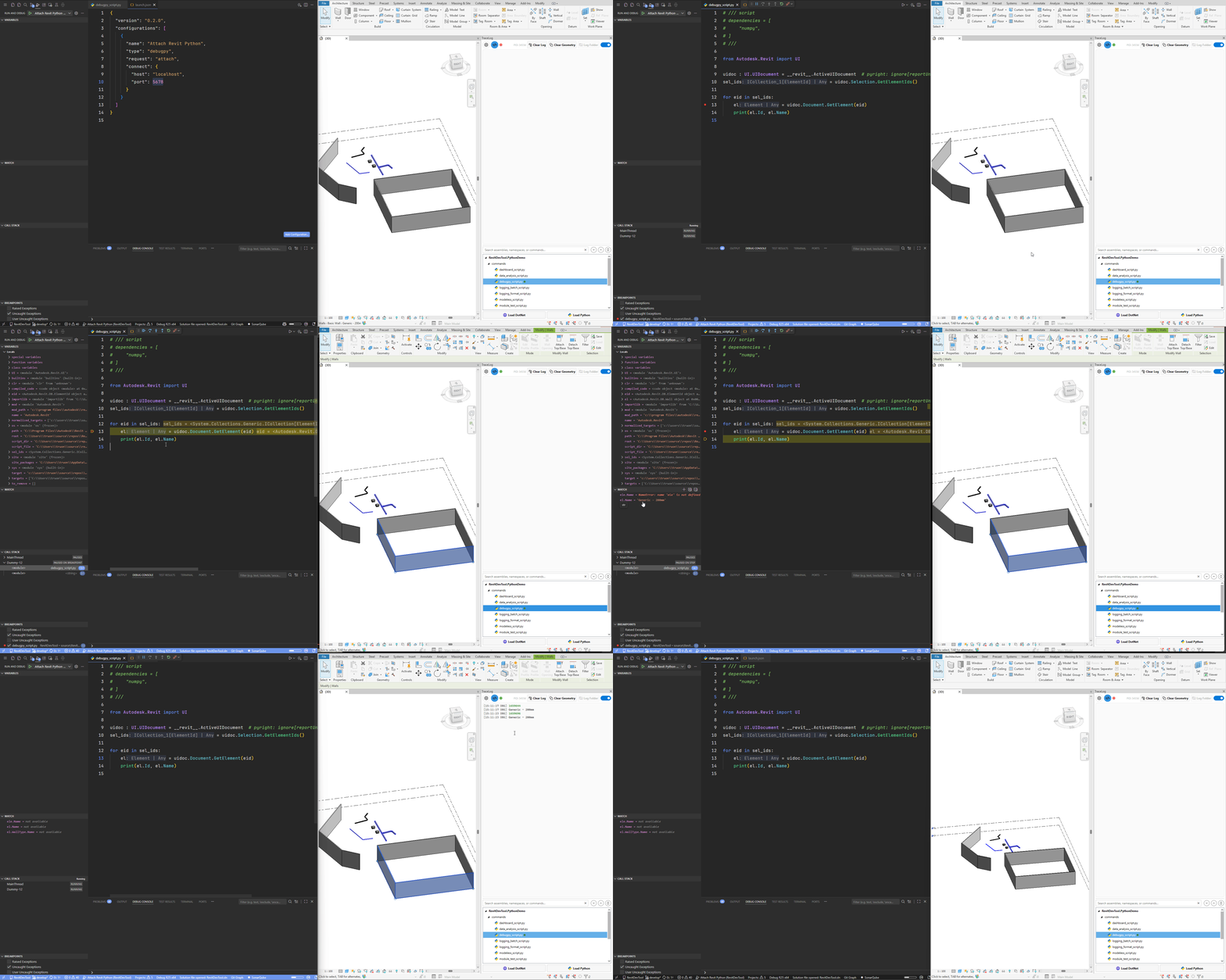
RevitDevTool supports **live debugging** of Python scripts using VSCode's debugger via `debugpy` integration.
### How It Works
```
Revit starts
↓
RevitDevTool initializes Python runtime
↓
Automatically installs debugpy
↓
Starts debugpy listener on configured port (default: 5678)
↓
VSCode attaches to the debugger
↓
Set breakpoints in your Python scripts
↓
Execute script → Debugger pauses at breakpoints
```
### Setup Steps
#### 1. Configure Debug Port (Optional)
Open RevitDevTool Settings and configure the debug port (default is 5678):

The debugger status indicator appears in the Trace panel toolbar:
- 🔴 **Red dot** - Debugger not connected
- 🟢 **Green dot** - VSCode debugger attached
#### 2. Create VSCode Launch Configuration
Add this configuration to your `.vscode/launch.json`:
```json
{
"version": "0.2.0",
"configurations": [
{
"name": "Attach to Revit Python",
"type": "debugpy",
"request": "attach",
"connect": {
"host": "localhost",
"port": 5678
},
"pathMappings": [
{
"localRoot": "${workspaceFolder}",
"remoteRoot": "${workspaceFolder}"
}
],
"justMyCode": false
}
]
}
```
#### 3. Start Debugging Session
1. **Launch Revit** with RevitDevTool installed
2. **Open your script folder** in VSCode
3. **Set breakpoints** in your Python scripts (click left margin)
4. **Press F5** in VSCode (or Run → Start Debugging)
5. **Check status indicator** in Trace panel (should turn green 🟢)
6. **Execute your script** in RevitDevTool
7. **Debugger pauses** at breakpoints
### Debugging Features
**Full VSCode debugging capabilities:**
- ✅ **Breakpoints** - Pause execution at specific lines
- ✅ **Step through code** - Step over, step into, step out
- ✅ **Variable inspection** - Hover to see values, watch expressions
- ✅ **Call stack** - Navigate execution stack
- ✅ **Debug console** - Evaluate expressions during debugging
- ✅ **Conditional breakpoints** - Break only when condition is true
- ✅ **Revit API inspection** - Inspect `__revit__`, `doc`, elements, etc.
### Example Debugging Session
**Script with breakpoint:**
```python
# /// script
# dependencies = ["numpy"]
# ///
import numpy as np
from Autodesk.Revit import DB
doc = __revit__.ActiveUIDocument.Document
# Set breakpoint on next line in VSCode
walls = DB.FilteredElementCollector(doc).OfClass(DB.Wall).ToElements()
for wall in walls:
# Set breakpoint here to inspect each wall
curve = wall.Location.Curve
length = curve.Length
print(f"Wall {wall.Id}: {length:.2f} ft")
```
**When debugger pauses:**
- Inspect `walls` collection
- Hover over `wall` to see properties
- Check `curve.Length` value
- Evaluate expressions in Debug Console: `wall.Name`, `wall.LevelId`, etc.
### Debugging Workflow
```mermaid
flowchart TD
subgraph VSCode["VSCode (Debugger)"]
VS1[Set breakpoints]
VS2[Attach to Revit - F5]
VS3[Step through code]
VS4[Inspect variables]
VS1 --> VS2 --> VS3 --> VS4
end
subgraph Revit["Revit + RevitDevTool"]
R1[Start debugpy listener on port 5678]
R2[Wait for VSCode to attach]
R3[Execute script with debugpy active]
R4[Pause at breakpoints]
R5[Send variable data to VSCode]
R1 --> R2 --> R3 --> R4 --> R5
end
VSCode <-->|debugpy protocol| Revit
```
### Troubleshooting
**Debugger won't connect:**
- Check port 5678 is not blocked by firewall
- Verify debugpy is installed (check Trace panel logs)
- Restart Revit if port is in use
- Change port in Settings if 5678 conflicts with other apps
**Breakpoints not hit:**
- Ensure VSCode is attached (green dot 🟢 in Trace panel)
- Check `pathMappings` in launch.json matches your folder structure
- Verify script file path is correct
- Try `justMyCode: false` in launch.json
**Variables not showing:**
- Use Debug Console to evaluate expressions
- Check call stack to ensure you're at correct frame
- Some Revit API objects may show as `` - access properties directly
### Performance Notes
**Debugging overhead:**
- Minimal impact when debugger not attached
- Slight slowdown when stepping through code (expected)
- No impact on production scripts (debugging is optional)
**Best practices:**
- Attach debugger only when needed
- Remove breakpoints for production runs
- Use conditional breakpoints for large loops
- Detach debugger when done (Shift+F5 in VSCode)
### Demo
---
## See Also
- **[vs pyRevit](CodeExecute-VsPyRevit.md)** - Comparison with pyRevit
- **[Stub Generation](CodeExecute-StubGeneration.md)** - IDE autocomplete setup
- **[.NET Runtime](CodeExecute-DotNetExecution.md)** - C# execution mechanism