# .NET Runtime - IExternalCommand Execution
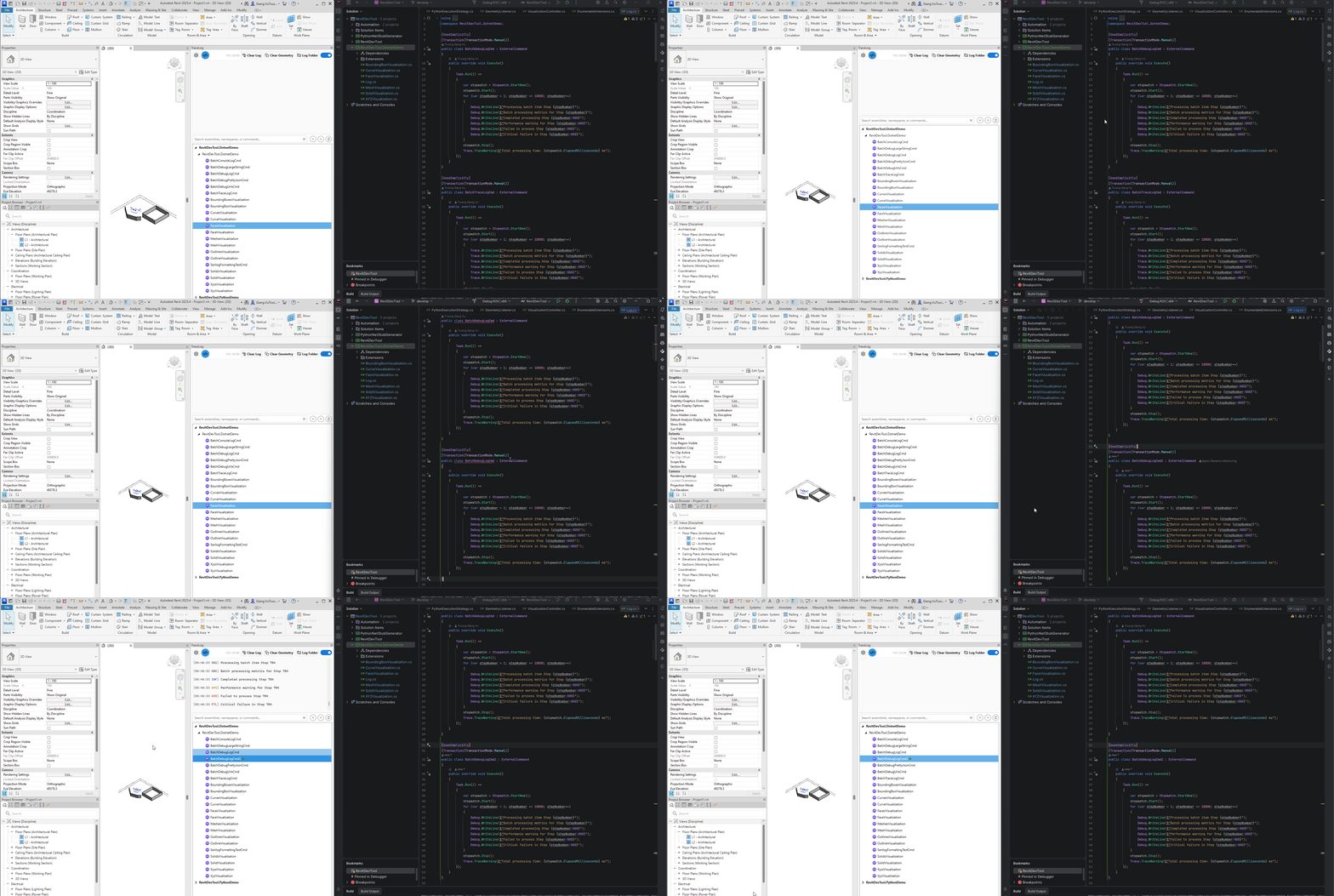
**RevitDevTool executes .NET assemblies using the same approach as RevitAddinManager**, with a few focused improvements.
---
## Philosophy
RevitDevTool's C# support is **inspired by RevitAddinManager**:
- Load IExternalCommand implementations dynamically
- Execute without Revit restart
- Enable rapid development iteration
**Key additions:**
1. FileWatcher for automatic command detection
2. Automatic dependency loading
3. No temp folder copy for Revit 2024- (.NET 4.8)
---
## How It Works
### Assembly Loading Process
```mermaid
flowchart TD
A[Developer builds DLL] --> B[RevitDevTool discovers
IExternalCommand implementations]
B --> C[FileWatcher detects
new commands automatically]
C --> D[Load assembly
with all dependencies]
D --> E[User clicks command]
E --> F[Execute]
```
**Similar to RevitAddinManager**, but with automatic detection via FileWatcher.
---
## Revit Version Differences
### Revit 2024 and Earlier (.NET Framework 4.8)
**RevitAddinManager approach:**
- Copy DLL to temp folder
- Load from temp location
- Execute
**RevitDevTool approach:**
- Load DLL directly (no temp folder)
- Execute
**Advantage:** Faster loading, simpler debugging paths.
### Revit 2025+ (.NET 8.0)
**Both tools use the same approach:**
- Use AssemblyLoadContext (ALC)
- Load in-memory
- Execute
**No difference** - both leverage .NET 8.0's AssemblyLoadContext for proper isolation.
---
## Key Improvements Over RevitAddinManager
### 1. FileWatcher for New Commands
When you add a new IExternalCommand to your DLL and rebuild:
- RevitAddinManager: Requires manual reload
- RevitDevTool: FileWatcher detects automatically, command appears
**Benefit:** One less manual step in the development loop.
### 2. Automatic Dependency Loading
All DLLs in the folder are loaded automatically:
- NuGet packages (Newtonsoft.Json, Serilog, etc.)
- Project references
- Third-party libraries
**Benefit:** No configuration needed for dependencies.
### 3. No Temp Folder (Revit 2024-)
For .NET Framework 4.8 (Revit 2024 and earlier):
- No copy step
- Faster execution
- Simpler debugging (no temp folder paths)
**Note:** This advantage only applies to Revit 2024 and earlier. Revit 2025+ uses AssemblyLoadContext for both tools.
---
## Command Discovery
RevitDevTool scans assemblies for types that implement IExternalCommand:
- Finds all public classes implementing IExternalCommand
- Creates tree nodes for UI display
- Organizes by namespace hierarchy
**Same as RevitAddinManager** - uses standard .NET reflection.
---
## Command Execution
When user clicks a command:
1. Create instance of IExternalCommand class
2. Call Execute method with Revit context
3. Capture output to Trace panel
**Same as RevitAddinManager** - uses standard IExternalCommand interface.
---
## FileWatcher Implementation
FileWatcher monitors the assembly folder for changes:
- Detects when DLL files are modified
- Automatically reloads assemblies
- Updates UI tree with new commands
**Benefit:** New commands appear without manual reload.
---
## Developer Workflow
### With RevitDevTool
```
1. Edit C# code
2. Build project
3. FileWatcher detects changes automatically
4. New commands appear in UI
5. Test changes
```
### With RevitAddinManager
```
1. Edit C# code
2. Build project
3. Manually reload add-in
4. New commands appear in UI
5. Test changes
```
**Difference:** Step 3 is automatic in RevitDevTool.
---
## What RevitDevTool Does NOT Do
**RevitDevTool is not:**
- ❌ A hot reload system (no in-memory code updates)
- ❌ A replacement for Visual Studio debugging
- ❌ A build system
**RevitDevTool is:**
- ✅ An execution engine for IExternalCommand
- ✅ A FileWatcher for automatic command detection
- ✅ A dependency loader
**For actual debugging:** Use Visual Studio's "Attach to Process" feature.
---
## Comparison with RevitAddinManager
| Feature | RevitAddinManager | RevitDevTool |
|---------|-------------------|--------------|
| **Load IExternalCommand** | ✅ | ✅ |
| **Execute without restart** | ✅ | ✅ |
| **FileWatcher for new commands** | ❌ Manual reload | ✅ Automatic |
| **Dependency loading** | ⚠️ Manual config | ✅ Automatic |
| **Temp folder (Revit 2024-)** | ✅ Uses temp folder | ❌ Direct load |
| **Temp folder (Revit 2025+)** | ❌ ALC in-memory | ❌ ALC in-memory |
| **UI complexity** | Full-featured | Minimal |
| **Configuration** | Extensive | Minimal |
---
## When to Use RevitDevTool for C#
**Good for:**
- ✅ Rapid iteration with automatic command detection
- ✅ Simple execution without configuration
- ✅ Revit 2024- development (no temp folder)
- ✅ Projects with many dependencies (auto-loaded)
**Not ideal for:**
- ❌ Complex add-in management needs
- ❌ When you need RevitAddinManager-specific features
- ❌ When you prefer manual control over loading
---
## Limitations
**Same limitations as RevitAddinManager:**
- Cannot modify loaded assemblies without rebuild
- Cannot change type definitions at runtime
- Requires Visual Studio for debugging
**Additional notes:**
- FileWatcher may have slight delay (typically <1 second)
- All DLLs loaded automatically (may load unnecessary files)
---
## Summary
**RevitDevTool's C# support:**
- Inspired by RevitAddinManager's proven approach
- Adds FileWatcher for automatic command detection
- Adds automatic dependency loading
- Removes temp folder copy for Revit 2024- (.NET 4.8)
- Simplifies interface by removing unnecessary features
**Not a replacement, but a focused alternative** for developers who want:
- Automatic command detection
- Automatic dependency loading
- Simpler workflow
---
## See Also
- [Python Runtime](CodeExecute-PythonExecution.md) - Python execution with auto-dependencies
- [CodeExecute Overview](CodeExecute-Overview.md) - Module overview
- [vs pyRevit](CodeExecute-VsPyRevit.md) - Python execution comparison