# Introduction #
This document explains how the SmartCard API can be used to develop and test Android applications which communicate with Secure Elements available in the real device or the emulator.
The tutorial refers to the shared library based SmartCard API implementing the Open Mobile API interface and is not suitable for application development relying on the MSC SmartCardService.
**Note:** Bear in mind that Nexus Dev phones won't support SIM access out of the box as they have vanilla Android.
### Prerequisites ###
* The development phone is flashed with SmartCard API support according to [BuildingTheSystem](BuildingTheSystem)
* Basic knowledge of [Java Card](http://www.oracle.com/technetwork/java/javacard/overview/index.html) applets and [smart card](http://www.wrankl.de/SCH/SCH.html) communication
* Eclipse or Android Studio development IDE with the Android Development Tools (ADT) installed on the host (although Eclipse/Android Studio are not mandatory). See http://developer.android.com/sdk/eclipse-adt.html
* Basic understanding of the Android development platform. See http://developer.android.com/sdk/index.html
### Setting up the Environment ###
The Eclipse/Android Studio development environment needs to be configured in order to use the official SDK from Google as described in the Google documentation. In addition, the SDK needs to have access to the Open Mobile API addon package.
* Start the Android SDK Manager by launching android on the command line
* Click on Tools -> Manage Add-on Sites...
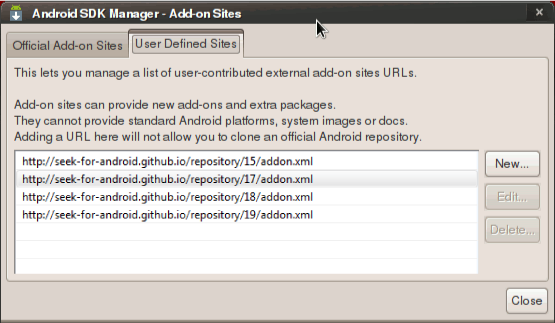
* Go to User Defined Sites and add the new repository http://seek-for-android.github.io/repository/21/addon.xml and close the dialog. The different entries in the list are required for the different API levels:
* 15 - API level 15, Android 4.0.3
* 16 - not available
* 17 - API level 17, Android 4.2
* 18 - API level 18, Android 4.3
* 19 - API level 19, Android 4.4
* 20 - developer preview, not available
* 21 - API level 21, Android 5.0
**Note:** When the application should be compiled for different API levels it's recommended to add all versions of the Open Mobile API to the addon manager
* Reload the packages selecting Packages -> Reload
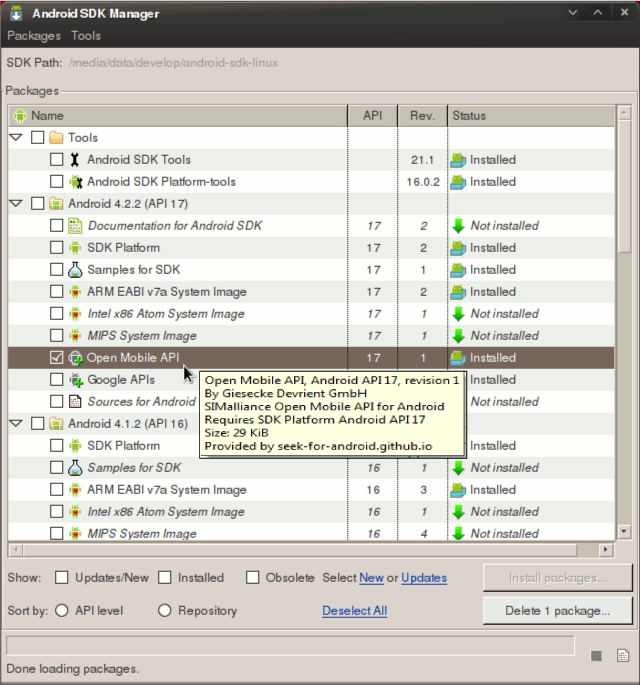
* Select Open Mobile API under Android 5.0 and install the package add-on
* The Android SDK Manager just installed the Open Mobile API addon package from SEEK to develop Secure Element aware applications.
# Hello, Smart Card. #
For developers, the most important code to get started within a new development environment is the _Hello, World._ sample. The text to be displayed will be created from the applet installed on the Secure Element.
The Android application communicates with the applet installed on the Secure Element and displays the response from the APDU command on the screen of the device.
The _Hello Smartcard_ Java Card applet available in [this Git repository](https://github.com/seek-for-android/hello-smartcard-jc-applet) needs to be installed on the Secure Element by using any kind of card management tool similar to JLoad.
### Create the project in Eclipse ###
The sample code referenced here can also be found in [this other GIT repository](https://github.com/seek-for-android/hello-smartcard-app).
* Using the Eclipse project wizard, create a new Android project
> > _File -> New -> Project_
* Select _Android Application Project_ and click _Next_
* To create the project, fill in the required fields
> > Application name: _Hello Smartcard_
> > Project name: _HelloSmartcard_
> > Package name: _com.gieseckedevrient.android.hellosmartcard_
> > Build SDK: _Open Mobile API (Giesecke & Devrient GmbH) (API 21)_
> > Minimum Required SDK: _API 21: Android 5.0 (Lollipop)_
> > Unselect _Create custom launcher icon_ unless your logo matters
* Click _Next_ to move to the next wizard page
* Leave the default options: _Create Activity_ -> _BlankActivity_ and hit _Next_
* Enter the activity name: _MainActivity_ and hit _Finish_ to create a blank project
### uses-library in AndroidManifest.xml ###
Applications using the SmartCard API need to declare that the component is required in order to be able to get installed. Especially when publishing the APKs to Google Play it is required to declare such. An example of an `AndroidManifest.xml` which requires the Open Mobile API looks like
```
...
```
Refer to the official documentation under [uses-library element](http://developer.android.com/guide/topics/manifest/uses-library-element.html) for more information.
### Implement the SEService.CallBack interface ###
The Secure Element service uses an asynchronous callback mechanism to inform the application when the service is connected. Therefore, the `SEService.Callback` interface is implemented in `MainActivity` with the callback method `serviceConnected()`.
```
import org.simalliance.openmobileapi.*;
public class MainActivity extends Activity implements SEService.CallBack {
...
public void serviceConnected(SEService service) {
Log.i(LOG_TAG, "seviceConnected()");
}
}
```
### Creating the View ###
Let's not care too much about the user interface, just create a button which starts the communication with the applet on the Secure Element when pressed.
In `MainActivity.java`, add the following code to the `onCreate()` method.
```
@Override
public void onCreate(Bundle savedInstanceState) {
final String LOG_TAG = "HelloSmartcard";
super.onCreate(savedInstanceState);
LinearLayout layout = new LinearLayout(this);
layout.setLayoutParams(new LayoutParams(
LayoutParams.WRAP_CONTENT,
LayoutParams.WRAP_CONTENT));
Button button = new Button(this);
button.setLayoutParams(new LayoutParams(
LayoutParams.WRAP_CONTENT,
LayoutParams.WRAP_CONTENT));
button.setText("Click Me");
button.setOnClickListener(new OnClickListener() {
public void onClick(View v) {
// TODO: Secure Element access
}
});
layout.addView(button);
setContentView(layout);
}
```
Add the required Java imports for the new code manually or use `Ctrl+Shift+O` within Eclipse to organize all imports.
### Initialize the SEService ###
Create a handle to the SEService API. At the end of the `onCreate()` method, add
```
try {
Log.i(LOG_TAG, "creating SEService object");
seService = new SEService(this, this);
} catch (SecurityException e) {
Log.e(LOG_TAG, "Binding not allowed, uses-permission org.simalliance.openmobileapi.SMARTCARD?");
} catch (Exception e) {
Log.e(LOG_TAG, "Exception: " + e.getMessage());
}
```
and create a _seService_ object within the _MainActivity_ class
```
private SEService seService;
```
If the sample application is executed on the phone now, a security exception is thrown complaining about a missing SMARTCARD permission. See the log output of the command when starting the application in its current stage
```
$ adb logcat *:v
```
In order to be allowed to use the SmartCard API, an application must declare the `org.simalliance.openmobileapi.SMARTCARD` permission. This permission notifies a user when installing an application that requests access to a Secure Element.
Define the permission in the _AndroidManifest.xml_ file
```
```
and the sample application will launch properly.
Note that the constructor of SEService will automatically bind to the SmartCardService component in the background. Since service binding is asynchronous in Android, the proper way to initialize the library is to wait for a notification event as discussed previously.
To clean up the service binding, call the shutdown method when the application is closing or is not using SmartCardService anymore like in `onDestroy()`
```
@Override
protected void onDestroy() {
if (seService != null && seService.isConnected()) {
seService.shutdown();
}
super.onDestroy();
}
```
### Accessing the Smart Card ###
Add the following code snippet inside the _onClick()_ handler of the button
```
try {
Log.i(LOG_TAG, "Retrieve available readers...");
Reader[] readers = seService.getReaders();
if (readers.length < 1)
return;
Log.i(LOG_TAG, "Create Session from the first reader...");
Session session = readers[0].openSession();
Log.i(LOG_TAG, "Create logical channel within the session...");
Channel channel = session.openLogicalChannel(new byte[] {
(byte) 0xD2, 0x76, 0x00, 0x01, 0x18, 0x00, 0x02,
(byte) 0xFF, 0x49, 0x50, 0x25, (byte) 0x89,
(byte) 0xC0, 0x01, (byte) 0x9B, 0x01 });
Log.d(LOG_TAG, "Send HelloWorld APDU command");
byte[] respApdu = channel.transmit(new byte[] { (byte) 0x90, 0x10, 0x00, 0x00, 0x00 });
channel.close();
// Parse response APDU and show text but remove SW1 SW2 first
byte[] helloStr = new byte[respApdu.length - 2];
System.arraycopy(respApdu, 0, helloStr, 0, respApdu.length - 2);
Toast.makeText(MainActivity.this, new String(helloStr), Toast.LENGTH_LONG).show();
} catch (Exception e) {
Log.e(LOG_TAG, "Error occured:", e);
return;
}
```
In this code, a logical channel to the _HelloSmartcard_ applet identified by its AID `D2 76 00 01 18 00 02 FF 49 50 25 89 C0 01 9B 01` is created. The _HelloSmartcard_ applet
specific APDU command `90 10 00 00 00` is sent to retrieve the applet response.
The last two bytes of the response, which contain the status word (SW1SW2=`90 00` on successful execution), are truncated and the result is displayed on the screen.
### Running the Application ###
In Eclipse, click on Run or press `Ctrl+F11` to execute the sample on the phone.
Each time the applet is accessed, the counter is incremented by one and stored in NV memory on the Secure Element. This shows the data persistence of the applet installed on the Secure Element.
To debug the application, you need to
* Add additional `Log.e()` messages
* Run `$ logcat *:v` in a terminal to show all log messages
* Use Eclipse to set breakpoints and step through the code
Other samples are available in Git as well as a complete [JavaDoc](http://seek-for-android.github.io/javadoc/) for a complete reference.