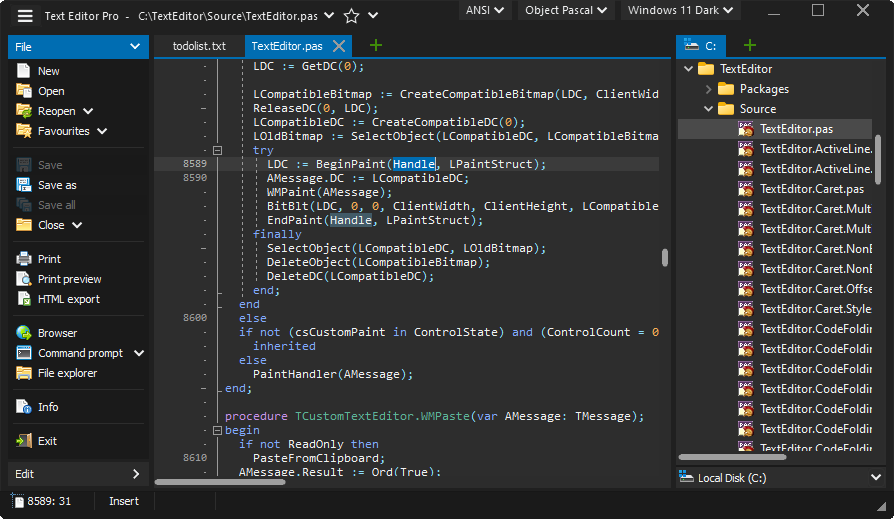
A text editor is a piece of software that you download and install on your computer, or you access online through your web browser, that allows you to write and manage text, especially the text that you write to build a web site.it has to be one of the most important tools you can use as an aspiring web developer.
- code completion: allows you to start typing, and the code completion feature will display possible suggestions based on what you originally typed
- syntax highlighting: a feature that takes the text you type, and makes it more noticeable by colorizing the text
- a nice variety of themes o reduce eye strain and fatigue
- the ability to choose from a healthy selection of extensions available when you need them .
- able to write your HTML and CSS more efficiently
- series of themes :These themes will allow you to change the color of the background of your text editor, the series of colors in your text,and sometimes themes will affect other aspects of your text editing software as well.
Every computer will come with its own text editor. On Mac computers, the text editor that comes with your computer is called,“Text Edit.” On Windows computers, the text editor that comes with your computer is called, “Notepad.”And on Linux computers, each distribution will have its own text editor already installed but which one might depend on the flavor of your particular distribution. There are other text editors that have features that you may be interested in, like the ones we discussed before. Usually, the text editors that come on your computer don’t have many features to speak of. They’re the barest bare bones text editors you’ll encounter.
computer, there’s a couple of caveats that I’d like to make you aware of:
- make sure that when you use the text editor that comes on your computer, that you’re creating code in a plain text editor.
- You should not see options for making text bold, underlined, or italic.Plain text has no formatting options.
- If you can make your text bold, underlined or italic, then you might need to change a setting somewhere. Please make sure you’re coding in plain text.
- make sure that when you use the text editor that comes on your computer, that you first create a folder on your computer somewhere maybe on your Desktop to store your entire website.
- As you create new documents with the text editor that comes on your computer, save those files in the appropriate folders or sub-folders within the main website folder.
- make sure that when you’re saving your file, that they have the appropriate extension at the end of the file names.
Notepad++, Text Wrangler, BB Edit, Visual Studio Code, Atom, Brackets, and Sublime Text. These text editors can all be downloaded and installed to your computer from their respective websites.

- NotePad++ NotePad++ is a free text editor for Windows Computers only.. It has syntax highlighting and code completion, as well as word completion and function completion. It has a zoom in an out feature, it’s own online community, and its own chat room for questions that may arise.
- TextWrangler/BB Edit:
TextWrangler is for Mac computers only, and you used to be able to download it from the Mac App Store.Bare Bones Software has incorporated TextWrangler into its more robust, big brother, BB Edit—another feature packed text editor BB Edit is software that you purchase.
- Visual Studio Code :



- Brackets:

- Sublime Text:

A text editor kind of gives away what it does in the title—it edits text.It also manages text, and manages files. I love that name “text wrangler” because in a way that’s what really a text editor does. It wrangles your text together into something meaningful. An IDE (Integrated Development Environment) is suite of different software all coming together. An IDE is a text editor, a file manager, a compiler, and a debugger all in one software package.