A text editor is a piece of software that you download and install on your computer, or you access online through your web browser, that allows you to write and manage text, especially the text that you write to build a web site. The text editor has to be one of the most important tools you can use as an aspiring web developer
1.code completion 2.syntax highlighting 3. a nice variety of themes (to reduce eye strain and fatigue) 4. the ability to choose from a healthy selection of extensions available when you need them

Third-Party Options
Ok, what about third-party options? Let’s talk about software like:
Notepad++, Text Wrangler, BB Edit, Visual Studio Code, Atom,
Brackets, and Sublime Text. These text editors can all be downloaded
and installed to your computer from their respective websites. Each
of these titles do have some if not all of the features that we talked
about earlier, and most of this software is absolutely free! They are
widely used in web development today.

IDE:
IDE stand for integrated development environment [Somewhere you found integrated design environment or integrated debugging environment].The word integrated in IDE,Because it include/integrated everything what a programmer could want to do in his/her application.
coding-specific text editor
text editoruseing third part programmer.
basic text editor
Plain text vs. rich text — A text editor is a type of computer program that edits plain text. ... Text editors are provided with operating systems and software development packages, and can be used to change files such as configuration files, documentation files and programming language source code
The command line is an interesting beast, and if you've not used one before, can be a bit daunting . advantage as we can have several command lines open and doing different tasks in each at the same time. We can also easily jump back to the GUI when it suits us . A command line, or terminal, is a text based interface to the system. You are able to enter commands by typing them on the keyboard and feedback will be given to you similarly as text
and also we can define it as |:The command line is a text interface for your computer. It's a program that takes in commands, which it passes on to the computer's operating system to run. From the command line, you can navigate through files and folders on your computer, just as you would with Windows Explorer on Windows or Finder on Mac OS.
Line 1 presents us with a prompt
Lines 2 - 5 are output from running the command
Line 6 presents us with a prompt again
- If you're on a Mac then you'll find the program Terminal under Applications -> Utilities. An easy way to get to it is the key combination 'command + space' which will bring up Spotlight, then start typing Terminal and it will soon show up.
- If you are on Windows and intend to remotely log into another machine then you will need an SSH clien

-
bash is an sh-compatible command language interpreter that executes commands read from the standard input or from a file.
-
Bash is the default shell in macOS, Windows Subsystem for Linux, and the majority of Linux operating systems. ...
-
Short for "Bourne-Again Shell," bash is a Unix shell. ...

moving around the system. Many tasks rely on being able to get to, or reference the correct location in the system.
which stands for Print Working Directory.
A lot of commands on the terminal will rely on you being in the right location. As you're moving around, it can be easy to lose track of where you are at. Make use of this command often so as to remind yourself where you presently are.and its give you the ability to gaid your work .

What's in Our Current Location?
Whereas pwd is just run by itself with no arguments, ls is a little more powerful. We have run it here with no arguments in which case it will just do a plain listing of our current location
Line 1 - We ran ls in it's most basic form. It listed the contents of our current directory. Line 4 - We ran ls with a single command line option ( -l ) which indicates we are going to do a long listing. A long listing has the following: First character indicates whether it is a normal file ( - ) or directory ( d ) Next 9 characters are permissions for the file or directory (we'll learn more about them in section 6). The next field is the number of blocks (don't worry too much about this). The next field is the owner of the file or directory (ryan in this case). The next field is the group the file or directory belongs to (users in this case). Following this is the file size. Next up is the file modification time. Finally we have the actual name of the file or directory. Line 10 - We ran ls with a command line argument ( /etc ). When we do this it tells ls not to list our current directory but instead to list that directories contents. Line 13 - We ran ls with both a command line option and argument. As such it did a long listing of the directory /etc. Lines 12 and 18 just indicate that I have cut out some of the commands normal output for brevities sake. When you run the commands you will see a longer listing of files and directories.
A path is a means to get to a particular file or directory on the system
Absolute and Relative Paths
A path is either relative or absolute. An absolute path always contains the root element and the complete directory list required to locate the file. ... A relative path needs to be combined with another path in order to access a file. For example, joe/foo is a relative path.

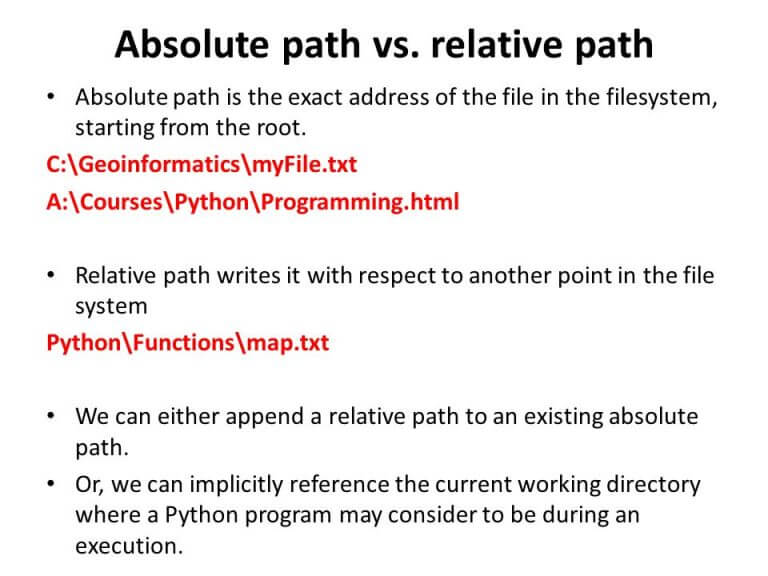
what is file ?
A file is an object on a computer that stores data, information, settings, or commands used with a computer program. In a GUI (graphical user interface), such as Microsoft Windows, files display as icons that relate to the program that opens the file. For example, all PDF icons appear the same and open in Adobe Acrobat or the reader associated with PDF files. If a program is associated with a program, double-clicking the icon opens it in the default program.
**Linux is an Extensionless System **
This one can sometimes be hard to get your head around but as you work through the sections it will start to make more sense. A file extension is normally a set of 2 - 4 characters after a full stop at the end of a file, which denotes what type of file it is. The following are common extensions:
In other systems such as Windows the extension is important and the system uses it to determine what type of file it is. Under Linux the system actually ignores the extension and looks inside the file to determine what type of file it is. So for instance I could have a file myself.png which is a picture of me. I could rename the file to myself.txt or just myself and Linux would still happily treat the file as an image file. As such it can sometimes be hard to know for certain what type of file a particular file is. Luckily there is a command called file which we can use to find this out
case sensitive
On Linux, the file system is case sensitive. This means that you could have files named file, File, and FILE in the same folder. Each file would have different contents – Linux treats capitalized letters and lower-case letters as different characters

- Print Working Directory ........
- Change Directories - ie. move to another directory........
- obtain information about what type of file a file or directory ......... 4.What is a text editor?............
- List the contents of a directory, including hidden files...........