This will set you up for VersionPress development.
Note: Since 4.0-beta, we rely on Docker which makes things much easier than full local setup. The legacy approach is still documented in Dev-Setup.md@4.0-alpha1 and Testing.md@4.0-alpha1.
Install:
- PHP 5.6+ and Composer 1.4+
- Git 2.10+
- Node.js 8+, npm 5+
- Docker 17+
Then run:
git clone <repo>&&cd <repo>npm installnpm start
Wait for all the things to download and build (☕), then log into the test site at http://localhost:8088, username admin, password adminpwd (see docker-compose.yml) and activate VersionPress on the Plugins page. You're now all set up! 🎉

Useful to know about your development environment:
- VersionPress source files are directly mapped to the site's
wp-content/plugins/versionpressso any changes you make locally are immediately live. - Database can be inspected using Adminer at
http://localhost:8099, server name:db, username:root, password:r00tpwd.- You can also use tools like MySQL Workbench or
mysqlcommand-line client on port 3399, e.g.,mysql --port=3399 -u root -p.
- You can also use tools like MySQL Workbench or
- WordPress site's web root is mapped to
./dev-env/wpso you can e.g. use your local Git client to inspect the history. - To invoke things like WP-CLI in the context of a test WordPress site, you have these options:
- SSH into container the container:
docker-compose exec wordpress /bin/bash - Use
docker-compose exec wordpress <command>, for example:docker-compose exec wordpress wp option update blogname "Hello"docker-compose exec wordpress git log
- SSH into container the container:
- Stop all Docker services:
Ctrl+Cin the console.npm run cleanup-docker-stackclears up everything if you want to start fresh. Otherwise, both files and database data are persisted.
See also Docker tips section below.
Next steps:
We recommend PhpStorm for VersionPress development. Version 2017.2 is necessary for Docker Compose workflows below.
First, run npm run init-phpstorm. This copies .idea to ./plugins/versionpress where most things are already preconfigured for you.
Then, open the ./plugins/versionpress project in PhpStorm. On the first start, you'll see two prompts:

Enable WordPress support but leave the installation path empty (ignore the warning):

Also initialize the Composer support:

For Code Sniffer inspections to work, there's a one-time configuration: Go to Settings > Languages & Frameworks > PHP > Code Sniffer, select Local, click the three dots next to it and provide your full system path to ./vendor/bin/phpcs. After this is done, PhpStorm will start checking the code style.
Note: Most VersionPress code uses the PSR-2 coding standard with only the parts directly interacting with WordPress might use WordPress-like conventions, e.g., global functions are defined as
vp_register_hooks(), notregisterHooks().
It is also useful to install the EditorConfig extension, VersionPress ships with some basic formatting rules in .editorconfig.
Please refer to the Contributing code section in CONTRIBUTING.md.
Note: VersionPress consists of core PHP code plus React app for the frontend. This section is about PHP debugging only.
The development environment is preconfigured with Xdebug. Here's an example setup:
- Create a
docker-compose.override.ymlfile next todocker-compose.yml(it's in the repo root, not in./plugins/versionpress). You can copy it fromdocker-compose.override.example.yml. - Put your computer IP address there as seen on the local network, e.g.,
192.168.1.2. Tools likeipconfigorifconfigwill show that. - Start the Docker stack:
docker-compose up. - In PhpStorm, go to Settings > Languages & Frameworks > PHP > Servers and create a server with two file mappings:

<project root>/plugins/versionpress->/var/www/html/wp-content/plugins/versionpress<project root>/ext-libs/wordpress->/var/www/html
- The default zero configuration settings in Settings > Languages & Frameworks > PHP > Debug should be fine:

- Enable debugging in the browser, most commonly using a browser extension or a bookmarklet:

- Place a breakpoint somewhere and start listening for debug connections

Debugging should now work:

Tests are a significant part of VersionPress core, currently about 60% of the codebase. They live in ./plugins/versionpress/tests and there are several types of them, from unit tests to full end2end tests. They all run in a dockerized test environment.
Note: the
./frontendapp has its own tests, this section is about core VersionPress tests (PHP code) only.
In this section:
Docker greatly helps with running tests: it requires almost no local setup and produces consistent results across platforms.
If you don't need to run or debug tests from PhpStorm, running tests is as simple as:
- Make sure you have Docker 17+ up and running.
cd ./plugins/versionpress/testsnpm run tests
The first run fetches all the Docker images and can be quite slow but subsequent runs are almost instant.
If you want to run only a subset of tests, e.g., unit tests, override the default Docker Compose command. Some examples:
# pick a test suite from phpunit.xml:
docker-compose run tests ../vendor/bin/phpunit -c phpunit.xml --testsuite Unit

# PhpStorm-like invocation (copy/paste from its console):
docker-compose run tests ../vendor/bin/phpunit --bootstrap /opt/project/tests/phpunit-bootstrap.php --no-configuration /opt/project/tests/Unit

# Create your own phpunit.override.xml (gitignored), customize and then:
docker-compose run tests ../vendor/bin/phpunit -c phpunit.override.xml --color
After the tests are run, you would inspect the results in the console. Also, the whole Docker stack is kept running which is useful for integration tests; you can e.g. inspect the test WordPress site, its database, etc. The end2end tests section provides more info on this.
Run npm run stop-tests to shut down the Docker stack or npm run cleanup-tests to also remove all the volumes (next start will be completely fresh).
It is often useful to run or debug tests from PhpStorm. Again, version 2017.2 or newer is required as the earlier versions didn't support Docker Compose. There is a one-time setup to go through:
First, if you're using Docker for Mac or Docker for Windows, expose a daemon in Docker settings:

In PhpStorm, create a new Docker environment in Build, Execution, Deployment > Docker:

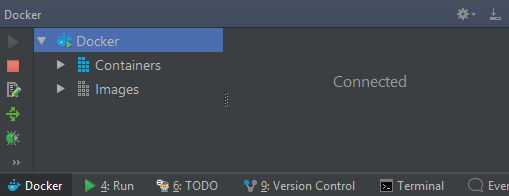
In the Docker panel, you should now be able to connect:
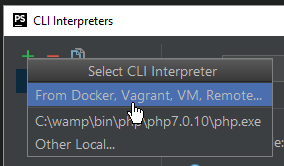
Next, define a remote interpreter. Make sure you have the PHP Docker plugin enabled and go to Settings > Languages & Frameworks > PHP. Add a new interpreter there:
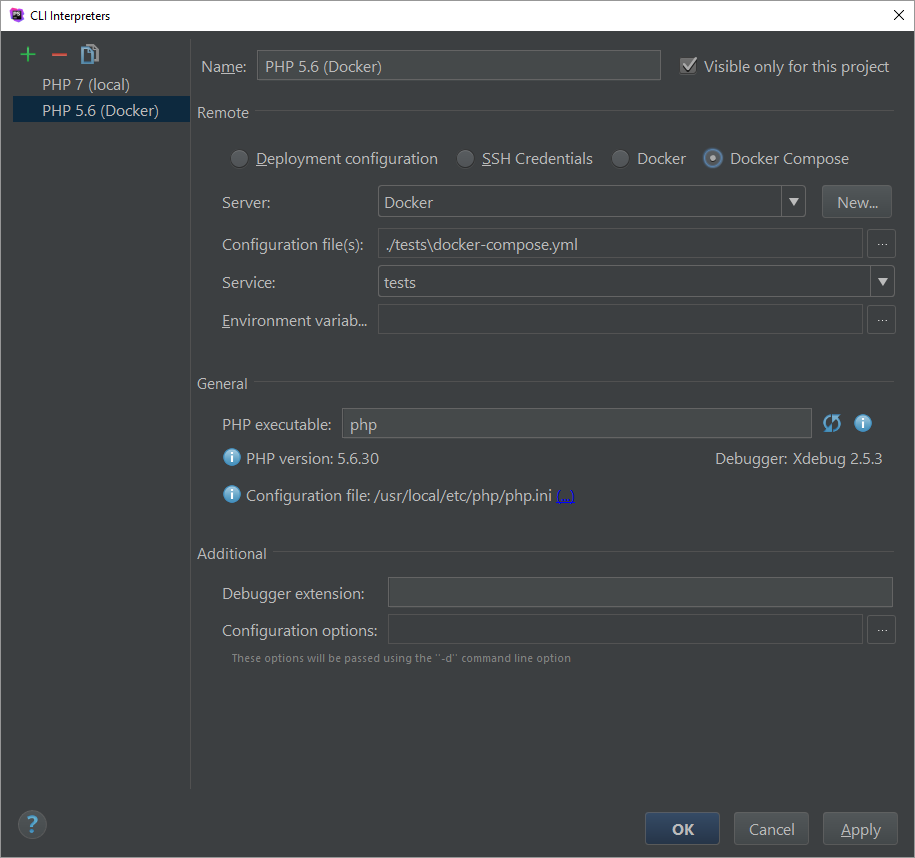
If this doesn't go smoothly, try unchecking the Include parent environment variables checkbox in the Environment variables field:

Select this CLI interpreter as the main one for the project and define two path mappings:
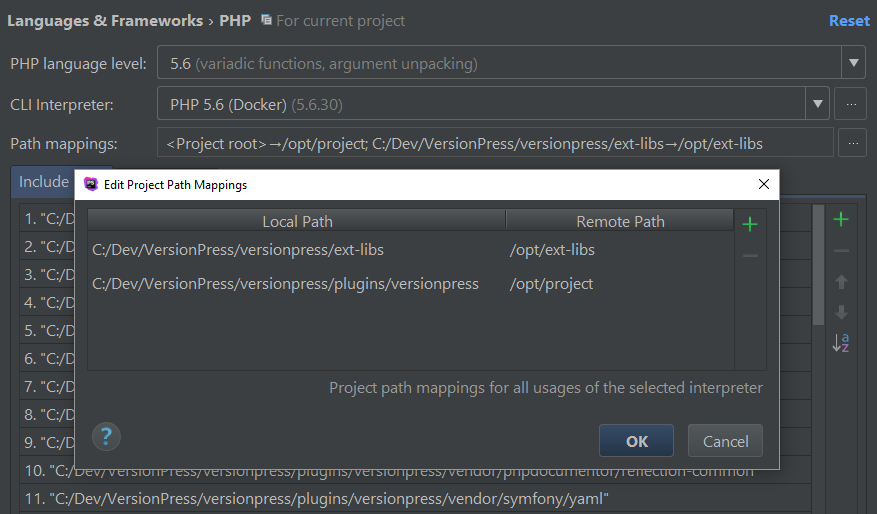
The final step is to set up a test framework in PHP > Test Frameworks. Add a new PHPUnit by Remote Interpreter:

Don't forget to set the Default bootstrap file to /opt/project/tests/phpunit-bootstrap.php.
Now you're ready to run the tests. For example, to run all unit tests, right-click the Unit folder and select Run:
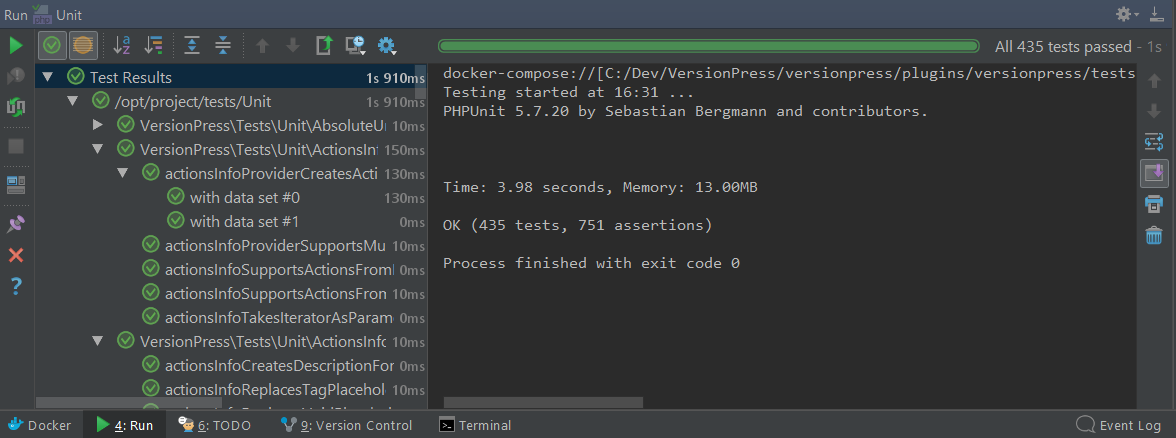
Debugging also works, just select Debug instead of Run:

This works equally well other types of tests as well, for example, Selenium tests:

Unit tests are best suited for small pieces of algorithmic functionality. For example, IniSerializer is covered with unit tests extensively.
You can either run unit tests in a dockerized environment as described above or set up a local CLI interpret which makes the execution a bit faster (all unit tests run in-memory).
End2end tests exercise a WordPress site and check that VersionPress creates the right Git commits, that the database is in correct state, etc. These tests are quite heavy and slow to run but if they pass, there's a good chance that VersionPress works correctly. (Before the project had these, long and painful manual testing period was necessary before each release.)
End2end tests use the concept of workers: each test itself is implemented once but e.g. how a post is created or a user deleted is up to a specific worker. There are currently two types of workers:
- Selenium workers – simulate real user by clicking in a browser.
- WP-CLI workers – run WP-CLI commands against the test site.
In the future, we might add REST API workers; the idea is to cover all possible interactions with the site as different workers can (and in practice do) produce slightly different results.
Currently, the default worker is WP-CLI (is used when you npm run tests) and the only way to switch workers is to update tests/test-config.yml, the end2end-test-type key, but this will be changing soon as this file is not intended for local changes. In the future, there will be another method to parametrize this, e.g., a command line switch or two sets of test classes.
After you run the tests using one of the methods described above, the Docker Compose stack is left up and running so that you can inspect it:
- You can access the test WordPress site on port 80 in your local browser by aliasing a
wordpresshost in yourhostsfile (add a line with127.0.0.1 wordpress) and then visitinghttp://wordpress/vp01. - You can start a Bash session in the WordPress container by running
docker exec -ti tests_wordpress_1 /bin/bash. You can then e.g. inspect Git history viagit log, etc. - The database is available on port 3391, you can connect to it e.g. by
mysql --port 3391 -u root -p. - Adminer is available on port 8099 after you run
docker-compose run -d --service-ports adminer. docker-compose pslists all the running services.docker-compose down [-v]shuts down the whole stack (there are npm scripts for that too, see above).
The project has these other types of tests (folders in the ./plugins/versionpress/tests folder and also test suite names in phpunit.xml so that you can run them using --testsuite <SuiteName>):
GitRepositoryTests– test Git repository manipulation inGitRepository.SynchronizerTests– these are quite slow and test that given some INI files on disk, the database is in a correct state after synchronization runs.StorageTests– test that entities are stored correctly as INI files.LoadTests– they are run together with other tests but with very few iterations; manually update their source files and execute them separately to properly exercise them.Selenium– a bit like end2end tests but for rarer cases, like VersionPress not being activated yet.Workflow– exercise cloning and merging between environments.
VersionPress uses a JavaScript frontend implemented as a React app in the ./frontend folder.
- Run
npm run init-phpstormif you haven't done that already. - Open the
frontendproject in PhpStorm. - Answer "No" to Compile TypeScript to JavaScript? prompt.
Linting task is set up for the frontend project. Run npm run lint in the frontend directory.
For pure frontend development, it's more convenient to run it outside of the WordPress administration. Let's assume you run the frontend against the default Docker site.
- Make sure that the site is running and that VersionPress is activated in it. You should be able to visit
http://localhost:8088in the browser and thefrontend/src/config/config.local.tsshould contain this URL as API root. - In your test WordPress site, put this to
wp-config.php(the file should be editable at./dev-env/wp/wp-config.php):define('VERSIONPRESS_REQUIRE_API_AUTH', false); - Run
npm startin thefrontenddirectory.
This launches webpack dev server at http://localhost:8888:

Source code edits will be automatically reflected in the browser.
Run npm run build, it will produce a file like dist/versionpress-3.0.2.zip.
The version number is based on the nearest Git tag and can also be something like 3.0.2-27-g0e1ce7f meaning that the closest tag is 3.0.2, there have been 27 commits since then and the package was built from 0e1ce7f. See git describe --tags for more examples.
Here are some tips for working with Docker / Docker Compose:
- Inspect
tests/package.jsonto see which Docker Compose commands run in the background. - Aliasing
docker-composetodcwill save you some typing. - You can start the whole stack in the background via
docker-compose up -d. Then, you would use:docker-compose logs --tail=10to display last 10 log messages from each container. Logs can also be followed (similar todocker-compose up) bydocker-compose logs -f.docker-compose psto list the containers.docker-compose stopto shut down the stack.npm run cleanup-docker-stackto clean up everything.
- Most values in
docker-compose.ymllike environment variables can be changed indocker-compose.override.yml. - Any container from the stack can be started in an interactive session by adding this to
docker-compose.yml:Then, it's possible to do e.g.stdin_open: true tty: truedocker-compose run tests /bin/bash.