Componentizing the countdown block
Introduction
In this step, the app has two main elements: the title and the countdown. However, in order to obtain greater positioning and customization flexibility, it is interesting that they are separated into two distinct blocks. For this, it is necessary to briefly introduce the concept of interfaces, and then a new Title component will be developed. An example of customization in terms of positioning, which will be covered in this step, is:
What if I wanted the title to be under or beside the counter?
Interface
An interface works like a contract, with well-defined restrictions on how the blocks will work together. It then defines a mapping that creates a Store Framework block, from a React component. It is important to highlight that the use of interfaces, in order to separate an app in several interfaces, makes the customization power much greater.
When defining an app in the interface, the component property is responsible for defining the React component that will be used. It is important to note that the name of component must be the same as the file name of the component inside the react/ folder.
interfaces.json examples:
{
  "countdown": {
    "component": "Countdown"
  }
}
Activity
In this activity, the title will be separated and added to the store below the countdown.
Altering the Countdown component
-
Remove the imports, the title from the interface and change the CSS handles const, CSS_HANDLES:
//react/Countdown.tsx
import React, { useState } from 'react'
import { TimeSplit } from './typings/global'
import { tick } from './utils/time'
import { useCssHandles } from 'vtex.css-handles'
-import { FormattedMessage } from 'react-intl'

interface CountdownProps {
  targetDate: string,
-  title: string
}

const DEFAULT_TARGET_DATE = (new Date('2020-03-02')).toISOString()
-const CSS_HANDLES = ['container', 'countdown', 'title']
+const CSS_HANDLES = ['countdown']
-
Now, in the component itself, remove the title as a prop given and also the title text constant, which changes what is being rendered:
//react/Countdown.tsx
const Countdown: StorefrontFunctionComponent<CountdownProps> = ({
- title,
  targetDate = DEFAULT_TARGET_DATE,
}) => {
  const [
    timeRemaining,
    setTime
  ] = useState<TimeSplit>({
    hours: '00',
    minutes: '00',
    seconds: '00'
  })

- const titleText = title || <FormattedMessage id="countdown.title" />
  const handles = useCssHandles(CSS_HANDLES)

  tick(targetDate, setTime)

  return (
-   <div className={`${handles.container} t-heading-2 fw3 w-100 pt7 pb6 c-muted-1 db tc`}>
-     <div className={`${handles.title} db tc`}>
-       { titleText }
-     </div>
      <div className={`${handles.countdown} db tc`}>
        {`${timeRemaining.hours}:${timeRemaining.minutes}:${timeRemaining.seconds}`}
      </div>
-   </div>
  )
}
-
At last, remove the title from the schema:
//react/Countdown.tsx
Countdown.schema = {
  title: 'editor.countdown.title',
  description: 'editor.countdown.description',
  type: 'object',
  properties: {
-   title: {
-     title: 'I am a title',
-     type: 'string',
-     default: null,
-   },
    targetDate: {
      title: 'Final date',
      description: 'Final date used in the countdown',
      type: 'string',
      default: null,
    },
  },
}
Creating a new component
-
Create a new file in the /react directory, named Title.tsx, it will be the new title component. In it, some imports are needed. The basic structure of the code is very similar to the Countdown component's.
-
Add the imports needed and the CSS handles constant:
//react/Title.tsx
import React from "react"
import { FormattedMessage } from "react-intl"
import { useCssHandles } from "vtex.css-handles"

const CSS_HANDLES = ["title"] as const
-
Change the component's function:
//react/Title.tsx
const Title: StorefrontFunctionComponent<TitleProps> = ({ title }) => {
  const handles = useCssHandles(CSS_HANDLES)
  const titleText = title || <FormattedMessage id="countdown.title" />

  return (
    <div
      className={`${handles.title} t-heading-2 fw3 w-100 c-muted-1 db tc`}
    >
      {titleText}
    </div>
  )
}
-
Add the interface, the schema and the export:
//react/Title.tsx
interface TitleProps {
  title: string
}

Title.schema = {
  title: "editor.countdown-title.title",
  description: "editor.countdown-title.description",
  type: "object",
  properties: {
    title: {
      title: "I am a title",
      type: "string",
      default: null,
    },
  },
}

export default Title
Changing the interfaces.json file
By now, there are two components in the app: the title and the countdown. However, it is necessary to change the interfaces.json file, which is in store folder. It is needed to declare each one separately. At first, our interface only contained the Countdown. It is needed to add the other component:
{
  "countdown": {
    "component": "Countdown"
  },
+   "countdown.title": {
+     "component": "Title"
+   }
}
Adding internationalization
It is also needed to add to the Messages the translations whose keys are the strings of the schema that we included in the Title.tsx file above. As seen in the Messages step, go to the /messages folder and add the necessary translations to each file (pt.json, es.json and en.json). Below is an example for the case of the en.json file:
 {
   "countdown.title": "Countdown",
   "editor.countdown.title": "Countdown",
   "editor.countdown.description": "Countdown component",
+  "editor.countdown-title.title": "Countdown title",
+  "editor.countdown-title.description": "Title component",
 }
Adding the new block to the store home
Finally, to see the changes, go back to the theme to change it to include the new block. To do so, simply add the title to home! Same as the countdown, it is necessary to add countdown.title as a block in the theme of your store, in the store-theme file home.jsonc.
//home.jsonc
 {
   "store.home": {
     "blocks": [
       "countdown",
+      "countdown.title",
       ...
     ]
   },
   ...
 }
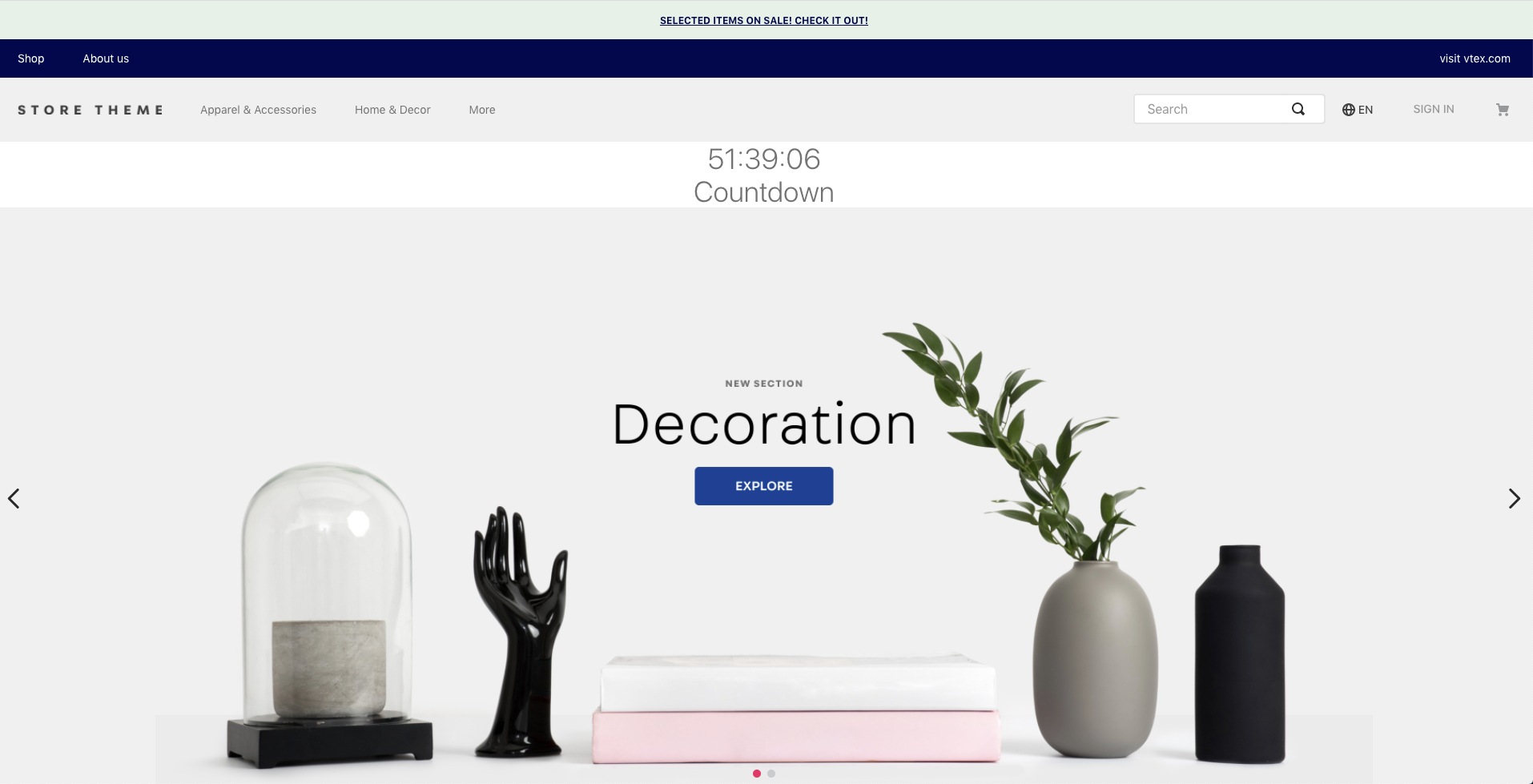
Done! Now let's see how the result should look like:

Componentizing the countdown block
Introduction
In this step, the app has two main elements: the title and the countdown. However, in order to obtain greater positioning and customization flexibility, it is interesting that they are separated into two distinct blocks. For this, it is necessary to briefly introduce the concept of interfaces, and then a new
Titlecomponent will be developed. An example of customization in terms of positioning, which will be covered in this step, is:Interface
An interface works like a contract, with well-defined restrictions on how the blocks will work together. It then defines a mapping that creates a Store Framework block, from a React component. It is important to highlight that the use of interfaces, in order to separate an app in several interfaces, makes the customization power much greater.
When defining an app in the interface, the
componentproperty is responsible for defining the React component that will be used. It is important to note that the name ofcomponentmust be the same as the file name of the component inside thereact/folder.interfaces.jsonexamples:{ "countdown": { "component": "Countdown" } }Activity
In this activity, the title will be separated and added to the store below the countdown.
Altering the
CountdowncomponentRemove the imports, the
titlefrom the interface and change the CSS handles const,CSS_HANDLES://react/Countdown.tsx import React, { useState } from 'react' import { TimeSplit } from './typings/global' import { tick } from './utils/time' import { useCssHandles } from 'vtex.css-handles' -import { FormattedMessage } from 'react-intl' interface CountdownProps { targetDate: string, - title: string } const DEFAULT_TARGET_DATE = (new Date('2020-03-02')).toISOString() -const CSS_HANDLES = ['container', 'countdown', 'title'] +const CSS_HANDLES = ['countdown']Now, in the component itself, remove the
titleas a prop given and also the title text constant, which changes what is being rendered://react/Countdown.tsx const Countdown: StorefrontFunctionComponent<CountdownProps> = ({ - title, targetDate = DEFAULT_TARGET_DATE, }) => { const [ timeRemaining, setTime ] = useState<TimeSplit>({ hours: '00', minutes: '00', seconds: '00' }) - const titleText = title || <FormattedMessage id="countdown.title" /> const handles = useCssHandles(CSS_HANDLES) tick(targetDate, setTime) return ( - <div className={`${handles.container} t-heading-2 fw3 w-100 pt7 pb6 c-muted-1 db tc`}> - <div className={`${handles.title} db tc`}> - { titleText } - </div> <div className={`${handles.countdown} db tc`}> {`${timeRemaining.hours}:${timeRemaining.minutes}:${timeRemaining.seconds}`} </div> - </div> ) }At last, remove the title from the schema:
//react/Countdown.tsx Countdown.schema = { title: 'editor.countdown.title', description: 'editor.countdown.description', type: 'object', properties: { - title: { - title: 'I am a title', - type: 'string', - default: null, - }, targetDate: { title: 'Final date', description: 'Final date used in the countdown', type: 'string', default: null, }, }, }Creating a new component
Create a new file in the
/reactdirectory, namedTitle.tsx, it will be the new title component. In it, some imports are needed. The basic structure of the code is very similar to theCountdowncomponent's.Add the imports needed and the CSS handles constant:
Change the component's function:
Add the interface, the schema and the export:
Changing the
interfaces.jsonfileBy now, there are two components in the app: the title and the countdown. However, it is necessary to change the
interfaces.jsonfile, which is instorefolder. It is needed to declare each one separately. At first, our interface only contained theCountdown. It is needed to add the other component:{ "countdown": { "component": "Countdown" }, + "countdown.title": { + "component": "Title" + } }Adding internationalization
It is also needed to add to the Messages the translations whose keys are the strings of the schema that we included in the
Title.tsxfile above. As seen in the Messages step, go to the/messagesfolder and add the necessary translations to each file (pt.json,es.jsonanden.json). Below is an example for the case of theen.jsonfile:{ "countdown.title": "Countdown", "editor.countdown.title": "Countdown", "editor.countdown.description": "Countdown component", + "editor.countdown-title.title": "Countdown title", + "editor.countdown-title.description": "Title component", }Adding the new block to the store home
Finally, to see the changes, go back to the theme to change it to include the new block. To do so, simply add the title to home! Same as the countdown, it is necessary to add
countdown.titleas a block in the theme of your store, in the store-theme filehome.jsonc.//home.jsonc { "store.home": { "blocks": [ "countdown", + "countdown.title", ... ] }, ... }Done! Now let's see how the result should look like:
