In this example, we show how to use S3 bucket as a remote backend for Terraform project's state files. Two major reasons that you should use remote backend instead of default local backend are:
- State files contains sensitive information and you want to protect them, encrypt and store in a secured storage.
- When collaborating with other team members, you want to safe keep your state files and enforce locking to prevent conflicts.
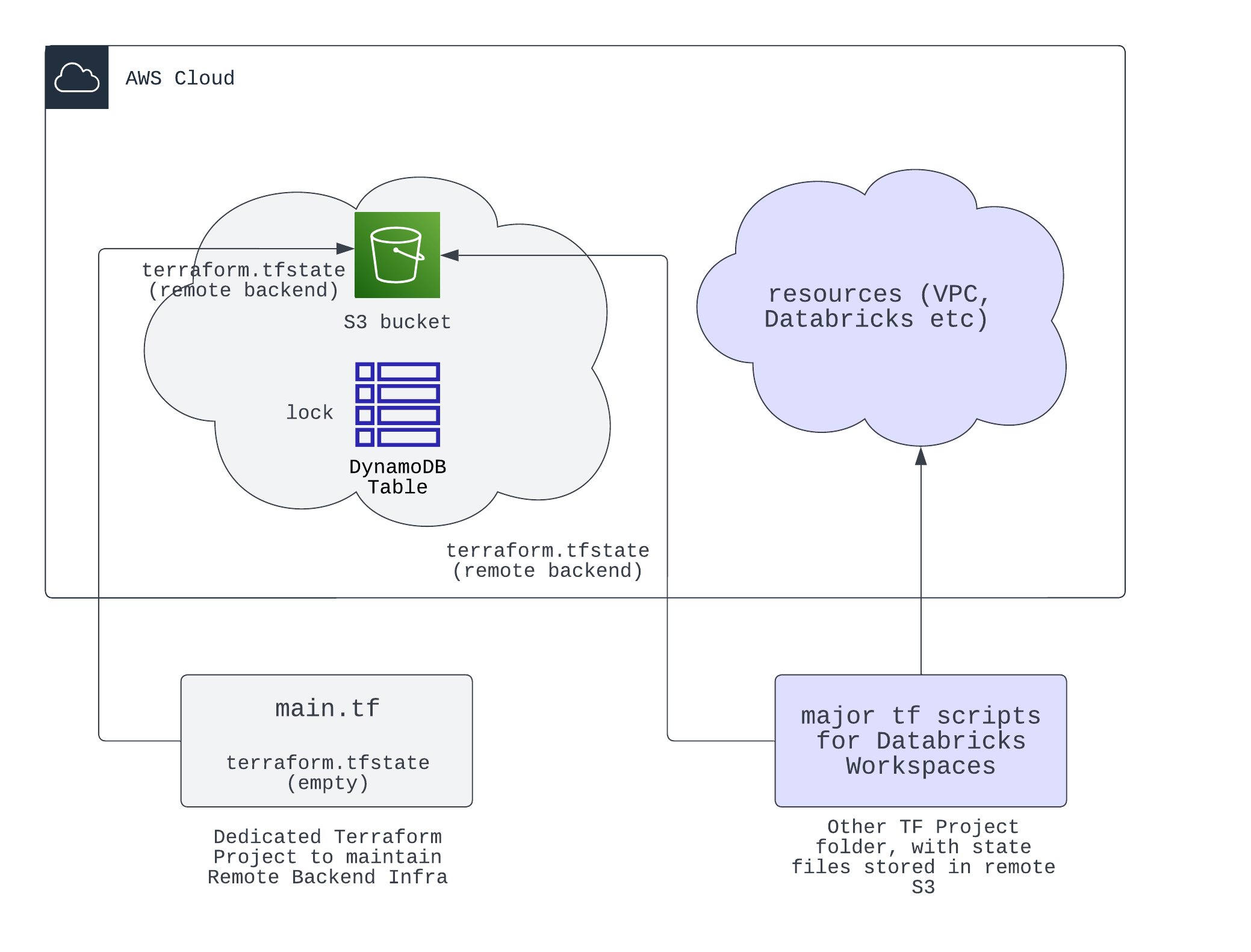
The image below shows the components of a S3 remote backend
- Use the default local backend (comment out all the scripts in
terraformblock, line 5 inmain.tf), read and modifymain.tfaccordingly, this is to create a S3 bucket (with versioning and server-side encryption) and a dynamoDB table for the locking mechanism. - Run
terraform initandterraform applyto create the S3 bucket and dynamoDB table, at this step, you observe states stored in local fileterraform.tfstate. - Uncomment the
terraformblock, to configure the backend. Then runterraform initagain, this will migrate the state file from local to S3 bucket. InputYeswhen prompted. - After you entered
Yes, you will see the state file is now stored in S3 bucket. You can also check the dynamoDB table to see the lock record; and now the local state file will become empty.
To properly destroy remote backend infra, you need to migrate the state files to local first, to avoid having conflicts.
- Comment out the
terraformblock inmain.tf, to switch to use local backend. This step moves the state file from S3 bucket to local. - Run
terraform initandterraform destroyto destroy the remote backend infra.
You only need to configure the same terraform backend block in other terraform projects, to let them use the same remote backend. Inside the backend configs, you need to design the key in your bucket to be unique for each project.