
Charts.js is a library for JavaScript which uses HTMLs canvas to render various different beautiful charts for the web.
-
Installation :You can get the latest version of Chart.js from npm , the GitHub releases , or use a Chart.js CDN . Detailed installation instructions can be found on the installation page.
-
Creating a Chart :It's easy to get started with Chart.js. All that's required is the script included in your page along with a single
<canvas>node to render the chart. -
Contributing
-
License
What is HTML Canvas?
-
The HTML < canvas> element is used to draw graphics, on the fly, via scripting (usually JavaScript).
-
The < canvas> element is only a container for graphics. You must use a script to actually draw the graphics.
-
Canvas has several methods for drawing paths, boxes, circles, text, and adding images.
Canvs Info
HTML Canvas Can Draw Text
- Canvas can draw colorful text, with or without animation.
HTML Canvas Can Draw Graphics
- Canvas has great features for graphical data presentation with an imagery of graphs and charts.
HTML Canvas Can be Animated
- Canvas objects can move. Everything is possible: from simple bouncing balls to complex animations.
HTML Canvas Can be Interactive
- Canvas can respond to JavaScript events.
- Canvas can respond to any user action (key clicks, mouse clicks, button clicks, finger movement).
HTML Canvas Can be Used in Games
- Canvas' methods for animations, offer a lot of possibilities for HTML gaming applications.

1-To draw a line chart, the first thing we need to do is create a canvas element in our HTML in which Chart.js can draw our chart. So add this to the body of our HTML page:
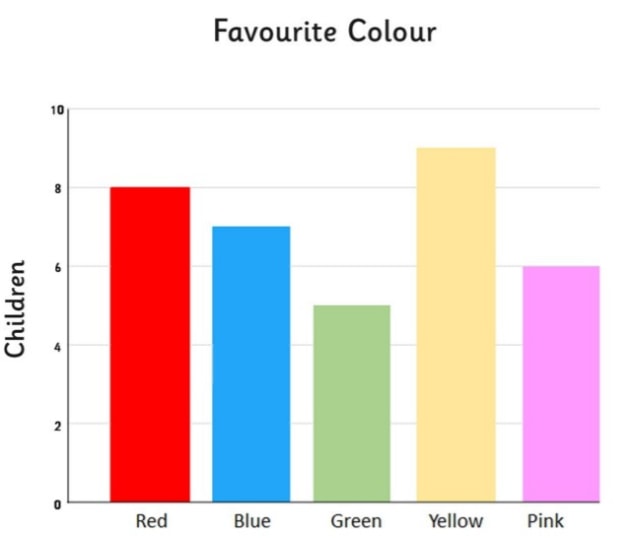
Finally, let’s add a bar chart to our page. Happily the syntax for the bar chart is very similar to the line chart we’ve already added. First, we add the canvas element:
<canvas id="income" width="600" height="400"></canvas>
var income = document.getElementById("income").getContext("2d");
new Chart(income).Bar(barData);