Service parameters are described using the following conventions:
-
<type>in brackets describe the type of a parameter, e.g.<string>is a piece of text<number>is a number<TRUE/false>means the value must be eithertrueorfalsewithtruebeing the default<service call>means a full service call specification. Note that this can be any service, not just Browser Mod services<Browser IDs>is a list of BrowserIDs
-
Square brackets
[ ]indicate that a parameter is optional and can be omitted.
A service call is a combination of a service and it's data:
Ex, a <service call> for browser_mod.more_info with light.bed_light as entity:
service: browser_mod.more_info
data:
entity: light.bed_lightBrowser Mod services can be called in two different ways which behave slightly differently.
The first way is as a server call. This is when the service is called from a script or automation, from the dev-services panel or from a dashboard call-service action.
The second way is as a browser call. This is when the service is called from a dashboard fire-dom-event action, as a part of a browser_mod.sequence call or as a browser_mod.popup _action.
The notable difference between the two is when no target (browser_id) is specified, in which case:
- A server call will perform the service on ALL REGISTERED BROWSERS.
- A browser call will perform the service on THE CURRENT BROWSER, i.e. the browser it was called from.
Finally, in browser calls, a parameter browser_id with the value THIS will be replaced with the current Browsers browser ID.
Ex:
tap_action:
  action: fire-dom-event
  browser_mod:
    service: script.print_clicking_browser
    data:
      browser_id: THIS
with the script:
script:
  print_clicking_browser:
    sequence:
      - service: system_log.write
        data:
          message: "Button was clicked in {{browser_id}}"
Will print `"Button was clicked in 79be65e8-f06c78f" to the Home Assistant log.
Services can be called from the backend using the normal service call procedures. Registered Browsers can be selected as targets through their device:
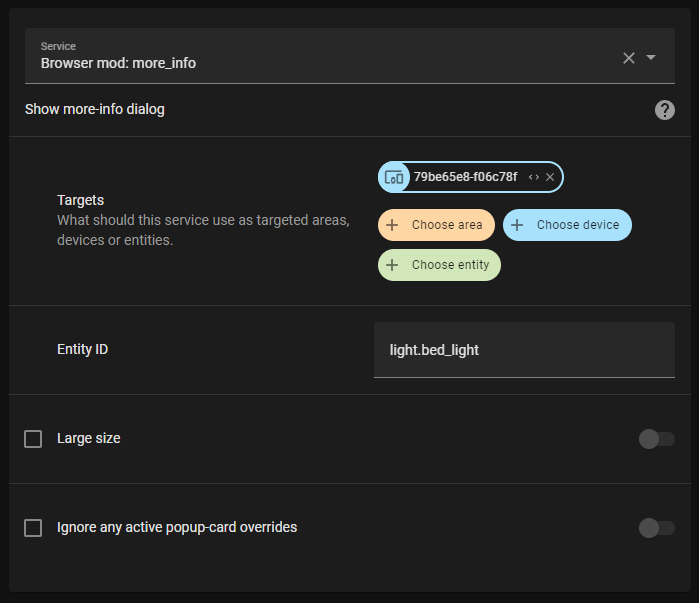
In yaml, the BrowserID can be used for targeting a specific browser:
service: browser_mod.more_info
data:
  entity: light.bed_light
  browser_id:
    - 79be65e8-f06c78f
If no target or browser_id is specified, the service will target all registerd Browsers.
To call a service from a dashboard use the call-service action or the special action fire-dom-event:
tap_action:
  action: fire-dom-event
  browser_mod:
    service: browser_mod.more_info
    data:
      entity: light.bed_light
Services called via fire-dom-event or called as a part of a different service call will (by default) only target the current Browser (even if it's not registered).
Note: Since
browser_idis common for all services it is not explained further.
Point the browser to the given Home Assistant path.
service: browser_mod.navigate
data:
  path: <string>
  [browser_id: <Browser IDs>]
path |
A Home Assistant path. E.x. /lovelace/, /my-dashboard/bedroom, /browser_mod/, /config/devices/device/20911cc5a63b1caafa2089618545eb8a... |
Reload the current page.
service: browser_mod.refresh
data:
[browser_id: <Browser IDs>]Show a more-info dialog.
service: browser_mod.more_info
data:
  entity: <string>
  [large: <true/FALSE>]
  [ignore_popup_card: <true/FALSE>]
  [browser_id: <Browser IDs>]
entity |
The entity whose more-info dialog to display. |
large |
If true, the dialog will be displayed wider, as if you had clicked the title of the dialog. |
ignore_popup_card |
If true the more-info dialog will be shown even if there's currently a popup-card which would override it. |
Display a popup dialog
service: browser_mod.popup
data:
  [title: <string>]
  content: <string / Dashboard card configuration / ha-form schema>
  [size: <NORMAL/wide/fullscreen>]
  [right_button: <string>]
  [right_button_action: <service call>]
  [left_button: <string>]
  [left_button_action: <service call>]
  [dismissable: <TRUE/false>]
  [dismiss_action: <service call>]
  [autoclose: <true/FALSE>]
  [timeout: <number>]
  [timeout_action: <service call>]
  [style: <string>]
  [browser_id: <Browser IDs>]
title |
The title of the popup window. |
content |
HTML, a dashboard card configuration or ha-form schema to display. |
size |
wide will make the popup window wider. fullscreen will make it cover the entire screen. |
right_button |
The text of the right action button. |
right_button_action |
Action to perform when the right action button is pressed. |
left_button |
The text of the left action button. |
left_button_action |
Action to perform when the left action button is pressed. |
dismissable |
If false the dialog cannot be closed by the user without clicking an action button. |
dismiss_action |
An action to perform if the dialog is closed by the user without clicking an action button. |
autoclose |
If true the dialog will close automatically when the mouse, screen or keyboard is touched. This will perform the dismiss_action. |
timeout |
If set will close the dialog after timeout milliseconds. |
timeout_action |
An action to perform if the dialog is closed by timeout. |
style |
CSS styles to apply to the dialog. |
Note that any Browser Mod services performed as _actions here will be performed only on the same Browser as initiated the action unless browser_id is given.
If a ha-form schema is used for content the resulting data will be inserted into the data for any _action.
See popups.md for more information and usage examples.
Close any currently open popup or more-info dialog.
service: browser_mod.close_popup
data:
[browser_id: <Browser IDs>]Show a short notification.
service: browser_mod.notification
data:
  message: <string>
  [duration: <number>]
  [action_text: <string>]
  [action: <service call>]
message |
The text to display. |
duration |
Number of milliseconds until the message closes. (Default 3000) |
action_text |
Text of optional action button. |
action |
Action to perform when action button is clicked. |
Set the theme.
service: browser_mod.set_theme
data:
  [theme: <string>]
  [dark: <AUTO/dark/light>]
  [primaryColor: <RGB color>]
  [accentColor: <RGB color>]
<RGB color> is either a list of three RGB values 0-255 (ex: [0, 128, 128]) or a six digit hex color value (ex: "#800080").
theme |
Theme to apply. Use "auto" to set as Backend Specified. |
dark |
Whether to use dark or light mode. |
primaryColor |
Theme primary color. |
accentColor |
Theme accent color. |
Perform several services sequentially.
service: browser_mod.sequence
data:
  sequence:
    - <service call>
    - <service call>
    - ...
  [browser_id: <Browser IDs>]
sequence |
List of actions to perform. |
Note that if browser_id is omitted in the service calls listed in sequence the services will be performed on the Browser that's targeted as a whole rather than all browsers.
Wait for a specified time.
service: browser_mod.delay
data:
  time: <number>
  [browser_id: <Browser IDs>]
time |
Number of milliseconds to wait. |
This is probably most useful as part of a browser_mod.sequence call.
Print a text to the browsers javascript console.
service: browser_mod.console
data:
  message: <string>
  [browser_id: <Browser IDs>]
message |
Text to print. |
Run arbitrary javascript code in the browser.
service: browser_mod.javascript
data:
  code: <string>
  [browser_id: <Browser IDs>]
code |
Code to run. |
Only use this one if you know what you're doing.
Some helpful functions that are available:
hass- Thehassfrontend objectdata- Any data sent to the service (also form data from popups)service(service, data)- Make a Browser Mod service calllog(message)- Printmessageto the Home Assistant loglovelace_reload()- Reload lovelace configuration Thehassfrontend object is available as global variablehass.