






8 threat feeds · 222+ tests · custom feeds · zero dependencies · 3 scan engines · IP geolocation · 40,000+ IOCs
Author: Egyan07 · Red Parrot Accounting Ltd
Windows Only — PhantomEye reads Windows Firewall logs, the Windows DNS resolver cache, and registers Windows Scheduled Tasks. It requires Windows 10 or later.
PhantomEye is a free, zero-dependency threat intelligence platform for Windows. It automatically downloads indicators of compromise (IOCs) from 8 public threat feeds, then scans your firewall logs, DNS cache, and email headers against 40,000+ known-bad IPs and domains. When a match is found it logs a timestamped alert, displays it in the GUI dashboard, and optionally sends an email notification — giving small businesses and home labs automated threat monitoring without paid subscriptions, cloud accounts, or third-party agents.
┌──────────┐     ┌──────────┐     ┌──────────┐     ┌──────────┐
│  UPDATE   │────▶│   SCAN   │────▶│  ALERT   │────▶│  REVIEW  │
│           │     │          │     │          │     │          │
│ 8 feeds   │     │ Firewall │     │ Desktop  │     │ Dashboard│
│ fetched & │     │ DNS cache│     │ + email  │     │ + CSV    │
│ cached    │     │ Email    │     │ notify   │     │ export   │
└──────────┘     └──────────┘     └──────────┘     └──────────┘
| Dashboard | IP / Domain Lookup |
|---|---|
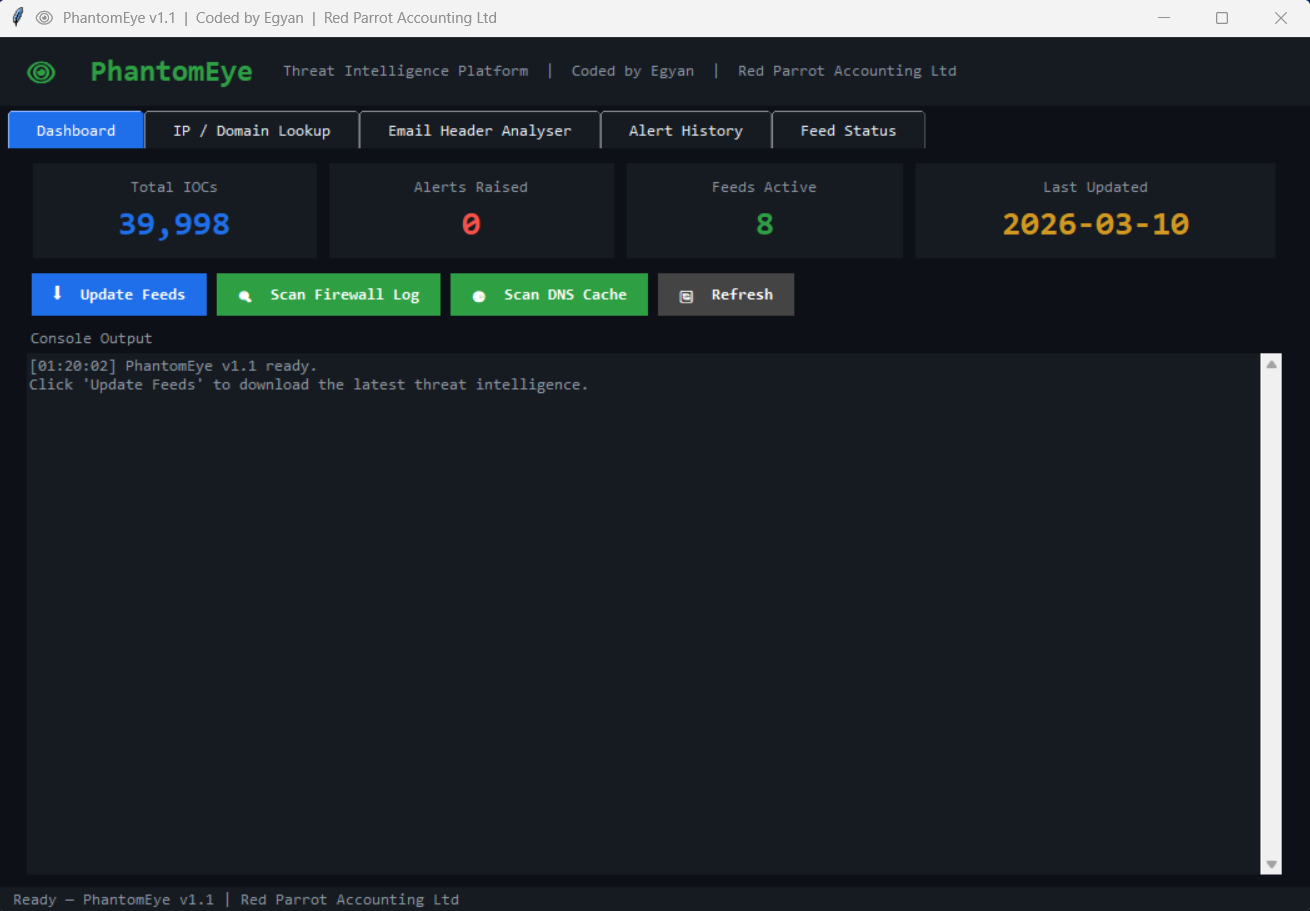 |
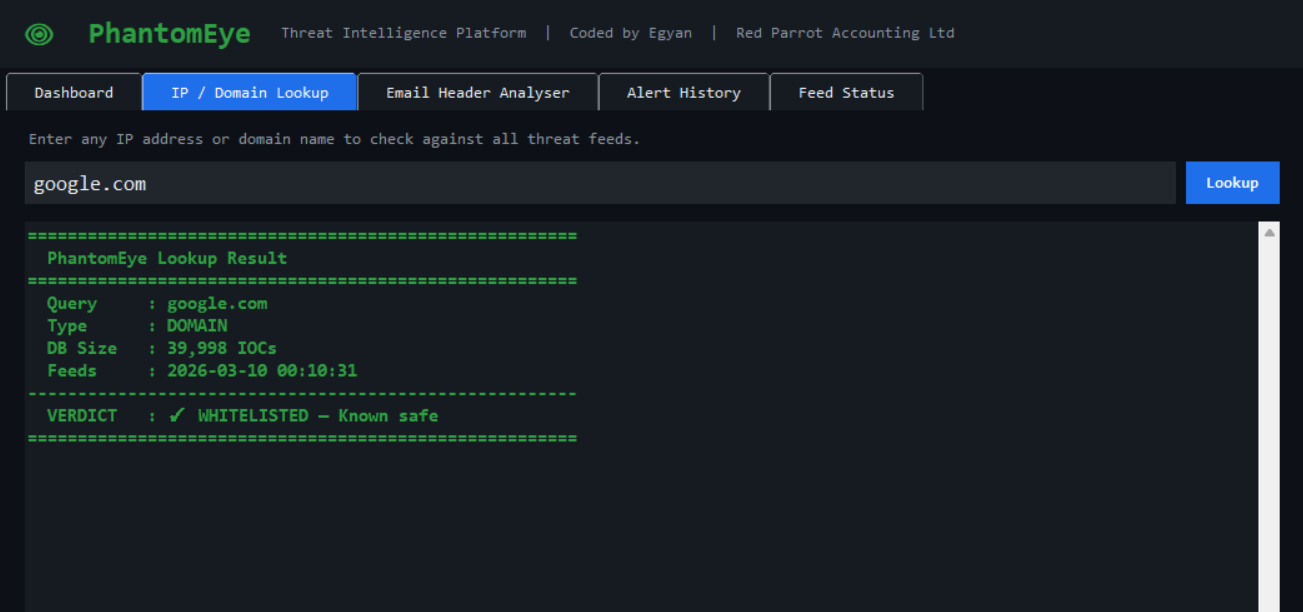 |
| Email Header Analyzer | DNS Cache | Alert History |
|---|---|---|
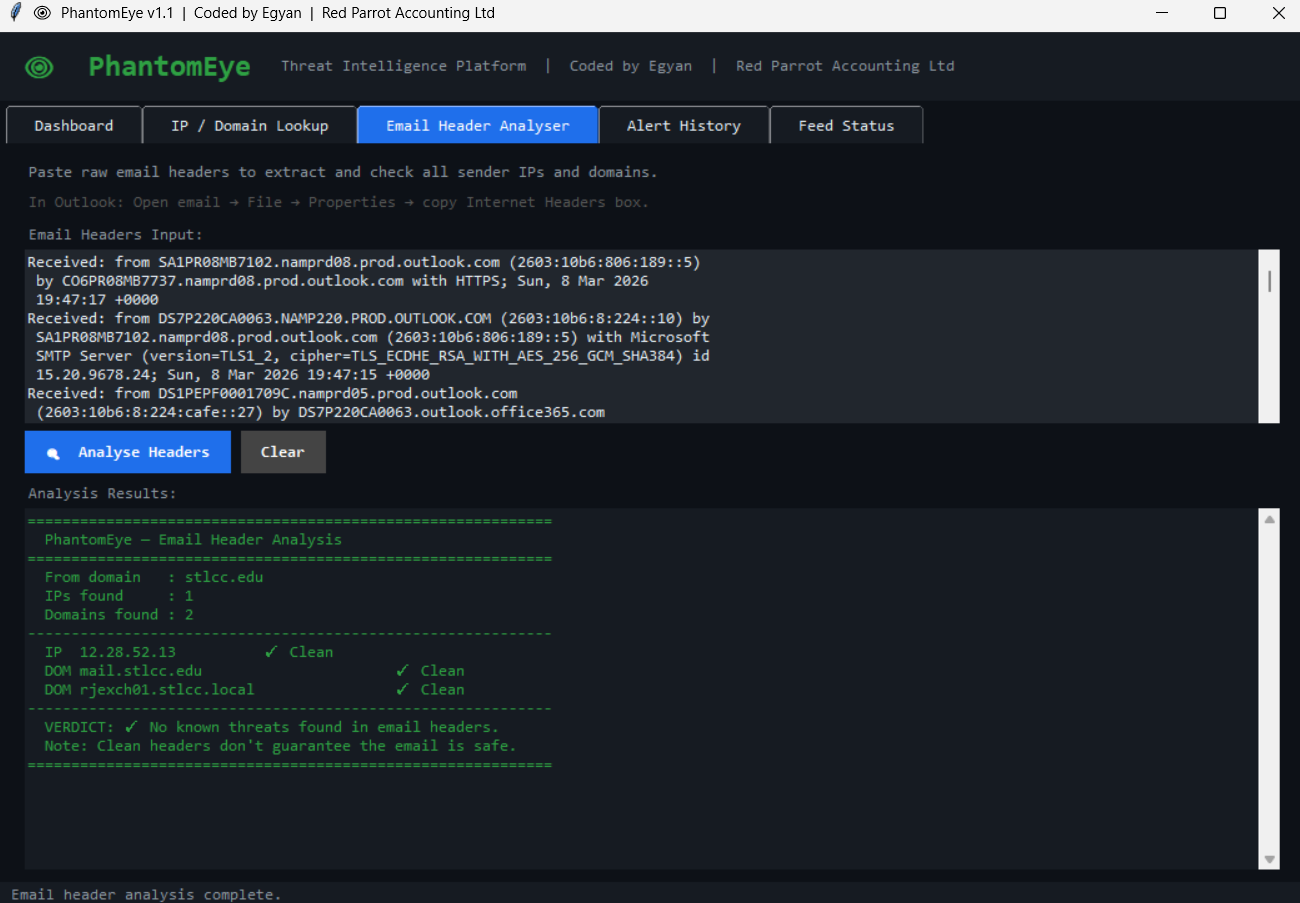 |
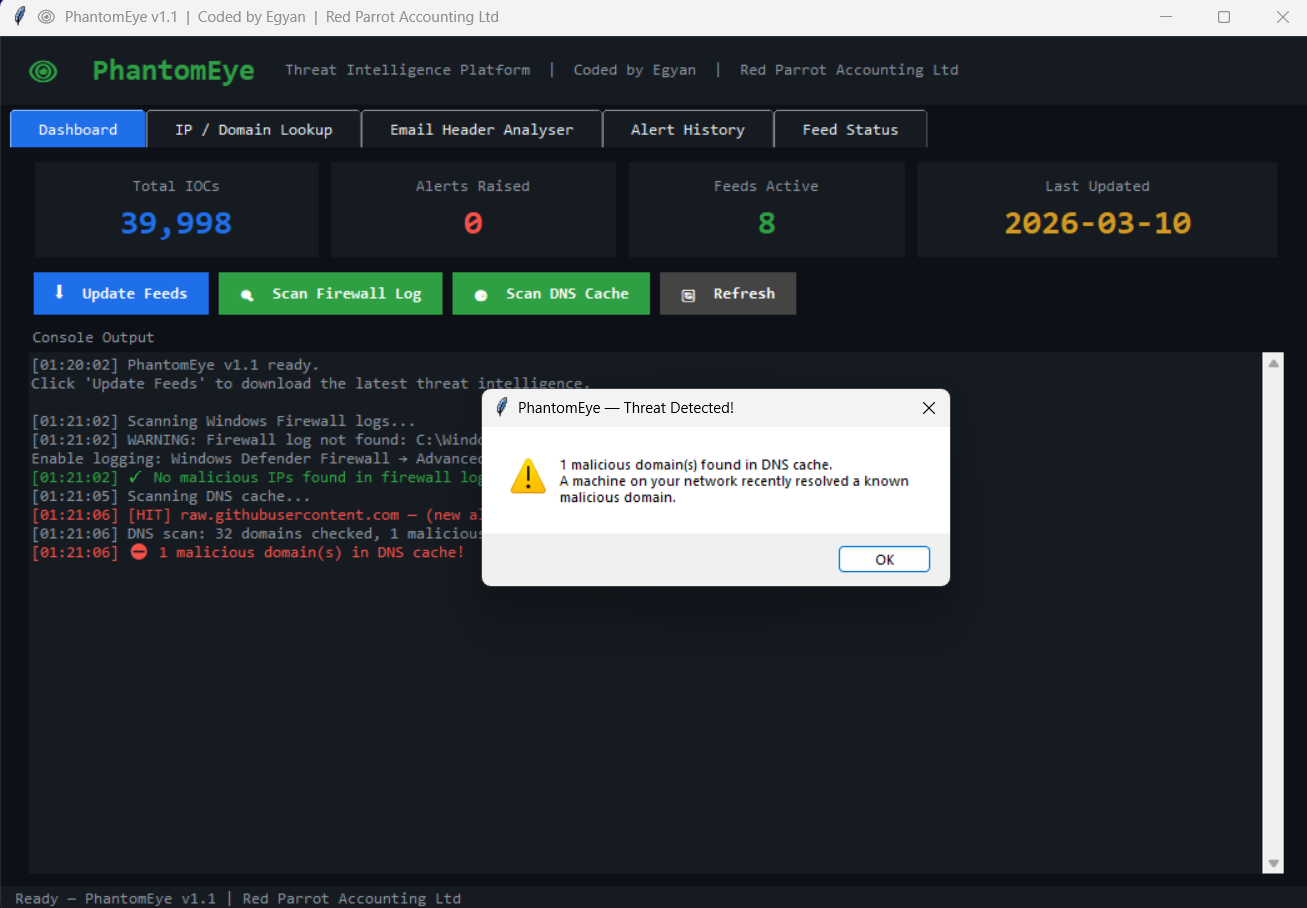 |
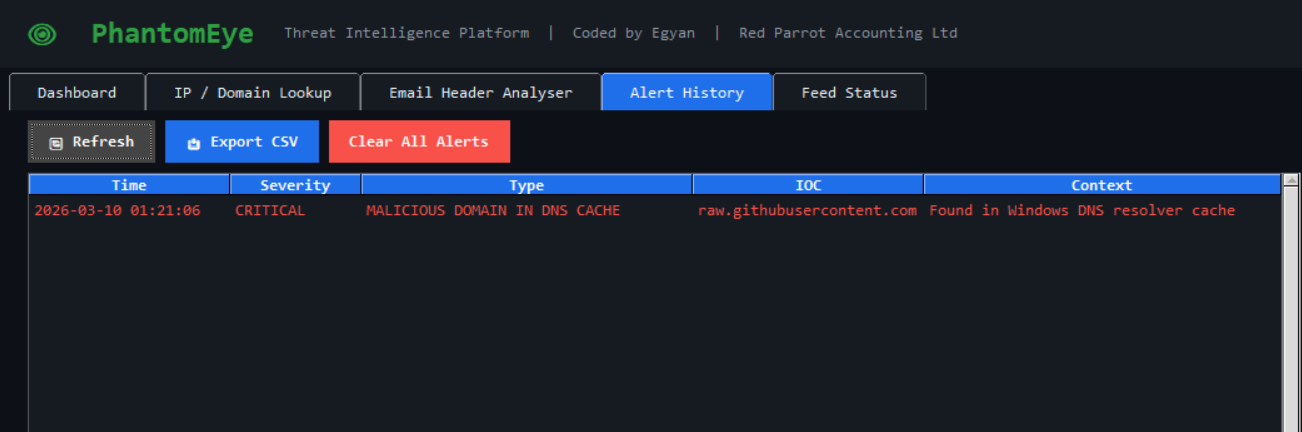 |
| Capability | PhantomEye | Snort | OSSEC | CrowdStrike Free |
|---|---|---|---|---|
| Free & open-source | ✅ | ✅ | ✅ | ❌ |
| Zero dependencies | ✅ | ❌ | ❌ | ❌ |
| Windows-native install | ✅ | ❌ | ✅ | ✅ |
| Threat-feed IOC matching | ✅ | ✅ | ❌ | ✅ |
| Email header analysis | ✅ | ❌ | ❌ | ❌ |
| DNS cache scanning | ✅ | ❌ | ❌ | ❌ |
| GUI dashboard | ✅ | ❌ | ✅ | ✅ |
| No cloud account needed | ✅ | ✅ | ✅ | ❌ |
| Setup time | ~2 min | 30+ min | 15+ min | 10+ min |
| Feature | Description |
|---|---|
| Firewall Log Scanner | Checks Windows Firewall log for outbound and inbound connections to known malicious IPs |
| DNS Cache Scanner | Reads the Windows DNS resolver cache and flags domains matching threat feeds |
| Email Header Analyzer | Paste raw Outlook headers — extracts and checks all relay IPs and sender domains |
| IP / Domain Lookup | Instant verdict from 40,000+ IOCs — paste any IP, domain, or full URL |
| Multi-feed matching | Each IOC is checked against all 8 feeds; results show which feed flagged it |
| Connection Monitor | Real-time netstat polling checks active TCP connections against threat feeds |
| IP Geolocation | Lookup results show country, city, ISP, and AS number for malicious IPs |
| Custom feeds | Add your own threat feed URLs — same parsing pipeline as built-in feeds |
| Bulk lookup | Paste multiple IPs/domains — check all at once against threat feeds |
| Feature | Description |
|---|---|
| Scheduled feed updates | Windows Scheduled Task refreshes all 8 feeds every 6 hours |
| Scheduled morning scan | Daily 6 AM scan runs headlessly and alerts on any new matches |
| Alert deduplication | Same IOC will not re-alert within 24 hours |
| Email notifications | Optional SMTP alerts with TLS and verified server certificates |
| Alert history | Full timestamped log with search, filter, and CSV export |
| Feed status dashboard | Per-feed IOC count, last-update timestamp, and health indicator |
| HTML report export | Generate shareable dark-themed HTML reports from alert history |
| Feed update progress | Visual progress bar during feed downloads |
| Alert search | Real-time filtering across all alert fields |
| IOC blocklist export | Export all malicious IPs as a firewall-ready text file |
| Right-click menus | Copy IOC or quick-lookup from alert history |
| Feature | Description |
|---|---|
| 222+ unit tests | Covers utils, feeds, lookup, alerts, database, scanners, geolocation, reports, monitor, custom feeds, security, CLI, and theme |
| Zero runtime dependencies | Runs entirely on the Python standard library |
| Health check CLI | --check validates config, DB connectivity, and feed freshness |
| Keyboard shortcuts | F5, Ctrl+U/F/D, Ctrl+1-6 for quick navigation |
| Tooltips | Hover tooltips on every action button |
| CodeQL SAST | Automated security scanning on every push |
| Security tests | 18 input validation tests covering path traversal, injection, and oversized input |
| Clean architecture | 23 focused modules — no 1,000-line files |
All feeds are free and require no account or API key.
| Feed | Type | Coverage |
|---|---|---|
| Feodo Tracker | IP | Botnet C2 servers |
| Emerging Threats | IP | Compromised hosts |
| CINS Score | IP | Known bad actors |
| Abuse.ch SSL Blacklist | IP | Malicious SSL certificates |
| URLhaus | Domain | Malware download URLs |
| OpenPhish | Domain | Active phishing sites |
| Botvrij.eu | Domain | Malicious domains |
| Botvrij.eu | IP | Malicious IPs |
- Download or clone the repository
- Open
config.pyand setADMIN_PCto your machine name - Right-click
Install_PhantomEye.bat→ Run as administrator - PhantomEye launches automatically and feeds are downloaded
The installer creates two Windows Scheduled Tasks:
- Feed update — every 6 hours
- Morning scan — daily at 6:00 AM
Both run as your user account, not SYSTEM.
git clone https://github.com/Egyan07/PhantomEye.git
cd PhantomEye

# Edit config.py — set ADMIN_PC to your machine name

# Update feeds
python main.py --update-feeds

# Launch the GUI
python main.py --guipip install pytest
pytest tests/ -v| Test suite | File | Tests |
|---|---|---|
| Utilities | test_utils.py |
IP/domain validation, whitelist, URL stripping |
| Feeds | test_feeds.py |
Feed parsing, caching, staleness detection |
| Lookup | test_lookup.py |
IOC lookup engine, edge cases |
| Alerts | test_alerts.py |
Dispatch, deduplication, email formatting |
| Database | test_database.py |
Schema creation, read/write, migrations |
| Scanner | test_scanner.py |
Firewall, DNS, and email scanners |
| Geolocation | test_geolocation.py |
IP geolocation lookups, caching, error handling |
| Reports | test_reports.py |
HTML report generation and formatting |
| Monitor | test_monitor.py |
Netstat parsing, connection monitoring, IOC checks |
| Custom Feeds | test_custom_feeds.py |
Custom feed CRUD, validation, persistence (9 tests) |
| Security | test_security.py |
Path traversal, injection, oversized input validation (18 tests) |
| CLI | test_main.py |
Argument parsing, version flag, check mode, banner output |
| Theme | test_theme.py |
Color constants, button factory, scrolled-text widget |
                        ┌─────────────┐
                        │   main.py   │
                        │   (CLI)     │
                        └──────┬──────┘
                               │
              ┌────────────────┼────────────────┐
              │                │                │
        ┌─────▼─────┐   ┌─────▼─────┐   ┌─────▼─────┐
        │  feeds.py  │   │scanner.py │   │  gui/     │
        │  Download  │   │ Firewall  │   │  app.py   │
        │  & cache   │   │ DNS cache │   │  Tabs     │
        │            │   │ Email hdr │   │  Theme    │
        │ monitor.py │   │           │   │           │
        │ reports.py │   │geolocation│   │           │
        │custom_feeds│   │  .py      │   │           │
        │  .py       │   │           │   │           │
        └─────┬──────┘   └─────┬─────┘   └─────┬─────┘
              │                │               │
        ┌─────▼──────────────▼───────────────▼──┐
        │            lookup.py                    │
        │        O(1) IOC lookup engine           │
        └─────────────────┬───────────────────────┘
                          │
              ┌───────────┼───────────┐
              │           │           │
        ┌─────▼───┐ ┌────▼────┐ ┌────▼─────┐
        │alerts.py│ │database │ │ utils.py │
        │ Dispatch│ │  .py    │ │ Validate │
        │ + email │ │ SQLite  │ │ & parse  │
        └─────────┘ └─────────┘ └──────────┘
CLI Reference
| Command | Description |
|---|---|
python main.py --gui |
Launch the GUI dashboard |
python main.py --update-feeds |
Download and cache all 8 threat feeds |
python main.py --scan |
Run a headless scan (firewall + DNS + email) |
python main.py --lookup <ioc> |
Look up a single IP, domain, or URL |
python main.py --check |
Validate config, database, and feed health |
python main.py --version |
Print the current version |
All commands can be combined with Windows Task Scheduler or wrapped in batch scripts for automation.
Edit config.py to customise PhantomEye for your environment.
| Setting | Default | Description |
|---|---|---|
ADMIN_PC |
"" |
Your machine name — required for scheduled tasks |
EMAIL_ENABLED |
False |
Enable SMTP email alerts |
SMTP_SERVER |
"smtp.gmail.com" |
SMTP server address |
SMTP_PORT |
587 |
SMTP port (TLS) |
ALERT_HISTORY_LIMIT |
500 |
Maximum alerts stored in the database |
FEED_UPDATE_HOURS |
6 |
Hours between scheduled feed updates |
| Custom feeds | custom_feeds.json in LOG_DIR |
Add your own threat feed URLs (managed via Feed Status tab) |
Store your SMTP password as a Windows environment variable — never hardcode it:
# Run PowerShell as Administrator
[System.Environment]::SetEnvironmentVariable(
'PHANTOMEYE_EMAIL_PASSWORD', 'your_app_password', 'Machine')| Area | Measure |
|---|---|
| Network | All feed downloads use HTTPS; no data leaves the machine except optional email alerts |
SMTP uses TLS with ssl.create_default_context() — server certificate is verified |
|
| Credentials | Email password read from environment variable at runtime; never stored in config or database |
| Database | Local SQLite only; no remote connections; no user data is uploaded |
| Input validation | IPs validated via ipaddress stdlib; domains sanitised before lookup; URLs auto-stripped |
| Alert integrity | 24-hour deduplication prevents alert flooding; history capped at configurable limit |
| Resource safety | All database connections wrapped in try/finally; SMTP calls use explicit timeout (30 s) |
| SAST scanning | CodeQL analysis on every push/PR and weekly schedule |
For vulnerability reporting, see SECURITY.md.
For the firewall scanner to detect threats, Windows must be configured to log connections:
- Open Windows Defender Firewall with Advanced Security
- Click Windows Defender Firewall Properties
- On each profile tab (Domain, Private, Public):
- Logging → Customize
- Log successful connections: Yes
- Log dropped packets: Yes
- Click OK and close the window
| Limitation | Detail |
|---|---|
| Windows only | Reads Windows Firewall logs and DNS cache; does not run on Linux or macOS |
| Known-bad detection only | Matches against public threat feeds; does not detect zero-day or novel attacks |
| Feed lag | Public feeds typically lag 24–72 hours behind live threats |
| No real-time blocking | Detects and alerts; does not drop packets or kill processes |
| Single machine | Scans the local machine only; no multi-host or network-wide deployment |
| No auto-update | Feed URLs are hardcoded; new feeds require a code change |
| Symptom | Fix |
|---|---|
| "No feeds loaded" on first launch | Run python main.py --update-feeds or wait for the scheduled task |
| Firewall scan finds nothing | Enable firewall logging — see Enabling Windows Firewall Logging |
| Email alerts not sending | Verify EMAIL_ENABLED = True in config.py and that the environment variable PHANTOMEYE_EMAIL_PASSWORD is set |
--check reports stale feeds |
Feeds older than 24 hours are flagged; run --update-feeds to refresh |
| GUI does not launch | Ensure you are running Python 3.10+ with tkinter (included in the standard Windows installer) |
| Permission errors on install | Right-click Install_PhantomEye.bat → Run as administrator |
git clone https://github.com/Egyan07/PhantomEye.git
cd PhantomEye
pip install pytest ruff
pytest tests/ -v- All existing tests pass (
pytest tests/ -v) - New code has corresponding tests
- No new runtime dependencies (stdlib only)
-
ruff check .passes with no errors - Commit messages are clear and descriptive
| Item | Status |
|---|---|
| VirusTotal API integration | Planned |
| Scheduled report summaries (HTML email) | Planned |
| Custom feed URL support via config | Under consideration |
| Multi-machine alert aggregation | Under consideration |
| Linux / macOS firewall log support | Future |
| Plugin system for third-party scanners | Future |
PhantomEye is a known-bad detector — it matches your network activity against public threat intelligence feeds that typically lag 24–72 hours behind novel attacks. It is not a replacement for a full EDR, SIEM, or managed security service. It is designed to raise the security floor for small businesses and home labs that currently have no automated threat monitoring.
MIT License — free to use, modify, and distribute.
PhantomEye — See the threats they can't.