An HTML form is used to collect user input. The user input is most often sent to a server for processing.
The < form > Element is a container for different types of input elements, such as: text fields, checkboxes, radio buttons, submit buttons, etc.
| Type | Description |
|---|---|
| < input type="text" > | Displays a single-line text input field |
| < input type="radio" > | Displays a radio button (for selecting one of many choices) |
| < input type="checkbox" > | Displays a checkbox (for selecting zero or more of many choices) |
| < input type="submit" > | Displays a submit button (for submitting the form) |
| < input type="button" > | Displays a clickable button |
The < label > element is useful for screen-reader users, because the screen-reader will read out loud the label when the user focus on the input element.
The < label > element also help users who have difficulty clicking on very small regions (such as radio buttons or checkboxes) - because when the user clicks the text within the element, it toggles the radio button/checkbox.
The for attribute of the < label > tag should be equal to the id attribute of the < input > element to bind them together.
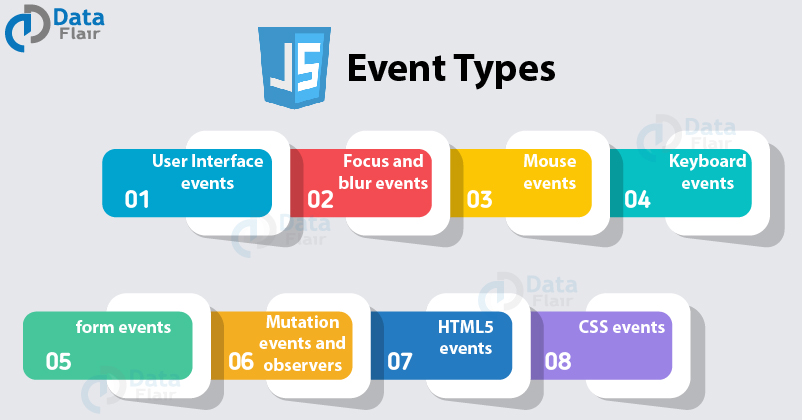
| Event | Description |
|---|---|
| onchange | An HTML element has been changed |
| onclick | The user clicks an HTML element |
| onmouseover | The user moves the mouse over an HTML element |
| onmouseout | The user moves the mouse away from an HTML element |
| onkeydown | The user pushes a keyboard key |
| onload | The browser has finished loading the page |